

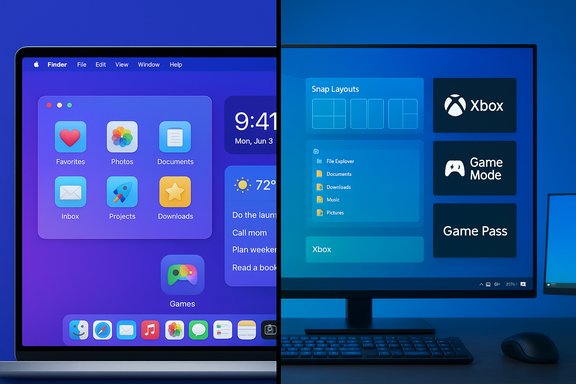
Apple’s new macOS 26 “Tahoe” brings a striking visual refresh and a raft of Apple Intelligence features — but the four headline items that made ZDNet’s checklist of “things Mac users can gloat about” aren’t as novel as they might seem: Windows has long offered comparable capabilities for window tiling, gaming hooks and performance modes, real‑time translation, and folder icon customization. The difference today is less about whether those features exist and more about how each platform packages, polishes, and positions them for ordinary users and enterprises.
Apple unveiled macOS 26 (Tahoe) at WWDC 2025 with a new “Liquid Glass” visual language, tighter iPhone‑to‑Mac continuity, a Games hub, expanded live translation and captioning, and more extensive personalization for icons and widgets. The official Apple notes emphasize Liquid Glass, on‑device Live Translation in Messages/FaceTime/Phone, and new folder customization options as headline user‑facing features. At the same time, Windows has been iterating on closely related capabilities for years — sometimes decades — and recently has leaned heavily into on‑device AI via Copilot+ PCs and system‑level features tuned for gaming and real‑time assistance. This article takes each of the four features called out in the ZDNet piece, verifies the underlying claims, compares how macOS and Windows implement them, and analyzes the practical strengths, trade‑offs, and risks for users and IT professionals.
For readers deciding between systems, the right question is not “who invented it first?” but “which approach aligns with your workflows, privacy needs, and the software ecosystem you depend on?” If you prioritize polished, integrated experiences and a consistent visual language, macOS 26’s Liquid Glass and Apple Intelligence will impress. If you need breadth, deep third‑party support, customizability, and a mature gaming stack, Windows continues to lead in practical day‑to‑day depth.
Both ecosystems are learning from each other: Apple is adding workspace and productivity features that power users have long wanted from desktops, and Microsoft is embedding more on‑device intelligence and cleaner UI patterns that appeal to mainstream users. The competitive result benefits everyone — but the details matter. Test the features on your hardware, verify language and privacy settings for AI features, and choose the platform whose tradeoffs you can live with every day.
Source: ZDNET I was jealous of MacOS 26 users, until I realized Windows PCs already had these 4 features
 Background
Apple unveiled macOS 26 (Tahoe) at WWDC 2025 with a new “Liquid Glass” visual language, tighter iPhone‑to‑Mac continuity, a Games hub, expanded live translation and captioning, and more extensive personalization for icons and widgets. The official Apple notes emphasize Liquid Glass, on‑device Live Translation in Messages/FaceTime/Phone, and new folder customization options as headline user‑facing features. At the same time, Windows has been iterating on closely related capabilities for years — sometimes decades — and recently has leaned heavily into on‑device AI via Copilot+ PCs and system‑level features tuned for gaming and real‑time assistance. This article takes each of the four features called out in the ZDNet piece, verifies the underlying claims, compares how macOS and Windows implement them, and analyzes the practical strengths, trade‑offs, and risks for users and IT professionals.1. Window tiling: familiar mechanics, evolving ergonomics
What Apple added in macOS 26
macOS 26 refines window arrangement controls and further closes the longstanding gap in native window management tooling versus Windows. Apple added more robust snapping and tiling behaviors across display sizes and the iPad, and continues to tune keyboard/drag interactions and layout presets as part of the Liquid Glass redesign. Apple’s documentation highlights new tiling and quick arrangement options alongside other productivity upgrades.Where Windows started — and where it is today
Windows’ approach to window snapping goes back to Aero Snap in Windows 7 (2009), which introduced edge‑drag maximize/half‑screen snapping and keyboard shortcuts. Microsoft evolved the model through Windows 8 and 10 (Snap Assist and quadrant tiling) and then redesigned the UX in Windows 11 with Snap Layouts and Snap Flyouts that show a grid of layout templates when you hover over the maximize button or press Windows+Z. Microsoft’s support pages and historical coverage document this trajectory from Aero Snap to the richer Snap Layouts the OS ships with today.Practical comparison: Windows vs macOS
- Interaction model: Windows shows a visual grid (Snap Flyout) when hovering the maximize button or dragging to screen edges, letting users choose layouts without precise pointer placement. macOS uses snapping and drag targets and has improved presets, but Windows’ explicit grid and keyboard shortcuts (Win+Arrow / Win+Z) tend to be faster for muscle‑memory workflows.
- Saved layouts & multi‑display behavior: Windows preserves Snap Groups and restores window sets when apps are reattached to different displays; macOS has made strides but historically relied on Spaces and mission‑control metaphors rather than recalling groups of snapped windows.
- Power‑user tooling: Microsoft’s PowerToys → FancyZones has long given advanced users programmatic layout templates beyond stock Snap Layouts; third‑party tools (Rectangle, BetterTouchTool, MacsyZones) fill gaps on macOS.
Strengths and risks
- Strength: Windows’ visual grid and Snap Groups are faster for building complex, repeatable workspaces — especially across ultrawide or multi‑monitor setups. macOS’ cleaner visuals and gestures can feel more polished for casual users.
- Risk: Automatic snapping can be disruptive on touch or pen devices if users trigger it accidentally; both platforms require discoverability work (tooltips, keyboard help) for less technical users.
- Tip: Power users craving Windows‑style tiling on macOS have historically turned to utilities like Rectangle or MacsyZones; Windows users can extend stock behaviors with FancyZones.
2. The Games hub and Game Mode: app vs ecosystem
What Apple shipped in macOS 26
Apple introduced a new Games app across macOS, iOS, and iPadOS 26 that acts as a consolidated gaming hub with Apple Arcade integration, a Library for App Store titles, social features (“Play Together”), and an overlay for settings and friends. It’s a reimagining of Game Center paired with Apple’s Metal improvements. Apple and coverage note the Games app aims to centralize discovery, library management, and social tools for players on Apple platforms.Windows’ long lead on PC gaming
Windows’ gaming story has multiple layers:- Game Mode as a system feature came with the Windows 10 Creators Update (2017) to prioritize a running game’s resources and reduce background interference. Microsoft documented Game Mode at launch and explained Game Bar integrations and game‑centric settings.
- For the ecosystem, Microsoft offers the Xbox app, Xbox Game Pass, and a mature PC gaming stack (DirectX, broad driver support, Xbox/Xbox Cloud integration, Steam/Discord/anti‑cheat ecosystems). On the desktop, many of the industry’s tools and social apps are Windows‑native.
- Community and platform metrics reinforce Windows’ dominance on PC gaming platforms like Steam (Windows accounts for roughly 95–97% of Steam users in 2025), which explains why most game developers prioritize Windows builds and optimizations.
Practical comparison: Games app vs Windows ecosystem
- Scope: Apple’s Games app is a consolidated UI for discovery and social play within Apple’s vertically integrated ecosystem. Windows does not have a single “Games app” in the same style (the Xbox app plays that role), but the Windows ecosystem’s game discovery, anti‑cheat support, modding culture, and driver optimizations provide practical advantages for high‑end and competitive gaming.
- Performance hooks: Windows provides Game Mode and GPU driver toolchains, while Apple’s Metal 4 improvements and Apple Silicon gains are closing performance gaps for certain titles; however, broad compatibility and auxiliary apps (Discord, Steam, overlays, GPU vendor tools) remain stronger on Windows.
- Strength: Windows’ open and legacy‑friendly environment offers the widest library and the most mature tooling for gamers.
- Risk for developers: Supporting macOS as a serious gaming platform requires significant rework for engines, anti‑cheat systems, and middleware; Apple’s Games app is a good UX step but not a substitute for the broader Windows ecosystem.
3. Live translation and on‑device captions: similar goals, different stacks
What Apple calls Live Translation
Apple’s Live Translation in macOS 26 is part of Apple Intelligence and delivers in‑app translated text (Messages), live caption translation in FaceTime, and real‑time spoken translation in the Phone app. Apple emphasizes on‑device models to protect privacy, handling sensitive conversations without sending audio to cloud servers. Apple’s official notes and press coverage describe these capabilities as on‑device and integrated across communication apps.What Windows provides with Copilot+ and Live Captions
Microsoft’s Copilot+ PC initiative bundles NPU‑assisted, on‑device AI features into qualifying Windows devices. A core feature is Live Captions with translation: Microsoft documents that Live Captions on Copilot+ PCs can translate audio/video into English from 40+ languages (with extended Chinese translation options), and that these capabilities can work locally on device — enabling offline workflows and better privacy guarantees depending on device configuration. Microsoft’s Copilot+ marketing pages list supported languages and emphasize on‑device translation for Copilot+ certified machines.Verification and cross‑checks
- Apple’s claim of on‑device Live Translation appears in Apple’s macOS 26 materials and press coverage; the feature set includes Messages, FaceTime, and Phone app translation and captions.
- Microsoft’s Copilot+ Live Captions language count and offline/on‑device capability are explicitly listed on Microsoft’s Copilot+ pages (Live Captions translate into English from 44 languages on some pages and “40+” elsewhere); device‑dependent behavior and NPU optimization are called out. Because Microsoft’s language matrix differs slightly across documentation and regions, it’s prudent to treat exact language counts as potentially variable across firmware and regional builds.
Strengths, limitations, and privacy trade‑offs
- Strength: Both vendors aim to place translation processing on the device to reduce cloud exposure, which improves privacy and latency for many use cases.
- Limitation: On‑device translation quality depends on model size and locale coverage; edge cases (low‑quality audio, idiomatic speech, rapid cross‑talk) still produce imperfect results and may degrade gracefully rather than replace human interpreters.
- Caution: Microsoft’s Copilot+ language lists vary slightly in different product pages and region pages; exact counts or supported language pairs should be verified on the device or official documentation at purchase time. Treat language‑count claims as device/region/build dependent unless the vendor guarantees parity.
4. Customized folder icons: cosmetic but longstanding
What macOS 26 changes
Tahoe expands personalization by letting users change folder colors, add emoji or symbols to folders, and tune icon tints to match Liquid Glass themes. It’s a visible UX tweak that many users appreciate for personal organization and aesthetic expression. Apple’s release notes and coverage highlight colorful folder tints and emoji adornments as part of the personalization story.Windows’ legacy on folder icons
Windows’ ability to customize icons stretches back many years. Long before modern GUIs, Windows allowed icon replacements and application icons; later iterations introduced desktop.ini and folder customization features in Windows 9x/NT4 and refined them under Windows 2000 and beyond. Microsoft documentation describes how desktop.ini and folder properties can be used to assign custom icons and folder descriptions, and community KB archives note icon access even in early Windows versions. In short, folder and file icon customization is far from new in Windows.Practical comparison and implications
- Real‑world impact: Icon customization is primarily cosmetic, but it’s valuable for visual scanning and small productivity gains for users who manage many folders. Both platforms now support it natively.
- Enterprise considerations: In managed Windows environments, desktop.ini‑driven customization can be scripted or deployed for standardized user experiences; macOS’s new options may take time to integrate with enterprise MDMs and asset management workflows.
- Strength: Windows’ long support gives admins scripting hooks and standard practices for predictable folder appearance; macOS’ modern UI and unified design might make personalization more discoverable to non‑technical users.
Cross‑cutting analysis: design, discoverability, and platform strategy
Polished UX vs ecosystem depth
Apple’s strengths lie in delivering a cohesive design language and making certain features feel effortlessly discoverable for average users — Liquid Glass and consistent icon tints are a case in point. Windows’ strengths come from breadth: mature developer tooling, long‑standing features (e.g., Aero Snap), and ecosystem primacy for gaming and many enterprise workloads. Both approaches have merits: Apple’s polish reduces cognitive overhead, Windows’ depth reduces friction for specialized workflows.Who benefits most from each approach?
- Creative and Apple‑centric users who prize integrated hardware/software interaction and consistent UI aesthetics will appreciate Apple’s Liquid Glass, seamless Apple Intelligence in Messages and FaceTime, and the new Phone app continuity features.
- Power users, gamers, and organizations that need flexible automation, wide third‑party compatibility, and proven administrative tooling will continue to find Windows’ mature features (Snap Layouts, Game Mode, Copilot+ device options, long‑standing icon customization) compelling. Steam platform data underscores why gaming and esports ecosystems remain Windows‑first.
Security and privacy: similar promises, different realities
Both vendors emphasize on‑device processing for sensitive AI tasks. Apple explicitly markets Live Translation as on‑device by default; Microsoft’s Copilot+ messaging also leans on local NPUs but sometimes integrates cloud features for functionality requiring larger models. Users and IT teams need to probe defaults, telemetry, and enterprise policy controls so that sensitive data isn’t unintentionally sent to the cloud. Where possible, validate per‑feature settings on a device rather than relying solely on marketing descriptions.Practical recommendations for Windows users and IT teams
- Embrace built‑in tools before third‑party apps: PowerToys’ FancyZones and Windows’ Snap Layouts meet most tiling needs; use them first to avoid third‑party compatibility issues.
- For translation and live captions, test on the target hardware: Copilot+ features rely on NPUs for offline operation. Confirm language packs and local model capabilities on the specific device before committing to an offline‑only workflow.
- If you need a unified games hub on Windows, the Xbox app + Game Pass + Steam remain the practical combo. Consider consolidating overlays (disable redundant ones) to avoid input or performance conflicts.
- For folder customization and desktop standardization in enterprises, script desktop.ini deployments or use Group Policy/MDM to maintain a consistent visual taxonomy across worker fleets. Microsoft’s documented desktop.ini approach is a robust automation point.
- Validate privacy defaults: Both macOS and Windows can ship with cloud‑assisted fallbacks. Confirm whether live translation or captioning sends audio/text to cloud services in your regional builds and for your device models.
What’s verifiable — and what to watch for
- Verifiable facts:
- The macOS 26 (Tahoe) feature set (Liquid Glass, folder customization, Games app, live translation) is documented in Apple materials and press coverage.
- Windows Snap / Aero Snap dates and behavior can be traced to Windows 7 (Aero Snap) and the later Windows 11 Snap Layouts documented by Microsoft.
- Windows Game Mode was introduced in the Windows 10 Creators Update (2017) and Microsoft documented it at launch.
- Copilot+ / Live Captions language support and on‑device translation claims are published on Microsoft’s Copilot+ pages; language counts may vary across region‑specific documents.
- Folder icon customization via desktop.ini and related shell behaviors are long‑documented in Microsoft developer resources.
- Claims that warrant caution:
- Any sweeping statement that “Windows did it first” must be qualified. For example, macOS might implement a UX in a more discoverable or aesthetically consistent way, even if Windows had the core capability earlier; speed of adoption and user exposure matter.
- Exact language counts for real‑time translation features can differ between Microsoft pages and regionally gated documentation; validate language lists on the target device or local support pages if you require a specific language pair for critical communications.
Final analysis: features are converging — but platform choices still matter
The headline lesson is pragmatic: the existence of a feature is not the whole story. Windows long had the mechanical building blocks for tiling, gaming support, live captions, and icon customization. Apple’s macOS 26 packages similar capabilities with a modern visual language and deep device continuity that, for many users, feels new. Conversely, Windows’ decades of ecosystem and tooling investment deliver practical advantages — especially for gaming, extensibility, and enterprise management.For readers deciding between systems, the right question is not “who invented it first?” but “which approach aligns with your workflows, privacy needs, and the software ecosystem you depend on?” If you prioritize polished, integrated experiences and a consistent visual language, macOS 26’s Liquid Glass and Apple Intelligence will impress. If you need breadth, deep third‑party support, customizability, and a mature gaming stack, Windows continues to lead in practical day‑to‑day depth.
Both ecosystems are learning from each other: Apple is adding workspace and productivity features that power users have long wanted from desktops, and Microsoft is embedding more on‑device intelligence and cleaner UI patterns that appeal to mainstream users. The competitive result benefits everyone — but the details matter. Test the features on your hardware, verify language and privacy settings for AI features, and choose the platform whose tradeoffs you can live with every day.
Source: ZDNET I was jealous of MacOS 26 users, until I realized Windows PCs already had these 4 features
