

Windows already includes several small, well-designed features that don’t increase clock speed or benchmarks but make the whole experience feel faster by removing friction, cutting repeated actions, and letting you stay focused on work instead of fighting the UI. These four built‑in tools — Clipboard history (Win + V), Snap layouts (Win + Z / hover maximize), Virtual desktops (Win + Tab), and File Explorer bulk rename — are among the easiest, lowest‑risk ways to make Windows feel significantly snappier in day‑to‑day use, and you don’t need any “optimizer” apps to get the gains.
Modern responsiveness is as much about workflow as it is about raw hardware. In many real‑world scenarios the time you spend re‑copying a snippet, hunting for a window, or renaming dozens of files is the thing that makes your PC feel slow — not the CPU frequency listed in a benchmarking app. Windows 10 and 11 ship with several polished features that reduce those tiny, repetitive frictions and therefore improve your perceived speed without altering hardware or installing risky third‑party “optimizer” software. These are small, built‑in productivity multipliers you can enable in minutes.
Below I summarize how each feature works, how to enable and use it, what gains you can expect, and where to be cautious. I also point toward safe in‑OS alternatives for advanced tasks so you can avoid installing unnecessary utilities.
These changes are low‑risk, reversible, and immediately productive. They won’t change CPU benchmarks, but they will change how fast you get real tasks done. For most users, building a short habit around these four features yields more practical speed in a single day than chasing minor hardware tweaks or installing questionable “optimizer” suites.
Enable the features, apply the quick checklist above, and spend the saved time on work that actually matters — that’s the real performance win.
Source: How-To Geek 4 built-in Windows features that make your PC feel faster (without "optimizers")
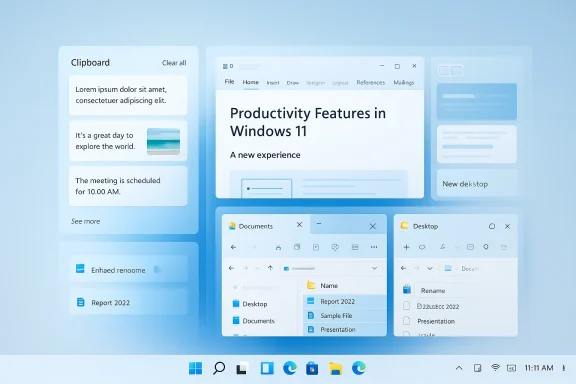 Background
Modern responsiveness is as much about workflow as it is about raw hardware. In many real‑world scenarios the time you spend re‑copying a snippet, hunting for a window, or renaming dozens of files is the thing that makes your PC feel slow — not the CPU frequency listed in a benchmarking app. Windows 10 and 11 ship with several polished features that reduce those tiny, repetitive frictions and therefore improve your perceived speed without altering hardware or installing risky third‑party “optimizer” software. These are small, built‑in productivity multipliers you can enable in minutes.Below I summarize how each feature works, how to enable and use it, what gains you can expect, and where to be cautious. I also point toward safe in‑OS alternatives for advanced tasks so you can avoid installing unnecessary utilities.
Clipboard history: stop re‑copying the same things
What it does and why it matters
Windows’ Clipboard history converts the clipboard from a single‑item tool into a short‑term memory. Instead of copying one item, pasting it, and losing it when you copy the next thing, Clipboard history keeps a rolling list of recent items you can summon with Win + V. For people who frequently move links, paragraphs, filenames, and small images between apps, that single change eliminates dozens of repetitive copy/paste cycles and can feel like doubling your speed for many writing and research tasks.How to enable and use it
- Open Settings → System → Clipboard and toggle Clipboard history on.
- Use Win + V to open the clipboard manager and pick any recent entry to paste.
- The history holds a fixed number of items — Windows keeps the most recent entries (the UI shows up to 25 by default) and discards older ones as new items are added.
Practical benefits
- Saves time when composing emails, writing documentation, or moving bits of text between apps.
- Reduces context switching by keeping commonly reused snippets instantly available.
- Works immediately with no installation or configuration.
Privacy and safety considerations
- Clipboard history stores text and images locally; if you enable Sync across devices you’ll push clipboard items to other Windows devices signed into the same Microsoft account. That convenience can expose sensitive data (passwords, tokens, bank details) to other devices if you’re not careful — treat the sync option like a convenience that should be used only on trusted, personally controlled machines.
- You can clear the clipboard or remove individual items from the Win + V UI at any time; consider clearing the history before handing your device to someone else.
When it’s not enough
- If you need advanced clipboard features — named snippets, robust search, persistent categories, or encrypted sync to mobile platforms — a purpose‑built clipboard manager adds power. But for the majority of users, Windows’ built‑in clipboard history is a zero‑cost win that removes a lot of small, daily friction.
Snap layouts: put windows where they belong in seconds
The problem Snap layouts solve
Manual window arrangement (drag, resize, nudge, repeat) becomes a surprisingly large time sink when you regularly juggle multiple apps. Snap layouts convert arrangement from a fiddly set of mouse maneuvers into a two‑click operation: choose a layout, then drop apps into slots. The net effect is fewer interruptions and faster context switching.How to trigger and use Snap layouts
- Hover your mouse over the maximize button of a window or press Win + Z to open the Snap layouts overlay.
- Pick a layout (side‑by‑side, three columns, grid, etc.) and click the slot to snap the active window there. Windows will offer thumbnails of open apps for other slots.
- For deeper settings, open Settings → System → Multitasking to customize snap behavior, spacing and how windows resize.
Why it feels faster
- Setup time: creating a working layout goes from minutes to seconds.
- Predictability: once you rely on a few favorite layouts, switching between contexts becomes muscle memory.
- Reduced micro‑interruptions: less time spent wrestling with window edges and more time using apps.
Multi‑monitor and power‑user notes
- Snap layouts are excellent for single‑monitor and standard multi‑monitor setups, but heavy multi‑display power users sometimes prefer dedicated window managers (e.g., DisplayFusion) for scripting, monitor profiles, or per‑monitor taskbars. If Snap layouts feel limited, these third‑party tools provide more control, but they’re optional — Snap layouts cover 80% of common scenarios quickly and reliably.
Caveats
- Not every app behaves perfectly with snapping (legacy apps with custom window code, some games, and certain UWP apps may not obey expected constraints).
- If you want automations like “snap this app to the left monitor only when external monitor attached,” you’ll need a more advanced tool — but for most day‑to‑day tasks, Windows’ built‑in Snap layouts are fast, consistent, and zero‑cost.
Virtual desktops: reduce visual noise by separating tasks
Why virtual desktops improve perceived speed
When the desktop is cluttered with dozens of windows, the time lost hunting for the window you need adds up. Virtual desktops let you create isolated workspaces — for example, one for writing, one for communications, and one for media — so each space has fewer windows and less visual noise. Switching desktops restores context in a heartbeat and reduces the number of clicks spent searching.How to use them
- Press Win + Tab to open Task View and click New desktop to create additional desktops.
- Switch desktops with Win + Tab or Ctrl + Win + Left/Right Arrow.
- You can move apps between desktops in Task View and even set different wallpapers to visually distinguish spaces.
Best practices
- Keep a mental mapping (or a simple naming scheme) for each desktop: “Work,” “Slack & Mail,” “Reference,” “Entertainment.” Short, consistent labels reduce cognitive load when you switch.
- Put full‑screen, distracting apps (chat, social, video) on a separate desktop so incoming notifications don’t pull you back into a different context.
- Combine with Snap layouts: each virtual desktop can have its own snapped layout for a repeatable workspace pattern.
Limitations and potential friction
- Notifications and certain background tasks are global; you’ll still receive message popups and alerts across desktops, so this isn’t an absolute isolation tool.
- Users unfamiliar with the paradigm can lose track of where a window lives; a quick Win + Tab glance resolves most confusion, but the technique benefits from a short learning curve.
Batch rename in File Explorer: quick cleanup without extra tools
The value of small automation
Renaming dozens of files one at a time is busywork. Windows’ built‑in batch rename in File Explorer is deceptively simple but very effective for everyday tasks: select a group of files, press F2 or choose Rename from the context menu, give the base name, and Windows will apply a numeric suffix to each item. For photographers, researchers, or anyone who frequently cleans up downloads, that single trick turns minutes of tedium into seconds.When to use File Explorer’s rename vs. a dedicated tool
- Use built‑in batch rename for: quick, linear renames (Photo 1.jpg → Vacay 1.jpg), small sets of files, and when you don’t need complex patterns.
- Use PowerRename (part of Microsoft PowerToys) or third‑party tools like ReNamer when you need:
- Search/replace across filenames.
- Regular expressions or tokenized metadata insertion.
- Previews, reversible operations, and advanced sorting options.
Safety tips
- Always verify a small sample before applying a rename to hundreds of files.
- If your workflow depends on original filenames (imported catalogs, references), back up the folder or copy filenames to a CSV before renaming so you can restore them if needed.
- For surgical renames (dates, camera metadata), use tools that show a live preview and support undo. PowerRename in PowerToys is free and integrates well with File Explorer for advanced cases.
How these additions combine to speed you up in practice
Making your PC “feel faster” isn’t about a single magical setting; it’s about accumulating small reductions in friction until the average task completes noticeably more quickly. Here’s a practical flow that uses the four features above to save time during a typical knowledge‑work session:- Create a dedicated virtual desktop for research and writing. (Virtual desktops.)
- Use Snap layouts to position a browser and a document side‑by‑side. (Snap layouts.)
- Use Clipboard history to copy multiple snippets — quotes, links, and filenames — and paste them without toggling between apps. (Win + V.)
- After the session, tidy downloaded images or exported files with a quick bulk rename to reflect the project. (File Explorer batch rename or PowerRename for complex patterns.)
Critical analysis — strengths, limits, and potential risks
Strengths
- Low friction, high payoff. These features are built into the OS, require no installs, and are reversible. You can enable Clipboard history, start using Win + V, and immediately get value with no configuration.
- Cross‑device continuity (optional). Clipboard sync can help users who work across multiple Windows machines — a genuine productivity boost for many remote and hybrid workflows.
- Composability. The features play well together (snap a browser, use virtual desktops, paste from clipboard history), producing larger gains than any single setting alone.
Limits
- Not a substitute for hardware upgrades. If your system is CPU‑bound or swapping heavily because it lacks RAM, these features won’t change raw throughput; they only reduce task overhead and repetitive actions. For heavy workloads, SSDs and more RAM are still the biggest single investments in perceived speed.
- Feature edge cases. Some legacy apps don’t snap well; certain multi‑monitor profiles are better handled by third‑party apps; large, complex renames require PowerRename or specialized renamers for safety and flexible patterns. These are not failures of the built‑in tools but natural limits of a general‑purpose OS.
Risks and cautions
- Clipboard sync and sensitive data. Enabling cross‑device clipboard sync sends clipboard contents to other Microsoft‑signed devices. Avoid syncing when you paste secrets or use it only on devices you fully control. Clear sensitive items from the Win + V history immediately after use.
- Accidental bulk actions. Batch renaming is fast but final if you don’t have backups. Take a quick copy of filenames or test on a small subset before committing to hundreds of changes. Use PowerRename for pattern previews and undo where possible.
- Overreliance on defaults. Microsoft’s defaults aim for broad compatibility and convenience, not absolute minimal latency. If you have specific demands — e.g., gaming with pro‑level display setups or monitor‑specific automation — be prepared to layer a trusted third‑party tool (DisplayFusion, specialized clipboard managers) for advanced control. But start with the built‑ins — they solve most everyday problems.
Quick setup checklist — make your PC feel faster in under five minutes
- Settings → System → Clipboard → Turn on Clipboard history. Use Win + V to confirm it works.
- Hover the maximize button or press Win + Z while an app is focused to try Snap layouts; pick a side‑by‑side layout and place two apps.
- Press Win + Tab and add a new desktop; move your communication apps to a separate desktop and try switching with Ctrl + Win + Left/Right.
- In File Explorer, select files, press F2, and issue a bulk rename; for more control, install Microsoft PowerToys and use PowerRename.
When to reach for third‑party tools
Built‑in Windows features cover the common 80% of use cases. You might add third‑party tools when:- You need persistent, named snippets and encrypted cross‑platform clipboard sync (third‑party clipboard managers).
- You require scripted window placement, per‑monitor profiles, or advanced monitor management (DisplayFusion, Autosplitter scripts for multi‑monitor power users).
- You perform complex file renames with regular expressions and want detailed previews and rollback support (ReNamer, or PowerToys’ PowerRename for many patterns).
Final verdict: optimize your workflow, not the clock speed
If your goal is a PC that feels faster in daily work — fewer interruptions, fewer repeated actions, faster context switches — start by mastering what Windows already gives you. Clipboard history, Snap layouts, Virtual desktops, and the File Explorer batch rename are tiny, trusted tools that shave minutes off repetitive workflows and multiply into significant time savings across a week.These changes are low‑risk, reversible, and immediately productive. They won’t change CPU benchmarks, but they will change how fast you get real tasks done. For most users, building a short habit around these four features yields more practical speed in a single day than chasing minor hardware tweaks or installing questionable “optimizer” suites.
Enable the features, apply the quick checklist above, and spend the saved time on work that actually matters — that’s the real performance win.
Source: How-To Geek 4 built-in Windows features that make your PC feel faster (without "optimizers")
