

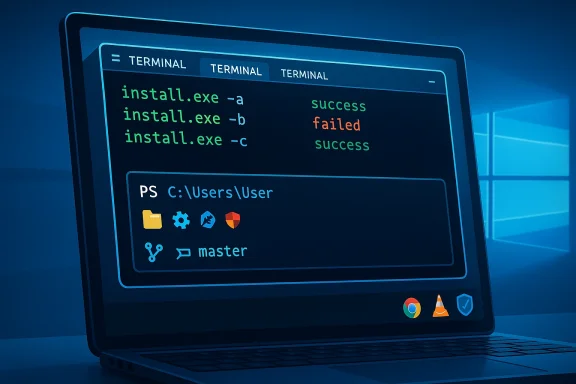
The command line still has a reputation problem on Windows, but in 2026 that reputation is increasingly out of date. A few carefully chosen tools can turn the terminal from a developer-only space into a practical, everyday control center for installing apps, reading files, tracking changes, and navigating your PC faster than a mouse-heavy workflow. The trick is not learning everything at once; it is building a small, comfortable setup that makes Windows feel more direct, more readable, and far less fragile.
Background — full context
For most people, the phrase “command line” still conjures up a black window, cryptic syntax, and the fear of making a mistake. That reaction made sense for years because the default Windows experience did little to soften the edges. Command Prompt was functional but primitive, and even PowerShell—while vastly more capable—often looked and felt like a tool designed for automation rather than for daily use.The modern Windows command-line story changed when Microsoft shifted from treating the terminal as a legacy utility to treating it as a platform. Windows Terminal is the clearest sign of that shift. Microsoft describes it as a modern host for shells such as Command Prompt, PowerShell, and bash via WSL, with multiple tabs, panes, GPU-accelerated text rendering, Unicode support, and deep customization options. In practice, that means the terminal stops being a single-purpose window and becomes a workspace you can shape around how you actually operate. (learn.microsoft.com)
That matters because the best “power user” tools are not the ones with the most features; they are the ones that reduce friction in the small, repetitive moments that eat time. Launching a browser, finding a download page, clicking through installers, checking whether a file changed, or hunting for the right folder all add up. The appeal of tools like WinGet, Oh My Posh, and Git is that they trim those routines down to a few consistent commands. Microsoft’s own Windows Package Manager documentation frames WinGet as a way to discover, install, upgrade, remove, and configure applications from the command line. (learn.microsoft.com)
Oh My Posh occupies a different part of the problem. It does not install apps or move files. Instead, it makes the shell itself easier to read and understand by enriching the prompt with contextual information like the current folder and Git status. The project’s official site describes it as a prompt engine with themes and intelligent segments, designed to surface relevant context without forcing you to ask for it. That may sound cosmetic, but for day-to-day use, readability is productivity. (ohmyposh.dev)
Git, meanwhile, remains the most misunderstood tool in this group. It is commonly taught as “the thing developers use on GitHub,” but at its core it is simply version control: a way to track what changed, when it changed, and how to roll back if something breaks. That is useful for scripts, notes, configs, and any folder where you want a safety net. It is also one of the few tools that can make a Windows setup feel more trustworthy, because it lowers the cost of experimentation. (learn.microsoft.com)
Taken together, these tools do something subtle but important: they replace friction with repeatability. Windows Terminal gives you a better workspace. WinGet automates app setup. Oh My Posh makes the prompt informative instead of sterile. Git provides version history and recovery. And when you add a viewer like bat for fast file inspection, the whole workflow becomes more immediate, less modal, and much less dependent on clicking through layers of UI just to get something basic done.
Windows Terminal: the foundation that changes the feel of Windows
Windows Terminal is the right starting point because it changes the experience before you learn a single new command. Microsoft’s documentation highlights support for multiple profiles, tabs, panes, Unicode and UTF-8, tab tearout, and GPU-accelerated rendering. That combination matters because the old terminal experience felt like a system utility; the new one feels like an app you actually want open. (learn.microsoft.com)Why the default shell window is no longer enough
The standard console experience on Windows is technically capable, but it was never designed around comfort or spatial awareness. When you are juggling a shell, a log, a second shell, and maybe documentation in another window, the old model becomes clumsy fast. Windows Terminal solves that by making tabs and panes feel first-class rather than bolted on. Microsoft even documents command-line arguments for launching specific profiles, folders, and pane layouts, which makes it practical for repeatable workflows. (learn.microsoft.com)What makes Terminal genuinely useful
A few features do most of the heavy lifting:- Multiple shells in one place: PowerShell, Command Prompt, WSL distributions, and other CLI apps can coexist in a single window. (learn.microsoft.com)
- Panes: Keep logs, prompts, and monitoring tasks visible at once instead of hopping between windows. (learn.microsoft.com)
- Better rendering: GPU-accelerated text is not flashy, but it improves readability and responsiveness. (learn.microsoft.com)
- Custom tab titles: Useful when you are working in several folders or shells at the same time. (learn.microsoft.com)
- Theme and appearance controls: Important when you spend hours in a shell and need the interface to stay legible. (learn.microsoft.com)
A practical way to think about it
Windows Terminal is not about becoming “a terminal person.” It is about making the terminal feel less hostile. A readable prompt, useful tabs, and an efficient split-pane layout remove a lot of hesitation. Once that happens, the rest of the workflow—package installs, prompt customization, file inspection, Git—starts to feel manageable rather than specialized.WinGet: install and manage apps without the scavenger hunt
If Windows Terminal is the foundation, WinGet is the first tool that delivers an obvious payoff. Microsoft describes WinGet as a command-line tool for discovering, installing, upgrading, removing, and configuring applications on Windows. It is part of the Windows Package Manager ecosystem and is available through App Installer on supported Windows versions. (learn.microsoft.com)Why WinGet matters on a fresh PC
A new PC setup often turns into a tedious loop: open browser, search for app, find the official site, click download, run installer, accept prompts, repeat. WinGet compresses that into a single repeatable pattern. Microsoft explicitly documents command usage likewinget search and winget install, and notes that configuration files can consolidate device setup steps into a reliable, repeatable command sequence. (learn.microsoft.com)The value is consistency, not novelty
WinGet is useful because it normalizes app installation. That means:- One tool for many installations instead of many websites. (learn.microsoft.com)
- Repeatable setup for new machines. (learn.microsoft.com)
- Scripting potential when you want your setup process to be reusable. (learn.microsoft.com)
- Management beyond install: upgrade, remove, and configure are part of the same workflow. (learn.microsoft.com)
A few examples of a sane starter install list
For a typical Windows power-user setup, the list often includes:- 7-Zip for archives
- VLC for media
- Google Chrome or another browser
- Git for version control
- Slack or Teams if you use work messaging
- Spotify or similar utility apps
- Developer tools or editors you rely on daily
Why this feels better than “app stores”
WinGet sits in a useful middle ground. It is not limited to one storefront, and it is not a manually curated personal script that only you understand. Microsoft’s docs position it as a client for the broader package-manager system, which is why it scales from casual use to repeatable setup work. (learn.microsoft.com)Oh My Posh: make the prompt useful instead of plain
A shell prompt can be either a blank cursor or a compact dashboard. Oh My Posh pushes PowerShell and other shells toward the second option. The project describes itself as a fast prompt engine with themes and intelligent segments, including Git status, cloud info, language versions, and more. (ohmyposh.dev)Why prompt design matters more than it sounds
Most people underestimate the prompt because they think of it as decoration. In practice, the prompt is the interface you see most often while working in the terminal. If it is visually confusing, you lose time re-parsing context. If it tells you where you are, what branch you are on, and whether a repo is dirty, you avoid mistakes. That is not cosmetic. That is cognitive load reduction.What Oh My Posh adds
Oh My Posh can surface information such as:- Current directory
- Git branch and repository state
- Language/runtime versions
- Cloud and environment context
- System details
- Theme-based visual cues (ohmyposh.dev)
The tradeoff is setup and restraint
There is a small setup cost, and not every theme is sensible. Some are too dense. Some are too colorful. Some are better suited for screenshots than for real work. The goal is not to turn the terminal into a neon arcade cabinet. The goal is to make the prompt informative enough that you rarely have to ask “where am I and what state am I in?”Why it pairs especially well with Windows Terminal
Windows Terminal handles the frame; Oh My Posh handles the prompt inside it. Together they make the shell feel coherent. Terminal gives you tabs, panes, and readability. Oh My Posh gives you immediate context. That combination is what makes the command line stop feeling like a challenge and start feeling like a workspace.Git: not just for developers, and not just for code
Git is often introduced as source control for software teams, but that undersells its everyday usefulness. Git gives any folder a version history, which means you can save snapshots, compare changes, and recover from mistakes. Microsoft documentation around the Windows Package Manager repo even showsgit commit in the context of submission workflows, which is a good reminder that Git is a general-purpose change tracker, not a niche programmer-only artifact. (learn.microsoft.com)The simplest possible mental model
Think of Git as a safety net for folders.- You make changes.
- You snapshot them.
- You can inspect the difference later.
- You can go back if needed.
- PowerShell profiles
- Configuration folders
- Notes and writing projects
- Scripts and automation files
- Documentation drafts
- Experimental settings you may want to reverse
Basic commands that are enough to start
A beginner-friendly workflow is small and stable:git initto begin tracking a foldergit statusto see what changedgit addto stage changesgit commit -m "message"to save a snapshot
Why Git feels especially helpful on Windows
Windows users often store a lot of “important but informal” stuff in folders without version history: scripts, registry tweaks, config files, setup notes, automation snippets, and reusable task lists. Git is ideal there because it adds accountability without much overhead. It is the difference between hoping you remember what changed and actually knowing.Good habits for non-developers
- Commit before trying a risky edit.
- Keep messages short but descriptive.
- Use it on small config folders first.
- Treat it as a backup of change history, not a replacement for backups.
- Keep unrelated experiments in separate folders.
bat: a small tool that fixes a daily annoyance
One of the most underrated Windows frustrations is how often you open a text file just to glance at it. The default instinct is still to launch Notepad or another editor, even when you only need a quick read. bat solves that by letting you view files in the terminal with syntax highlighting, line numbers, and cleaner formatting. That makes logs, configs, and scripts much easier to scan. (ohmyposh.dev)Why file viewing deserves an upgrade
Reading plain text is not the same as editing it. In a lot of cases you do not need a full editor—you need a fast preview. bat fits that gap elegantly.- Logs are easier to scan
- Code and scripts are easier to inspect
- Config files are less intimidating
- Line numbers help you orient yourself
- Syntax highlighting makes structure clearer
Where bat fits in the workflow
bat is best used as a viewer, not a replacement for a text editor. That distinction is important. If you want to edit a file, use Notepad, Notepad++, or VS Code. If you want to inspect it quickly without breaking your flow, bat is better. It keeps you in the terminal, where context already lives.The broader point
Small tools like bat matter because they remove unnecessary context switches. It is one less reason to leave Terminal. It is one more reason to trust the command line as a place where you can actually get work done.Putting the stack together: a practical Windows power-user baseline
The real value of these tools appears when they are used as a stack rather than as isolated utilities. Windows Terminal gives you a better environment. WinGet gets the apps onto the machine. Oh My Posh makes the prompt readable. Git creates a history of your changes. bat makes file inspection faster. That combination does not just improve one task; it changes the overall shape of Windows use. (learn.microsoft.com)A sensible order of adoption
If you want the lowest-friction path, start here:- Install Windows Terminal
- Install WinGet-supported tools
- Set up Oh My Posh
- Install Git
- Add bat for faster file viewing
What a starter command-line workflow can look like
- Open Windows Terminal
- Use WinGet to install your tools
- Configure Oh My Posh in your PowerShell profile
- Initialize Git in folders you want to protect
- Use bat to inspect files without opening an editor
Why this is approachable for non-experts
The important thing is that none of these tools requires a personality change. You do not need to become “a terminal user.” You just need to make a few repetitive tasks less annoying. That is the real power-user trick: it is not about complexity; it is about eliminating unnecessary friction.The setup path: how to make it feel simple
A lot of people bounce off the command line because they try to adopt too much too fast. The better approach is to make each tool earn its place. Microsoft’s documentation for Windows Terminal and WinGet supports that incremental model, because both tools are explicitly designed around everyday use and repeatable workflows. (learn.microsoft.com)Start with the shell experience
Begin by making the terminal window itself comfortable.- Pick Windows Terminal as your default
- Use a readable font and colors
- Keep one or two useful profiles visible
- Learn pane splitting before memorizing complicated commands
Then automate installation
Use WinGet as the main way to install your commonly used apps. That way your machine setup becomes reproducible, and your next PC is easier than the last one. Microsoft’s docs emphasize discovery, install, upgrade, remove, and configuration as part of the same ecosystem, which is exactly the kind of repeatability power users want. (learn.microsoft.com)Then make the prompt informative
Oh My Posh is most valuable when it stays helpful rather than decorative. Choose a theme that gives you useful signal without crowding the screen. The official project emphasizes intelligent segments and multi-shell compatibility, so you can keep the same general approach across environments. (ohmyposh.dev)Then protect your folders
Use Git on the folders that matter most: scripts, configs, notes, and settings. You do not need to turn every directory into a repo. A few well-chosen ones are enough to make a difference.Then shave off tiny annoyances
bat is the kind of utility that seems optional until you use it regularly. Once it is part of the routine, you stop wasting time opening files just to read them.Strengths and Opportunities
The strength of this setup is that it favors leverage over learning burden. Each tool solves a common problem in a way that scales.- Windows Terminal makes the shell comfortable and modern. (learn.microsoft.com)
- WinGet removes the manual install loop. (learn.microsoft.com)
- Oh My Posh makes context visible at a glance. (ohmyposh.dev)
- Git adds history and rollback for ordinary folders. (learn.microsoft.com)
- bat improves quick file reading. (ohmyposh.dev)
Risks and Concerns
The main risk is overcomplication. It is easy to pile on too many tools, themes, and customizations until the environment becomes fragile instead of helpful.- Too many prompt segments can make Oh My Posh noisy.
- Too much automation can obscure what is happening during installs.
- Git confusion can create anxiety if you treat it like magic instead of a history tool.
- Terminal first habits may feel alien if you are not used to command-line navigation.
- Mistyped commands can still cause real mistakes, especially when you start experimenting.
What to Watch Next
Windows is continuing to move toward a more terminal-friendly future, and that matters for the long term. Microsoft’s own documentation and recent product direction suggest that the command line is no longer treated as a leftover interface but as a serious control surface. Windows Terminal continues to be developed as a modern host, WinGet remains central to package management, and the broader ecosystem keeps adding ways to do more without relying on manual clicks. (learn.microsoft.com)A few things are worth watching:
- Better default app management through command-line workflows
- More polished terminal personalization
- Improved package availability and repeatable setup
- Greater adoption of Git for non-code folders
- More “small utility” tools that reduce the need for GUI detours
None of these tools is mandatory, and that is part of the appeal. You can adopt them one by one, keep only what helps, and stop whenever the setup feels good enough. But even a minimal combination of Windows Terminal, WinGet, Oh My Posh, Git, and bat changes the character of Windows in a way that is hard to ignore. It makes the system faster to set up, easier to read, safer to modify, and more pleasant to live in—and for most power users, that is exactly the point.
Source: howtogeek.com Want to set up Windows like a power user? Start with these 4 tools
Last edited:
