

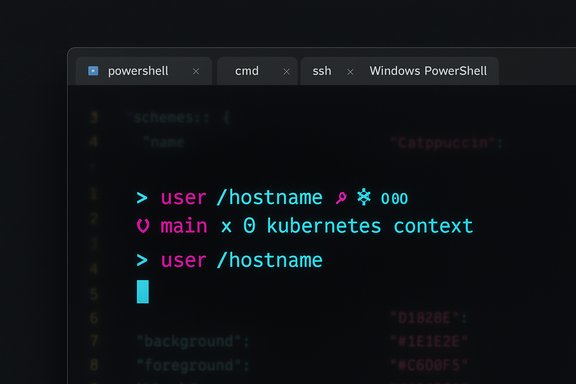
I gave my Windows Command Prompt the full “pimp my ride” treatment and the result is a Terminal that’s not only prettier, it’s considerably more useful — a far cry from the old monochrome CMD window and a clear reminder that the command line can be both productive and delightful.
Windows Terminal has matured from a basic console window into a modern, tabbed terminal emulator that supports PowerShell, Command Prompt (CMD), WSL, and other shells in a single app. It exposes profile appearance settings, JSON-side configuration for color schemes and fonts, and GPU-accelerated text rendering — features that make visual theming and prompt engines a natural fit for Windows-first command-line users. At the same time, cross-shell prompt engines such as Oh My Posh (created by Jan De Dobbeleer) have grown from PowerShell-only toys into full-featured prompt systems that run across shells and platforms. Oh My Posh acts as a prompt engine — it composes and styles your prompt, injects icons, shows VCS (Git) status, and can surface tool-specific context (Kubernetes context, AWS profile, Docker context, active virtualenvs, and more). The tool is installed and configured in minutes on modern Windows using the Windows Package Manager (winget), which explains why casual guides — including the one you shared — make it appear deceptively fast to adopt.
That is the official install instruction from the Oh My Posh documentation. After installation, run
Add an init line to the end of the file. The simplest approach uses the bundled theme:
If you want a named theme — for example the built-in “jandedobbeleer” — specify it explicitly:
Reload your profile or restart Terminal to see the changes. The Oh My Posh docs describe the same workflow and emphasize creating the profile if it doesn’t exist and possibly adjusting PowerShell execution policy if scripts are blocked. Security note: adding commands to
Then add an alias to your profile:
Run
Or use the
If you follow the checklists above and heed the security and performance notes, you’ll end up with a Windows Terminal that’s both attractive and seriously useful — exactly what modern shell users want: a low-distraction workspace that still gives you the contextual signals you need to stay productive.
Source: XDA I gave Windows Command Prompt the "Pimp my Ride" treatment and it's so much fun now
 Background
Windows Terminal has matured from a basic console window into a modern, tabbed terminal emulator that supports PowerShell, Command Prompt (CMD), WSL, and other shells in a single app. It exposes profile appearance settings, JSON-side configuration for color schemes and fonts, and GPU-accelerated text rendering — features that make visual theming and prompt engines a natural fit for Windows-first command-line users. At the same time, cross-shell prompt engines such as Oh My Posh (created by Jan De Dobbeleer) have grown from PowerShell-only toys into full-featured prompt systems that run across shells and platforms. Oh My Posh acts as a prompt engine — it composes and styles your prompt, injects icons, shows VCS (Git) status, and can surface tool-specific context (Kubernetes context, AWS profile, Docker context, active virtualenvs, and more). The tool is installed and configured in minutes on modern Windows using the Windows Package Manager (winget), which explains why casual guides — including the one you shared — make it appear deceptively fast to adopt. Overview: What the XDA How‑To Covers (short summary)
The XDA walkthrough the user provided shows a compact, practical flow for making the Windows Terminal experience visually rich:- Choose or import a Windows Terminal color scheme (paste JSON into the Terminal settings "schemes" array).
- Install a patched developer font from the Nerd Fonts family (e.g., CaskaydiaCove Nerd Font Complete) so icons and glyphs render correctly.
- Install Oh My Posh via winget and initialize it in your PowerShell profile so it becomes your prompt engine.
- Optionally install a small system-info script (Winfetch / pwshfetch) and alias it for a “Linux-like” neofetch experience in PowerShell.
Why Oh My Posh: more than just eye candy
What Oh My Posh actually does
- Custom prompt rendering: Oh My Posh builds the prompt string using configurable segments and templates so you get icons, colors, and information where you want it.
- Context awareness: It can show Git status (branch, ahead/behind markers), Kubernetes context/namespace, active Python/Node environments, Docker context, and cloud profile/region information — useful cues that save context-switching.
- Cross-shell support: Works with PowerShell, CMD, bash, zsh, fish and other shells, which makes it a portable improvement for developers who use different environments.
Why it matters day-to-day
The prompt is the one UI element you look at constantly when working in a terminal. A richer, context-aware prompt reduces cognitive load: instead of running a Git status or peeking at a dashboard, you see whether the repo is clean, whether you’re on a risky branch, which cluster is active, and whether your virtualenv is set — all at a glance. That combination of visual cues and automation is what turns “bling” into productivity.Step-by-step: verifying and hardening the XDA recipe
Below is a compact, verified sequence you can follow. Each important command or step is backed by official docs or canonical project pages.1) Pick and install a color scheme for Windows Terminal
- Windows Terminal stores color schemes in settings.json under the "schemes" array. Many community theme repos provide JSON snippets you can paste directly into that array. The Catppuccin family and similar projects show the standard workflow: open Terminal Settings → Open JSON file → paste the theme object into "schemes" and then select it in your Profile → Appearance → Color scheme.
2) Install a Nerd Font (why and what)
Oh My Posh and modern theme packs rely on special glyphs and icons that are not in standard programming fonts. Nerd Fonts maintains patched variants of popular coding fonts (Cascadia, Fira Code, JetBrains Mono, etc. that include these glyphs. If you don’t install a Nerd Font first, many icons will render as empty boxes.- The practical choice suggested in the XDA piece is CaskaydiaCove Nerd Font (Cascadia patched) — a popular patched version of Cascadia. Install the Complete Windows Compatible ttf set for best results, then restart Windows Terminal and select that font in Profile → Appearance. Community tooling and distro packages (Homebrew, Scoop, Arch) commonly package these fonts, and the Nerd Fonts project documents multiple install methods.
3) Install Oh My Posh with winget (official command)
The recommended Windows install using the Windows Package Manager is:winget install JanDeDobbeleer.OhMyPosh --source wingetThat is the official install instruction from the Oh My Posh documentation. After installation, run
oh-my-posh to verify the binary is present. If winget or your environment prohibits this, Oh My Posh also supports manual downloads, Chocolatey, Scoop, and other installers. The docs include alternatives and update instructions. 4) Initialize Oh My Posh in PowerShell
Open your PowerShell profile (create it if missing) with:notepad $PROFILEAdd an init line to the end of the file. The simplest approach uses the bundled theme:
oh-my-posh init pwsh | Invoke-ExpressionIf you want a named theme — for example the built-in “jandedobbeleer” — specify it explicitly:
oh-my-posh --init --shell pwsh --config "jandedobbeleer" | Invoke-ExpressionReload your profile or restart Terminal to see the changes. The Oh My Posh docs describe the same workflow and emphasize creating the profile if it doesn’t exist and possibly adjusting PowerShell execution policy if scripts are blocked. Security note: adding commands to
$PROFILE is common but not risk-free — always review the installed binary’s path and checksum if you’re in a security-sensitive environment. For corporate users, use signed releases or internal packaging.5) Optional: Winfetch (neofetch-style system info)
If you want a colorful system-info splash like Linux’s neofetch, you can install Winfetch (a PowerShell-based utility) from the PowerShell Gallery:Install-Script -Name pwshfetch-test-1Then add an alias to your profile:
Set-Alias winfetch pwshfetch-test-1Run
winfetch to show system stats. The PowerShell Gallery hosts the pwshfetch-test-1 package (the Winfetch script), and typical guides use the same steps. Customization and theming: deeper options
Themes, segments and scripting
Oh My Posh supports JSON configuration files that compose segments — each segment can be a simple label or a small script that queries external command output. You can:- Use built-in themes or point the
--configflag at a URL or local JSON file. - Add segments that show battery, time, local weather, Spotify track metadata, or custom job statuses. Because segments are scriptable, you can extend them to display practically anything that’s available from a command-line API.
Community themes and inspiration
There are dozens of community themes and theme collections that target different aesthetics (minimal, powerline-style, icon-rich neon themes). If you don’t see what you like, clone a theme and tweak colors, glyphs, or segment order. The Oh My Posh repo and community resources are a good starting point.Benefits — productivity wins and psychological effects
- Fewer distractions: A single, well‑designed terminal window reduces clutter. Tabs and profiles keep contexts separate.
- Immediate status: Seeing Git branch, dirty state, and remote sync status in the prompt saves time and reduces mistakes (like pushing on the wrong branch).
- Fewer GUI switches: When your prompt shows which Kubernetes context is active or which AWS profile is in use, you avoid switching to a GUI console for simple checks.
- Personal comfort: Visual affordances like color and icons can reduce fatigue and make the terminal fun, improving focus for those who prefer keyboard-first work.
Risks, gotchas, and hardening advice
1) Execution policy and unsigned scripts
PowerShell’s default execution policy can block script execution. Oh My Posh’s installer and some third‑party installers may prompt changes or require you to evaluate a script in$PROFILE. For safety, prefer signed packages, or set least-privilege execution policy changes only for the current process:Set-ExecutionPolicy -ExecutionPolicy RemoteSigned -Scope CurrentUserOr use the
--eval flag that evaluates the prompt at init time (this is slower but avoids dropping scripts on disk). Oh My Posh docs explain these options. 2) Winget package provenance
winget installs packages from registered sources. Verify package ownership (JanDeDobbeleer for Oh My Posh) and check the package manifest if you are in a regulated environment. Usewinget show JanDeDobbeleer.OhMyPosh to inspect the package metadata before installing. The Oh My Posh docs also list Chocolatey and Scoop as alternatives. 3) Font licensing and redistribution
Nerd Fonts aggregates and patches fonts that are under varying licenses (OFL, MIT, etc.. For personal use there is no issue, but redistributing patched fonts as part of a product or theme package requires checking the original font’s license. Nerd Fonts provides a license audit in its repo for details.4) Performance
Oh My Posh is designed to be fast, but adding many segments that run heavy commands on each prompt (e.g., scanning packages, running slow cloud API calls) will slow your shell. Use caching segments or make network queries asynchronous where possible. The docs and community guides show strategies for balancing information richness and responsiveness.5) WSL/Windows interoperability
Running the Windows binary version of Oh My Posh in WSL is possible, but you’ll often get better performance and compatibility by installing the Linux/native version inside WSL. Community threads and the Oh My Posh team advise native installs for shell integration.Practical customization checklist (copy-and-run friendly)
- Install Windows Terminal (Microsoft Store) and open Settings → Open JSON file.
- Paste a theme object into the "schemes" array (choose a theme JSON from a community repo).
- Install a Nerd Font (example: CaskaydiaCove Complete Windows Compatible). Restart Terminal and choose that font in Profile → Appearance.
- Install Oh My Posh:
- Run:
winget install JanDeDobbeleer.OhMyPosh --source winget. - Edit PowerShell profile:
notepad $PROFILE- Add:
oh-my-posh init pwsh --config 'jandedobbeleer' | Invoke-Expression(oroh-my-posh init pwsh | Invoke-Expression) and save. - (Optional) Install Winfetch:
Install-Script -Name pwshfetch-test-1and add aliasSet-Alias winfetch pwshfetch-test-1to profile. Runwinfetchto check.
Advanced notes for tweak‑heads
Creating and sharing a theme
Oh My Posh accepts local files, remote URLs, or named theme pointers. Use the--config flag with either a local path or a raw GitHub URL to load a custom theme across machines. If you store your theme in a dotfiles repo, you can point to the raw file and share a consistent developer experience across devices. Making slow segments fast
- Replace heavy network checks with cached state files updated by background jobs.
- Throttle package-manager checks (e.g., run only when you start a session).
- Use a lightweight indicator instead of a full status if you only need “clean vs dirty”.
Cross-shell dotfile hygiene
Put shared config in a common dotfiles location and reference it from each shell’s profile (PowerShell$PROFILE, ~/.bashrc, ~/.zshrc) so you don’t maintain duplicated JSON across platforms.Final analysis: strengths and trade-offs
Oh My Posh plus Windows Terminal and a Nerd Font gives you a compact, powerful improvement to the Windows CLI, with three major strengths:- Visibility: immediate, at-a-glance context (Git, cluster, env, battery).
- Portability: cross-shell support means a single workflow across PowerShell, WSL, or external SSH sessions.
- Community and extensibility: themes and segments are crowdsourced; the project is actively maintained and widely adopted.
- Security risk: installing scripts and evaluating profile fragments carries risk — validate package publishers and use signed releases when required.
- Performance cost: unbounded segments will slow prompts; profile-level caching or asynchronous updates may be required.
- Font licensing and rendering quirks: Nerd Fonts are convenient but patched glyphs can differ slightly across fonts — rendering inconsistencies may require trying another patched font or the mono variant.
Closing: make it your own
The XDA guide is an excellent quick-start and it nails the essential steps — choose a color scheme, install a Nerd Font, add Oh My Posh with winget, and optionally add a Neofetch-like script for system info. Those steps match the official project docs and common community practice, and the combination produces a terminal that’s colorful, informative, and pleasant to use.If you follow the checklists above and heed the security and performance notes, you’ll end up with a Windows Terminal that’s both attractive and seriously useful — exactly what modern shell users want: a low-distraction workspace that still gives you the contextual signals you need to stay productive.
Source: XDA I gave Windows Command Prompt the "Pimp my Ride" treatment and it's so much fun now
