

Windows 11 still treats a mapped network drive as one of the most practical ways to make a remote folder feel local — and the baonghean.vn guide you provided walks readers through three effective methods to map a network drive: File Explorer, the classic Command Prompt net use command, and PowerShell/New-PSDrive — each with distinct strengths and trade‑offs.
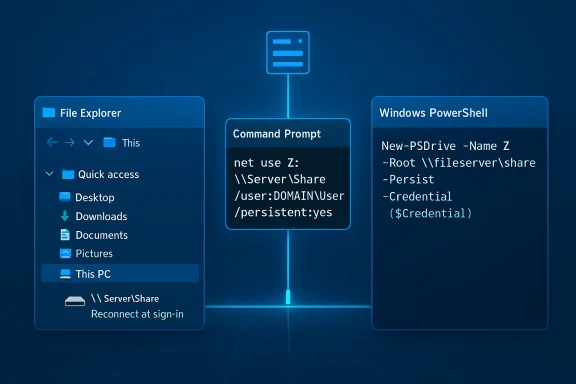
Mapping a network drive gives a shared folder a drive letter (for example, Z so it appears inside File Explorer and behaves like a local disk for most applications. This is useful for daily workflows in homes, small offices, and enterprise environments because it reduces friction when opening remote files, automates shortcuts for users, and enables legacy apps that expect drive-letter paths. The basic UI steps shown in the provided guide mirror Microsoft’s official flow in Windows 11: open File Explorer → This PC → More → Map network drive; set a drive letter → enter the UNC path (\Server\Share) → choose reconnect and credential options → Finish. The article below summarizes those three methods, validates the technical specifics against authoritative references, analyzes the trade‑offs, highlights common pitfalls (SMB/credentials/UAC), and provides actionable recommendations to map drives reliably and securely in Windows 11.
Mapping a network drive in Windows 11 remains a simple but powerful capability — the three methods in the baonghean.vn guide are correct and practical, and pairing them with secure credential handling and awareness of recent SMB security changes will keep your mappings reliable and safe.
Source: baonghean.vn https://baonghean.vn/en/anh-xa-o-cung-mang-windows-11-huong-dan-3-cach-hieu-qua-10310578.html
 Background / Overview
Mapping a network drive gives a shared folder a drive letter (for example, Z so it appears inside File Explorer and behaves like a local disk for most applications. This is useful for daily workflows in homes, small offices, and enterprise environments because it reduces friction when opening remote files, automates shortcuts for users, and enables legacy apps that expect drive-letter paths. The basic UI steps shown in the provided guide mirror Microsoft’s official flow in Windows 11: open File Explorer → This PC → More → Map network drive; set a drive letter → enter the UNC path (\Server\Share) → choose reconnect and credential options → Finish. The article below summarizes those three methods, validates the technical specifics against authoritative references, analyzes the trade‑offs, highlights common pitfalls (SMB/credentials/UAC), and provides actionable recommendations to map drives reliably and securely in Windows 11.Method 1 — File Explorer (the GUI way)
What it is and why it’s useful
Mapping via File Explorer is the easiest and most discoverable approach for non‑technical users. It’s fast, visual, and available on every Windows 11 desktop without scripting. The baonghean guide lists the standard steps and the checkboxes you’ll use — Reconnect at sign‑in and Connect using different credentials — exactly as the Microsoft support documentation prescribes.Step‑by‑step (concise)
- Open File Explorer (Win + E).
- Select This PC → More → Map network drive.
- Choose an available drive letter (e.g., Z.
- Enter the network path: \ServerName\ShareName (or \192.168.x.x\Share).
- Optionally check Reconnect at sign‑in and Connect using different credentials.
- Click Finish and supply credentials if prompted.
Strengths
- Simple and fast for one‑off mappings.
- Good for occasional users who prefer GUI interaction.
- Integrates cleanly with File Explorer’s “Network Locations” and context menus.
Risks and caveats
- If Windows prompts for credentials and they are saved incorrectly, reconnection may fail at sign‑in. The GUI uses the same underlying credential APIs that other methods rely on, so credential collisions are possible.
- Modern Windows security changes (SMB signing, guest restrictions) can block access to older NAS devices unless those devices are updated or client settings are adjusted. This is a broader system-level issue rather than a File Explorer bug.
Method 2 — Command Line: net use (fast, scriptable, time‑tested)
Why use net use
The net use command is Windows’ classic way to create and manage mapped drives from the Command Prompt or from batch files. It’s predictable, widely documented, and ideal for scripts or when you need to automate mappings across multiple machines.Syntax essentials and persistence
- Basic mapping: net use Z: \Server\Share
- With credentials: net use Z: \Server\Share /user
 OMAIN\UserName
 - Make persistent across reboots: add /persistent:yes
- Remove mapping: net use Z: /delete
Example (safe approach)
- Open an elevated Command Prompt or run as the interactive user depending on your needs.
- Run: net use Z: "\192.168.1.50\Shared" /user:SERVER\jane.doe /persistent:yes
- To verify: net use (lists current mapped resources).
Strengths
- Scriptable for deployment and automation.
- Works well in login scripts, scheduled tasks, and Group Policy logon scripts.
- Explicit control over persistence and credential behavior.
Risks and caveats
- Storing plain‑text passwords in scripts is unsafe. Prefer secure alternatives (see PowerShell Export‑Clixml or Credential Manager below).
- net use persistence is user‑scoped: mappings created under an elevated (Administrator) session may not be visible to the interactive user and vice versa — a frequent source of confusion when UAC/elevation is involved.
Method 3 — PowerShell / New‑PSDrive (modern, flexible, script‑friendly)
What New‑PSDrive gives you
PowerShell’s New‑PSDrive can create persistent mappings and integrates with PowerShell credential objects, making it cleaner for automation. Use the -Persist flag to create a Windows mapped drive that appears in File Explorer and survives across sessions. That behavior is identical to net use under the hood — New‑PSDrive simply provides a PowerShell native interface.Recommended script pattern (secure)
- Use Get‑Credential to prompt for credentials interactively or Export‑Clixml (DPAPI) to store an encrypted credential file that only the same user on the same machine can decrypt. Export‑Clixml uses Windows DPAPI so the stored credential file cannot be re‑used on another machine or by another user.
- Save encrypted credentials (run once as the target user):
$cred = Get-Credential
$cred | Export-Clixml -Path $env:USERPROFILE\Scripts\netcreds.xml - Script to map drives at logon:
$cred = Import-Clixml -Path $env:USERPROFILE\Scripts\netcreds.xml
New-PSDrive -Name Z -PSProvider FileSystem -Root "\fileserver\share" -Credential $cred -Persist - Schedule the PowerShell script to run at user logon with Task Scheduler (see below).
Important PowerShell caveats
- When you call New‑PSDrive inside a script, special scoping rules may prevent the mapping from persisting beyond the script’s scope unless you set Scope to Global or dot‑source the script; use -Persist and consider -Scope Global in scripts started from scheduled tasks to ensure Explorer sees the mapping. Community and Microsoft guidance warn about this nuance.
Strengths
- Secure credential handling via PSCredential objects and Export‑Clixml (DPAPI).
- PowerShell makes it straightforward to add retries, logging, and conditional checks (ping, Test‑NetConnection) before mapping.
- Works well with Task Scheduler to automatically map drives at logon without placing plain‑text secrets in scripts.
Risks and caveats
- New‑PSDrive’s Credential parameter can behave differently across PowerShell versions; older PowerShell 2.0 had issues. Ensure you run a modern PowerShell (5.x/7+) if you rely on credential behavior.
Automation: making mappings survive sign‑in and network delays
Use Task Scheduler (recommended for single‑machine automation)
Instead of placing credentials in the Startup folder, create a Scheduled Task that runs at user logon and executes your PowerShell mapping script. Set the task to “Run only when user is logged on” so the drive mapping is visible in the interactive session, and add a short Start‑Sleep delay to give the network stack time to initialize. The baonghean guide’s PowerShell + Scheduled Task pattern matches community best practices.For domains / large fleets: Group Policy Preferences (Drive Maps)
Enterprises should prefer Group Policy Preferences (Drive Maps) or logon scripts deployed via Group Policy for centralized management and auditability. This avoids ad‑hoc credential storage and simplifies lifecycle management for many users.Troubleshooting: real‑world problems and fixes
Common errors and quick checks
- “The network path was not found” (0x80070035) — verify the UNC path, ping the host, and Test‑NetConnection -Port 445 to check SMB reachability.
- System error 67 (“The network name cannot be found”) — often a malformed UNC (single backslash vs double) or DNS resolution issue. Confirm the UNC is \server\share and test using the server’s IP.
- Mapped drive visible but inaccessible after updates — Windows 11 updates (notably newer feature updates) have introduced stricter SMB defaults that can break older devices; checking SMB signing settings is an important diagnostic step.
Services and network discovery
Mapped drives rely on a few Windows services for discovery and consistent behavior: Function Discovery Resource Publication, Function Discovery Provider Host, SSDP Discovery, and UPnP Device Host. If mapped drives don’t show up or browse fails, ensure those services are running and set to Automatic. The community and support guides call this a necessary troubleshooting step.Credential collisions / UAC elevation gotchas
Mapped drives are stored per user session. If you create a mapping in an elevated/admin context, interactive processes running without elevation may not see it. The reverse is also true. The practical workaround: map drives in the interactive user context (Task Scheduler “Run only when user is logged on”) or use credential manager approaches that work for both contexts.Security considerations — don’t trade convenience for exposure
SMB signing and legacy devices
Microsoft has been moving toward secure‑by‑default SMB behaviour (signing required in some Insider and newer releases), which improves protection against relay and man‑in‑the‑middle attacks but breaks compatibility with older devices that do not support signing. Administrators can temporarily disable the enforcement using Set‑SmbClientConfiguration or update device firmware to support modern SMB dialects; however, disabling signing reduces security and should be a carefully considered temporary measure.- PowerShell commands sometimes used to restore compatibility:
Set-SmbClientConfiguration -RequireSecuritySignature $false
Set-SmbClientConfiguration -EnableInsecureGuestLogons $true
Use them only after understanding the risk and preferably only on isolated/trusted networks.
Credential storage & automation
- Never put plain‑text passwords into batch files or scheduled task arguments.
- For user‑bound automation, Export‑Clixml encrypts credentials using DPAPI so only that user on that machine can decrypt them — a reasonably secure option for single‑user scripts.
- Credential Manager (cmdkey) can store credentials in the Windows Vault, but be mindful that entries may be visible or manageable by any administrator and may introduce risk on shared machines.
Least privilege and logging
Map drives with the least_privilege required (read only vs read/write) and monitor SMB access from your file servers/NAS for anomalous behavior. Prefer domain authentication and Kerberos where available; NTLM and guest access are weaker.Cross‑checks and verification of claims
- The File Explorer mapping procedure and UI labels referenced in the user’s article match Microsoft’s official guidance for Windows 11 File Explorer.
- The net use syntax (including /persistent behavior) and examples are consistent with Microsoft Learn and long‑standing documentation for Windows.
- PowerShell’s New‑PSDrive with -Persist produces Windows mapped drives and can be automated using Export‑Clixml + Task Scheduler; the exported credential caveat — that the file is user‑ and machine‑bound — is documented in PowerShell guidance.
- Recent Windows 11 tightening of SMB signing and default security settings has been well‑discussed in Microsoft community channels and tech press; applying the matching PowerShell commands will restore compatibility but reduces security and must be used cautiously.
Practical checklist — map a drive reliably (recommended workflow)
- Confirm host reachability: ping server or Test‑NetConnection -ComputerName SERVER -Port 445.
- Confirm share exists and permissions: try \SERVER\ in File Explorer and inspect share listing on the server.
- Choose method: File Explorer for one‑offs, net use for simple scripts, PowerShell/New‑PSDrive for secure automation.
- Use Export‑Clixml or cmdkey instead of plain‑text credentials for automated mapping.
- If mapping fails after a Windows feature update, check SMB signing and client configuration before lowering security — prefer firmware upgrades for NAS devices.
- For scheduled mappings, use Task Scheduler with “Run only when user is logged on” so the mapping is visible in the interactive session.
Notable strengths of the baonghean.vn guide (and what it gets right)
- Clear, practical steps for the three mainstream methods (GUI, net use, PowerShell) that match community and Microsoft guidance.
- Emphasis on reconnect at sign‑in and using different credentials where appropriate — a common misstep for new users.
- Inclusion of the PowerShell + Scheduled Task pattern for resilience at logon, which is a robust approach for single‑machine automation.
Potential risks or omissions to be aware of in that guide
- The original guide’s summary may underplay SMB compatibility and signing changes in recent Windows 11 builds; readers should be warned that a Windows update can change SMB defaults and break legacy devices, and that disabling signing is risky. This needs a prominent security warning.
- Steps that use stored credentials should call out DPAPI/Export‑Clixml explicitly as a safer alternative to embedding passwords in scripts. The guide mentions scheduled tasks but should emphasize the exact Export‑Clixml flow and file ACLs to prevent accidental exposure.
- The UAC/elevation visibility problem (mappings created as Administrator not visible to the non‑elevated interactive user) is a frequent issue and deserves a short troubleshooting section.
Final recommendations (concise)
- For casual users: use File Explorer and check Reconnect at sign‑in. If credential prompts fail, clear conflicting saved credentials in Credential Manager and re‑map.
- For power users and admins: use PowerShell with Export‑Clixml for credential security and schedule a logon task (Run only when user is logged on) to avoid elevation scope issues. Test the script manually and add a Start‑Sleep delay of 10–30 seconds to account for network initialization.
- For enterprise: prefer Group Policy Preferences (Drive Maps) or centralized management tools. Avoid disabling SMB signing in production; instead update third‑party devices or firmware. Use Set‑SmbClientConfiguration only as a temporary troubleshooting step under controlled conditions.
Mapping a network drive in Windows 11 remains a simple but powerful capability — the three methods in the baonghean.vn guide are correct and practical, and pairing them with secure credential handling and awareness of recent SMB security changes will keep your mappings reliable and safe.
Source: baonghean.vn https://baonghean.vn/en/anh-xa-o-cung-mang-windows-11-huong-dan-3-cach-hieu-qua-10310578.html
