

Mapping a network drive turns a remote folder into a familiar drive letter in File Explorer, saving time and eliminating the repetitive chore of typing long UNC paths every time you need shared files; the recent WinBuzzer-style walkthrough captures this simply for both Windows 11 and Windows 10 while also covering command-line and scripted options for power users.
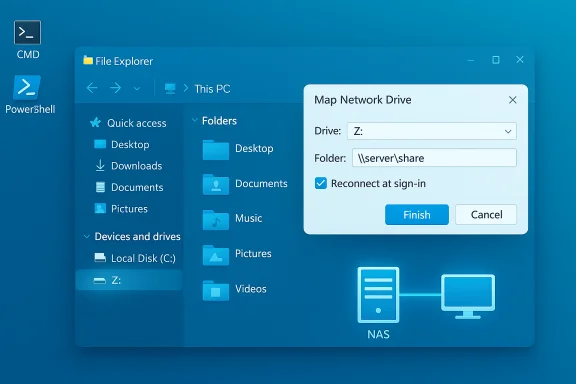
Mapping a network drive assigns a drive letter (for example, Z to a network location such as a NAS, home server, or another PC, making that remote storage appear and behave like a local disk inside File Explorer. This is useful for day-to-day workflows, legacy applications that expect drive-letter paths, backup targets, and quick media access. The basic steps—open File Explorer, choose This PC, pick Map network drive, enter a UNC path (\SERVER\Share), and optionally check Reconnect at sign-in—are consistent across Windows 11 and Windows 10.
There are three mainstream methods to create and manage mapped drives:
For credential-backed automated scripts:
Source: WinBuzzer How to Map a Network Drive in Windows 11 and Windows 10
 Background / Overview
Mapping a network drive assigns a drive letter (for example, Z to a network location such as a NAS, home server, or another PC, making that remote storage appear and behave like a local disk inside File Explorer. This is useful for day-to-day workflows, legacy applications that expect drive-letter paths, backup targets, and quick media access. The basic steps—open File Explorer, choose This PC, pick Map network drive, enter a UNC path (\SERVER\Share), and optionally check Reconnect at sign-in—are consistent across Windows 11 and Windows 10.There are three mainstream methods to create and manage mapped drives:
- GUI via File Explorer for one-off or casual mappings.
- Command-line via net use for scripts, batch files, or quick terminal work.
- PowerShell using New-PSDrive for modern, credential-aware automation.
How to Map a Network Drive Using File Explorer
Quick summary
The File Explorer route is the most approachable for most users—fast, visual, and available without scripting. It produces a drive entry under This PC that behaves like a local drive for most purposes.Step-by-step (GUI)
- Open File Explorer (Windows key + E).
- Click This PC in the navigation pane.
- In the File Explorer ribbon, choose the See more (three dots) menu and then Map network drive. (On Windows 10 the Map network drive option is often directly visible in the Computer ribbon.
- Choose a Drive: from the dropdown (pick a letter you won’t conflict with removable media; Z: is a common choice).
- In Folder:, type the UNC path, for example \DEVICENAME\ShareName or \192.168.1.50\Public.
- Optionally check Reconnect at sign-in to persist the mapping, and check Connect using different credentials if the share requires different login details.
- Click Finish and supply credentials when prompted.
Accessibility & tips
- Use the Tab and arrow keys to navigate the dialog without a mouse.
- If the mapped drive shows a red X after reboot, double-clicking it often forces Windows to try to reconnect; that red X typically indicates the network wasn’t ready when the system attempted the auto-reconnect. A small startup delay or a logon script that waits for network readiness solves this reliably.
How to Add a Network Location (FTP / Web)
When to use a network location
Adding a network location (via the Add Network Location wizard) is best when you need a shortcut to an FTP or HTTP resource inside This PC without assigning a drive letter. It is useful for FTP servers, WebDAV locations, and cloud endpoints that expose basic file access.Steps (concise)
- Open the Map Network Drive dialog and click the link Connect to a Web site that you can use to store your documents and pictures.
- Choose a custom network location and enter the full URL (include ftp:// or http://).
- Uncheck Log on anonymously if credentials are needed, supply username/password, and give the location a friendly name.
- Finish and confirm the shortcut appears under This PC.
Mapping a Network Drive with Command Prompt (net use)
Why use net use
The net use command is the classic, reliable option for scripting, batch files, and quick command-line control. It is ideal for automating multiple mappings or embedding mapping steps into system startup tasks.Basic syntax and examples
- Basic map: net use P: \NAS\Public
- With credentials: net use P: \NAS\Private password /user:username
- Persistent mapping: net use P: \NAS\Private /persistent:yes
- System error 53: Network path was not found — double-check server name or try the server’s IP.
- System error 67: Network name cannot be found — likely a malformed UNC (single backslash vs double) or a DNS/resolution issue.
Practical warnings
- Do not run the mapping from an elevated Command Prompt if you intend the interactive (non-elevated) user session to see the mapping. Mappings are session-scoped; elevated and non-elevated sessions maintain separate credential contexts and mapped-drive visibility. This is a common gotcha.
- Avoid storing plain-text passwords in scripts. If automation requires credentials, prefer secure vaults or credential-encrypted files.
Mapping using PowerShell (New-PSDrive)
Why choose PowerShell
PowerShell’s New-PSDrive integrates with PowerShell credential objects and supports the -Persist flag to create mappings that appear in File Explorer. PowerShell enables secure credential handling using Get-Credential and can store credentials via Export-Clixml (encrypted with DPAPI) for user-bound automation.Example command
New-PSDrive -Name 'M' -PSProvider 'FileSystem' -Root '\SERVER\Media' -PersistFor credential-backed automated scripts:
- Run once interactively: $cred = Get-Credential
- Persist to a secure file: $cred | Export-Clixml -Path $env:USERPROFILE\Scripts\netcreds.xml
- Script to map at logon: $cred = Import-Clixml -Path $env:USERPROFILE\Scripts\netcreds.xml; New-PSDrive -Name 'Z' -PSProvider FileSystem -Root '\fileserver\share' -Credential $cred -Persist
Disconnecting a Mapped Drive
GUI method
- Open File Explorer → This PC, right-click the mapped drive and select Disconnect. In Windows 11 you may need to click Show more options to access the legacy context menu.
Command-line
- Command Prompt: net use P: /delete
- PowerShell: Remove-PSDrive -Name 'M'
Troubleshooting: Common Errors and Fixes
1) Network devices not visible
- Ensure your network profile is Private, not Public, in Settings > Network & Internet > Properties.
- Turn on Network Discovery and File and Printer Sharing.
- Verify the required services are running: Function Discovery Provider Host, Function Discovery Resource Publication, SSDP Discovery, and UPnP Device Host. Start them and set to Automatic if missing.
2) Access denied / permissions
- Double-check the UNC path and use IP instead of hostnames to rule out DNS.
- Verify both the share permissions and NTFS permissions on the host machine. Use dedicated user accounts for controlled access rather than Everyone or guest-level sharing.
3) Red X on mapped drive after reboot
- Windows may attempt to reconnect drives before the network stack is fully initialized. Solutions:
- Create a small logon task with a short sleep before mapping (Task Scheduler technique).
- Use a scheduled task set to run at logon with “Delay task” or add Start-Sleep in a PowerShell script.
4) Credential collisions and UAC visibility
- Windows allows one set of credentials per remote server; connecting to the same server with different usernames in the same user session will cause access issues until previous connections are removed.
- Mappings created in an elevated context may not be visible to non-elevated Explorer sessions; map drives within the interactive user session or use Task Scheduler that runs in that session.
5) Errors related to legacy SMB devices
- After recent Windows 11 updates, stricter SMB defaults (signing requirements and guest logon restrictions) can block older NAS devices. As a temporary diagnostic step, the following commands can relax client-side checks:
- Set-SmbClientConfiguration -RequireSecuritySignature $false
- Set-SmbClientConfiguration -EnableInsecureGuestLogons $true
Automation Patterns: Task Scheduler, Scripts, and Group Policy
Task Scheduler (single-machine automation)
Using Task Scheduler to run a PowerShell script at user logon is a dependable pattern:- Create a PowerShell script that imports credentials via Import-Clixml and calls New-PSDrive with -Persist.
- Create a scheduled task that runs At logon and set “Run only when user is logged on” so the mapped drives are visible to Explorer.
- Add a short Start-Sleep (for example Start-Sleep -Seconds 10) to give the network time to initialize if needed.
Group Policy (enterprise scale)
For domain-joined environments, Group Policy Preferences > Drive Maps is the recommended approach. GPOs provide central management and can assign drives conditionally by user group or device. This scales far better than local scripts for larger organizations and avoids per-machine credential complications.Avoid insecure automation patterns
- Do not store plaintext passwords in batch files or scheduled tasks.
- Prefer Export-Clixml (DPAPI) for user-bound encryption or use domain service accounts and Group Policy mechanisms in enterprise scenarios. Credential Manager (cmdkey) is an option, but be mindful that stored credentials may be viewable or manageable by administrators.
Security Considerations and Best Practices
- Use SMB2/SMB3 where possible; avoid SMB1. SMB1 is insecure and should remain disabled except as a last resort for legacy hardware that cannot be upgraded.
- Prefer strong, unique passwords for accounts used to access shares and consider using dedicated accounts for automated backups and services (service accounts) to avoid credential collisions.
- If you enable Reconnect at sign-in and save credentials on a mobile or travel laptop, recognize that this increases exposure if the device is lost or compromised. In such cases avoid saving credentials or require multi-factor authentication at the network end if supported.
- Restrict share permissions to the minimum required (principle of least privilege) and combine share permissions with NTFS permissions for granular control.
- If you temporarily enable insecure guest logons to accommodate a legacy NAS, plan hardware/firmware upgrades as a follow-up and roll back insecure client settings as soon as possible. Document any temporary security exceptions.
What the WinBuzzer-style Guide Does Well (Strengths)
- Clear, stepwise instructions for GUI, net use, and PowerShell methods make the guide accessible to both beginners and advanced users who prefer scripting.
- Practical troubleshooting, such as switching from a hostname to an IP address and enabling Network Discovery, addresses the most common failure modes.
- Guidance on automation patterns (Task Scheduler, Export-Clixml) and credential handling points users toward safer automation practices than storing plaintext secrets.
Gaps and Risks to Watch For (Critical Analysis)
- Security trade-offs around SMB signing and insecure guest logons deserve a more prominent, plain-language safety warning. Relaxing security settings to support legacy devices is a risky step that must be time-limited and documented.
- The UAC/elevation visibility problem—mappings created as Administrator not visible in normal sessions—is a frequent source of user confusion and often requires explicit troubleshooting steps; this deserves a dedicated troubleshooting sub-section.
- Some casual users may follow automation examples without applying appropriate file ACLs to Export-Clixml credential files; the guide should stress restricting file permissions to the owning user to avoid accidental exposure.
Practical Checklist: Map a Drive Reliably (Recommended Workflow)
- Confirm host reachability: ping or Test-NetConnection to SERVER on port 445.
- Test access with UNC: type \SERVER\ in File Explorer to see available shares before mapping.
- Choose the mapping method:
- File Explorer for single, manual mappings.
- net use for simple batch automation.
- PowerShell / New-PSDrive for credential-aware, secure automation.
- If automating, use Export-Clixml (DPAPI) or a vault solution; do not embed plaintext passwords.
- For scheduled mappings, use Task Scheduler with a short delay and “Run only when user is logged on” to ensure Explorer visibility.
- For fleets, use Group Policy Preferences for centralized drive mapping and auditing.
Conclusion
Mapping network drives remains one of the most effective ways to integrate remote storage into a familiar Windows workflow. The GUI approach provides ease and clarity for most users, while net use and New-PSDrive offer scriptable, automatable options for power users and administrators. The core mechanics—UNC paths, drive letters, Reconnect at sign-in—are stable and simple, but successful long-term use requires attention to credential handling, Windows session scoping (elevation), and SMB security defaults. Follow secure automation practices, keep NAS and server firmware current to avoid falling back to insecure fixes, and use centralized management (Group Policy) for business environments. With those guardrails in place, a mapped drive is a durable convenience that blends the speed of local access with the storage flexibility of a networked environment.Source: WinBuzzer How to Map a Network Drive in Windows 11 and Windows 10
