

Microsoft’s Copilot is already baked into Windows and Microsoft 365, but most people still treat it like a search box — typing one-off questions and walking away. In practice, Copilot can automate workflows, act on your behalf, and surface contextual insights across documents, mail, and the desktop — if you know the right prompts, permission settings, and limits. The practical tips below expand on commonly circulated shortcuts and hidden tricks, verified against Microsoft’s documentation and independent reporting, and organized so readers can apply them immediately without trial-and-error.
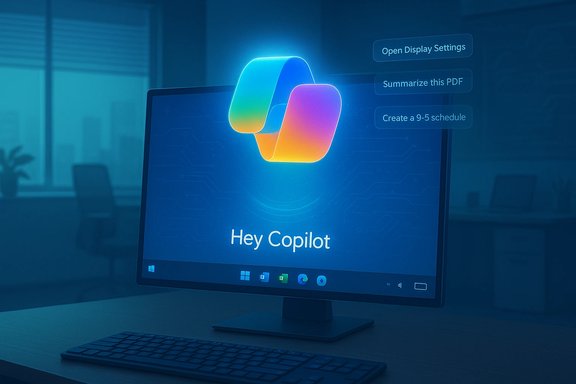
Copilot began as a Microsoft 365-focused generative assistant and has evolved into a system-level, multimodal assistant available across Windows, Edge, and Microsoft 365 surfaces. It supports typed chat, voice interactions (including the opt‑in wake word “Hey Copilot”), and screen-aware features often described as Copilot Vision. Copilot can read files you give it, connect to cloud accounts when you opt in, and — in some experimental flows — perform multi‑step agent-like tasks on the web or within apps. Microsoft explicitly documents the Windows entry points: a Copilot taskbar icon, keyboard shortcuts (Win + C or a dedicated Copilot key), a Copilot app, and voice activation that’s opt‑in. On selected “Copilot+” PCs with capable NPUs, Microsoft routes latency-sensitive tasks on-device for faster and more private inference; Microsoft’s guidance identifies a 40+ TOPS NPU threshold for these richer local experiences. These hardware and regional differences matter when you rely on low-latency or on‑device processing.
Task + Context + Style + Constraints
Example:
“Summarize this 2,400‑word product spec into three slides (title + 3 bullets each), for a one‑minute investor pitch, in plain language.”
This specificity transforms Copilot from a brainstorming assistant to a production tool.
Source: thewincentral.com Microsoft Copilot Tips & Tricks Most Users Don’t Know (But Should) - WinCentral
 Background / Overview
Copilot began as a Microsoft 365-focused generative assistant and has evolved into a system-level, multimodal assistant available across Windows, Edge, and Microsoft 365 surfaces. It supports typed chat, voice interactions (including the opt‑in wake word “Hey Copilot”), and screen-aware features often described as Copilot Vision. Copilot can read files you give it, connect to cloud accounts when you opt in, and — in some experimental flows — perform multi‑step agent-like tasks on the web or within apps. Microsoft explicitly documents the Windows entry points: a Copilot taskbar icon, keyboard shortcuts (Win + C or a dedicated Copilot key), a Copilot app, and voice activation that’s opt‑in. On selected “Copilot+” PCs with capable NPUs, Microsoft routes latency-sensitive tasks on-device for faster and more private inference; Microsoft’s guidance identifies a 40+ TOPS NPU threshold for these richer local experiences. These hardware and regional differences matter when you rely on low-latency or on‑device processing. 1) Control Windows settings faster — the realistic way to ask
Copilot can find and jump to specific Settings pages and, in some contexts, help toggle options — but the behavior varies by build, permissions, and whether the UI supports programmatic deep links. In practical terms:- Use goal‑oriented prompts: “Open Display settings” or “Turn on Bluetooth” will usually navigate Copilot to the correct Settings pane or show the exact toggle.
- If Copilot can toggle the setting for you, it will request permission and show what it will change; otherwise it will highlight the control and walk you through the click sequence.
- Pro tip: include device context for better routing: “On my laptop, switch to Dark mode and set Night light to 30%.”
2) Paste an error, get plain‑English diagnostics and fixes
Instead of chasing cryptic error codes across forums, paste the code or error text into Copilot and ask: “Explain this Windows error and how to fix it.” Copilot can:- Decode standard Windows error codes (HTTP/Win32/HRESULT-style) into likely causes.
- Suggest step‑by‑step remediation: check drivers, run SFC/DISM, or roll back recent updates.
- Indicate whether the root is likely hardware, driver, or application-layer.
- Paste the full error message.
- Ask: “Explain this in two bullets and give three troubleshooting steps ordered by safety (least intrusive first).”
3) Give Copilot context — files, text, and screenshots increase accuracy
Copilot becomes work‑ready when you feed it context. Rather than asking generic questions, drop the document, slide deck, or email thread into the chat and instruct Copilot what you want.- Supported formats: Word (.docx), Excel (.xlsx), PowerPoint (.pptx), PDF, TXT, JSON; vision features extract tables and text from images.
- Useful prompts:
- “Summarize this 10‑page PDF into five meeting bullets.”
- “Extract the action items and assign estimated times.”
- “Turn this expense table into an Excel sheet with categories.”
- For screenshots: use Copilot Vision to select a screen region, then ask for OCR or a step-by-step guide based on what Copilot sees.
4) Treat Copilot like a personal assistant — plan, refine, delegate
Copilot can structure your day, draft checklists, or build study plans — and iteratively refine results.- Example session:
- “Create a 9–5 schedule for focused work with 90‑minute deep work blocks and a 30‑minute lunch.”
- “Now make it lighter for days with meetings and prioritize email clean-up.”
- Ask Copilot to output in formats you can act on: a Google Calendar-compatible list, a Microsoft To Do checklist, or a Word outline.
5) Use Copilot as a tutor — teach your way
Copilot adapts to learning styles when prompted correctly.- Strong prompts:
- “Explain recursion to a beginner with a Python example.”
- “Quiz me on these five topics in flashcard format; mark answers correct/incorrect.”
- “Teach this concept using analogies and a short exercise.”
- Modes you can emulate: Socratic tutor (ask probing questions), worked examples, or drills with spaced repetition.
6) Brainstorming: force quantity, then critique
Copilot is excellent for ideation — but prompt it to diversify answers and then ask for critique.- Effective pattern:
- “Give me 20 blog headlines on X — prioritize clarity and SEO.”
- “Now pick the top 5 and explain weaknesses for each.”
- “Rewrite the best headline for LinkedIn.”
7) Rely on conversation flow — follow-ups are stateful
Copilot maintains session context so you can iterate naturally.- Example flow:
- “Summarize this report.”
- “Make it two paragraphs shorter.”
- “Now make it suitable for C‑level execs.”
8) Instant comparisons — side‑by‑side with usage profile
Copilot handles comparative analysis quickly — “Compare Windows 11 Home vs Pro for a home-based small business that needs BitLocker and Hyper‑V.”- Better: “Compare Windows 11 Home vs Pro for a freelance dev who needs remote desktop, virtualization for test VMs, and disk encryption.”
- Copilot will synthesize costs, features, and practical trade-offs, and can tailor a recommendation based on the usage profile you provide.
9) Writing help — tone, format, and conversions
Whether crafting emails, CVs, or technical docs, Copilot can transform copy for different audiences.- Useful workflow:
- Paste your draft.
- Ask: “Rewrite this for a non‑technical product manager in a friendly tone, 150 words.”
- Then: “Now compress to 60 words for a notification.”
- Copilot also offers grammar fixes, clarity improvements, and export functions (generate Word/PDF/PowerPoint from long responses in the Copilot app). Some export and document creation features are rolling out and may land first in Insider builds.
10) Ask better questions — the single highest ROI change
Most poor Copilot outputs trace back to fuzzy prompts. Use the formula:Task + Context + Style + Constraints
Example:
“Summarize this 2,400‑word product spec into three slides (title + 3 bullets each), for a one‑minute investor pitch, in plain language.”
This specificity transforms Copilot from a brainstorming assistant to a production tool.
Advanced tricks power users should know
Copilot Vision: visual context that extracts tables and UI hints
Copilot Vision is session‑bound screen sharing; it can OCR tables from images, extract form fields, and highlight UI elements with arrows — useful for extracting invoice lines or getting step‑by‑step help in apps that don't have traditional APIs. Always explicitly grant access to a selected window or region; Vision won’t run covertly.Copilot Actions (agentic web tasks)
Experimental Copilot Actions can run multi‑step web tasks like unsubscribing from newsletters or automating form fills. These are permissioned and audited; they are not universal yet and are limited to curated sites where Microsoft can reliably perform the automation. Treat Actions as a powerful convenience but confirm each automation before granting ongoing privileges.Connectors: link OneDrive, Outlook, Gmail, Google Drive
Copilot connectors let you opt‑in to cross‑account searches and document actions. When granted, Copilot can draft emails based on your mailbox or find files across linked drives. These connectors are OAuth-based and optional; read the consent screen carefully before connecting third‑party accounts. Recent Insider updates show Gmail and Google Drive becoming supported for Copilot on Windows.Copilot+ hardware and privacy
On certified Copilot+ PCs (40+ TOPS NPUs), Microsoft can perform certain inference tasks locally, improving latency and reducing cloud traffic. However, most reasoning still happens in cloud models unless the feature specifically advertises on‑device execution. If privacy or offline capability is essential, confirm the feature is supported on-device before relying on local processing.Security, privacy, and enterprise governance — what you must do
- Review Copilot Settings > Privacy before enabling file search, connectors, or memory. Memory and connector use are opt‑in and can be disabled or purged.
- In managed or regulated environments, evaluate Copilot features against data‑leakage and retention policies. Agentic Actions and long‑term memory should be tested on a staging tenant.
- Treat Copilot outputs as assistive, not authoritative. For legal, financial, or medical decisions, use Copilot to prepare drafts or research and then verify against primary sources or experts.
- Wake‑word behavior: the “Hey Copilot” spotter runs locally but subsequent speech is processed in the cloud by default; this is opt‑in and requires your Copilot app to be running. If you need strict on‑device voice processing, validate Copilot+ on‑device capabilities for the required feature.
Quick checklist to get started safely and effectively
- Enable Copilot and set your preferences: opt into voice or vision only when you need them.
- Connect cloud accounts deliberately: add OneDrive/Outlook first, then test Gmail/Google Drive connectors in a non‑production account.
- Start with small automation: ask Copilot to “open the Display settings” and confirm it navigates correctly before trusting toggle automation.
- Use the Task + Context + Style prompt pattern for every request.
- Keep sensitive files local until you understand whether a Copilot flow uses cloud processing or on‑device inference.
Notable strengths — why Copilot is already useful
- Context-aware multiturn conversations convert vague tasks into actionable outputs.
- File ingestion and vision-based extraction dramatically cut manual copy/paste work for documents, invoices, and slides.
- Automation primitives (Actions) and connectors let Copilot synthesize across mail, calendar, and files — a real productivity multiplier when configured responsibly.
Potential risks and limitations you must not ignore
- Capabilities are fragmented by device, region, Insider vs stable channels, and subscription tier; don’t assume parity across machines.
- Agentic automations and memory expand the threat surface for data leakage; enterprise admins should pilot features with policy and auditing in place.
- Not all UI-level actions are guaranteed; sometimes Copilot highlights steps rather than executing them. Confirm critical changes before you rely on Copilot for system modifications.
Final thoughts and a short Copilot playbook
Copilot is more than an answer box — it’s becoming a productivity layer that can orchestrate documents, calendar items, and even parts of the OS when you give it clear, contextual instructions. The difference between a shallow and a powerful Copilot experience is how you prompt it, what contextual artifacts you provide, and how you manage permissions.- Start small, build trust: use Copilot for summaries and drafts before moving to automation.
- Be explicit: Task + Context + Style = better outputs.
- Test in a controlled environment: try connectors, Actions, and memory on a test account or device before rolling out.
- Keep privacy top of mind: review settings and remember that on‑device inference is limited to Copilot+ hardware scenarios.
Source: thewincentral.com Microsoft Copilot Tips & Tricks Most Users Don’t Know (But Should) - WinCentral
