

Most of us reach for the mouse out of habit, but a few well-placed keystrokes can shave minutes — even hours — off everyday tasks. Below you’ll find an in‑depth look at five deceptively simple Windows shortcuts that many users either never discover or underuse, why they matter, how to use them like a pro, and what to watch out for when you do. Each section includes practical tips, minor configuration steps, and the security or accessibility implications you should consider before adopting these shortcuts into your daily workflow.
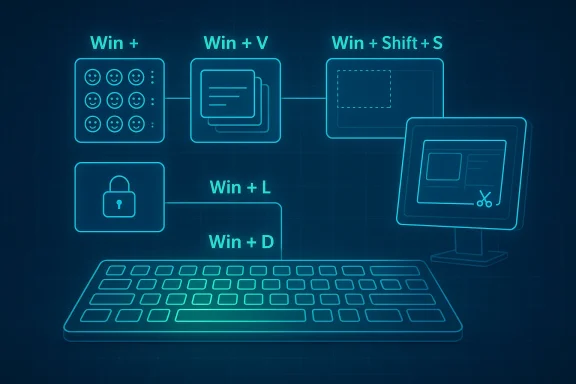
Windows has long treated the keyboard as a first-class way to navigate the operating system. Over the last decade Microsoft has layered new productivity surfaces on top of classic keyboard conventions — from multi‑item clipboard history to on‑demand screen capture and a built-in emoji/symbol palette. These additions turn a couple of keys into gateways for functionality that previously required hunting through menus or third‑party apps. A compact keyboard reference shows Win‑key combinations for dozens of tasks — including clipboard history (Win + V), quick screenshots (Win + Shift + S), and desktop toggles (Win + D, Win + L).
Understanding these shortcuts is about more than speed. They unlock features that change workflows: clipboard history turns copy/paste into a multi‑item buffer, the emoji panel consolidates symbols and kaomoji, and the snipping shortcut brings capture and lightweight annotation to whatever you’re looking at. In many corporate or privacy-sensitive environments, these convenience features also introduce new risks (for example, clipboard contents being stored or synced), so we’ll call out practical mitigations as we go.
The panel groups content into tabs (emoji, kaomoji, symbols) and makes search available, so you can type “arrow” or “check” to find a relevant symbol quickly. For people who regularly need currency signs, mathematical symbols, or box‑drawing characters for documentation or debugging, this panel is an immediate productivity win.
Windows continues to evolve these surfaces: the clipboard has become a cross‑device productivity surface, and the Snipping Tool has been updated to include in‑capture annotation and faster capture workflows. Keep an eye on system updates for refined behavior and occasionally revisit your privacy settings after feature rollouts.
Source: K24 Digital 5 Windows shortcuts you probably didn’t know
 Background / Overview
Windows has long treated the keyboard as a first-class way to navigate the operating system. Over the last decade Microsoft has layered new productivity surfaces on top of classic keyboard conventions — from multi‑item clipboard history to on‑demand screen capture and a built-in emoji/symbol palette. These additions turn a couple of keys into gateways for functionality that previously required hunting through menus or third‑party apps. A compact keyboard reference shows Win‑key combinations for dozens of tasks — including clipboard history (Win + V), quick screenshots (Win + Shift + S), and desktop toggles (Win + D, Win + L).Understanding these shortcuts is about more than speed. They unlock features that change workflows: clipboard history turns copy/paste into a multi‑item buffer, the emoji panel consolidates symbols and kaomoji, and the snipping shortcut brings capture and lightweight annotation to whatever you’re looking at. In many corporate or privacy-sensitive environments, these convenience features also introduce new risks (for example, clipboard contents being stored or synced), so we’ll call out practical mitigations as we go.
Windows + . (period): the emoji and symbols panel you didn’t know you needed
What it does and why it’s useful
Pressing Windows + . opens a compact panel that lets you insert emojis, kaomoji, and a broad range of symbols directly into any text field. This avoids copy‑pasting from a website or relying on a smartphone—handy when writing chat messages, social posts, or annotated notes.The panel groups content into tabs (emoji, kaomoji, symbols) and makes search available, so you can type “arrow” or “check” to find a relevant symbol quickly. For people who regularly need currency signs, mathematical symbols, or box‑drawing characters for documentation or debugging, this panel is an immediate productivity win.
Tips and power uses
- Use the search box inside the panel to find rare symbols quickly.
- The panel remembers recent emoji, speeding repetitive usage.
- Combine the panel with text expansion tools or shorthand to build templates for repetitive messages.
Accessibility and compatibility
The emoji panel is a lightweight UI; screen readers and keyboard navigation work, but the experience varies slightly by Windows version and the app into which text is being inserted. If you rely on assistive tech, test this shortcut in your primary applications before making it part of your routine.Windows + V: clipboard history and the productivity shift from one buffer to many
Why clipboard history matters
Most people know Ctrl + C and Ctrl + V. Windows + V takes you from a single clipboard slot to a stack of recent items — text snippets, images, and screenshots — letting you paste anything you copied earlier in the session. That’s a multiplier for tasks like writing, coding, and compiling research from multiple sources. The shortcut opens a small pane from which you pick the item to paste.How to enable and use it
- The first time you press Windows + V, Windows will prompt you to enable clipboard history; toggle it on.
- Once enabled, press Windows + V again to access the list.
- You can pin important items so they persist across restarts; unpinned items age out over time.
- On systems where cloud clipboard sync is enabled, your clipboard can be available across your linked devices. Microsoft has expanded clipboard capabilities in recent Windows releases, including testing a flow that can push clipboard content to linked Android devices. If you plan to use cross‑device sync, familiarize yourself with the account and device settings that control the behavior.
Productivity workflows
- Keep a “snippet” set for email signatures, code templates, or common replies and pin those snippets so they’re always available.
- Combine pinned clipboard items with text editors or note apps to assemble documents rapidly.
- Use the clipboard for images: screenshots copied by Win + Shift + S appear in the clipboard history and can be pasted directly into chat, email, or documents.
Security and privacy caveats
A multi‑item clipboard is convenient — and risky. Clipboard contents can include passwords, personal data, or API keys you accidentally copied. When cloud sync is enabled, clipboard data may travel beyond the PC to other linked devices under the same account. Treat the clipboard as a semi‑persistent, possibly synced store:- Clear sensitive items after use.
- Avoid copying passwords or one‑time codes to the clipboard where possible.
- If your device is shared or managed by an organization, check policy settings: administrators can control clipboard behavior.
Because Microsoft has been actively evolving clipboard features, including cross‑device sync experiments, double‑check whether clipboard sync is enabled on your PC before relying on it for sensitive data.
Windows + Shift + S: quick, precise screenshots and the snipping overlay
The shortcut in a sentence
Press Windows + Shift + S to trigger the modern Snipping Tool overlay: the screen dims and a small toolbar appears, letting you capture a rectangular region, free‑form selection, a window, or the full screen. The captured image is copied to the clipboard for immediate pasting and often also appears as a notification for quick markup or saving.What changed and why it matters
Historically Windows offered Snipping Tool and Snip & Sketch as separate utilities. The Win + Shift + S flow unifies capture into an instantly available overlay without opening a separate program — a time saver for anyone who needs repeatable, targeted screenshots. Recent updates have added “quick markup” and in‑capture annotation features that reduce reliance on additional editors. These improvements are part of a broader effort to make lightweight capture and editing frictionless.Best practices
- After pressing Win + Shift + S, capture the region then immediately paste (Ctrl + V) into your document or chat to avoid losing the image.
- Use the notification that follows a capture to perform quick cropping or annotations without opening a full editor.
- If you take frequent full‑screen captures, consider remapping Print Screen to launch the snipping experience in Settings to create a one‑key capture action.
Troubleshooting
If nothing happens when you press Win + Shift + S:- Ensure you’re running a Windows build that supports the overlay (most modern Windows 10 and Windows 11 builds do).
- Verify that system notifications are allowed for the Snipping Tool, since the overlay uses the notification to surface a quick edit option.
- If the capture ends up in a third‑party clipboard manager, check that manager’s settings to ensure the image is accessible.
Windows + L: lock your PC instantly — an underrated security habit
The simplest security trick
Pressing Windows + L instantly locks your workstation and returns to the login screen. It’s the fastest way to secure a machine when you step away for a meeting, a walk, or a coffee. This single action prevents casual access to your desktop, open documents, and any logged‑in applications.Why you should make it a habit
Locking your PC is an operation that takes a second and prevents potentially major privacy or data loss incidents in shared or public spaces. Use Win + L every time you leave your seat. If you regularly forget, combine the habit with an activity-based trigger (e.g., set a calendar reminder or use an automated script that locks the screen after a short period of inactivity).Additional settings and enterprise considerations
- The machine lock behavior can be tuned through Group Policy or power settings for inactivity timeouts; larger organizations often set shorter timeouts for security.
- On shared machines, consider whether user switching rather than locking is the desired behavior; Win + L always secures the current session.
- For users on laptops, configure biometric sign‑in (Windows Hello) if available — it shortens the time to unlock while keeping the lock step secure.
Caveat
Locking does not equal signing out: background processes and network connections remain active. That behavior is usually desirable, but in some high‑security contexts you may need to sign out or shut down instead.Windows + D: show (and restore) the desktop instantly
The desktop toggle explained
Windows + D minimizes all windows and shows the desktop. Pressing it again restores the previous window arrangement exactly as it was. This makes it easy to access desktop icons or drag items from the desktop into an open window without manually minimizing multiple windows.When this shortcut is a real time saver
- Grab an icon or file briefly from the desktop while keeping your current workspace intact.
- Quickly check a desktop widget, copied file, or download without disrupting window states.
- Use it in combination with Win + number shortcuts (Win + 1, Win + 2, etc.) to manage taskbar apps and desktop items fluidly.
Tips and subtleties
- Win + D is different from Win + M (minimize)—Win + D toggles and restores, while Win + M only minimizes.
- If you rely on desktop shortcuts for productivity, keep the desktop organized; Win + D becomes more useful when desktop items are well sorted.
Practical adoption plan: how to master these five shortcuts in two weeks
- Day 1–2: Memorize the keystrokes. Repeat them in practice sessions until they feel natural.
- Day 3–6: Adopt one shortcut at a time into your workflow (start with Win + L for security, then add Win + Shift + S).
- Day 7–10: Configure settings — enable clipboard history and pin frequently used items; test the emoji panel in apps you use daily.
- Day 11–14: Harden your workflow — clear sensitive clipboard entries, confirm that clipboard sync settings align with your privacy needs, and add a brief checklist to lock your PC before stepping away.
Risks, caveats, and how to mitigate them
- Clipboard persistence: Multi‑item clipboard stores content — sometimes for longer than you expect. Pin only non‑sensitive items, clear history regularly, and disable cloud sync if you don’t need cross‑device clipboard continuity. Microsoft has been expanding and testing clipboard sync to Android devices; this capability increases convenience but also exposure if not understood and controlled.
- App compatibility: The emoji panel and snipping overlay work in most modern apps, but older or kiosk apps may not accept input from these overlays as expected. Test the features in mission‑critical applications.
- Accessibility variance: Screen reader and keyboard navigation support exists for these tools, but behaviors vary across Windows versions and third‑party apps. Verify the experience with your assistive tools.
- Organizational policies: Managed devices may have clipboard behavior restricted or altered by group policies. Check with IT if a shortcut behaves differently on a corporate machine.
Five quick bonus shortcuts worth learning now
- Win + Tab — Task View and virtual desktops. Great for long sessions when you separate workspaces.
- Win + Number (1–9) — Launch or switch to apps pinned to your taskbar in order. Instant application switching without Alt + Tab.
- Win + X — Power user menu: quick access to Device Manager, Terminal, and other system tools.
- Win + , (comma) — Peek at the desktop (temporarily shows desktop while holding the keys). Handy for quick glances.
- Ctrl + Shift + Esc — Immediate Task Manager. Faster than Ctrl + Alt + Del for process and performance troubleshooting.
Why learning a few keyboard shortcuts is still one of the best productivity investments
Shortcuts are low‑tech, high‑leverage improvements. They require no subscription, no training budget, and they scale: a single keystroke saved per hour becomes hours saved per month. The five shortcuts explored here reduce friction in common tasks — inserting symbols, managing multiple copied items, capturing screens precisely, locking a workstation instantly, and accessing the desktop — while introducing new capabilities that replace older, slower habits.Windows continues to evolve these surfaces: the clipboard has become a cross‑device productivity surface, and the Snipping Tool has been updated to include in‑capture annotation and faster capture workflows. Keep an eye on system updates for refined behavior and occasionally revisit your privacy settings after feature rollouts.
Final checklist: adopt safely and efficiently
- Memorize each keystroke and practice in short daily sessions.
- Turn on clipboard history and pin non‑sensitive snippets you use often.
- Review clipboard sync and cloud settings; disable cross‑device sync if you handle sensitive data.
- Configure Windows Hello or other quick unlock options to combine security and convenience after using Win + L.
- Test these shortcuts in the specific apps you use for work to ensure compatibility.
Source: K24 Digital 5 Windows shortcuts you probably didn’t know
