Windows 11’s Night light gives you a one-click way to cut blue light, warm your display, and reduce evening eye strain — here’s a practical, forensic guide to turning it on, tuning it, troubleshooting when it’s missing, and choosing safer alternatives when you need color accuracy or more control.
Blue light is the short‑wavelength portion of the visible spectrum emitted by LED and LCD screens. At higher intensities and late at night, blue light can suppress melatonin and affect circadian rhythm; however, real‑world effects depend on exposure time, display brightness, and user behavior. Laboratory evidence shows light exposure can shift circadian timing, while field studies report mixed, modest benefits from software blue‑light filters alone. That nuance matters when setting expectations for Night light’s impact on sleep.
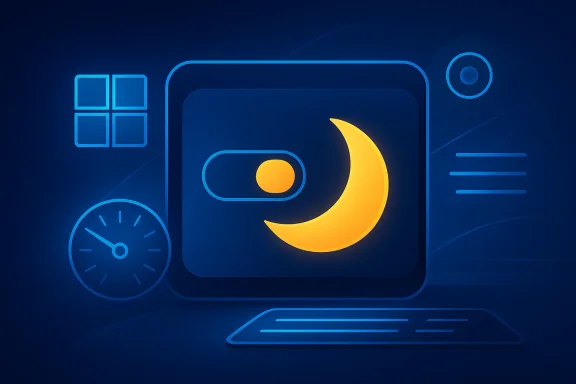
Windows 11 implements its blue‑light reduction as Night light, a system‑level color temperature filter that warms the screen by reducing short‑wavelength blue light. It’s built into Settings and Quick Settings for instant toggles, supports a strength slider and basic scheduling (Sunset to sunrise or custom hours), and is intended as a low‑friction tool for evening comfort rather than a clinical intervention.
Weaknesses include lack of color accuracy, possible interference with HDR workflows, and limited automation compared with third‑party tools. If you require tight control over color temperature curves, brightness automation, or advanced scheduling (beyond Sunset to sunrise / Set hours), third‑party solutions or PowerToys automation may be preferable — but they bring their own complexity and risk of conflicts.
Operational risks to monitor:
Night light is an effective, low‑effort way to reduce evening blue light on Windows 11, but it’s only one part of a broader approach to eye comfort and sleep hygiene. Use it together with brightness management, consistent sleep routines, and, when necessary, hardware OSD or third‑party software for finer control. If Night light goes missing, update drivers, check HDR and display adapter support, and restart the graphics stack — those steps resolve the majority of problems reported by users.
Conclusion: enable Night light as your first move for evening comfort, tune the Strength and schedule to your habits, and fall back to monitor OSD or reputable third‑party tools when you need deeper control — while remembering that good screen habits and brightness management matter as much as color temperature adjustments.
Source: HowToiSolve How to Turn Off Blue Light on Windows 11
 Background / Overview
Blue light is the short‑wavelength portion of the visible spectrum emitted by LED and LCD screens. At higher intensities and late at night, blue light can suppress melatonin and affect circadian rhythm; however, real‑world effects depend on exposure time, display brightness, and user behavior. Laboratory evidence shows light exposure can shift circadian timing, while field studies report mixed, modest benefits from software blue‑light filters alone. That nuance matters when setting expectations for Night light’s impact on sleep.Windows 11 implements its blue‑light reduction as Night light, a system‑level color temperature filter that warms the screen by reducing short‑wavelength blue light. It’s built into Settings and Quick Settings for instant toggles, supports a strength slider and basic scheduling (Sunset to sunrise or custom hours), and is intended as a low‑friction tool for evening comfort rather than a clinical intervention.
How Night light works and when to use it
Night light adjusts the display’s color temperature, shifting whites and midtones toward warmer hues. This is a pixel‑level transformation performed by the OS compositor, so the result is applied across apps and the desktop shell.- Primary benefits: lower perceived glare in dim environments, reduced short‑wavelength exposure before sleep, and potential reduction in eye fatigue during long evening sessions.
- Limitations: it changes the entire screen’s color and is not color‑accurate — avoid Night light when doing photo, video, or print color work.
Quick steps: turn Night light on (the shortest method)
- Press Windows + I to open Settings.
- Select System → Display.
- Under Brightness & color, toggle Night light to On.
Instant toggle alternative
- Open Quick Settings (click the network/volume/battery cluster or press Windows + A) and tap the Night light button. If the button is not shown, edit Quick Settings (the pencil icon) to add it.
Adjusting strength and scheduling Night light
Night light provides two important controls: Strength and Schedule.Strength slider
- Open Settings → System → Display → Night light settings.
- Use the Strength slider to make the screen warmer (slide right) or more natural (slide left). Start with a mid‑range value and increase until the tint is comfortable for you. This control affects perceived color temperature, measured in practical terms (warmer = less blue light).
Scheduling
Night light can switch on automatically via two modes:- Sunset to sunrise — Night light follows local sunset and sunrise times. This uses your device location and therefore requires Location services to be enabled.
- Set hours — choose exact start and end times to suit your routine (for example, 7:00 PM to 7:00 AM).
Step‑by‑step checklist (practical)
- Press Windows + I → System → Display.
- Toggle Night light to On.
- Click Night light settings.
- Adjust Strength until comfortable.
- Toggle Schedule night light and select Sunset to sunrise or Set hours.
- Test by choosing Turn on now to preview the effect.
Troubleshooting: Night light missing, grayed out, or unstable
If Night light is missing, grayed out, or behaves inconsistently, the usual culprits are drivers, HDR state, overlays, or connected display hardware.Common causes and fixes
- Outdated or incompatible graphics driver: update your GPU drivers from the vendor (Intel, NVIDIA, AMD) or device manufacturer, then reboot. Many cases of a missing Night light are resolved by installing the proper display driver.
- HDR and Wide Color Gamut interactions: on HDR displays or when HDR mode is active, Night light may be disabled or produce odd tints. Try turning HDR off to regain Night light control, or adjust HDR settings as needed.
- Third‑party color overlays: tools such as f.lux, vendor color utilities, or wallpaper/color overlays can stack with Night light and produce strange colors. Disable these during diagnosis.
- DisplayLink or basic display drivers: some USB‑display adapters and docking solutions ship with drivers that don’t support color temperature adjustments; updating or replacing the adapter/driver may be necessary.
- Restart the graphics stack: press Win + Ctrl + Shift + B to force a GPU driver restart; this can clear transient tinting or compositor problems.
When Night light isn’t enough: alternatives and advanced options
Windows’ Night light is intentionally simple. If you want more granular control, or need automation beyond a basic schedule, consider these options:- Third‑party apps: f.lux and Iris are popular alternatives that offer finer color‑temperature curves, location‑aware adjustments, and additional features like brightness and PWM control. These apps can be tuned more precisely than Night light but may conflict with other overlays and should be configured carefully.
- Monitor built‑in filters: many modern monitors expose Low Blue Light, Eye Saver, or Reading modes via the OSD (on‑screen display). These hardware filters operate independently of the OS and work even when Windows’ Night light is off, which is useful on locked or pre‑boot screens.
- PowerToys / Auto Dark Mode for theme automation: if you want UI theme switching (Light/Dark) on a schedule in addition to color temperature, use PowerToys’ Light Switch or Auto Dark Mode. Night light does not change system theme; it only alters color temperature.
Interactions, trade‑offs, and risks
Night light is a low‑risk feature, but a few trade‑offs and risks are worth highlighting:- Color accuracy: Night light alters color rendering and is not suitable for color‑critical tasks such as photo editing, video grading, or print proofing. Use consistent workflows and disable Night light when accuracy is required.
- HDR conflicts: Night light may be incompatible or behave unpredictably on HDR content; HDR pipelines involve different compositing and tone mapping that can interfere with OS color filters. If you depend on HDR, test Night light in your workflow to confirm acceptable results.
- Stacked overlays: multiple color‑adjustment layers (Night light + f.lux + vendor utilities) can produce exaggerated tints. When diagnosing display color problems, disable third‑party utilities and return to default ICC profiles.
- Accessibility edge cases: users with certain visual conditionstions may prefer different strategies; for some, high‑contrast or grayscale filters are more helpful than temperature shifts. Night light is one tool among several accessibility features.
Best practices for comfortable, safe evening use
- Lower brightness before sleep: absolute brightness matters more than color alone. Reducing screen brightness is often the most effective single step to reduce strain.
- Combine Night light with a bedtime routine: start Night light 30–60 minutes before you intend to wind down to lessen the abrupt change.
- Use Set hours if you travel or your location services are off: Sunset to sunrise depends on accurate location; choose Set hours for predictable timing.
- Disable Night light for color work: add a Quick Settings tile to toggle it rapidly when switching tasks.
- Follow the 20‑20‑20 rule: every 20 minutes, look at something 20 feet away for 20 seconds to relax accommodation and reduce fatigue.
- Test on multiple displays: multi‑monitor setups can behave inconsistently; verify Night light’s effect across all screens you use.
Quick reference: useful shortcuts and commands
- Windows + I → Settings (open Display settings).
- Windows + A → Quick Settings (toggle Night light quickly).
- Win + Ctrl + Shift + B → restart GPU driver (useful to clear color/compositor glitches).
- Edit Quick Settings with the pencil icon to add or remove the Night light button.
Practical scenarios and recommendations
For the evening worker
Enable Night light, set Strength to a gentle warm value, and schedule Set hours to cover your typical evening usage. Reduce brightness and consider a darker wallpaper to lower emitted light.For photographers and designers
Keep Night light off while working. If you want evening comfort without affecting workflows, use your monitor’s OSD to create a temporary “reading” preset, or switch profiles with your color‑management software during non‑critical tasks.For laptop users on battery
If you have an OLED laptop and are optimizing for battery, consider dark themes in addition to Night light; dark pixels on OLED can save power. On IPS/LCD laptops, battery benefits are minimal — lowering brightness remains the top lever.Final analysis — strengths, weaknesses, and what to watch for
Night light is a well‑integrated, low‑friction feature that delivers immediate comfort for nighttime computer use. Its strengths are simplicity, system‑level application across apps, and useful scheduling options that most users will appreciate. For straightforward evening comfort, Night light is the recommended first line of defense.Weaknesses include lack of color accuracy, possible interference with HDR workflows, and limited automation compared with third‑party tools. If you require tight control over color temperature curves, brightness automation, or advanced scheduling (beyond Sunset to sunrise / Set hours), third‑party solutions or PowerToys automation may be preferable — but they bring their own complexity and risk of conflicts.
Operational risks to monitor:
- Driver or HDR regressions after Windows updates that disable Night light.
- Unexpected stacking of overlays causing color distortion.
- Location permission issues making Sunset to sunrise unreliable.
Night light is an effective, low‑effort way to reduce evening blue light on Windows 11, but it’s only one part of a broader approach to eye comfort and sleep hygiene. Use it together with brightness management, consistent sleep routines, and, when necessary, hardware OSD or third‑party software for finer control. If Night light goes missing, update drivers, check HDR and display adapter support, and restart the graphics stack — those steps resolve the majority of problems reported by users.
Conclusion: enable Night light as your first move for evening comfort, tune the Strength and schedule to your habits, and fall back to monitor OSD or reputable third‑party tools when you need deeper control — while remembering that good screen habits and brightness management matter as much as color temperature adjustments.
Source: HowToiSolve How to Turn Off Blue Light on Windows 11
Last edited: