

Windows 11’s color modes are deceptively simple to flip, but the surrounding ecosystem—Night light, accent colors, per‑app behavior and the newly introduced scheduling options in PowerToys—means there’s real value in understanding what each control actually does and when to use it. A number of how‑to guides walk through the Settings path (Settings > Personalization > Colors) to choose Light, Dark or Custom, and they correctly point out the quick toggle and the per‑surface options, but some published guides blur the line between color temperature (Night light) and UI theme (Light/Dark), which leads to confusion. The step‑by‑step Settings route remains the fastest way to switch modes, but for reliable automatic switching you should use PowerToys’ Light Switch or a mature third‑party utility—not Night light.
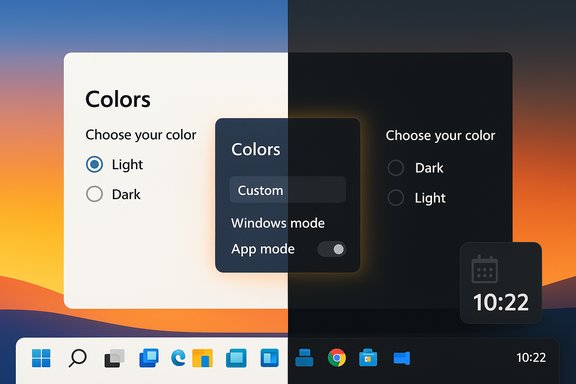
Windows 11 provides three built‑in choices for global appearance under Settings > Personalization > Colors:
Source: Guiding Tech How to Change Between Dark and Light Mode Windows 11
 Background / Overview
Windows 11 provides three built‑in choices for global appearance under Settings > Personalization > Colors:- Light — bright system chrome and app UI for well‑lit environments.
- Dark — darker system chrome and app UI designed for low‑light conditions.
- Custom — mix and match: set one mode for Windows shell elements (Start, taskbar, settings) and a different mode for apps.
- Theme (Light vs Dark) controls the UI palette Windows and theme‑aware apps display.
- Night light controls color temperature—warming the screen by reducing blue light—but it does not change theme state. Scheduling Night light will make colors warmer at night but will not flip Windows between Light and Dark.
How to change between Dark and Light mode (manual method)
The manual route is simple and safe for all Windows 11 devices. Follow these numbered steps for a reliable change that takes effect immediately.- Press Windows + I to open Settings.
- Choose Personalization from the left column.
- Click Colors.
- Under Choose your mode, select Light, Dark, or Custom.
- If you select Custom, two additional dropdowns appear so you can set Windows mode and App mode independently.
- (Optional) Adjust Accent color and Transparency effects on the same page to refine the appearance.
Custom mode: mix and match for real‑world workflows
Custom mode is the least obvious but most practical choice for many users. It lets you:- Keep the Windows shell (Start, taskbar, system UI) in Dark while leaving Apps (document editors, web browsers) in Light, or vice versa.
- Solve common contrast problems: some document apps or web pages are easier to read in a light theme even when the shell is dark.
- Avoid jarring visual changes when switching themes, because you can limit where the change applies.
Night light vs Theme scheduling — clear the confusion
A persistent misconception in many beginner guides is that scheduling Night light will also toggle Windows between Light and Dark modes. That’s not correct.- Night light changes the color temperature of the display (warmer colors in the evening) and can be scheduled in Settings > System > Display > Night light. Use it to reduce blue light exposure before bedtime.
- Night light does not change the UI palette (Light/Dark). It won’t flip the Start menu or File Explorer between modes.
- PowerToys — Light Switch (official Microsoft PowerToys module) — supports Fixed Hours or Sunset‑to‑Sunrise schedules, location‑based sunrise/sunset calculations, and scope controls (apply to System, Apps, or both). It was introduced as a first‑party scheduler so Windows users don’t have to rely solely on third‑party apps.
- Auto Dark Mode (third‑party, open source) — mature, feature‑rich utility that has supported scheduled theme switching, wallpaper swaps, battery‑aware options and script hooks for years. It remains a solid lightweight choice for users who want advanced automations.
PowerToys Light Switch: what it does and how to use it
Microsoft introduced Light Switch inside PowerToys to fill the long‑standing gap in Windows’ personalization capabilities. Key facts and how‑to:- Light Switch can switch between Light and Dark automatically using Fixed Hours or Sunset to Sunrise (location required for the latter).
- You can choose whether changes apply to System, Apps, or Both, and set a keyboard shortcut to toggle instantly.
- The feature operates by toggling two per‑user registry keys that Windows and many apps observe; the values are written and a settings change is broadcast so listeners can repaint. Because it runs in user context, it does not require elevated permissions.
- Install or update Microsoft PowerToys (use Microsoft Store, winget, or the GitHub installer).
- Launch PowerToys and open Settings.
- Navigate to System Tools → Light Switch and enable the module.
- Choose Fixed Hours or Sunset to Sunrise and configure times or allow location services.
- Optionally assign a keyboard shortcut or toggle whether the change applies to System and/or Apps.
- Early releases of Light Switch had a rollout bug that left the module enabled after update for some users, causing unexpected theme flips. The PowerToys team patched this; if you see unexpected toggles, open PowerToys and disable Light Switch or update to a patched release.
- Some legacy Win32 apps do not respond to the standard personalization hooks and can remain in their own theme, producing a mixed experience after a switch. Restarting Explorer (Task Manager → Windows Explorer → Restart) can repair some repaint issues.
Auto Dark Mode and other third‑party options
If you prefer a lightweight, focused tool with more automation hooks (wallpaper swapping, battery‑aware behavior, script execution), Auto Dark Mode is a widely used, actively maintained open‑source alternative. Its features include:- Sunrise/sunset and fixed‑hours scheduling.
- Wallpaper swaps, cursor theme switches, and script hooks.
- Options to not switch while gaming or when certain applications are running.
- Battery‑aware settings to favor dark mode on battery for OLED power savings.
Battery life: does Dark Mode actually save energy?
Short answer: it depends on your display.- On OLED (or AMOLED / self‑emissive) panels, darker pixels draw less power because individual pixels can be dimmed or turned off; switching UI elements to true black or very dark greys can produce measurable battery savings. Tests vary, but real‑world savings can be significant if much of your screen is dark and brightness is high.
- On LCD / IPS panels, the backlight remains on at constant power for the whole panel. UI color changes have minimal impact on display power and therefore negligible battery savings in most use cases. Brightness level remains the dominant factor for battery life on LCDs.
Eye comfort and accessibility: what’s real and what’s myth
Why users pick Dark Mode:- Many people report reduced glare and improved visual comfort in dim environments with Dark Mode.
- Night light (warm color temperature) can help reduce blue light exposure before sleep, but its effect on long‑term eye health and sleep varies across individuals.
- For prolonged reading and dense content, high‑contrast dark‑on‑light (black text on white) still often yields better readability and comprehension for many users. Several accessibility experts caution that poorly implemented dark themes (low contrast, thin font weights) can reduce legibility and increase fatigue.
- Users with certain visual conditions (e.g., astigmatism) can experience halation or “glow” with light text on dark backgrounds, so test the theme in your real workflow before committing.
- Use Night light in the evening to reduce blue light; schedule it Sunset to Sunrise if you want automatic warming.
- Adjust overall brightness to match ambient light—this is typically more effective at reducing eye strain than theme alone.
- Prefer Custom mode if you need shell elements dark but apps light (or vice versa) to balance legibility and comfort.
Troubleshooting common problems
- Theme keeps flipping unexpectedly
- If you’ve installed PowerToys recently, open PowerToys → System Tools → Light Switch and ensure it’s disabled or configured correctly. Earlier PowerToys releases enabled Light Switch by default for some users; updating PowerToys or toggling Light Switch off resolves many issues.
- Some apps don’t follow the theme
- Check app preferences for independent theme settings (browsers, Office, Slack, etc.. Legacy Win32 apps may ignore Windows personalization flags entirely. A restart of the app or Explorer may help.
- Night light is grayed out
- Update display drivers; certain drivers (DisplayLink or basic display drivers) may disable Night light. Microsoft’s support page explains driver and HDR interactions and how to restore Night light.
- Want scheduled theme switching but don’t want PowerToys?
- Use Auto Dark Mode (open source), or create a simple Task Scheduler + PowerShell script to toggle the registry keys at times you choose. Be mindful: programmatic toggles manipulate these two per‑user keys:
- HKCU\Software\Microsoft\Windows\CurrentVersion\Themes\Personalize\AppsUseLightTheme
- HKCU\Software\Microsoft\Windows\CurrentVersion\Themes\Personalize\SystemUsesLightTheme
(1 = Light, 0 = Dark). Changing these values triggers theme updates for apps that respect the flags. This approach requires technical comfort and may not affect all legacy apps.
Recommended workflows and quick checklist
- If you just want to switch once: use Settings > Personalization > Colors (manual, immediate).
- If you want warmer evenings: enable Night light and schedule it Sunset to Sunrise. This only changes color temperature, not theme.
- If you want automatic theme switching: install PowerToys and enable Light Switch, or use Auto Dark Mode for more advanced automations. Test the behavior on your critical apps first.
- If themes flip unexpectedly after an update: check PowerToys’ Light Switch and update PowerToys to the latest patched release.
Critical analysis — strengths, trade‑offs and risks
Strengths- Windows 11’s Custom mode addresses real‑world needs by letting users separate system chrome from app appearance, limiting jarring transitions. The Settings path is simple and robust for manual control.
- Light Switch in PowerToys gives users a supported, first‑party way to schedule theme changes. It respects location and scope, and reduces reliance on unmaintained community scripts.
- Night light and theme controls address different needs—color temperature for sleep/comfort, and theme for visual identity and situational comfort—so separating them yields better, more predictable results.
- Automatic theme switching is convenient, but because not all apps honor the system flags, users can experience a fragmented UI (dark taskbar + light app windows). That inconsistency is a platform limitation rather than a scheduler issue. Plan for it and test your productivity apps before adopting an automated schedule.
- Claims about battery savings from Dark Mode are highly hardware dependent. On OLED the effect is real; on LCD, minimal. Guides that promise battery miracles without qualifying the display type should be treated skeptically.
- Automation that changes visible settings should be opt‑in. The PowerToys Light Switch rollout lesson shows why defaults matter—unexpected toggles can degrade trust and accessibility for users who rely on a stable contrast setting. Ensure automation is explicit and reversible.
Conclusion
Switching between Dark and Light mode in Windows 11 is quick and reliable through Settings > Personalization > Colors, and Custom mode gives practical per‑surface control for everyday workflows. Use Night light for blue‑light reduction and PowerToys’ Light Switch or Auto Dark Mode for true automatic theme scheduling; do not treat Night light as a theme switcher. The real benefits—eye comfort in low light, modest OLED battery savings, and a polished look—are conditional and depend on display technology, app behavior, and accessibility requirements. Test changes with your core apps, keep PowerToys updated, and prefer explicit opt‑in automation to avoid surprising theme flips. The manual steps are simple, but the ecosystem details are what turn a cosmetic tweak into a polished, productive configuration.Source: Guiding Tech How to Change Between Dark and Light Mode Windows 11
