

Windows users switching from Windows 10 to Windows 11 will find that learning a handful of well‑chosen keyboard shortcuts pays huge dividends: you work faster, avoid repeated mouse trips, and gain access to features that hide behind modern UI niceties. The recent CNET roundup that curates “73” useful hotkeys captures this idea—its list is a practical starting point for anyone moving to Windows 11. rview
Windows 10 reached its official end of support on October 14, 2025, which means Microsoft stopped providing free feature updates, technical support, and security patches for mainstream Windows 10 builds on that date. If you’re still running Windows 10 you should plan your migration or enroll in an Extended Security Updates (ESU) option if you need more time.
That sunset makes Windows 11 the practical mainstream platform for most users today. Microsoft didn’t just move pixels — it added modern shortcuts that reflect features like Snap Layouts, the integrated Copilot experience, and a redesigned Quick Settings/Notification model. Microsoft’s own keyboard‑shortcuts documentation collects the canonical list of defaults and notes where behavior varies by configuration and app. Use that documentation as the source of truth when a shortcut behaves differently on your machine.
Shortcuts are not nostalgia for power users; they’re a productivity multiplier for everyone. A few well‑chosen combos cut seconds off routine tasks (switching windows, arranging workspaces, grabbing screenshots), and those seconds compound into hours over weeks.
Practical tip: pair Win + Tab (Task View) with virtual desktops and Snap to create a workspace per project. That combination reduces visual clutter and makes app recall faster.
Source: CNET These 73 Keyboard Shortcuts Are Total Windows 11 Game-Changers
Windows 10 reached its official end of support on October 14, 2025, which means Microsoft stopped providing free feature updates, technical support, and security patches for mainstream Windows 10 builds on that date. If you’re still running Windows 10 you should plan your migration or enroll in an Extended Security Updates (ESU) option if you need more time.
That sunset makes Windows 11 the practical mainstream platform for most users today. Microsoft didn’t just move pixels — it added modern shortcuts that reflect features like Snap Layouts, the integrated Copilot experience, and a redesigned Quick Settings/Notification model. Microsoft’s own keyboard‑shortcuts documentation collects the canonical list of defaults and notes where behavior varies by configuration and app. Use that documentation as the source of truth when a shortcut behaves differently on your machine.
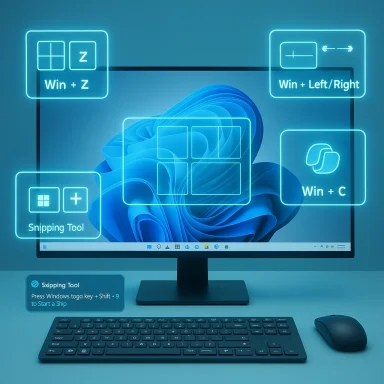 Why keyboard shortcuts matter in Windows 11
Shortcuts are not nostalgia for power users; they’re a productivity multiplier for everyone. A few well‑chosen combos cut seconds off routine tasks (switching windows, arranging workspaces, grabbing screenshots), and those seconds compound into hours over weeks.- Shortcuts remove context switches between keyboard and mouse, keeping your focus.
- Modern shortcuts in Windows 11 are designed around features built after 2021 (Snap Layouts, Copilot, updated Snipping Tool).
- Many old Windows 10 shortcuts still work — you don’t need to relearn everything — but new combos unlock new behaviors.
The core cheat sheet: 20 shortcuts that repay memorization
These are the shortcuts that will change your daily experience fastest. Each entry is annotated with why it matters and any configuration caveats.- Ctrl + C / Ctrl + V / Ctrl + X — Copy, paste, cut. (Universal; app behavior can vary.)
- Alt + Tab — Switch between open apps quickly. (Use Alt + Tab + Tab to cycle.)
- Windows key — Open or close Start. (The basic anchor for many Win + combos.)
- Win + X — Open the quick link (power user) menu for fast access to Device Manager, Terminal, and Settings.
- Win + [Number] — Launch or switch to the app pinned in that taskbar position (1–9). Great for muscle memory.
- Win + Z — Open Snap Layouts (the tile/grid choices shown by hovering the maximize button). This is a Windows 11 enhancement for quick tiled layouts.
- Win + Left / Right / Up / Down — Snap windows to halves, quarters, maximize, or minimize; combine these with Win + Z for precision.
- Win + Ctrl + D / Win + Ctrl + Left/Right / Win + Ctrl + F4 — Create, switch, and close virtual desktops. Essential for separating workspaces.
- Win + PrtScn — Take a full‑screen screenshot and automatically save it to the Pictures\Screenshots folder. (Hardware or laptop Fn layers can change behavior; check your device’s Print Screen mapping.)
- Win + Shift + S — Open the Snipping Tool overlay for partial screenshots (rectangle, freeform, window, full). This replaces older Snip & Sketch flows.
- Win + . (period) or Win + ; (semicolon) — Open the emoji/GIF/symbol panel (works in any text entry field). Very useful for chat and quick symbols.
- Win + V — Open Clipboard History (requires enabling in Settings > System > Clipboard). Caution: clipboard contents may include sensitive data; review before enabling cloud sync.
- Ctrl + Shift + Esc — Open Task Manager. Faster than the classic Ctrl + Alt + Del path.
- Alt + F4 — Close active window (if no windows open, shows shutdown dialog).
- Win + I — Open Settings.
- Win + A — Open Quick Settings (network, audio, battery, brightness), the modern replacement of the old Action Center controls.
- Win + N — Open Notification Center and calendar pane (Windows 11 change).
- Win + G — Open the Xbox Game Bar (recording, overlays, widgets). Useful for screen capture during games.
- F2 / F3 / F5 — File Explorer and general UI helpers: rename (F2), search (F3), refresh (F5).
- Win + C — Open Microsoft Copilot (or launch the configured Copilot/Chat experience). On machines without Copilot availability the key may open a different search or settings view — Microsoft documents customization for the Copilot key.
Deep dive: window management and Snap Layouts (the single biggest daily win)
Windows 11 introduced Snap Layouts to make tiling windows approachable without third‑party tools. The keyboard workflows are tidy:- Win + Z: open the Snap Layouts chooser for the active window, then use arrow keys or the mouse to choose a layout. This is the quickest way to place windows into prebuilt multi‑pane templates.
- Win + Left/Right/Up/Down: immediately snap the active window to the left/right half, maximize, or minimize. Use repeated presses to cycle behavior.
- Win + Shift + Left/Right: move the active window to another monitor (preserves current snap state in many cases).
Practical tip: pair Win + Tab (Task View) with virtual desktops and Snap to create a workspace per project. That combination reduces visual clutter and makes app recall faster.
Screenshots and the Snipping Tool: multiple modes, one overlay
Windows still offers multiple screenshot flows, and knowing the differences helps you pick the right tool quickly:- PrtScn (Print Screen): copies the full screen to the clipboard by default (behaviour can vary by OEM/laptop Fn settings).
- Win + PrtScn: captures the full screen and saves it to Pictures\Screenshots automatically.
- Win + Shift + S: opens the Snipping Tool overlay for selecting a region, window, or full screen; the capture is copied to the clipboard and (optionally) opens a notification that takes you into the Snipping Tool editor.
Copilot, Quick Settings, and other modern Win + combos
Windows 11 introduced a few OS‑level keys to reflect modern features:- Win + C: opens Microsoft Copilot (or Microsoft 365 Copilot when available). On systems where Copilot is not present the key’s behavior can be customized through Settings (Personalization > Text input > Customize Copilot key on keyboard). This is Microsoft’s documented behavior for the Copilot key.
- Win + A: opens Quick Settings (network, volume, hardware toggles).
- Win + N: opens the Notification Center and calendar pane.
- Win + W: opens Widgets.
Accessibility and power features
Windows keeps a strong set of accessibility shortcuts that are useful beyond assistive use cases:- Win + Plus/Minus: control Magnifier zoom; Win + Esc exits Magnifier.
- Win + Ctrl + Enter: toggle Narrator.
- Win + U: open Accessibility (Ease of Access / Accessibility settings).
Privacy, security, and enterprise considerations
A few of Windows’ convenience features carry privacy or security implications:- Clipboard history (Win + V) stores a list of recent items and can sync across devices when cloud sync is enabled — don’t enable cloud sync for clipboard history if you handle passwords or sensitive tokens. Microsoft documents this and gives toggles in Settings.
- Win + PrtScn saves files to your user Pictures folder. If you record sensitive screens, consider where those files land and whether your backup or sync (OneDrive) is capturing screenshots automatically. Check OneDrive’s screenshots settings if you don’t want automatic uploads.
- When a machine is subject to enterprise device management, some shortcuts (Copilot, Widgets, or telemetry settings) may be restricted by policy. IT admins can customize or disable features via group policy or Intune.
How to learn and retain shortcuts (a practical 4‑week program)
Learning shortcuts is a muscle‑memory problem; a deliberate plan works better than memorizing a long list.- Week 1 — Commit to 5 core shortcuts: Win, Alt + Tab, Win + Left/Right, Win + D, Win + Shift + S. Use them exclusively for all relevant tasks.
- Week 2 — Add 3 more: Win + V (clipboard history), Win + Z (Snap Layouts), Ctrl + Shift + Esc (Task Manager).
- Week 3 — Add Copilot/Quick Settings: Win + C, Win + A, Win + N. Practice by using Copilot for one small task each day.
- Week 4 — Review and refine: remove or remap any combos that are awkward (PowerToys Keyboard Manager is excellent for remaps).
Remapping, PowerToys, and automation
If your hands or keyboard layout make certain combos painful, Microsoft PowerToys offers Keyboard Manager to remap shortcuts or create complex macros. FancyZones gives programmable tiling that often outperforms default Snap for multi‑monitor and nonstandard aspect ratios.- PowerToys is a community‑trusted tool backed by Microsoft that provides advanced remapping and window management features.
- For scripted automation, AutoHotkey remains the flexible community standard, but remember that enterprise environments can block or flag script runners for security reasons.
Cross‑verification and reliability of the “73 shortcune number “73” (from the CNET roundup) is a curated editorial count rather than a magic threshold. Windows’ official keyboard support document lists dozens of OS‑level shortcuts, and independent tech guides frequently compile larger lists (50–150+) that include app‑specific combos, Game Bar, File Explorer, and accessibility keys. Rely on Microsoft’s support documentation as the definitive list for OS defaults and use curated lists like the CNET piece as a learning plan. When in doubt about a specific behavior, check Microsoft’s keyboard shortcuts page and an independent guide — they generally agree on the most important combos.
Note: community threads sometimes report regressions (broken Snipping Tool overlay, changed Print Screen mappings) after updates; when a shortcut stops working on your PC, verify system updates, OEM keyboard tools, and app reinstalls before assuming the shortcut is deprecated.Strengths, weaknesses, and risk assessment
- Strengths
- Consistency: Many legacy shortcuts carry over (so institutional muscle memory transfers to Windows 11).
- Modern additions: Snap Layouts, Copilot key, widget and notification panes are accessible via simple Win + combos that map to the new UX paradigm.
- Built‑in accessibility: Magnifier, Narrator, and accessibility toggles are fast to invoke for all users.
- Weaknesses / risks
- Device differences: OEM keyboard layouts, Fn‑lock behaviors, and laptop vendor utilities can change Print Screen and function‑key behavior; watch for that.
- Feature availability: Copilot availability varies by subscription, device, and region — Win + C’s behavior can be customized or differ on unmanaged machines.
- Bugs and regressions: System updates occasionally introduce regressions (snipping overlay failures are a documented example); keep your system patched and use Microsoft’s docs when troubleshooting.
Practical next steps for readers
- Start with the core 10–20 shortcuts listed earlier. Add three new combos each week until you have a comfortable stack.
- Enable Clipboard history only after assessing whether pinned or synced items could expose sensitive data.
- If you manage many test rigs or review devices, standardize taskbar pin positions so Win + [Number] is predictable across machines.
- Install PowerToys if you want deeper remapping or custom FancyZones layouts.
- Bookmark (or pin) Microsoft’s official keyboard shortcuts page for device‑specific confirmation and to check for updates.
Conclusion
Windows 11’s keyboard shortcuts are a pragmatic productivity upgrade: most users will see real time savings after learning a small, focused set of combos. The “73 shortcuts” style roundups are useful checklists, but the real win comes from integrating 10–20 high‑ROI keys into your daily flow. Rely on Microsoft’s documentation as the definitive resource for OS behavior, use curated guides as learning maps, and treat any shortcut that misbehaves as a troubleshooting item — device firmware and vendor utilities are often the real cause. If you methodically learn a few shortcuts a week and enable only the settings you trust (clipboard sync, Copilot behavior), you’ll move from cursor‑driven to keyboard‑driven workflows and reclaim measurable time every day.Source: CNET These 73 Keyboard Shortcuts Are Total Windows 11 Game-Changers
