

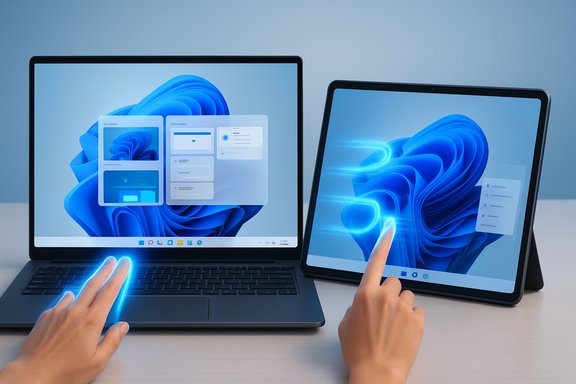
Windows 11’s touch gestures turn many repetitive clicks and keyboard shortcuts into a single, natural motion — swipe, tap, pinch — and once you enable and master them they can dramatically speed navigation, multitasking, and accessibility on touchscreens and precision touchpads alike.
Windows has steadily pushed toward more natural input methods for years, and Windows 11 brings a refined set of touchscreen and touchpad gestures that mirror the behaviors users expect from phones and tablets while integrating PC-grade multitasking features. These gestures let you perform everything from simple selections and two‑finger scrolling to system-level actions like showing Task View, switching virtual desktops, or summoning the notification center — with finger motions rather than keyboard combos. Multiple Windows documentation and community guides confirm the gesture list and the Settings locations where they’re enabled and customized.
This feature guide explains how to enable gestures, what each gesture does, how touchpad and touchscreen gestures differ, practical workflows, customization and troubleshooting, and the trade‑offs you should know before relying on gestures as your primary navigation method.
Note: Windows 11’s gesture behavior is also affected by larger OS updates and sometimes by manufacturer firmware; keep Windows Update and OEM drivers current for the best experience.
Source: PCWorld Swipe, tap, done: These Windows 11 touch gestures change everything
 Background
Windows has steadily pushed toward more natural input methods for years, and Windows 11 brings a refined set of touchscreen and touchpad gestures that mirror the behaviors users expect from phones and tablets while integrating PC-grade multitasking features. These gestures let you perform everything from simple selections and two‑finger scrolling to system-level actions like showing Task View, switching virtual desktops, or summoning the notification center — with finger motions rather than keyboard combos. Multiple Windows documentation and community guides confirm the gesture list and the Settings locations where they’re enabled and customized.This feature guide explains how to enable gestures, what each gesture does, how touchpad and touchscreen gestures differ, practical workflows, customization and troubleshooting, and the trade‑offs you should know before relying on gestures as your primary navigation method.
Overview: What gestures are available and where to enable them
Core gestures (short list)
- Tap: Select an item (works like a left‑click).
- Two‑finger scroll: Scroll horizontally or vertically.
- Pinch (two fingers): Zoom in and out.
- Press & hold: Open context menu (right‑click equivalent).
- Three‑finger swipe up: Show all open windows (Task View).
- Three‑finger swipe down: Show the desktop (minimize all windows).
- Three‑finger swipe left/right: Switch to last app or switch between open apps.
- Four‑finger swipe left/right: Switch virtual desktops.
- Edge swipes (touchscreen): Swipe in from right edge to open Notification Center or from left edge to show Widgets.
Where to enable and customize
- Right‑click the Start button and open Settings.
- Navigate to Bluetooth & devices, then choose Touch (for touchscreen) or Touchpad (for laptop touchpads).
- Ensure Three and four‑finger touch gestures is switched On, and expand the sections to choose or fine‑tune specific actions. For touchscreen edge gestures, expand Touch screen edge gestures and toggle Swipe from the left edge and Swipe from the right edge on or off.
Deep dive: Touchscreen vs touchpad — how they differ in practice
Touchscreen gestures
Touchscreens are inherently direct: you touch the object you want to affect. Gestures here feel more like tablet interactions and are optimized for large targets and edge swipes.- Best for fast navigation on 2‑in‑1s and tablets where direct manipulation (dragging, pinch‑zooming, tapping) is faster than using a cursor.
- Edge swipes are especially useful on tablets: swipe from taskbar center to summon Start, bottom‑right to open Quick Settings, right edge to open notifications, left edge for widgets (behavior introduced and refined in Windows 11 builds).
- In fullscreen touch‑oriented apps Windows may show a gripper to prevent accidental edge swipes that would otherwise exit the app.
Touchpad gestures (precision touchpads)
Touchpads use a gesture interpreter (Precision Touchpad stack) and are designed to replace or complement a mouse, offering fluid multitasking without touching the screen.- Multi‑finger swipes (three/four fingers) map to Task View, desktop, and app switching. These are invaluable on laptops for keyboard‑adjacent workflows.
- Customization is robust: you can remap three/four‑finger gestures to alternate actions like play/pause or show desktop, depending on your preference.
- Not all touchpads are Precision Touchpads. Legacy drivers or OEM utilities may change behavior or hide Windows’ own gesture options, so update the touchpad driver if options are unavailable.
Step‑by‑step: Turn gestures on and practice them (quick how‑to)
- Right‑click Start → Settings.
- Go to Bluetooth & devices → Touchpad (for laptop) or Touch (for touchscreen).
- Toggle Three and four‑finger touch gestures On. Expand the corresponding sections to choose what each swipe or tap does.
- For touchscreen edge gestures: open Touch → expand Touch screen edge gestures and ensure Swipe from the left edge and Swipe from the right edge are On.
- Tap items to select (single finger).
- Two‑finger scroll across long web pages.
- Pinch to zoom on images and maps.
- Press-and-hold to reveal context menus.
- Three‑finger swipe up to open Task View, down to show desktop, and left/right to switch apps.
- Four‑finger swipe left/right to move between virtual desktops.
Practical workflows — how gestures speed real work
Fast app triage
Three‑finger swipe up (Task View) plus a tap quickly surfaces a window you need — faster than alt‑tabbing through dozens of thumbnails. This saves time during research sessions or when you juggle many browser tabs.Desktop context zoning
Create dedicated virtual desktops for “Work,” “Chat,” and “Media,” then use four‑finger swipes to leap between them without keyboard commands. It’s a one‑hand, no‑keyboard way to split contexts.Touch editing and creative work
On touchscreens: pinch to zoom and two‑finger scroll give designers and editors precise control in image apps. On touchpads: use gestures for quick undo/redo mappings (if remapped) and fast pan/zoom combinations without leaving the keyboard zone.Notification hygiene
Edge swipe-in from the right to open Notification Center keeps you from losing flow to a mouse chase; conversely, a left edge swipe for Widgets surfaces calendar, weather, and news with a single touch. Configure which widgets display to keep noise low.Customization: Make gestures your own
Windows exposes simple remapping for three‑ and four‑finger gestures in Settings, letting you change what a swipe or tap does. Typical options include:- Switch apps
- Show Task View
- Show desktop
- Play/pause media
- Mute/unmute audio
Troubleshooting: When gestures don’t work
Common problems and fixes:- No gesture options visible: your touchpad might not report as a Precision Touchpad or the driver is missing. Update the touchpad driver via Windows Update or the OEM support page.
- Gestures unresponsive or intermittent: check for Windows updates and driver updates, then test after a reboot. Toggling gesture settings off and back on can sometimes reset the driver state.
- Accidental triggers while typing: adjust touchpad sensitivity or enable palm rejection/delay settings in Touchpad options to lower accidental taps.
- Conflicts with specialized apps (e.g., drawing or DAW software): temporarily disable multi‑finger gestures or create app-specific profiles in OEM drivers where possible. Some creative apps rely on multi‑finger input and can interpret gestures as drawing commands.
Strengths: Why gestures are worth learning
- Speed: Single gestures replace multi‑key combos and several mouse movements, reducing friction.
- Ergonomics: Less wrist travel and fewer repetitive keystrokes when switching apps or desktops.
- Accessibility: Gestures provide alternative input paths for users who may find mouse/keyboard interactions challenging. Touch and multi‑finger gestures integrate with Narrator and other accessibility features.
- Consistency across devices: Once you learn the gestures they translate across many Windows 11 devices (laptop touchpads and tablets), creating a consistent muscle memory.
Risks and trade‑offs: What to watch out for
- Hardware variability: Not every device supports the full gesture set. Non‑precision touchpads and older hardware may omit features or behave inconsistently. Before depending on gestures, confirm your device supports them.
- Driver and OEM overlays: Vendor drivers sometimes change the behavior or accessibility of gesture settings. This can make troubleshooting harder when the OS and vendor utilities conflict.
- Accidental activations: Edge swipes and multi‑finger swipes can trigger unintentionally, especially on smaller screens or when reclining a laptop screen. Use sensitivity and delay settings to reduce false positives.
- Application conflicts: Drawing and DAW apps can interpret multi‑finger gestures differently; keep gestures off for those apps if precision input is required.
- Security and privacy considerations: Edge gestures reveal UIs like Notification Center and Widgets. If you work with sensitive data in public, accidental exposure via an errant swipe is possible. Consider disabling edge gestures or locking the device more aggressively in shared spaces.
Enterprise and admin perspective
For organizations managing fleets of laptops, gestures can increase productivity but also introduce variability. Admins should consider:- Rolling out validated drivers that expose a consistent gesture set across models.
- Using Group Policy or Intune to enforce settings where appropriate (e.g., disabling edge gestures in kiosk or public kiosk‑style deployments).
- Testing business applications for gesture conflicts before broad deployment (trading a few lost minutes of app time for several reclaimed hours across many users is worthwhile).
Tips to master gestures quickly
- Start with the three most useful: three‑finger swipe up (Task View), three‑finger swipe left/right (app switching), and two‑finger scroll (everyday scrolling). Repeat until natural.
- Build a short 10‑minute daily practice routine for a week to cement muscle memory. Use real tasks (switch between a browser and notes, open Task View to find a window).
- Customize gestures for single‑hand efficiency: if you do most of your work in the left hand on the keyboard, map a three‑finger tap to play/pause for easier media control.
- Use OEM driver profiles for app‑specific behavior (for example, disable gestures for Photoshop but keep them active for browsing).
What’s changed recently and what to expect
Microsoft has iteratively refined touch and touchpad gestures in Windows 11 builds — adding edge swipes, improving Quick Settings and Start interactions for touch, and enhancing animations to follow your finger for responsiveness. These updates reflect a broader push to make Windows comfortable on tablets and 2‑in‑1 devices while keeping productivity tools robust for laptop users. If you see slight differences in gestures or settings labels, it’s usually tied to a Windows build or OEM driver update.Note: Windows 11’s gesture behavior is also affected by larger OS updates and sometimes by manufacturer firmware; keep Windows Update and OEM drivers current for the best experience.
Conclusion
Touch and touchpad gestures in Windows 11 are a practical, productivity‑centric evolution of input: they marry the directness of touch with the multitasking power of the desktop. Enabling and customizing gestures is straightforward (Settings → Bluetooth & devices → Touch/Touchpad), and the payoffs — faster navigation, better ergonomics, and alternative access paths — are tangible for both casual and power users. Yet they’re not a silver bullet: hardware support, driver quality, accidental activations, and app conflicts are real limitations that deserve attention before gestures replace traditional inputs in mission‑critical workflows. With a small investment of time — toggling the right settings, a daily practice routine, and keeping drivers updated — most users will find gestures make Windows 11 feel markedly more fluid and immediate.Source: PCWorld Swipe, tap, done: These Windows 11 touch gestures change everything
