

MS Paint may be heading for the exit sign in Microsoft’s product roadmap, but losing Paint does not mean losing the ability to capture, annotate, and share screenshots on Windows — far from it. Built-in tools have quietly matured over the past decade and a half, and the modern Snipping Tool (plus legacy keyboard shortcuts and the Xbox Game Bar) gives Windows users a complete, flexible screenshot toolkit that covers everything from quick clipboard captures to annotated files and short screen recordings. The transition from the familiar MS Paint workflow to today’s capture-and-edit options is worth understanding: it’s a change in habit more than capability, and mastering it will save time and frustration for both casual and power users.
Source: Mashable MS Paint is dead, this is how you get your Windows screenshots
 Background
Why this matters now
MS Paint’s public deprecation announcement years ago reignited a long-running conversation about legacy software, but what most users need right now is a clear, practical map of how to capture screens and where those screenshots go. Over the last several Windows releases Microsoft has consolidated and upgraded capture workflows: the traditional Print Screen behavior remains, Windows + PrtScn now auto-saves files, Windows + Shift + S launches a powerful overlay tied to the Snipping Tool, and the Xbox Game Bar remains an option for game and full‑screen captures. These multiple options are intentional — they serve differing needs (clipboard-first, auto-save, annotated saves, and video). Understanding which one to use when is the central takeaway.Short history: Snipping Tool’s quiet evolution
The Snipping Tool began as a small tablet-focused utility Microsoft developed during the early 2000s and later bundled into Windows Vista and Windows 7. Over time it stayed relatively hidden until Microsoft merged its capabilities with Snip & Sketch and invested in a more modern interface for Windows 10 and Windows 11. Today’s Snipping Tool integrates annotation, text extraction (OCR), and short video snips in some builds, making it the most complete built-in screen-capture solution Microsoft has shipped to date.Overview: The Windows screenshot toolbox (what each tool does)
The three practical categories
Windows’ screenshot tools fall into three functional categories:- Clipboard-first captures — quick copy to clipboard for pasting into a chat, document, or editor. (PrtScn, Alt + PrtScn, Win + Shift + S.
- Auto-save captures — immediate file saved to disk without extra steps. (Win + PrtScn.
- App-managed captures — captured through an app (Snipping Tool, Xbox Game Bar) with editing, annotation, or video features and a choice of save locations.
Quick reference — core shortcuts
- Press PrtScn — copy the full screen to the clipboard. Paste (Ctrl + V) into any editor to save.
- Press Alt + PrtScn — copy the active window to the clipboard. Paste to save.
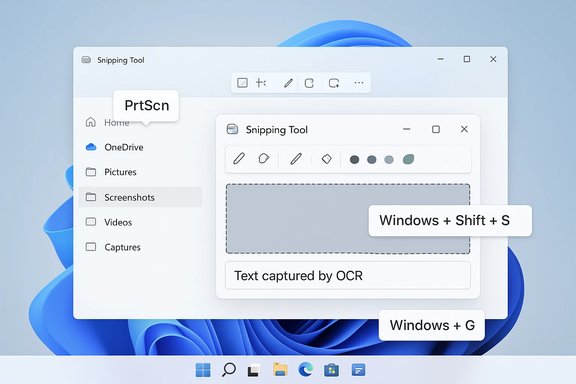
- Press Windows + PrtScn — capture the full screen and auto-save a timestamped PNG to Pictures\Screenshots.
- Press Windows + Shift + S — open the Snipping Tool overlay (Rectangular, Freeform, Window, Full‑screen); the capture goes to the clipboard and a notification usually lets you open the editor to save.
- Press Windows + G — open Xbox Game Bar for game captures; screenshots are saved to Videos\Captures by default.
The Snipping Tool: how it works (and why it’s your new default)
Modes and features
The Snipping Tool offers four static capture modes plus video in modern builds:- Rectangular Snip — draw a rectangle.
- Freeform Snip — draw any shape and capture just that region.
- Window Snip — click a window to capture it cleanly.
- Full‑screen Snip — capture everything on the display.
- Video Snips — record a selected area with audio (available in newer Windows 11 builds and may require Clipchamp integration for editing).
Launching the Snipping Tool
- Use Windows + Shift + S for the overlay (fast and keyboard-centric).
- Open Start → type “Snipping Tool” to access the full app when you want additional options such as delay timers, video recording, or a persistent editor window.
Delay timer and tricky captures
The Snipping Tool supports delays (useful for capturing transient menus or tooltips). Depending on the OS build the delays are typically 3, 5, and 10 seconds; older Windows 10 variants had shorter options. If you need to capture a menu that disappears when focus changes, set the delay, trigger the menu, and wait for the tool to take the shot.Practical how-to: step-by-step for common tasks
1. Get a quick file (auto-saved)
- Press Windows + PrtScn.
- Look in Pictures → Screenshots for a timestamped PNG.
This is the fastest way to generate a file without pasting.
2. Capture a region and annotate
- Press Windows + Shift + S.
- Choose Rectangular or Freeform, drag to select.
- Click the notification that appears to open the Snipping Tool editor.
- Use pen/highlighter and Save As to store your edited image.
3. Capture a single window
- Make the window active.
- Press Alt + PrtScn to copy it to the clipboard, then paste into an editor and save — or use Windows + Shift + S and choose Window Snip to copy and then open in the Snipping Tool for editing.
4. Record a short tutorial clip
- Open Snipping Tool or press Windows + Shift + R (where available) to start a video snip.
- Select the region, choose audio settings (microphone/system sound), and record.
- Edit in Clipchamp (on Windows 11 builds where integration exists) and export. Note: availability of that workflow varies by build.
Where screenshots live (and why you might not find them)
- Pictures\Screenshots — default for Win + PrtScn and many Snipping Tool saves.
- Videos\Captures — default for Xbox Game Bar screenshots and gameplay captures.
- Clipboard — PrtScn, Alt + PrtScn, and Win + Shift + S put images on the clipboard only; they appear to “disappear” if you forget to paste. Always paste into Paint or an editor (Ctrl + V) to check.
- OneDrive (cloud) — if OneDrive’s automatic screenshot backup is enabled, screenshots may be redirected to OneDrive\Pictures\Screenshots instead of the local Pictures folder. This setting commonly confuses users who expect a local file.
Troubleshooting common problems
- If Windows + Shift + S does nothing: check for third‑party apps that intercept the hotkey (ShareX, Greenshot, keyboard software), confirm Fn lock on laptops, or re-register/reset the Snipping Tool app from Settings. Community troubleshooting threads commonly recommend restarting Windows Explorer as a quick fix.
- If captures land in OneDrive unexpectedly: turn off OneDrive’s “Automatically save screenshots I capture to OneDrive” or move the Screenshots folder to a local location.
- If Snipping Tool features are missing: feature availability (OCR, video snips, custom save folder) can be build-dependent; check Windows Update or Insider channel notes and consider that some features roll out incrementally.
Power-user workflows and third-party options
For most users built-ins are sufficient, but heavy workflows can benefit from third‑party tools:- ShareX — scriptable, supports scrolling captures, integrations for automated uploads. Ideal for repeatable, programmatic capture workflows.
- Greenshot — lightweight, focused on annotation and quick saves with configurable hotkeys.
- Snagit — commercial tool with advanced editing, templates, and long-term capture management.
Security and privacy: what to watch for
- Cloud backups — OneDrive or enterprise backup policies can upload screenshots automatically. For sensitive captures, save locally to an encrypted folder or disabled auto-sync.
- Game Bar and Copilot features — Gaming overlays and emerging assistant features can affect telemetry and local processing; review privacy settings if you have compliance or confidentiality concerns. Recent reporting suggests Microsoft has drawn clearer boundaries on how capture data is (or is not) used for model training, but privacy settings should still be audited after major updates. Treat any claim about telemetry or training data as potentially time-sensitive and verify against current policies when in doubt.
- Clipboard leakage — Clipboard captures remain in memory until overwritten. Avoid copying passwords or highly sensitive data and immediately clear the clipboard or paste to a secure editor and then clear.
Critical analysis — strengths, gaps, and risks
Strengths
- Built-in coverage for most needs: Windows now offers clipboard-first, auto-save, and annotated-edit workflows without installing extra software. This reduces friction and improves security for many users.
- Integrated editing and OCR: Annotation tools and text extraction reduce the need for ad-hoc editing in separate apps, speeding documentation workflows.
- One-stop multimedia capture: The Snipping Tool’s addition of short video snips bridges the gap between static screenshots and full recordings for tutorial creators.
Gaps and risks
- Build and rollout variability: Features such as video snips, custom save-folder settings, or OCR can be limited to specific Windows Insider builds before general availability, creating inconsistent experiences. Flag these as may vary by build when advising users.
- Hotkey interception and confusion: Third‑party capture tools and OEM keyboard mappings can silently change expected behaviors, leading to “missing” screenshots for less technical users.
- Privacy surprises from cloud backup: Automatic uploads to OneDrive (or enterprise policies) can expose screenshots beyond the local machine unless the user configures settings. This is a common source of accidental leakage.
Recommendations: a sensible setup for everyday users
- Keep Windows + Shift + S as your daily driver for fast, annotated, clipboard-friendly captures. It’s immediate, simple, and works across Windows 10 and 11.
- Use Windows + PrtScn when you want a guaranteed file saved to Pictures\Screenshots with minimal interaction. Great for documentation and backups.
- Reserve Alt + PrtScn for quick single-window captures you plan to paste into documents.
- If you use OneDrive, explicitly set whether screenshots should be uploaded; don’t assume local-only storage.
- For power users with specialized needs (scrolling captures, automated uploads, cursor inclusion), choose a third‑party tool, but plan for key conflicts and document the remapped shortcuts.
Final thoughts
The conversation around MS Paint’s future is mostly cultural — nostalgia for a familiar editor — but it obscures a practical reality: Windows’ screenshot capabilities have become more robust and fit-for-purpose than many users realize. The Snipping Tool has matured from a buried accessory into a multi‑modal capture hub, and when combined with straightforward keyboard shortcuts and the Xbox Game Bar, it covers nearly every screenshot need without extra installs. The real work for users is adapting habits — remembering which hotkey does what, checking whether an image landed on the clipboard or as a saved file, and auditing cloud backup settings to avoid surprises. Do that, and the “death of Paint” is just a headline; your screenshot game will be stronger than ever.Source: Mashable MS Paint is dead, this is how you get your Windows screenshots
