

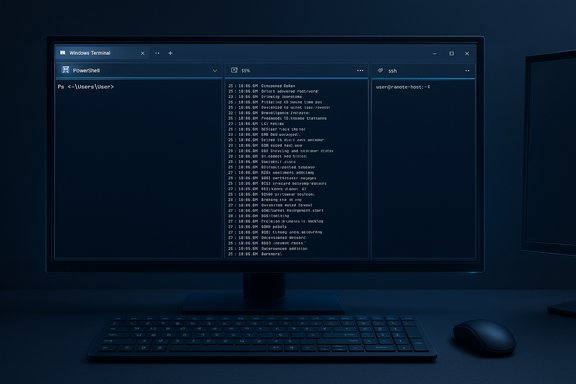
Splitting panes inside a single PowerShell window is one of those quietly powerful features that many Windows users — even frequent PowerShell users — either overlook or assume is only possible with terminal multiplexers like tmux; yet it's built into Windows Terminal and can be driven by keyboard, mouse, settings or script, making it an instant productivity win for anyone who spends time in terminals on multi‑monitor setups or 4K displays.
Overview
Windows Terminal provides pane splitting: the ability to run multiple shells (PowerShell, PowerShell Core, Command Prompt, WSL, SSH sessions, etc. side‑by‑side inside the same tab. That means you can view and interact with multiple terminals without juggling separate windows or constantly switching tabs. The feature exposes keyboard shortcuts for creating, resizing, focusing and closing panes, a settings API for customizing behaviors, and command‑line hooks (wt.exe) so you can open complex multi‑pane layouts programmatically from scripts or shortcuts.This article explains how pane splitting works, how to use it efficiently from PowerShell, how to automate pane layouts with wt.exe, best practices for workflows, and the risks and caveats worth knowing before you adopt pane‑heavy workflows.
Background
What actually provides pane splitting?
Pane splitting is a feature of Windows Terminal, Microsoft's modern terminal host. PowerShell (Windows PowerShell or PowerShell Core / pwsh) is a shell that runs inside Windows Terminal the same way bash runs inside a terminal emulator. The split/pane system is implemented by Windows Terminal itself, not the PowerShell runtime. When people say “split panes in PowerShell,” they are usually describing using Windows Terminal to run multiple PowerShell sessions in panes inside one Terminal tab.Why this matters
Windows users historically used separate application windows, tiling window managers, or third‑party tools to arrange terminals. Windows Terminal brings native pane support with integrated keyboard and programmatic controls. For administrators, developers, and ops folks who monitor logs, run builds, keep SSH sessions open or compare command outputs, the ability to see multiple shells simultaneously is a real productivity multiplier.The core controls: keyboard and mouse
Windows Terminal exposes sensible default keyboard shortcuts for pane management. These are the keys to memorize if you want to be efficient:- Create a vertical split (new pane to the right): Alt + Shift + Plus
- Create a horizontal split (new pane below): Alt + Shift + Minus
- Create an “auto” split (direction chosen to make panes squarest): Alt + Shift + D (configurable)
- Move focus between panes: Alt + Arrow keys (Alt+Left/Right/Up/Down)
- Resize the focused pane: Alt + Shift + Arrow keys
- Close (terminate) the focused pane: Ctrl + Shift + W
- Duplicate the focused pane’s profile: configurable as a split with duplicate mode (see settings) — many users bind this to Alt + Shift + D or Ctrl + Shift + D
Note: key ordering (Alt+Shift vs Shift+Alt) matters only for presentation — the modifiers are Alt and Shift together; use whichever ordering your fingers prefer.
How panes behave
- Panes are organized in a tree structure internally: every split creates parent/child relationships that determine how subsequent splits propagate.
- When you close a pane, the running process inside it ends (so unsaved work or shells running important stateful commands will terminate). The close action is identical to terminating a tab’s process.
- A pane’s profile (which shell it runs, starting directory, icon, color) can be specified when creating a pane either interactively or via keybinding/command.
- You can move a pane into another tab, swap panes within a tab, toggle orientation (vertical ↔ horizontal) and even set a pane to read‑only mode to avoid accidental input.
- Panes accept mouse input when the underlying program supports it (for WSL apps like tmux, Midnight Commander, editors in mouse mode, etc..
Settings: customizing pane key bindings and behavior
Windows Terminal uses a JSON or Settings UI mechanism to define actions and key bindings. The action you’re interested in issplitPane (action name exposed by the Terminal settings). You can define the split’s direction and whether the new pane is a duplicate of the current profile.Example settings snippets you can add to your settings.json (or equivalent UI entry) to control behavior:
- Vertical split (to the right) binding example:
{ "command": { "action": "splitPane", "split": "vertical" }, "keys": "alt+shift+plus" } - Horizontal split (below) binding example:
{ "command": { "action": "splitPane", "split": "horizontal" }, "keys": "alt+shift+-" } - Duplicate focused pane (creates the same profile in the new pane):
{ "command": { "action": "splitPane", "split": "auto", "splitMode": "duplicate" }, "keys": "alt+shift+d" } - Resize pane via keyboard (default bindings shown):
{ "command": { "action": "resizePane", "direction": "down" }, "keys": "alt+shift+down" }
keys values in your settings file or via the Settings UI.Programmatic control: using wt.exe from PowerShell scripts
One of the most compelling aspects of Windows Terminal panes is that you can build layouts programmatically with thewt command (Windows Terminal execution alias). This turns pane splitting from a manual ergonomics trick into an automation primitive you can invoke from scripts, shortcuts, scheduled tasks, or login scripts.Basic syntax pattern:
wtaccepts a sequence of commands separated by semicolons. Each command can benew-tab,split-pane(aliassp),move-focus, etc.split-paneaccepts flags to control orientation, profile, starting directory and the command to run.
Example command (PowerShell requires escaping semicolons; backtick ` is used to escape semicolons in PowerShell command lines):
wt -M pwsh -NoExit -c Get-Process `; split-pane -H -s 0.66 pwsh -NoExit -c Get-Service `; split-pane -H -s 0.5 pwsh -NoExit -c "Get-Content -Wait .\logs\app.log"Breakdown:
-Mstarts Terminal maximized.pwsh -NoExit -c Get-Processruns PowerShell Core and leaves it open after runningGet-Process.split-pane -H -s 0.66 ...creates a horizontal split and allocates sizing percentages using-s(size fraction).- Each
split-panecan run a command by appending-- <command>or by including the command directly with the profile.
wt sp -V -d C:\Repo -- pwsh -NoExit -c ".\build.ps1" ; move-focus left ; sp -H -- pwsh -NoExit -c "tail -f build.log"Power users embed these wt commands into PowerShell functions, scripts or pinned shortcuts so daily working environments appear with one click.
Practical workflows and examples
1) Monitor + Control
- Pane 1: PowerShell for interactive commands and ad hoc investigations.
- Pane 2: A tail or Get-Content -Wait showing live logs.
- Pane 3: An SSH session to a remote host or a build process running in watch mode.
2) Compare outputs
- Run two different diagnostic commands side by side (e.g.,
lscpuor hardware probes against two servers) to spot differences without resizing windows.
3) Development loop
- Left: editor or REPL.
- Middle: test runner or compiler watching source files.
- Right: terminal running the application or a Docker container.
4) Multi‑architecture lab / homelab ops
- Use panes for quick side‑by‑side access to several remote management shells (IPMI, SSH, serial proxies) while a local pane runs aggregation scripts.
5) Scripting to spawn standard setups
- Create a PowerShell script that opens a standard set of panes on work startup, each pinned to the right directory and running your favorite monitoring commands.
Advanced tips and power‑user tweaks
- Use profile overrides in
split-paneto start a specific shell in a pane:split-pane -p "Ubuntu" -d C:\Workopens a new pane with the Ubuntu WSL profile and a starting directory.
- Use
splitMode: "duplicate"to spawn the same profile, environment and starting directory as the focused pane — helpful for cloning the current context. - Size controls:
split-panesupports the-soption (size fraction) to define how much of the space new panes consume. This is great for making one pane a narrow tail and another the main interactive area. - Swap and move panes programmatically:
swapPaneandmovePaneactions are usable via key bindings or the command palette. - Read‑only panes: enable read‑only mode on monitoring panes to avoid accidental keystrokes being sent to long‑running processes.
- Persist layouts via shortcuts: create desktop shortcuts or Taskbar pins that call
wtwith a pane layout command string for one‑click environments.
Troubleshooting and common pitfalls
- Keyboard shortcut collisions: If you customize or have other global hotkeys, test for conflicts. Many apps use Ctrl+Shift+W or Alt+arrows for navigation; adjust bindings to match your muscle memory.
- Session termination risk: Closing a pane kills the process running inside it. When using panes for long‑running tasks, use
-NoExitfor invoked shells or attach to tools (tmux inside WSL) that can persist after terminal disconnects. - Older Terminal versions or distributions: Pane features landed in early preview builds and then in stable releases. If panes are unavailable, update Windows Terminal from the Microsoft Store or the GitHub releases page.
- Display and DPI quirks: On mixed‑DPI or non‑native scaling setups, pane borders and fonts may render differently between monitors. Tweak font sizes per profile to maintain legibility.
- Resource usage: Each pane runs its own shell and any child processes; many heavy panes (compilers, build agents, monitoring tools) may increase CPU/memory usage. Watch system resource usage when spawning many panes.
Security and administrative considerations
- When duplicating panes or spawning new panes from scripts, be mindful of credentials. Avoid placing secrets or plaintext passwords in automatic pane commands that might appear in command history or process lists.
- Scripts that open multiple SSH sessions or remote management consoles should be audited to ensure they don't unintentionally expose connection strings or private keys on shared machines.
- When using pane duplication in a shared environment, consider enabling read‑only panes for monitoring displays to prevent accidental command execution by another user.
Why many Windows users miss this feature (and what to do about it)
Despite being available for several years, pane splitting still surprises a lot of Windows users. There are a few reasons why adoption lags:- Terminology confusion: People often conflate PowerShell with the terminal host; the concept of panes lives in Windows Terminal, not in the shell.
- Habit inertia: Longstanding workflows that rely on separate windows or multiple monitors can make a change feel unnecessary.
- Lack of visibility: The UI option is somewhat buried (Alt+click the new tab button, or right‑click the tab to split), so many users never stumble across it.
- Demonstrate a daily task using panes (e.g., run a build and watch a log simultaneously).
- Create a small personal startup script with
wtthat spawns your preferred panes and pin it to your taskbar. - Add a couple of keybinding cheats to your desk so other team members see the shortcuts in practice.
Scripting examples: ready‑to‑use templates
Below are practical templates you can copy into scripts or shortcuts.- Simple two‑pane split (vertical) with PowerShell in both:
wt -M pwsh -NoExit -c "cd C:\Projects\MyApp" ; split-pane -V -p "PowerShell" -d C:\Projects\MyApp -- pwsh -NoExit -c "Get-ChildItem -Force" - Three‑pane monitoring layout (logs, services, interactive):
Code:wt -M pwsh -NoExit -c "Get-Process" ` ; split-pane -H -s 0.66 pwsh -NoExit -c "Get-Content -Path C:\Logs\app.log -Wait" ` ; split-pane -H -s 0.5 -p "PowerShell" -- pwsh -NoExit -c "Get-Service" - Multi‑profile lab (PowerShell, CMD, WSL) – useful when you need different shells:
wt new-tab -p "PowerShell" ; split-pane -V -p "Command Prompt" -d C:\ ; split-pane -H -p "Ubuntu"
Cross‑platform multiplexing vs. Windows Terminal
Much of the terminal multiplexer functionality (like tmux) is available in Windows Terminal panes, but the two solve slightly different problems:- tmux / screen: persistent sessions on remote hosts, detachable and reattachable from different clients, session sharing; state persistence when the terminal client disconnects.
- Windows Terminal panes: local client UI convenience — rapid splitting, resizing, and multi‑profile panes — combined with programmatic layout via wt.exe. Not a replacement for tmux when server‑side session persistence is required; instead, they are complementary (for example, run tmux inside a WSL pane and use Terminal panes to show multiple tmux sessions side‑by‑side).
Caveats and unverifiable claims
- Anecdotal usage statistics (for example “two out of ten people we asked knew about panes”) are interesting but not scientifically representative; treat such figures as illustrative rather than definitive.
- Some older guides and third‑party writeups may show slightly different default bindings — keybindings have evolved and are user‑customizable, so check your Terminal’s Settings → Actions screen to confirm current bindings.
- The behavior of specific third‑party programs inside panes (especially GUI‑ish terminal apps) depends on whether they support mouse and VT mode properly; rare edge cases may behave differently.
Final words: where this fits in your toolbox
Pane splitting in Windows Terminal is the kind of small‑UI‑big‑impact feature that makes everyday terminal work smoother. It’s fast to learn (a handful of shortcuts), easy to adopt (you can try it for a day and revert), and powerful to automate (wt.exe lets you codify your working environment).If you regularly juggle multiple shells, monitor logs while you work, or manage multi‑server tasks, embracing panes will save time and mental context switching. For those already comfortable with tmux, panes offer an excellent complement — native Windows UI for multi‑pane layouts, with the option to run tmux inside a pane for session persistence.
Pane splitting is not magic — it’s an ergonomics and automation feature that rewards a little initial investment with lasting workflow gains. Start by adding one or two custom
wt shortcuts that open a layout you actually use, and the rest will follow.Source: ServeTheHome Splitting Panes in Windows Powershell The Most Overlooked Feature
