

Windows 11’s growing bundle of built‑in apps, AI surfaces and telemetry controls has spawned an entire ecosystem of “debloat” tools — utilities that promise to remove Copilot, strip telemetry, slim down inbox apps, and even produce a smaller, faster Windows install. TechSpot’s recent roundup of eight popular utilities captures that trend: the community now offers everything from PowerShell scripts to full ISO builders that can transform a fresh Windows 11 image into a minimal, privacy‑leaning system. rview
For many users the question isn’t whether Windows 11 is feature‑rich — it clearly is — but whether every shipped feature is necessary for every user. Built‑in AI features like Copilot and Windows Recall, preinstalled apps, and background telemetry are common targets. The tools covered in TechSpot’s guide take different approaches: some operate in‑place on an existing installation, others create a custom installer ISO, and a few are designed to be run from portable media for quick, reversible changes.
What unites them is space, reduce background CPU/RAM use, remove advertising surfaces, and limit data flowing to Microsoft. But the methods and risks vary widely — from safe registry flips to deep removals that can break update behavior or disable security controls. The rest of this article examines the eight utilities you’re most likely to encounter, verifies the most important claims about each, and lays out a practical, low‑risk workflow for anyone who intends to use them.
For a production or daily‑use machine I recommend this minimal playbook:
Windows 11’s expanding feature set has given users two choices: accept the default Microsoft‑designed experience, or assert control using community tools. Those tools are legitimate and valuable, but they are not a free lunch. Read the repos, verify releases, test in safe environments, and proceed with backups. The projects listed in TechSpot’s roundup are powerful allies for user choice — when wielded carefully.
Source: TechSpot Stop the Slop: 8 Tools That Clean Up Windows 11
For many users the question isn’t whether Windows 11 is feature‑rich — it clearly is — but whether every shipped feature is necessary for every user. Built‑in AI features like Copilot and Windows Recall, preinstalled apps, and background telemetry are common targets. The tools covered in TechSpot’s guide take different approaches: some operate in‑place on an existing installation, others create a custom installer ISO, and a few are designed to be run from portable media for quick, reversible changes.
What unites them is space, reduce background CPU/RAM use, remove advertising surfaces, and limit data flowing to Microsoft. But the methods and risks vary widely — from safe registry flips to deep removals that can break update behavior or disable security controls. The rest of this article examines the eight utilities you’re most likely to encounter, verifies the most important claims about each, and lays out a practical, low‑risk workflow for anyone who intends to use them.
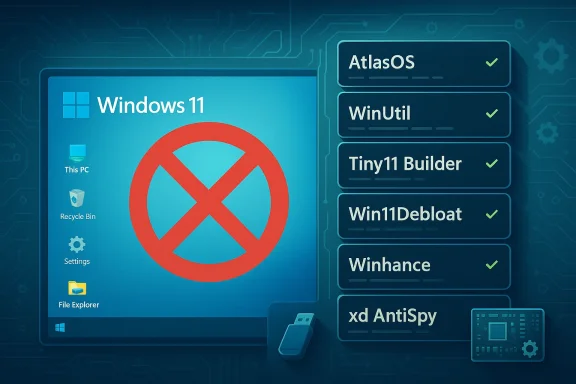 Tool by tool: what they do, why they matter, and the risks
AtlasOS — a performance‑focused Windows modification
- What it is: A curated modification toolkit (playbook) applied to an official Windows 11 image to aggressively trim services, apps, telemetry, and UX surfaces. It’s pitched primarily at gamers and performance‑minded users.
- Key claims verified:
- AtlasOS offers playbooks that remove many default services and apps and can toggle Windows Defender and other security components. The Atlas documentation and GitHub repo describe optional toggles that allow disabling Defender and other mitigations.
- AtlasOS is not an official Microsoft distribution — it modifies official Windows media rather than distributing an unauthorized copy. The project explicitly calls out its unofficial nature.
- Strengths:
- Can deliver meaningful resource and latency gains on weaker hardware by removing background processes, audio/video telemetry, and UX bloat.
- Highly scriptable and reproducible via playbooks.
- Risks and caveats:
- Disabling Defender, mitigations, or system protections is a significant security trade‑off. That’s not a casual change — it increases exposure to malware and to compatibility problems with updates and anti‑cheat systems for games. Atlas docs and community threads warn users to understand these trade‑offs.
- Because Atlas makes deep changes, Windows Update or a cumulative feature update can fail or undo modifications; restoring the system may require a clean reinstall.
WinUtil (WinUtil / WinUtil-Docs) — PowerShell‑driven ISO customizer and debloater
- What it is: A PowerShell utility (often invoked by a single command) that presents an interactive interface in the console and can apply in‑place tweaks or create a trimmed ISO for installation.
- Key claims verified:
- WinUtil supports both in‑place tweaks and ISO customizations, including removing inbox apps and applying registry/GPO changes to disable telemetry and location tracking.
- The tool can be used to automate installs and bypass some hardware checks when building a custom ISO, by using well‑documented server‑style setup pathways. Community documentation and project notes corroborate this behavior.
- Strengths:
- Flexible: suits sysadmins and power users who want scripted, repeatable builds.
- Transparent: source and scripts are available for inspection.
- Risks:
- As a powerful script, it can remove components that later cause functionality losses (search, Store features, Edge behaviors) if not used with care. The project and community frequently emphasize testing on non‑critical systems first.
FlyOOBE (formerly Flyby11) — OOBE helper and hardware‑check bypass
- What it is: A helper that automates the Out‑Of‑Box Experience (OOBE), optionally bypassing TPM, Secure Boot, and CPU checks by using server‑style setup paths and custom installer flows. It downloads a Microsoft ISO and helps modify/setup the image and OOBE.
- Key claims verified:
- FlyOOBE was created to help install Windows 11 on unsupported hardware by using alternate setup methods; the project’s README and community coverage confirm this origin and capability.
- Security warning context: high‑profile coverage has warned about copycat sites distributing malicious versions of bypass tools. The project itself has posted alerts about fake mirrors. That makes where you download these helpers critically important.
- Strengths:
- Enables older hardware to run Windows 11 without hardware upgrades.
- Adds OOBE customization for privacy presets and account bypasses (local accounts).
- Risks:
- Bypassing hardware checks can put a device in an “unsupported” category, affecting future servicing and firmware compatibility.
- Fake or tampered downloads exist; use only the project’s official, verified releases. Security outlets have reported malicious mirrors.
Tiny11 (Tiny11 Builder) — an aggressively slimmed Windows 11 image
- What it is: A community PowerShell script that transforms an official Windows 11 ISO into a much smaller image by removing Store, Outlook, and other inbox apps; the “Tiny11” builds aim to make Windows usable on low‑spec hardware. Tom’s Hardware and Tiny11’s project pages document possible installed sizes under 9GB and memory usage targets as low as 2GB.
- Key claims verified:
- Tiny11 Builder can produce images that, depending on options, require less disk and RAM than a full Windows 11 install; reports and guides give examples of sub‑9GB installations and workable behavior with 2GB of RAM in constrained VMs.
- Strengths:
- Very useful for refurbishing old hardware, lightweight VMs, or constrained devices.
- Generally straightforward to build from official Microsoft ISO + Tiny11 script.
- Risks:
- Tiny11 is unofficial and removes many OS components; trust in the project and its releases is essential.
- Missing components (Edge, Store, updater hooks) may break workflows or long‑term update behavior.
- Community reports show intermittent issues with driver compatibility or with updates reinstating removed components.
Win11Debloat (Raphire) — PowerShell in‑place debloater
- What it is: A widely used PowerShell script that presents a GUI and CLI for in‑place removal of inbox apps, toggling telemetry, and applying privacy tweaks without reinstalling the OS. It focuses on reversible, auditable changes and flags common post‑update regressions.
- Key claims verified:
- Win11Debloat explicitly documents that major Windows feature updates may reprovision apps or reset settings; the project and its documentation warn users accordingly.
- Strengths:
- Good for users who prefer to keep an existing installation and selectively remove apps.
- Revertability: most changes are reversible and the project documents how to restore apps.
- Risks:
- Removing tightly integrated components (like Edge) can have side effects; the project suggests keeping Edge as a fallback in many cases rather than aggressive removal.
Winhance — GUI‑driven debloat and ISO builder with persistence features
- What it is: A GUI tool that mimics the Windows Settings layout and provides toggles to disable telemetry, remove inbox apps (including Copilot and Edge), optimize gaming performance and create customized ISOs. It emphasizes user guidance, describes each change, and offers script export for reapplication.
- Key claims verified:
- Winhance includes features to create reproducible ISOs, to create a system restore point before major changes, and to export tweaks as scripts that can be reapplied if Windows Update overrides a change. The project documentation confirms these capabilities.
- Strengths:
- Friendly UI for less technical users; saves tweak sets as scripts which is helpful for reproducibility.
- Restore point creation improves safety.
- Risks:
- As with other tools, repeated servicing or OS upgrades can reintroduce removed items; Winhance’s detection/auto‑reapply features mitigate but do not eliminate that risk.
Winslop — single executable, portable AI “de‑slop” tool
- What it is: A compact tool aimed specifically at removing AI additions (Copilot, Recall), blocking telemetry, and stopping in‑OS ads and suggested apps. Notably, Winslop is distributed as a single executable that can be run from USB without installation. Community covering articles and forum posts verify the design and goals.
- Key claims verified:
- Winslop focuses on AI surfaces and telemetry; it provides a plugin system for PowerShell scripts to extend removals (e.g., Edge/OneDrive). Community threads and the project’s GitHub releases document that functionality.
- Strengths:
- Portable, quick, and focused — convenient for technicians or someone who wants to temporarily apply a set of disables.
- Risks:
- Single‑executable distribution can be convenient but raises the auditability question: users should prefer downloading verified source builds and reviewing changes before running. Community commentary flags this as a recurring concern with compact tools.
xd‑AntiSpy — the revival of xp‑AntiSpy for modern Windows
- What it is: A revival of the XP utility’s ethos: a small, UI‑driven app that exposes privacy toggles and offers plugin/script support. The project is open on GitHub, has a familiar XP‑style interface, and targets Windows 11 annoyances including AI features, ads, and telemetry.
- Key claims verified:
- xd‑AntiSpy is actively maintained as an open‑source project and has introduced plugin support for external scripts and additional toggles. Releases are published on GitHub and the project has seen ongoing community coverage.
- Strengths:
- Lightweight and familiar UI makes it accessible.
- Plugin system offers extensibility without embedding risky compiled code in the tool itself.
- Risks:
- User‑contributed plugins and scripts can do anything; vet them carefully.
- Some versions and features will behave differently across Windows 11 builds and editions.
Cross‑verification and trusted corroboration
I verified the most load‑bearing claims for each tool against project documentation and independent reporting where possible. For example:- AtlasOS documentation and community discussion describe the optional disabling of Defender and other protections; those are implemented as playbooks that edit OS components.
- FlyOOBE’s bypass behavior and the existence of malicious mirrors were confirmed by the project README and by industry reporting that warned of fake downloads. Use only verified project releases.
- Tiny11’s disk and memory claims are supported by both Tiny11 builder documentation and independent hands‑on writeups demonstrating sub‑9GB installs and workable operation in 2GB environments — but results vary by options and drivers.
- Win11Debloat and WinUtil documentation clearly state that major Windows updates can re‑add apps or change behavior; these repos advise automation or ISO creation as more durable approaches.
Practical, low‑risk workflow for using debloat tools
If you plan to use any of these utilities, follow a conservative, repeatable approach. These steps prioritize safety, recoverability, and the ability to reverse changes.- Back everything up first.
- Create a full system image of your current drive (not just a restore point). Tools like built‑in System Image or third‑party imaging software will let you recover if something breaks.
- Test on a spare machine or a virtual machine first.
- Try the tool’s default “safe” or “auditable” presets before aggressive removals.
- Use official, signed releases and verify checksums.
- For GitHub projects, download releases from the repo’s Releases page and verify signatures or checksums where provided. Avoid third‑party mirrors flagged by project maintainers.
- Start with reversible changes.
- Flip telemetry toggles and remove non‑critical inbox apps first. Reserve disabling security components (Defender, SmartScreen, UAC) for environments where you understand the threat model.
- Make a restore point before large sweeps.
- Many GUI tools (like Winhance) will create a restore point automatically — accept it.
- If creating a custom ISO, build from an official Microsoft ISO and apply the tool locally.
- Tools that produce a custom ISO (WinUtil, Winhance, Tiny11 Builder) let you keep the original Microsoft media intact and make the modifications reproducible.
- Keep an “undo” script or the tweakset you applied.
- Export or save the script that performed your changes so you can reapply (or reverse) them if Windows Update overwrites settings. Winhance and Win11Debloat document script export and reapply mechanisms.
- Avoid disabling Defender unless you have an alternative and know why you’re doing it.
- Disabling Defender can be a large attack surface change and is discouraged for machines that will be online or used for daily work. AtlasOS and other projects sometimes offer Defender toggles for extreme performance scenarios — treat those as advanced options.
Who should — and should not — use these tools?
- Recommended for:
- Enthusiasts and IT professionals who understand PowerShell, images, and Windows servicing.
- Technicians refurbishing older hardware for offline or limited‑use scenarios.
- Gamers who want lower latency and are willing to manage anti‑cheat and security trade‑offs.
- Not recommended for:
- Casual users with a single, daily‑driver PC who lack backups.
- Machines used in enterprise environments with managed policies (Intune, AD) — aggressive removals can break management and compliance.
- Users unwilling to cope with occasional post‑update rework.
Notable strengths across the ecosystem
- Rapid customization: Tools let you move quickly from a default install to a lean, privacy‑first setup, and the ability to create ISOs is invaluable for repeatable deployments.
- Open source and auditable: Many popular projects (Win11Debloat, WinUtil, Tiny11 Builder, xd‑AntiSpy, Winslop) publish their code on GitHub, allowing inspection and community trust building.
- Variety of approaches: GUI tools (Winhance, xd‑AntiSpy), PowerShell scripts (Win11Debloat, WinUtil), and ISO builders (Tiny11 Builder, WinUtil) mean a user can pick a level of aggressiveness and technical interaction that matches their comfort.
Key risks and hazards you must accept (or avoid)
- Update fragility: Major Windows feature updates commonly re‑provision apps and reset defaujects explicitly warn that their changes may be undone or require reapplication. Plan for periodic maintenance.
- Security exposure: Disabling Defender, SmartScreen, or other mitigations increases risk. Projects that allow this do so as an option; it is rarely advisable for an always‑online laptop.
- Supply‑chain and tampering risk: Downloading tools or modified ISOs from unofficial mirrors can expose you to malware. Several projects have warned about copycat sites or malicious mirrors. Verify releases and prefer GitHub Releases pages and signed artifacts.
- Legal and support considerations: Using bypass tools to evade hardware checks may put a machine into an unsupported state for Microsoft servicing. In enterprise contexts this can be a compliance issue.
Final verdict and practical recommendations
The ecosystem of Windows 11 debloat tools is mature and useful — but it’s also a toolset that requires judgment. If your goal is a faster, quieter PC with fewer privacy surprises, the community now provides high‑quality, auditable options that can accomplish that. If your priority is maximum safety and guaranteed compatibility with Microsoft servicing, use conservative tools (Win11Debloat for in‑place pruning, Winhance for guided tweaks and restore points) and avoid radical modifications that disable core security mechanisms.For a production or daily‑use machine I recommend this minimal playbook:
- Use Win11Debloat or Winhance to remove inbox apps you don’t use, and to flip telemetry and privacy toggles first. Keep Edge installed unless you have a compelling reason to remove it.
- If you manage multiple machines and want a reproducible outcome, build a custom ISO with WinUtil or Winhance and test it in a VM first.
- Reserve Tiny11 and AtlasOS for hardware‑constrained or experimental use cases where you can accept the higher maintenance and potential security trade‑offs.
- Always keep a verified recovery image and prefer reversible changes.
Windows 11’s expanding feature set has given users two choices: accept the default Microsoft‑designed experience, or assert control using community tools. Those tools are legitimate and valuable, but they are not a free lunch. Read the repos, verify releases, test in safe environments, and proceed with backups. The projects listed in TechSpot’s roundup are powerful allies for user choice — when wielded carefully.
Source: TechSpot Stop the Slop: 8 Tools That Clean Up Windows 11
