

The Microsoft 365 apps are designed to respect and integrate with the accessibility features of the devices you use—Windows, macOS, iOS, and Android—so you can read, create, and collaborate with tools that match your needs and workflows.
Accessibility is no longer a niche requirement; it's a baseline expectation for productivity software. Microsoft positions Microsoft 365 as accessible by design, meaning the apps themselves work with built‑in OS features (screen readers, magnifiers, high‑contrast themes, keyboard navigation and speech recognition) and include authoring tools (Accessibility Checker, alt‑text prompts, semantic headings) to help creators produce content everyone can use. This is the premise of Microsoft's official guidance on setting up a device to work with accessibility in Microsoft 365.
Two complementary threads run through the guidance:
However, practical friction persists. Feature parity across platforms remains uneven (mobile has limitations), and enterprise policy overlays (MDM, conditional access) can silently block convenience features that accessibility depends on. Organizations may also assume that enabling a high‑contrast theme or Narrator is a one‑stop fix; in reality, accessibility is a layered process that includes authoring discipline (semantic headings, alt text), staff training, and operational policies to preserve privacy and compliance.
Community evidence from Windows and enterprise forums reinforces these points: users and IT pros report consistent wins (magnifier, pointer tuning, quick Narrator access) and recurring pain points (policy friction, mobile parity issues, and the need for pilot testing before broad production rollout). Those community observations align with Microsoft’s official recommendations but add valuable operational cautions for IT.
Accessibility is a practical, everyday concern for millions of users. Microsoft’s device‑level guidance and Microsoft 365 authoring tools form a usable, coherent foundation—but the real work is operational: verify features on the exact builds you support, pilot changes in managed environments, train users, and bake accessibility checks into your publishing process. When those steps are followed, Microsoft 365 and modern OS accessibility features together deliver a stronger, more inclusive productivity experience for everyone.
Source: Microsoft Support Set up your device to work with accessibility in Microsoft 365 - Microsoft Support
 Background
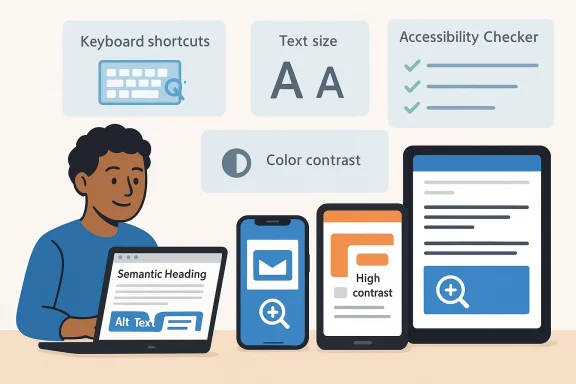
Accessibility is no longer a niche requirement; it's a baseline expectation for productivity software. Microsoft positions Microsoft 365 as accessible by design, meaning the apps themselves work with built‑in OS features (screen readers, magnifiers, high‑contrast themes, keyboard navigation and speech recognition) and include authoring tools (Accessibility Checker, alt‑text prompts, semantic headings) to help creators produce content everyone can use. This is the premise of Microsoft's official guidance on setting up a device to work with accessibility in Microsoft 365. Two complementary threads run through the guidance:
- device-level accessibility (how Windows, macOS, iOS, Android expose features that change the whole UI experience), and
- content-level accessibility (how Microsoft 365 apps help you author accessible documents, emails, and presentations). The former is addressed in OS documentation and Microsoft’s device setup guidance; the latter is reinforced by Microsoft’s Accessibility Checker and step‑by‑step authoring advice.
Overview: What Microsoft’s device setup guidance actually says
Microsoft’s support article “Set up your device to work with accessibility in Microsoft 365” provides concise, practical steps for using OS accessibility tools while working in Office apps. The Windows section is the most detailed, covering:- opening the Accessibility menu (Windows logo key + U),
- starting Narrator (Ctrl + Windows logo key + Enter),
- switching contrast themes,
- using Magnifier (Windows logo key + + / -; exit with Windows logo key + Esc),
- changing text and pointer size/color,
- and enabling Windows Speech Recognition.
Why this matters: two practical use cases
- For a user with low vision, enabling a high‑contrast theme and Magnifier on Windows immediately impactroves legibility across Outlook, Word, and Teams while leaving document structure intact so screen readers still parse content correctly. Microsoft documents these exact flows and the keyboard shortcuts used to toggle them.
- For content creators, Microsoft 365’s Accessibility Checker surfaces common issues (missing alt text, poor heading structure, insufficient contrast) and integrates with the authoring experience so fixes can be made before sharing. That checker is present across Windows, Mac, and the web versions of Office apps, making it a consistent tool for accessibility QA.
Detailed walkthrough: Windows 11 and Microsoft 365 (what to enable and how)
Windows remains the primary environment for Microsoft 365 knowledge workers, and Microsoft’s support article gives practical steps for Windows 11 (and Windows 10). Below are the most useful controls and how to use them when working with Office apps.Accessibility menu: the single‑key entry point
- Open the Accessibility menu quickly with Windows logo key + U. That menu centralizes controls for vision, hearing, and interaction—Narrator, Magnifier, contrast themes, text size, pointer settings, and speech. Microsoft documents this as the fastest way to reach most settings.
Narrator: built‑in screen reader
- Start Narrator with Ctrl + Windows logo key + Enter. Microsoft optimizes Office apps for Narrator, and the more complete Narrator guide explains advanced shortcuts and recent enhancements (for example, speech recap and navigation improvements). For anyone who relies on a screen reader, Narrator is the first stop.
Contrast themes and color accessibility
- The Accessibility menu exposes multiple contrast themes and a workflow to apply them without altering document content. This is important: contrast themes change presentation at the OS level so UI elements and app chrome become easier to perceive while preserving document colors for printing or sharing. Microsoft explains the process step‑by‑step in the same support topic.
Magnifier: on‑demand zoom
- Magnifier toggles with Windows logo key + Plus (+) and exits with Windows logo key + Esc. It can operate in full screen or lens mode and is recommended for quickly zooming into application content (including Office documents) without changing global display scaling. Microsoft’s guide details how to change Magnifier settings from its toolbar.
Text size and pointer adjustments
- Change text size from Settings → Accessibility → Text size (apply and test). Pointer size and color are adjustable via Mouse pointer and touch settings; Microsoft shows how to pick white, black, inverted, recommended bright colors, or custom choices. These small adjustments deliver large gains for users who struggle with standard UI affordances.
Speech recognition
- Windows Speech Recognition is available via the Accessibility/Speech pane—turn it on and run a setup wizard to train the PC to your voice. For hands‑free workflows inside Microsoft 365 apps, this can be an effective alternative to touch or mouse control.
Cross‑platform view: macOS, iOS, and Android support
Microsoft’s documentation emphasizes that the approach differs by OS: Microsoft 365 apps integrate with the native assistive technologies of each platform rather than duplicating them.macOS
- macOS provides VoiceOver (screen reader), zoom, color filters, and full keyboard navigation. Microsoft 365 for Mac respects those settings; authors should also use the Accessibility Checker in Office to ensure content semantics. Apple’s accessibility ecosystem is mature and contains features (Live Captions, Accessibility Reader) that improve cross‑device readability in Apple ecosystems. Independent reporting highlights Apple’s recent Accessibility Reader improvements that let users customize text presentation across apps.
iOS
- iOS features—VoiceOver, Magnifier, Display & Text Size controls and Speak Selection—work with Microsoft 365 mobile apps so users can read and edit documents on the go. Microsoft’s content guidance and app compatibility notes stress that some mobile experiences (feature parity for Accessibility Checker) are stronger in the desktop and web versions.
Android
- Android’s accessibility suite (TalkBack screen reader, display size/font size, magnification, color correction/inversion, and interaction controls like Switch Access) integrates with Microsoft 365 Android apps. Google’s accessibility documentation explains these features in detail and shows parity with major Office use cases: reading, navigating, and interacting without touch.
Accessibility for authors: the Accessibility Checker and content best practices
Accessibility in Microsoft 365 is twofold: make the device readable and make the content understandable. Microsoft provides tools inside Office to help authors fix common issues before sharing.- Accessibility Checker: available in Word, Excel, PowerPoint and other Microsoft 365 apps on Windows, Mac, and the web. It flags missing alt text, improper heading order, poor contrast, and other pitfalls and offers actionable fixes. Use the checker before sending documents or publishing.
- Alt text prompts and heading guidance: Office apps prompt for alt text on images and emphasize semantic headings and tables. This makes documents navigable by screen readers and improves the experience for assistive technology users.
- Built‑in templates and tips: Microsoft includes accessible templates and authoring guidance as part of its “Make your content accessible” resources, and the Disability Answer Desk offers direct help for users with disabilities.
Real‑world deployment: IT, privacy, and device management considerations
Enterprises deploying accessibility at scale must balance convenience and compliance.- Device management systems (Intune, MDM) can enforce accessibility‑friendly settings or restrict certain features (for example, preventing clipboard sync between devices). Community guidance stresses piloting changes before rolling out to broad user populations to detect conflicts with corporate security controls.
- Privacy expectations differ between personal and corporate devices. Microsoft states that enrolled corporate devices may expose additional telemetry (device model, OS, managed app inventory) to IT while not revealing personal files or private content. Users enrolling personal devices should request a clear enrollment/privacy statement from IT.
- Cross‑device integrations (Phone Link, Remote Desktop lock) can be productivity boosters but must be evaluated for data leakage risk and regulatory compliance in sensitive environments. Community audits recommend disabling cross‑device clipboard and file transfers for regulated workloads.
Strengths: what Microsoft and native OS features get right
- *Native integration: Microsoft 365 apps respect* OS-level accessibility settings rather than trying to reinvent compatibility layers. That reduces duplication and ensures settings apply systemwide.
- Consistent authoring tools: The Accessibility Checker and content guidance create a repeatable workflow for authors to detect and fix problems before distribution. This helps organizations meet accessibility requirements and reduces post‑issue remediation.
- Keyboard and screen‑reader orientation: Microsoft documents keyboard shortcuts and Narrator optimizations for Office apps, helping users who rely on keyboard navigation to be productive. The Narrator guide provides in‑depth coverage of navigation modes and useful shortcuts.
- Cross‑platform reach: By leveraging OS assistive tech on macOS, iOS, and Android, Microsoft reaches users on nearly every major device platform. Google and Apple continue adding accessibility features that pair well with Microsoft’s approach.
Risks, tradeoffs, and what to watch for
- Feature parity gaps: Not all accessibility features or authoring tools have exact parity across desktop, mobile, and web. Microsoft’s Accessibility Checker, for example, is most feature‑rich on desktop and web; some mobile clients may lack full checker functionality. Verify the specific client/platform before relying on a single workflow.
- OS updates and shifting behaviors: Accessibility behavior can change with OS updates or app releases; shortcuts and menu locations vary across Windows builds and macOS/iOS versions. Treat specific key combos or behavior as version‑sensitive and re‑verify after major updates. When in doubt, check the latest OS and Microsoft support pages.
- Enterprise policy friction: In managed environments, group policies and MDM can block convenience features (like cross‑device clipboard or certain app permissions). IT needs a clear policy for accessibility features so users who need them aren’t hindered by default restrictions. Pilot deployments mitigate surprises.
- User education gap: Many useful accessibility features require a short learning curve (Narrator navigation, Magnifier modes, Mouse Keys). Without targeted training, users and help desks may underuse or misconfigure features. Organizations should add short, task‑oriented training and quick reference cards to onboarding.
- Verification requirement for claims: Specific capabilities reported in community threads or news articles (for example, new Narrator features or OS accessibility changes) may roll out on staggered schedules across Insider channels and public releases. Treat such claims as provisional unless confirmed by Microsoft product pages or official update notes.
Practical checklist: enable accessibility for Microsoft 365 users (concise, actionable)
- Update your devices (Windows 11/10 latest cumulative update; macOS/iOS/Android latest stable release) to ensure compatibility with the newest assistive tech.
- On Windows, open Settings → Accessibility or press Windows + U; enable Narrator, contrast themes, or text size as needed.
- Learn the key Microsoft 365 accessibility tools: run the Accessibility Checker in Word/Excel/PowerPoint before sharing. Set alt text for images and use headings/semantic structure.
- For mobile use, set up TalkBack/VoiceOver and test common workflows in the Microsoft 365 mobile apps; disable any aggressive battery or permission restrictions that interfere with continuity features.
- For managed environments, pilot accessibility settings in a controlled group, document any MDM or policy changes required, and publish an enrollment/privacy statement for personal device scenarios.
How to validate a claim or shortcut (quick verification steps)
- If a support page gives a keyboard shortcut (e.g., Ctrl + Windows logo key + Enter for Narrator), confirm by checking the official Narrator reference page and performing the shortcut on the target build. Microsoft’s documentation and changelogs are the authoritative reference for shortcut behavior.
- When community threads or articles report new features (for example, AI‑assisted accessibility improvements), verify against the vendor release notes and the OS vendor’s accessibility pages before deploying widely. If no official documentation exists, treat the claim as preview‑only and add it to a watchlist.
Critical analysis and editorial assessment
Microsoft’s approach—integrate with native OS accessibility and supply authoring tools inside Office—makes practical sense and reduces duplication of effort. In daily use this results in several observable strengths: the same device accessibility settings affect all apps, Microsoft 365’s authoring tools catch common pitfalls early, and keyboard‑first navigation is supported with documented shortcuts.However, practical friction persists. Feature parity across platforms remains uneven (mobile has limitations), and enterprise policy overlays (MDM, conditional access) can silently block convenience features that accessibility depends on. Organizations may also assume that enabling a high‑contrast theme or Narrator is a one‑stop fix; in reality, accessibility is a layered process that includes authoring discipline (semantic headings, alt text), staff training, and operational policies to preserve privacy and compliance.
Community evidence from Windows and enterprise forums reinforces these points: users and IT pros report consistent wins (magnifier, pointer tuning, quick Narrator access) and recurring pain points (policy friction, mobile parity issues, and the need for pilot testing before broad production rollout). Those community observations align with Microsoft’s official recommendations but add valuable operational cautions for IT.
Final recommendations
- Start with the device: enable the OS accessibility features that meet user needs (Windows Accessibility menu, macOS VoiceOver/Zoom, iOS Magnifier/VoiceOver, Android TalkBack/Magnification). Verify that Microsoft 365 apps respond as expected.
- Use the Accessibility Checker as part of any publishing workflow for documents and email. Train authors on alt text, headings, and table semantics.
- Pilot in managed environments: test MDM/Intune interactions, document privacy impacts, and create a rollback plan for policies that unintentionally block accessibility features.
- Treat OS and app shortcuts as version‑sensitive. Keep a short, internal knowledge base of the commands and where they differ by Windows/macOS build to reduce help‑desk friction.
- Monitor vendor release notes and official support pages for feature rollouts or changes. When a reported capability appears only in preview or Insider channels, label it provisional until public documentation confirms it.
Accessibility is a practical, everyday concern for millions of users. Microsoft’s device‑level guidance and Microsoft 365 authoring tools form a usable, coherent foundation—but the real work is operational: verify features on the exact builds you support, pilot changes in managed environments, train users, and bake accessibility checks into your publishing process. When those steps are followed, Microsoft 365 and modern OS accessibility features together deliver a stronger, more inclusive productivity experience for everyone.
Source: Microsoft Support Set up your device to work with accessibility in Microsoft 365 - Microsoft Support
