

Microsoft’s latest wave of updates to Microsoft 365 Copilot shifts the product from a helpful assistant toward a more conversational, action-capable colleague — one you can talk to, ask to schedule your calendar, and hand off routine work to — but it also raises fresh questions about accuracy, control, and enterprise readiness that IT teams must address before flipping the switch across the organization.
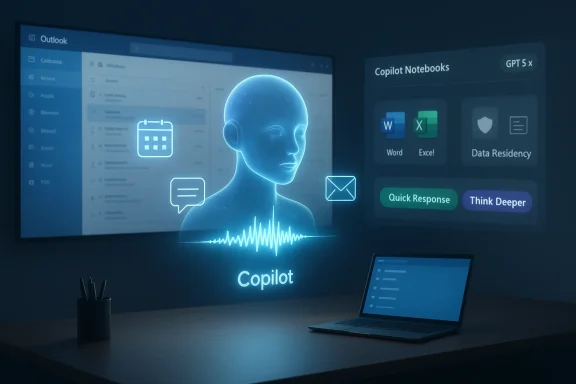
The 2026 updates bring several practical, productivity-focused features to Microsoft 365 Copilot: real‑time voice chat and transcription, chat‑based meeting scheduling integrated with Outlook, deeper email‑drafting tools and an enhanced Outlook Copilot button, revamped Copilot Notebooks with richer collaboration, and a clearer model selector that emphasizes speed vs. depth (the “Quick Response” and “Think Deeper” modes, alongside newer GPT‑5.x reasoning models). Collectively, these changes aim to reduce friction in everyday work: converting spoken ideas into structured notes, finding and booking meeting times from a chat, and letting Copilot pick an appropriate reasoning mode depending on the task.
These are not cosmetic tweaks. Many of the updates are explicitly designed to make Copilot execute — not just explain — by creating calendar events, drafting and routing email, and surfacing contextual summaries directly inside Outlook and Teams. That’s powerful for productivity, but it also changes the operational surface area for security, auditability, and user expectations.
If your organization invests thoughtfully in policies and testing, Copilot’s 2026 updates can produce measurable productivity gains. If governance lags or users assume all AI actions are infallible, you risk errors that are costly to correct.
However, the transition from helpful assistant to action‑taking colleague calls for measured adoption. Prioritize pilots, enforce clear consent and retention policies for voice and transcripts, log AI actions for auditability, and build a culture where Copilot outputs are treated as draft proposals rather than final decisions. With those safeguards in place, Copilot can be a force multiplier for productivity; without them, its new capabilities expose organizations to accuracy, compliance, and governance risks that are easy to underestimate.
Source: Geeky Gadgets Microsoft 365 Copilot Adds Voice Chat, Outlook Tools & New Models
 Overview
The 2026 updates bring several practical, productivity-focused features to Microsoft 365 Copilot: real‑time voice chat and transcription, chat‑based meeting scheduling integrated with Outlook, deeper email‑drafting tools and an enhanced Outlook Copilot button, revamped Copilot Notebooks with richer collaboration, and a clearer model selector that emphasizes speed vs. depth (the “Quick Response” and “Think Deeper” modes, alongside newer GPT‑5.x reasoning models). Collectively, these changes aim to reduce friction in everyday work: converting spoken ideas into structured notes, finding and booking meeting times from a chat, and letting Copilot pick an appropriate reasoning mode depending on the task.These are not cosmetic tweaks. Many of the updates are explicitly designed to make Copilot execute — not just explain — by creating calendar events, drafting and routing email, and surfacing contextual summaries directly inside Outlook and Teams. That’s powerful for productivity, but it also changes the operational surface area for security, auditability, and user expectations.
Background: Why this matters now
Microsoft has steadily evolved Copilot from an experimental assistant to a platform deeply embedded in Microsoft 365 applications. The recent updates reflect two converging trends:- Enterprises want AI that does work for them — not only summarises or drafts, but actually takes actions like scheduling or updating documents.
- Users prefer natural interactions. Voice and conversational chat reduce friction for multitasking employees and make AI features accessible to less technical users.
Voice Chat: Talk, transcribe, and act
What’s new
- Natural language voice chat: Users can start a voice session with Copilot, speak naturally, interrupt, and get real‑time spoken responses.
- Live transcription and capture: Conversations are transcribed in real time and can be summarized or converted into action items (notes, tasks, meeting agendas).
- Meeting workflows: During Teams meetings or one‑to‑one discussions, Copilot can generate summaries, extract action items, and produce follow‑up tasks without participants having to divert attention for manual note taking.
Strengths
- Reduced context switching: Speaking is faster than typing for many tasks; real‑time capture keeps participants engaged while preserving meeting output.
- Accessibility benefits: Voice and audio summaries help users who prefer auditory content or who need hands‑free workflows.
- Actionability: Turning speech into tasks or calendar events shortens the path from decision to execution.
Risks and practical caveats
- Accuracy and hallucination: Spoken input (with background noise, interruptions, cross‑talk) can increase misunderstanding. Copilot may mis‑attribute action items or infer commitments that participants didn’t accept.
- Privacy and consent: Recording and transcribing calls requires clear policies and, in some jurisdictions, explicit consent. Admins must verify that transcriptions are stored and processed according to corporate data residency, retention, and compliance rules.
- Language and locale: Initial rollouts prioritize certain languages and regions. Expect staggered availability and inconsistent feature parity across locales.
- Integration limits: Not every voice command will create actions automatically; some operations may require user confirmation or be restricted by tenant settings.
Recommended controls for IT
- Define a policy that states when voice transcriptions may be used and how long they are retained.
- Configure Copilot’s permission boundaries via the Microsoft 365 admin center — restrict auto‑action features where necessary.
- Train teams to confirm important outputs (calendar changes, task assignments) and to review transcriptions before acting.
Meeting scheduling in chat: Simplifying calendars — but verify
What it does
Copilot’s chat-based scheduling lets users ask the assistant to find times, propose slots, block rooms, and send invites — all from within a chat interface. It can also suggest agendas and create calendar entries from email threads or meeting notes.Productivity gains
- Time saved on logistics: Automates the back-and-forth of finding times and booking resources.
- Contextual scheduling: Because Copilot has access to message threads, it can schedule with context (e.g., based on topics, required attendees, or urgency).
- Conflict resolution: Newer features can propose rescheduling options when higher‑priority events arise, trying to reduce cognitive load on overloaded calendars.
Known shortcomings
- Rollout variability: Availability differs by Outlook client (Web, New Outlook, classic Outlook for Windows, Mac, mobile), and some features are flagged for phased rollout.
- Occasional failures to persist changes: End‑user reports in community channels indicate inconsistent behavior where Copilot claims to have created events but the calendar shows no change — a reminder to verify bookings in your own calendar and the recipients’ calendars before assuming completion.
- Preference and delegation handling: Scheduling on behalf of others (delegates or shared mailboxes) can be tricky; tenant configuration and delegate permissions still govern what Copilot can do.
Operational advice
- Ask Copilot to preview invites before sending and verify the “invited” list and time in Outlook.
- Use Copilot chat’s “Continue in Outlook” or preview step as a standard safeguard for any high‑impact meeting (e.g., customer presentations, vendor contracts).
- Educate admins to test scheduling features across the set of Outlook clients your organization uses.
Email drafting and the updated Outlook Copilot button
Enhanced drafting capabilities
Copilot now supports richer email drafting in chat: tone adjustments, concise rewrites, and export directly to Outlook. This reduces friction for composing high‑stakes responses and allows users to iterate in chat before sending.The improved Copilot button in Outlook
The updated button centralizes Copilot capabilities inside Outlook — quick summaries, related documents, and suggested replies are surfaced with a single click. That reduces hunting for context across inboxes and SharePoint.Benefits
- Faster, more consistent messaging: Tone controls help maintain brand voice in external communications.
- Contextual awareness: Copilot’s access to the user’s mailbox and calendar enables more relevant drafts (e.g., referencing recent meetings or attachments).
- One‑click assistance: The Copilot button brings summaries and actions into the email workflow without leaving Outlook.
What to watch for
- Risk of over‑automation: Automatically applying tone adjustments or suggested edits without human review can change meaning or introduce inaccuracies in sensitive messages.
- Audit and traceability: When Copilot authors or significantly alters messages, teams should consider how to log or trace those changes for compliance and review cycles.
- Shared and delegate mailboxes: Recent updates indicate Copilot availability for delegates and shared mailboxes in some environments — tenant admins should verify permissions to avoid unexpected behavior.
Model controls: Quick Response, Think Deeper and the new GPT‑5.x options
What changed
Microsoft has made model selection and response modes more explicit. Users and admins can choose between faster, concise responses and deeper, more analytical reasoning — often routed to specific GPT‑5.x models (the new thinking/reasoning models) when complex analysis is required.Why it matters
- Task‑appropriate compute: Quick responses are cheaper and faster for routine tasks, while Think Deeper or GPT‑5.4‑style reasoning is better for multi‑step analysis and coding help.
- Predictable behavior: Model modes give users control over latency vs. depth trade-offs, and allow admin policies to limit resource use if desired.
Caveats
- Naming and expectations: Third‑party coverage and community discussion sometimes use shorthand (e.g., “Think Deeper 5.4”) that mixes feature‑mode names with model versions. Admins should rely on official release notes to confirm exact model names and capabilities, because internal routing and naming may change.
- Performance variability: Deep reasoning models can be significantly slower and, under load, less responsive; some tenants report latency or occasional timeouts when heavy reasoning models are selected.
- Quality differences: Different models may produce different answers; organizations relying on Copilot for critical tasks must validate outputs and define remediation processes for incorrect or risky suggestions.
Governance tips
- Define default modes for different user groups — for example, default to Quick Response for general users and permit Think Deeper for analysts or developers.
- Capture model selection in logs to support auditing and troubleshooting.
- Test model behavior on representative queries your organization cares about (financial analysis, legal wording, code generation) before broad adoption.
Revamped Copilot Notebooks and page shortcuts
What’s new
Copilot Notebooks now support real‑time collaboration, multiple file types (Word, Excel, PDF), and audio summaries. Page shortcuts make it faster to adjust tone, shorten text, or apply formatting with AI assistance.How that helps teams
- Centralized project workspaces: Notebooks let teams pull together documents, data, and Copilot outputs in a single place.
- Multi‑format analysis: Mixing spreadsheets, docs and PDFs in one notebook simplifies research and reporting workflows.
- Faster edits: Page shortcuts are useful for taking large blocks of content and quickly tailoring them to different audiences.
Risks and editorial controls
- Version control: Real‑time editing paired with AI‑generated text can create confusion over authorship and the authoritative version of a document.
- Data leakage: When Notebooks aggregate multiple file types from across SharePoint, Teams, and OneDrive, organizations must ensure proper access controls and labeling to prevent unauthorized data exposure.
- Review workflow: Implement guardrails so that AI-generated content is reviewed and stamped as “AI‑assisted” where appropriate.
Real‑world adoption: what early users report
Early adopters praise the convenience of voice input and the time saved in scheduling and drafting, but community feedback also highlights intermittent reliability issues: model latency, client parity between Outlook versions, and occasional failure to persist scheduled events. These real‑world reports underscore a pragmatic approach: pilot broadly, but gate full rollout behind governance, training, and monitoring.Security, compliance and privacy implications
Data residency and processing
Copilot’s deeper integration means it accesses calendar, mailbox, files, and Teams content. Enterprises must ensure data processing aligns with regulatory obligations. Check tenant configuration for in‑region processing options and retention policies.Auditability
Actionable Copilot features (creating meetings, sending emails) should be logged. Ensure logging captures who authorized AI‑initiated actions and what content was pasted or changed. This supports incident response and compliance reviews.Access and privilege separation
Limit Copilot’s ability to act across sensitive mailboxes or delegate accounts. Use least‑privilege principles: enable advanced automation only for roles that require it and maintain human‑in‑the‑loop approvals for critical operations.Legal and HR risks
If Copilot misinterprets spoken commitments or drafts an email that is sent without proper oversight, there can be contractual or reputational consequences. Treat Copilot outputs as drafts requiring human review for legal, financial, or external communications.Practical rollout checklist for IT leaders
- Inventory: Identify which users and groups will get voice chat, scheduling, and Think Deeper model access first.
- Pilot: Run a three‑to‑six week pilot with representative teams (sales, product, legal) to surface common failure modes.
- Policy: Draft clear internal policies for voice transcription consent, retention, and acceptable use.
- Training: Provide short training modules showing examples of when Copilot should be used and how to verify outputs (e.g., always check the calendar event after Copilot schedules).
- Monitoring: Enable audit logging and set alerts for failed automation or unexpected permission escalations.
- Feedback loop: Create a channel for pilot users to report hallucinations, scheduling failures, or inconsistent results, and feed that back to Microsoft support when needed.
Where Copilot shines — and where humans must remain in control
Copilot’s latest features are particularly useful for three classes of work:- Routine logistics: Scheduling, meeting prep, and dry admin tasks benefit most from automation.
- Drafting and summarization: Initial drafts, meeting summaries, and quick tone adjustments are natural wins.
- Research scaffolding: Copilot Notebooks and Think Deeper modes accelerate early investigation and synthesis.
- Decision‑critical communications (legal, compliance, contractual).
- Negotiations or commitments made in meetings — always confirm and document decisions in writing.
- High‑risk automation where incorrect changes have material impact (contracts, financial records, employee status).
The future of work with Copilot: pragmatic optimism
Microsoft’s push toward real‑time voice, richer model choices, and action‑capable assistants represents a meaningful step in making AI an everyday productivity tool. For knowledge workers, the ability to speak ideas and have them transcribed, summarized, or scheduled is a genuine time saver. For organizations, the more significant change is operational: these features shift AI from passive support to active execution, which demands a stronger emphasis on governance, testing, and user education.If your organization invests thoughtfully in policies and testing, Copilot’s 2026 updates can produce measurable productivity gains. If governance lags or users assume all AI actions are infallible, you risk errors that are costly to correct.
Conclusion: Adopt with care, scale with controls
Microsoft 365 Copilot’s 2026 updates bring promising and practical capabilities — voice interactions, smarter scheduling, editable drafts, collaborative notebooks, and clearer control over model behavior. These features have the potential to transform routine knowledge work by reducing friction and automating repetitive tasks.However, the transition from helpful assistant to action‑taking colleague calls for measured adoption. Prioritize pilots, enforce clear consent and retention policies for voice and transcripts, log AI actions for auditability, and build a culture where Copilot outputs are treated as draft proposals rather than final decisions. With those safeguards in place, Copilot can be a force multiplier for productivity; without them, its new capabilities expose organizations to accuracy, compliance, and governance risks that are easy to underestimate.
Source: Geeky Gadgets Microsoft 365 Copilot Adds Voice Chat, Outlook Tools & New Models
