

Microsoft has launched a Microsoft 365 Copilot feature in June 2026 that lets PowerPoint Live attendees select text on a shared slide during a meeting and ask Copilot to explain it, with availability listed for desktop users in the Worldwide standard Microsoft 365 cloud. The feature sounds small because it is small by design: no new meeting canvas, no new presentation format, no grand reinvention of Teams. But it marks a more consequential shift in Microsoft’s collaboration strategy, moving Copilot from the role of author and summarizer into the role of real-time interpreter inside the meeting itself.
Most Copilot features in PowerPoint have so far been framed around creation. Generate a deck from a document. Rewrite a slide. Turn a text-heavy page into something less punishing. Add speaker notes. Adjust tone. These are useful, sometimes uneven, and very much in the tradition of productivity software: the tool helps the person making the artifact.
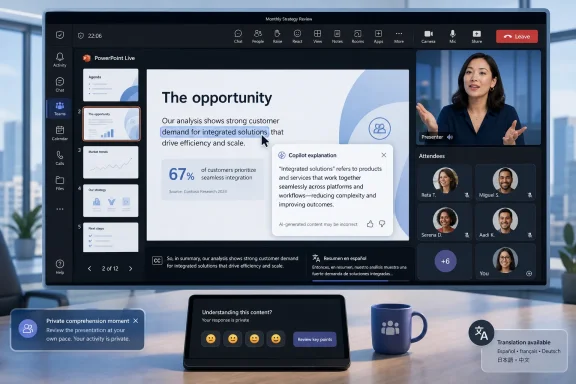
The new PowerPoint Live capability changes the center of gravity. It gives the attendee, not the presenter, the AI affordance. During a Teams meeting using PowerPoint Live, a participant can select text on the slide and ask Copilot to explain the content without interrupting the speaker or derailing the room.
That matters because live presentations are full of small comprehension failures. An acronym lands without context. A finance chart compresses three assumptions into one label. A project name means something to the product team but nothing to legal. In a conventional meeting, the attendee either stops the flow to ask a question, waits and risks forgetting, or quietly misses the point.
Microsoft is betting that Copilot can become the private margin note for those moments. The company is not merely adding AI to PowerPoint; it is adding AI to the attention layer of meetings.
That architecture has long enabled features that ordinary screen sharing cannot handle elegantly. Presenters can see notes and upcoming slides. Attendees can navigate privately if allowed. Slides can be translated independently of the spoken presentation. The deck is not just pixels; it is a Microsoft 365 object moving through Teams with metadata and permissions attached.
Copilot’s slide-selection explanation relies on that same premise. If a user can select slide text and ask for an explanation, the system has access to more than a flat image. It can reason over slide content in a context where the meeting, presentation, and user identity are already part of the Microsoft 365 fabric.
That is why this release is more interesting than its short roadmap description suggests. Microsoft is not bolting a chatbot onto a presentation window. It is turning the meeting surface into a context-aware reading environment.
But meetings have a specific problem that AI is well suited to soften: latency. Human clarification is high-bandwidth but socially expensive. If ten attendees each need one small explanation, the meeting cannot absorb all ten interruptions without collapsing into side quests. If none of them ask, the presenter leaves with apparent alignment and actual confusion.
The value proposition here is that Copilot can absorb the low-stakes clarification load. “What does this acronym mean in this context?” “Explain this metric in plain English.” “Why would this bullet matter to a customer?” These are not strategic questions that require the presenter’s judgment. They are comprehension gaps that often prevent attendees from asking the strategic question later.
In that sense, the feature is less about replacing meeting participation than improving the odds that participation is informed. A private explanation is not the same as a shared answer, but it may be enough to keep a listener in the room mentally rather than losing them for the next five slides.
That may be where Microsoft 365 Copilot becomes more practical. The first wave of generative AI productivity features often asked users to begin with an empty prompt box. The next wave is increasingly built around selection: highlight a paragraph, choose an action, ask for help in place. That pattern lowers the cognitive burden because the user does not have to describe the whole task from scratch.
PowerPoint Live is a natural venue for this approach. The attendee already knows what is confusing because their cursor is on it. Copilot does not need to be summoned as a general oracle; it can be invoked as a local explainer for a specific fragment of a slide.
This is also easier for Microsoft to productize than open-ended meeting intelligence. A meeting transcript summary must resolve speaker intent, chronology, action items, and nuance. A slide-selection explanation has a narrower input and a narrower output. Narrower does not mean trivial, but it does mean the user can judge quality quickly.
That can be good. It democratizes understanding in rooms where not everyone shares the same background. New hires, cross-functional partners, non-native speakers, and executives parachuting into a technical review may all benefit from private explanations that spare them from exposing what they do not know.
It can also be uncomfortable. Presenters often rely on ambiguity, shorthand, or carefully staged explanation. If attendees can ask Copilot to unpack a term before the speaker reaches it, the slide is no longer consumed exactly as designed. A presenter may find that the AI’s explanation frames the content differently from the intended narrative.
This is not necessarily a defect. In most organizations, the purpose of a presentation is not theatrical control; it is shared comprehension and decision-making. Still, IT and communications teams should recognize the change. Copilot does not only help create corporate content. It now helps interpret it, potentially in ways the author did not explicitly script.
The sharper question is what context Copilot uses when explaining selected slide text. The roadmap description is terse. It says attendees can select slide text and get explanations for the content. It does not fully spell out whether the answer is grounded only in the slide, the broader deck, the meeting context, organizational data the user can access, or some combination of those depending on configuration.
That distinction matters. A plain-language explanation of a term visible on the slide is one thing. An answer that draws on related files, chats, or previous meetings is more powerful and more governance-sensitive. Microsoft 365 Copilot’s permission model is designed to prevent users from seeing content they cannot access, but it can still expose the consequences of overly broad permissions.
This has been one of the central lessons of Copilot adoption. AI does not usually create a new access-control problem from nothing. It makes old access-control problems easier to notice. If half the company can read a SharePoint folder that was meant for a smaller audience, Copilot may surface that fact faster and more fluently than search ever did.
That means the rollout should not be left solely to the Office apps team. Collaboration admins, compliance officers, training leads, and executive-support teams all have a stake. The feature affects how people consume live briefings, not merely how they edit decks.
Organizations should test it with the kinds of presentations that create the most friction: quarterly business reviews, technical architecture sessions, finance updates, compliance training, customer briefings, and cross-functional project reviews. Those are the rooms where acronyms and shorthand are thickest, and where a quiet misunderstanding can be expensive.
The training message should be simple. This is a comprehension aid, not an official answer engine. If Copilot’s explanation affects a decision, users should still validate with the presenter or source material. The AI can help an attendee keep up; it should not become the unchallenged authority in the room.
For users with language barriers, cognitive load challenges, or unfamiliarity with a domain, the ability to slow down one piece of slide text without slowing down the meeting is meaningful. It complements, rather than replaces, captions and translation. Captions help with what is said; slide explanations help with what is shown.
But accessibility tools are most trustworthy when users understand their boundaries. If Copilot explains a regulatory term, a medical claim, a security control, or a financial metric, the explanation may be useful without being definitive. The danger is not that the AI will always be wrong. The danger is that it may sound right enough to reduce healthy skepticism.
That is why this feature needs cultural framing. Good organizations will encourage attendees to use it as a first pass and still ask clarifying questions when stakes are high. Bad organizations will quietly let Copilot absorb the confusion that presenters should have prevented in the first place.
That creates a feedback loop. Presenters who know attendees may ask Copilot to explain slide text should be more careful about naming, labeling, and structure. Ambiguity becomes less hidden. The machine will try to resolve it, and sometimes that resolution will be revealing.
This could improve internal communication. A slide that cannot be explained clearly by a human or an AI probably needs rewriting. The presence of Copilot may push authors away from ornamental jargon and toward terms that survive scrutiny.
It could also encourage laziness in the other direction. Some presenters may decide they no longer need to explain terms because Copilot can do it privately. That would be the wrong lesson. The best use of this feature is to cover gaps and differences in audience background, not to excuse bad presentation craft.
That is a much more plausible future for AI in Office than the blank chat pane. Knowledge workers do not always want a conversation with software. Often they want a fast transformation or explanation of the object in front of them. The selection gesture gives the model both scope and intent.
PowerPoint Live extends that pattern from editing to attending. The same basic interaction that helps a writer revise a paragraph can help a listener understand a slide. In Microsoft’s ideal world, Copilot becomes the layer between user and content across the entire workday.
The risk, of course, is interface saturation. If every selected object in every app sprouts AI actions, users will tune them out. Microsoft’s challenge is not merely to add Copilot everywhere, but to make each appearance feel earned. Explaining selected slide text during a live presentation is one of the more defensible placements because the need is immediate and the cost of switching context is high.
The first task is license clarity. The feature is tied to Microsoft Copilot for Microsoft 365, which means organizations should not assume every Teams attendee will have it. Mixed-license meetings may produce uneven experiences, where some attendees can ask for explanations and others cannot.
The second task is communications. Users should know whether Copilot interactions are stored, whether they are discoverable, and how retention policies apply in the tenant. Those details are not unique to this PowerPoint Live feature, but the meeting context makes them feel more personal. People may type prompts during sensitive briefings that they would not put in chat.
The third task is content hygiene. If leadership decks contain sensitive hints, codenames, confidential financial assumptions, or merger-related shorthand, the organization should assume attendees may ask Copilot to interpret the visible text. The permissions model still matters, but so does the discipline of what appears on a slide in the first place.
That is a more subtle transformation than the early Copilot demos promised, and probably a more durable one. The future of workplace AI may not be a dramatic agent autonomously running the company. It may be a thousand small interventions that reduce friction at the exact moment a worker would otherwise lose the thread.
For Windows and Microsoft 365 shops, the question is no longer whether Copilot will appear in core workflows. It already has. The question is whether organizations can shape those appearances into better comprehension, cleaner permissions, and more effective meetings, rather than letting AI become one more pane of corporate noise.
 Microsoft Moves Copilot From the Author’s Desk to the Audience Seat
Most Copilot features in PowerPoint have so far been framed around creation. Generate a deck from a document. Rewrite a slide. Turn a text-heavy page into something less punishing. Add speaker notes. Adjust tone. These are useful, sometimes uneven, and very much in the tradition of productivity software: the tool helps the person making the artifact.The new PowerPoint Live capability changes the center of gravity. It gives the attendee, not the presenter, the AI affordance. During a Teams meeting using PowerPoint Live, a participant can select text on the slide and ask Copilot to explain the content without interrupting the speaker or derailing the room.
That matters because live presentations are full of small comprehension failures. An acronym lands without context. A finance chart compresses three assumptions into one label. A project name means something to the product team but nothing to legal. In a conventional meeting, the attendee either stops the flow to ask a question, waits and risks forgetting, or quietly misses the point.
Microsoft is betting that Copilot can become the private margin note for those moments. The company is not merely adding AI to PowerPoint; it is adding AI to the attention layer of meetings.
PowerPoint Live Was Already More Than Screen Sharing
To understand why this feature belongs in PowerPoint Live rather than ordinary screen sharing, it helps to remember what PowerPoint Live actually is. In Teams, PowerPoint Live is not just a video feed of someone’s display. It is a structured presentation experience where the meeting system understands the deck, the slide order, and the separation between presenter and attendee controls.That architecture has long enabled features that ordinary screen sharing cannot handle elegantly. Presenters can see notes and upcoming slides. Attendees can navigate privately if allowed. Slides can be translated independently of the spoken presentation. The deck is not just pixels; it is a Microsoft 365 object moving through Teams with metadata and permissions attached.
Copilot’s slide-selection explanation relies on that same premise. If a user can select slide text and ask for an explanation, the system has access to more than a flat image. It can reason over slide content in a context where the meeting, presentation, and user identity are already part of the Microsoft 365 fabric.
That is why this release is more interesting than its short roadmap description suggests. Microsoft is not bolting a chatbot onto a presentation window. It is turning the meeting surface into a context-aware reading environment.
The Killer Use Case Is Not Laziness, It Is Latency
Skeptics will be tempted to read this as another example of Copilot being inserted into places where a normal human question would do. That critique is not entirely unfair. The modern Microsoft 365 interface is increasingly dense with Copilot buttons, panes, prompts, and contextual suggestions, and not every one of them earns its keep.But meetings have a specific problem that AI is well suited to soften: latency. Human clarification is high-bandwidth but socially expensive. If ten attendees each need one small explanation, the meeting cannot absorb all ten interruptions without collapsing into side quests. If none of them ask, the presenter leaves with apparent alignment and actual confusion.
The value proposition here is that Copilot can absorb the low-stakes clarification load. “What does this acronym mean in this context?” “Explain this metric in plain English.” “Why would this bullet matter to a customer?” These are not strategic questions that require the presenter’s judgment. They are comprehension gaps that often prevent attendees from asking the strategic question later.
In that sense, the feature is less about replacing meeting participation than improving the odds that participation is informed. A private explanation is not the same as a shared answer, but it may be enough to keep a listener in the room mentally rather than losing them for the next five slides.
Microsoft’s Smallest AI Features Are Becoming Its Stickiest Ones
The most revealing thing about Roadmap ID 557256 is its modesty. It is not a new Copilot agent. It is not a cross-app workflow. It is not another sweeping promise about transforming knowledge work. It is a contextual action on selected text.That may be where Microsoft 365 Copilot becomes more practical. The first wave of generative AI productivity features often asked users to begin with an empty prompt box. The next wave is increasingly built around selection: highlight a paragraph, choose an action, ask for help in place. That pattern lowers the cognitive burden because the user does not have to describe the whole task from scratch.
PowerPoint Live is a natural venue for this approach. The attendee already knows what is confusing because their cursor is on it. Copilot does not need to be summoned as a general oracle; it can be invoked as a local explainer for a specific fragment of a slide.
This is also easier for Microsoft to productize than open-ended meeting intelligence. A meeting transcript summary must resolve speaker intent, chronology, action items, and nuance. A slide-selection explanation has a narrower input and a narrower output. Narrower does not mean trivial, but it does mean the user can judge quality quickly.
The Presenter Loses Some Control, and That Is the Point
PowerPoint has always been a controlled medium. The presenter decides what to reveal, when to reveal it, and how much context to provide. PowerPoint Live already weakened that control by allowing private navigation when enabled, but Copilot explanations introduce a subtler shift: attendees can generate their own interpretive layer over the presenter’s material.That can be good. It democratizes understanding in rooms where not everyone shares the same background. New hires, cross-functional partners, non-native speakers, and executives parachuting into a technical review may all benefit from private explanations that spare them from exposing what they do not know.
It can also be uncomfortable. Presenters often rely on ambiguity, shorthand, or carefully staged explanation. If attendees can ask Copilot to unpack a term before the speaker reaches it, the slide is no longer consumed exactly as designed. A presenter may find that the AI’s explanation frames the content differently from the intended narrative.
This is not necessarily a defect. In most organizations, the purpose of a presentation is not theatrical control; it is shared comprehension and decision-making. Still, IT and communications teams should recognize the change. Copilot does not only help create corporate content. It now helps interpret it, potentially in ways the author did not explicitly script.
The Enterprise Risk Is Less About the Slide Than the Context Around It
For administrators, the first reaction should not be panic. Microsoft 365 Copilot is governed by the same broad security and compliance commitments Microsoft has attached to its commercial Copilot stack: user permissions, Microsoft 365 service boundaries, encryption, retention, auditability, and the company’s repeated assurance that customer prompts and responses are not used to train foundation models.The sharper question is what context Copilot uses when explaining selected slide text. The roadmap description is terse. It says attendees can select slide text and get explanations for the content. It does not fully spell out whether the answer is grounded only in the slide, the broader deck, the meeting context, organizational data the user can access, or some combination of those depending on configuration.
That distinction matters. A plain-language explanation of a term visible on the slide is one thing. An answer that draws on related files, chats, or previous meetings is more powerful and more governance-sensitive. Microsoft 365 Copilot’s permission model is designed to prevent users from seeing content they cannot access, but it can still expose the consequences of overly broad permissions.
This has been one of the central lessons of Copilot adoption. AI does not usually create a new access-control problem from nothing. It makes old access-control problems easier to notice. If half the company can read a SharePoint folder that was meant for a smaller audience, Copilot may surface that fact faster and more fluently than search ever did.
IT Should Treat This as a Meeting Feature, Not a PowerPoint Feature
The roadmap lists the products as PowerPoint and Microsoft Copilot, with desktop platforms and General Availability in June 2026. But operationally, this belongs in the Teams meeting governance conversation. Users will experience it during a live meeting, while viewing a presentation, in the same mental category as captions, translations, chat, reactions, and private navigation.That means the rollout should not be left solely to the Office apps team. Collaboration admins, compliance officers, training leads, and executive-support teams all have a stake. The feature affects how people consume live briefings, not merely how they edit decks.
Organizations should test it with the kinds of presentations that create the most friction: quarterly business reviews, technical architecture sessions, finance updates, compliance training, customer briefings, and cross-functional project reviews. Those are the rooms where acronyms and shorthand are thickest, and where a quiet misunderstanding can be expensive.
The training message should be simple. This is a comprehension aid, not an official answer engine. If Copilot’s explanation affects a decision, users should still validate with the presenter or source material. The AI can help an attendee keep up; it should not become the unchallenged authority in the room.
Accessibility Gains Arrive With a Governance Asterisk
There is an accessibility story here, and Microsoft would be right to emphasize it. Meetings often reward the people who process language fastest, know the most internal jargon, or feel most comfortable interrupting. A private explanation tool can help level that field.For users with language barriers, cognitive load challenges, or unfamiliarity with a domain, the ability to slow down one piece of slide text without slowing down the meeting is meaningful. It complements, rather than replaces, captions and translation. Captions help with what is said; slide explanations help with what is shown.
But accessibility tools are most trustworthy when users understand their boundaries. If Copilot explains a regulatory term, a medical claim, a security control, or a financial metric, the explanation may be useful without being definitive. The danger is not that the AI will always be wrong. The danger is that it may sound right enough to reduce healthy skepticism.
That is why this feature needs cultural framing. Good organizations will encourage attendees to use it as a first pass and still ask clarifying questions when stakes are high. Bad organizations will quietly let Copilot absorb the confusion that presenters should have prevented in the first place.
The Feature Rewards Better Slides and Punishes Corporate Fog
One underappreciated effect of AI explanation tools is that they expose weak source material. If a slide is clear, Copilot has an easier job. If a slide is a thicket of undefined acronyms, vague nouns, and strategy-speak, the AI may either produce a generic explanation or infer meaning from insufficient context.That creates a feedback loop. Presenters who know attendees may ask Copilot to explain slide text should be more careful about naming, labeling, and structure. Ambiguity becomes less hidden. The machine will try to resolve it, and sometimes that resolution will be revealing.
This could improve internal communication. A slide that cannot be explained clearly by a human or an AI probably needs rewriting. The presence of Copilot may push authors away from ornamental jargon and toward terms that survive scrutiny.
It could also encourage laziness in the other direction. Some presenters may decide they no longer need to explain terms because Copilot can do it privately. That would be the wrong lesson. The best use of this feature is to cover gaps and differences in audience background, not to excuse bad presentation craft.
Microsoft Is Quietly Rebuilding Office Around the Selection Gesture
This launch also fits a broader interface trend across Microsoft 365. Copilot is becoming less of a destination and more of an action that appears where work is happening. Select text, click the Copilot affordance, and choose a contextual operation. Rewrite this. Explain this. Summarize this. Visualize this.That is a much more plausible future for AI in Office than the blank chat pane. Knowledge workers do not always want a conversation with software. Often they want a fast transformation or explanation of the object in front of them. The selection gesture gives the model both scope and intent.
PowerPoint Live extends that pattern from editing to attending. The same basic interaction that helps a writer revise a paragraph can help a listener understand a slide. In Microsoft’s ideal world, Copilot becomes the layer between user and content across the entire workday.
The risk, of course, is interface saturation. If every selected object in every app sprouts AI actions, users will tune them out. Microsoft’s challenge is not merely to add Copilot everywhere, but to make each appearance feel earned. Explaining selected slide text during a live presentation is one of the more defensible placements because the need is immediate and the cost of switching context is high.
Admins Need a Playbook Before the Button Becomes Normal
Because the feature is listed as launched for General Availability, many organizations will encounter it not as a future planning item but as something users begin noticing in real meetings. That is the modern Microsoft 365 problem: the roadmap gives warning, but the service moves continuously, and user-visible changes can arrive before policy conversations finish.The first task is license clarity. The feature is tied to Microsoft Copilot for Microsoft 365, which means organizations should not assume every Teams attendee will have it. Mixed-license meetings may produce uneven experiences, where some attendees can ask for explanations and others cannot.
The second task is communications. Users should know whether Copilot interactions are stored, whether they are discoverable, and how retention policies apply in the tenant. Those details are not unique to this PowerPoint Live feature, but the meeting context makes them feel more personal. People may type prompts during sensitive briefings that they would not put in chat.
The third task is content hygiene. If leadership decks contain sensitive hints, codenames, confidential financial assumptions, or merger-related shorthand, the organization should assume attendees may ask Copilot to interpret the visible text. The permissions model still matters, but so does the discipline of what appears on a slide in the first place.
The June 2026 Launch Is Small Enough to Miss and Useful Enough to Matter
The concrete facts are straightforward, but the operational implications are broader than the roadmap card.- Microsoft lists the feature under Roadmap ID 557256, with PowerPoint and Microsoft Copilot for Microsoft 365 as the affected products.
- The feature is marked as launched, with General Availability in June 2026 for the Worldwide standard multi-tenant cloud.
- The supported platform is desktop, and the experience applies to PowerPoint Live meetings rather than ordinary static PowerPoint viewing.
- Attendees can select slide text during a PowerPoint Live presentation and ask Copilot to explain the selected content.
- Organizations should treat the rollout as part of Teams meeting governance, Copilot adoption, and information-protection hygiene rather than as a minor PowerPoint-only enhancement.
- The most practical use case is real-time clarification of jargon, acronyms, dense metrics, and unfamiliar concepts without interrupting the presenter.
The Meeting Room Becomes the Next AI Workspace
Microsoft’s productivity strategy is increasingly clear: every artifact in Microsoft 365 is becoming something Copilot can generate, revise, summarize, or explain. Documents were obvious. Email was obvious. Meetings were obvious once transcripts became machine-readable. PowerPoint Live now shows the next step, where the live presentation itself becomes an interactive AI surface for each attendee.That is a more subtle transformation than the early Copilot demos promised, and probably a more durable one. The future of workplace AI may not be a dramatic agent autonomously running the company. It may be a thousand small interventions that reduce friction at the exact moment a worker would otherwise lose the thread.
For Windows and Microsoft 365 shops, the question is no longer whether Copilot will appear in core workflows. It already has. The question is whether organizations can shape those appearances into better comprehension, cleaner permissions, and more effective meetings, rather than letting AI become one more pane of corporate noise.
References
- Primary source: Microsoft 365 Roadmap
Published: 2026-06-22T23:00:47.0315291Z
Microsoft 365 Roadmap | Microsoft 365
The Microsoft 365 Roadmap lists updates that are currently planned for applicable subscribers. Check here for more information on the status of new features and updates.www.microsoft.com
- Official source: support.microsoft.com
Edit with Copilot in PowerPoint | Microsoft Support
Edit with Copilot in PowerPointsupport.microsoft.com - Official source: powerpoint.cloud.microsoft
Copilot in PowerPoint: build slides with AI | Microsoft PowerPoint
Create presentations faster using Copilot in Microsoft PowerPoint to polish text, images, and slide design into a compelling narrative.powerpoint.cloud.microsoft - Official source: learn.microsoft.com
Release Notes for Microsoft 365 Copilot | Microsoft Learn
Lists the features that reach General Availability in each release of Microsoft 365 Copilot.learn.microsoft.com - Related coverage: supersimple365.com
Use Copilot to explain selected slide content in PowerPoint Live - Super Simple 365
Short VersionMicrosoft Teams meetings with PowerPoint Live will soon let attendees select slide text and get private, on-demand Copilot explanations. Now due mid to late June 2026. DetailsMicrosoft is enhancing the PowerPoint Live experience in Teams by introducing slide text selection with... supersimple365.com
- Official source: techcommunity.microsoft.com
What’s New in Microsoft 365 Copilot | May 2026 | Microsoft Community Hub
Welcome to the May 2026 edition of What's New in Microsoft 365 Copilot! Every month, we highlight new features and enhancements to keep Microsoft 365 admins... techcommunity.microsoft.com
- Related coverage: newsminimalist.com
- Related coverage: windowscentral.com
New Copilot keyboard shortcuts are coming to Microsoft 365 | Windows Central
A new floating icon and Alt + C shortcut are replacing old entry points in Microsoft 365 apps.www.windowscentral.com - Related coverage: techradar.com
Microsoft's planned new AI trick for Edge will 'automatically open the Copilot side pane' with Outlook email links — and I can feel the hate already | TechRadar
New feature is on the roadmap for May 2026www.techradar.com - Official source: news.microsoft.com
- Related coverage: pcgamer.com
Microsoft announces it will automatically install the Copilot AI app alongside desktop versions of 365 products like Word, Excel and PowerPoint this October—and it seems like there's no way for personal users to opt out | PC Gamer
Don't want it? Time to switch office suite providers, then.www.pcgamer.com - Related coverage: liverpool.ac.uk
Enabling live PowerPoint slide translation and automatic translated captions
</rdf:Alt> </dc:description> <dc:creator> <rdf:Seq> <rdf:li>Lindsay, Rob (CIE)www.liverpool.ac.uk
- Official source: cdn-dynmedia-1.microsoft.com
