• Thread Author
Microsoft 365 Copilot is already changing how teams prepare slides, wrangle spreadsheets, and run meetings — and not by automating everything, but by automating the right things. The practical walkthrough popularized by David Fortin’s Geeky Gadgets piece condenses that shift into seven high‑impact tactics — from Excel’s new analysis helpers to PowerPoint’s translation tools — that, when combined with governance and a few disciplined prompt habits, can return hours of productive time each week. rview
Microsoft’s strategy for Copilot is simple: embed a context‑aware generative assistant directly into the apps people already use and let it produce editable, shareable work artifacts — slide drafts, spreadsheet formulas, meeting recaps — rather than one‑off chat replies. That integration is powered by file grounding (your tenant files, emails, calendars), connectors (opt‑in access to services like Google Drive), and dedicated “agent” modes for deeper, multi‑step tasks. The result is a productivity layer that operates in the flow of work, not beside it.
Two practical poinirst, many of Copilot’s most useful features require a qualifying Microsoft 365 Copilot license or the Copilot Chat experience; Microsoft documents the licensing model and pricing tiers for business and enterprise customers. Second, Copilot is intentionally designed to create first drafts and actionable suggestions — not to replace human review on high‑stakes outputs where accuracy, auditability, or legal compliance is required.

A holographic Copilot assists a worker at a laptop with video chat and Office apps.1. Master Data Analysis in Excel — Work like a data analyst (without being one)​

Copilot in Excel transforms the common pain points of spreadsheet work: messy tables, missing formulas, and the constant back‑and‑forth of visualizations. Instead of hunting for the right pivot table steps, you can ask Copilot to:
  • Summarize a range of rows and identify the top drivers of cost or revenue.
  • Generate formulas using natural language and even expose the step‑by‑step logic so you can learn the result.
  • Create interactive dashboards complete with slicers, calculated columns, and chart suggestions.
Microsoft has been rolling features such as Excel’s agentic workflows and a COPILOT worksheet function that lets you call AI from cell formulas; early reporting shows the feature appears both as a conversational helper and as an embeddable calculation primitive inside workbooks. These capabilities democratize analytics for users who don’t write complex formulas daily, but Microsoft and community coverage both emphasize caution: Copilot can make mistakes and should not be used for tasks that require absolute reproducibility without human verification.
Key practical tips for Excel:
  • Save source files to OneDrive/SharePoint and keep AutoSave on so Copilot can operate with full context.
  • Ask for the reasoning: request that Copilot show the formulas it used and the assumptions it made.
  • Use Copilot to prototype dashboards and then lock final versions with manual checks, especially for financial reporting.
Benefits:
  • Rapid prototyping of visual analysis and dashboards.
  • Faster root‑cause discovery by focusing on the “why” rather than the mechanics.
  • Lowered barrier to entry for non‑experts to perform meaningful analysis.
Risks and mitigations:
  • Hallucinated formulas or misinterpreted column units — always audit calculations for financial, legal, or compliance use.
  • Rate limits and access controls for new Excel functions in beta or restricted channels; check your tenant’s release channel before relying on them for production reporting.

2. Streamline Meeting Preparation with the Researcher Agent — Less prep, more agenda​

One of the clearest productivity wins is using Copilot’s Researcher agent to prep meetings. Unlike the faster, “quick chat” mode, Researcher is purpose‑built for deeper, multi‑step work: it aggregates emails, calendar items, files and relevant web sources, and returns a structured, source‑cited briefing suitable for sharing ahead of a meeting. Microsoft’s documentation positions Researcher as the right tool when you need citations, visuals, or a multi‑section report rather than a short reply.
How to use it for meetings:
  • Launch Researcher and scope the search to your tenant files plus the web (if allowed).
  • Ask for a “pre‑meeting briefing” that includes top agenda items, suggested time allotments, key questions to answer, and a prep checklist.
  • Export the output to a shareable format (Word or PowerPoint) or paste into the Teams meeting invite.
Why it helps:
  • Cuts manual agenda drafting to minutes.
  • Prioritizes topics by relevance and impact.
  • Produces evidence‑backed briefing material, which reduces pre‑meeting confusion.
Caveats:
  • Researcher needs explicit access to sources; if calendars or documents are siloed, the briefing will be incomplete.
  • Expect the agent to ask clarifying questions — that interaction is deliberate, because better prompts yield better briefings.
---oration During Teams Meetings — Real‑time facilitation, not replacement
Copilot in Teams acts as a virtual meeting facilitator: it can summarize discussions, extract decisions, and propose follow‑up action items with owners and due dates. Teams integrations are moving beyond post‑meeting recaps toward in‑meeting suggestions, task creation, and automated assignment workflows. That reduces the post‑meeting admin burden and makes it much easier to walk away from a meeting with clear next steps.
Practical uses:
  • Ask Copilot “What did we decide?” immediately after a discussion to produce a short list of decisions and owners.
  • Use Copilot to turn transcript highlights into action items and insert them into Planner or Microsoft To Do.
  • Publisoxed agenda before the meeting to keep everyone aligned.
Strengths:
  • Keeps distributed teams synchronized by codifying decisions and owners automatically.
  • Reduces “who owns this?” friction that causes follow‑up delays.
Risks:
  • Accuracy depends on transcript quality. Noisy calls, missing participants, or broken audio reduce reliability.
  • Organizations should pilot Copilot in read‑only summarization first and then expand write capabilities once governance is proven.

4. Personalize Communications with Custom Instructions — Keep your voice consistent​

One of the quiet but powerful features is the ability to configure Copilot’s behavior through *cnd prompt templates. By encoding tone, preferred length, or industry jargon, teams can generate communications that stay on brand and on message. This is especially useful for executive teams, customer support, or PR where consistent voice matters. The community primer emphasizes practical prompt structure — define role, state task, supply context, and set tone/format — and you’ll see better, more repeatable results when you codify those preferences.
Examples:
  • Create an email template for customer escalation that includes the three required statements (apology, remediation plan, timeline).
  • Generate brief status updates for executives that always include KPI snapshot, risk, and ask sections.
  • Save a library of prompts (Prompt Gallery) for common requests and share them across the team.
Best practices:
  • Keep templates short and declarative.
  • Regularly review saved prompts for drift as business priorities change.
  • Combine templates with human review for external or sensitive communications.

5. Create Multilingual Presentations in PowerPoint — Faster localization, preserved design​

Copilot’s translation capability in PowerPoint can produce a translated copy of a deck while preserving formatting and animations as much as possible. Microsoft’s support documentation is explicit about scope and constraints: the feature translates text content across slides, speaker notes, shapes, SmartArt, and tables, but it does not translate text embedded in images and won’t automatically mirror layouts for right‑to‑left languages. The tool leverages Azure AI Translator and requires a qualifying Microsoft 365 subscription plus a Copilot add‑on license for the full experience.
How to use it effectively:
  • Generate the translated copy and review slide lengths; translated text can expand and require manual layout adjustments.
  • Don’t assume on‑slide translations reflect regional nuances; perform a native speaker review for customer‑facing materials.
  • Use the translation feature to create starting drafts for local marketing teams, then have them refine imagery and idiomatic phrasing.
Benefits:
  • Significant time savings when preparing global briefings or investor decks.
  • Keeps a single source master deck while producing localized copies.
Limitations:
  • Images with embedded text aren’t translated automatically.
  • Not every dialect or regional variation is supported, notably some English/Spanish regional dialect distinctions aren’t available.

6. Design Infographics in Word — Turn dense briefs into visuals​

Turning long, text‑heavy documents into single‑page infographics is one of the underrated Copilot use cases. Instead of manually pulling statistics, arranging sections, and designing visuals, ask Copilot to “turn this executive summary into a one‑page infographic with three data points, a process diagram, and a call‑to‑action.” Copilot will draft a layout, pull key figures, and suggest visuals you can tweak. Community write‑ups show this is effective for one‑pagers used in stakeholder summaries or internal briefs.
Practical workflow:
  • Feed Copilot a Word document or paste the executive summary.
  • Request a “one‑page infographic” with explicit sections (e.g., headline, three metrics, process diagram).
  • Review and adjust the design elements; export as PDF for distribution.
Why it matters:
  • Visual summaries increase retention and speed stakeholder buy‑in.
  • Marketing and product teams can create polished assets without waiting for design queues.
Caveat:
  • Copilot’s design sense is functional but not a replacement for a brand designer when visual fidelity or strict brand standards are required.

7. Automate Repetitive Tasks Across Microsoft 365 — Free time for high‑value work​

Copilot is not just an editor; with Copilot Studio and agent capabilities, you can automate multi‑step workflows: triaging emails, generating status reports from Loop components, or running scheduled agents that compile weekly metrics. Microsoft positions agents (Researcher, Analyst, custom agents built in Copilot Studio) as metered services that require configuration and sometimes an Azure subscription for advanced capabilities. Those agents can significantly reduce repetitive admin tasks when governed properly.
Examples of automation:
  • A weekly “project health” agent that pulls status from Planner, recent emails, and the project folder to create a one‑page summary.
  • An analyst agent that runs data transformations in Excel and produces a PDF report with charts.
Operational advice:
  • Start small: pilot agents in read‑only mode to validate outputs and build trust.
  • Log and audit: create an audit trail for Copilot‑generated outputs that influence decisions.
  • Govern connectors: limit write access and external connectors until you’ve validated behavior.

Licensing, Availability, and Important Product Notes​

Copilot’s richer capabilities — Researcher, Analyst, agents, and in‑app features like PowerPoint translation — are tied to com Microsoft lists multiple Copilot tiers (Copilot Chat for eligible subscribers, Microsoft 365 Copilot Business and Enterprise add‑ons), with business pricing typically shown as a per user/month add‑on and agent usage sometimes metered. Features roll out in phases and may require tenant admin enablement. Always check your tenant eligibility and licensing before planning broad rollouts.
Two additional product cautions:
  • New features sometimes debut in limited Insider or Beta channels with usage caps. Test in a controlled environment before enabling them enterprise‑wide.
  • Not all Copilot features have parity across desktop, web, and mobile yet — check platform availability for mission‑critical workflows.

Security, Compliance, and Governance — Don’t skip this step​

Deploying Copilot without guardrails is the fastest way to convert a productivity win into a compliance headache. Microsoft provides enterprise controls — tenant‑level settings, data protection, agent management, and Copilot Analytics for tracking usage — but organizations still need an operational governance plan. The recommended approach is to:
  • Start with read‑only summarization in high‑risk areas.
  • Restrict connectors and external access (Google Drive, Gmail, third‑party apps) until legal/privacy teams sign off.
  • Create an audit trail for outputs used in decisions, including prompts and ground truth sources.
  • Train staff on verification habits: “If it’s high‑stakes, verify.”
Community guidance echoes this: pilot with a few teams, measure time‑saved gains, and expand while monitoring accuracy and compliance metrics.

Practical Prompts and Recipes — What to ask Copilot right now​

Below are repeatable prompts that produce reliable, business‑ready artifacts. Use them as templates and refine per your organization’s tone.
  • Meeting agenda (Researcher): “Researcher: prepare a 45‑minute agenda for a product roadmap review with three decisg docs from the last quarter, and a 10‑minute demo. Prioritize blocker discussion.”
  • Excel analysis: “In this workbook, show the top three drivers of variance in column D vs column E, create a pivot table of region × product, and produce a chart with slicers for region.”
  • Teams recap: “Summarize the last meeting transcript, list decisions, assign owners with due dates, and highlight any open risks.”
  • PowerPoint translation: “Translate this presentation into [language], keep all formatting and animations, and flag slides that may need manual layout adjustments.”
  • Word infographic: “Turn this 800‑word executive summary into a one‑page infographic with a headline, three key metrics, a timeline, and a recommended next step.”
Prompt tips:
  • Be explicit about output format: “3 bullets, 100 words, include sources.”
  • When data is used, require Copilot to show its calculations.
  • Save frequently used prompts into a shared prompt library for your team.

Strengths — Where Copilot delivers real ROI​

  • Time recovered from administrative tasks: meeting prep, post‑meeting notes, and first‑draft writing.
  • Democratized analysis: non‑experts can prototype dashboards and extract meaning from messy spreadsheets.
  • Faster localization and distribution: PowerPoint translation reduces duplication of effort for global teams.
  • Improved meeting discipline: pre‑built agendas and automatic task capture reduce friction and increase follow‑through.

Risks and Limitations — Where to stay cautious​

  • Accuracy and hallucination risk: Copilot may invent or misinterpret facts; validate financial or legal outputs.
  • Data governance: connectors and agent actions can surface or move data unexpectedly if not ance: users might skip basic verification steps if Copilot becomes a “truth oracle.”
  • Licensing and platform differences: features may be gated behind specific Copilot plans or available only on certain platforms.

A Short Playbook for IT Leaders​

  • Pilot (2–4 weeks): Choose 2–3 teams (finance, product, PM) to trial Copilot for meeting recaps and spreadsheet help in read‑only mode.
  • Measure: Track time spent on meeting prep, post‑meeting admin, and spreadsheet tasks before and after pilot.
  • Govern: Implement Copilot Control System settings, restrict connectors initially, and require human approval for write‑back actions.
  • Train: Run short workshops focused on prompt design, verification steps, and privacy best practices.
  • Scale: Expand to additional teams after success signals and add automation agents incrementally, logging everything for audit.

Final analysis: adopt fast, verify faster​

Microsoft 365 Copilot is not a magic wand — but used thoughtfully it acts like a turbocharger for routine work. The seven tips collated from David Fortin’s walkthrough are practical starting points: Excel for analysis, Researcher for briefings, Teams for real‑time facilitation, custom instructions for consistent communication, PowerPoint translation for localization, Word‑based infographics for visual summaries, and Copilot Studio agents for automation. Each tip offers tangible time savings, but every one requires human verification and careful governance to avoid predictable pitfalls.
If you’re an information worker or an IT leader, the immediate next steps are straightforward: verify you have the right licenses, pilot with a few trusted teams, and build simple verification and audit processes that let Copilot scale safely. Do that, and the promise of working smarter — not harder — becomes measurable, repeatable, and sustainable.

Source: Geeky Gadgets Copilot Tips That Keep Slides, Spreadsheets, and Meetings Moving Fast
 

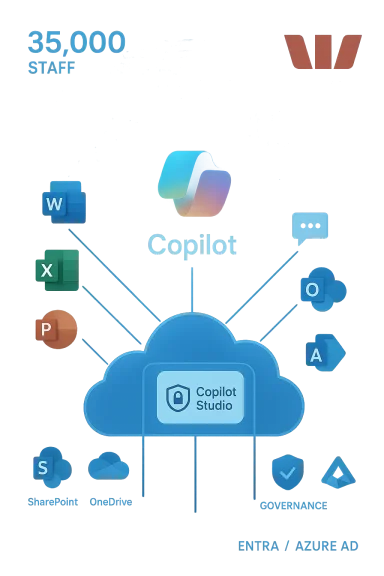
Westpac’s decision to roll Microsoft 365 Copilot out to its entire global workforce—provisioning seats for roughly 35,000 employees plus contractors and service providers after a 15,000‑person pilot—marks a defining moment for AI adoption in Australian banking and a clear signal that generative AI is moving from pilots into mainstream operations.

Illustration of Copilot Studio cloud linking Word, Excel, PowerPoint, Outlook, and cloud services.Background / Overview​

In a media release dated 5 February 2026, Westpac said the global deployment gives staff access to Microsoft 365 Copilot inside Word, Excel, PowerPoint, Outlook and Teams, and that the rollout follows a national pilot of 15,000 employees in Australia where the bank reported improved business outcomes and time saved for users. The bank is also pairing the technology release with a structured education program, a Copilot Studio capability to build bespoke agents, and an Azure‑hosted innovation sandbox for experimentation.
Microsoft’s public communications and wider vendor narratives position Westpac’s move as one of the largest Copilot deployments in Australia and the largest deployment in finanAsia‑Pacific—claims worth treating as directional until independently reconciled with figures from other large enterprise programs.

Why this matters: context for banks and knowledge workers​

Modern banking is fundamentally an information business. Day‑to‑day value flows from processing documents, analysing spreadsheets, drafting customer communications, and surfacing the rig. Embedding a tenant‑aware Copilot across Microsoft 365 apps promises three practical advantages when executed correctly:
  • Faster execution of routine work: draft emails, create slide decks, summarize spreadsheets more quickly with AI assistance.
  • Faster access to institutional knowledge: retrieval‑augmented generation (RAG) can pull from SharePoint, OneDrive and other governed corp sources to ground answers in the bank’s policy and precedent.
  • Workflow automation at scale: Copilot Studio agents can automate standard HR/IT tasks or orchestrate multi‑step document workflows, lowering friction for internal service processes.
These gains are real in many pilot reports, but they are not automatic: enterprise benefit depends on integration, identity controls, governance and sustained adoption programs. Westpac’s own announcement explicitly couples the technology rollout with training, “prompt‑a‑thons,” and a sandbox to encourage safe experimentation—an adoption pattern consistent with other large scale Copilot deployments.

What Westng out​

Core components announced​

  • A Microsoft 365 Copilot seat provisioned for roughly 35,000 staff and associated contractors and service providers, staged internationally after a 15,000‑user pilot in Australia.
  • Copilot Studio capability for internal teams to design and manage custom agents that integrate with HR systems, IT service catalogs and corporate knowledge stores.
  • A dedicated Azure innovation sandbox to let teams prototype agentic workflows under controlled guardrails.
  • A company‑wide education and enablement program: masterclasses, support resources and prompt events to uplift AI literacy.

Early, pragmatic use‑cases​

Public statements and early internal pilots reported by Westpac highlight initial agent use‑cases that are practical and low risk:
-t answer common staff queries, lookup leave balances, and initiate simple tasks (e.g., password resets).
  • Document summarisation and meeting‑note generation to speed internal decision‑making.
  • SharePoint Q&A and dashboard interrogation (natural language BI) that lets non‑technical staff ask questions and explore data lineage. (westpac.com.au)
These are textbook “quick wins” designed to demonstrate value, reduce help‑desk load and build governance experience before Copilot is extended into higher‑risk, customer‑facing or regulated workflows.

The technical anatomy: how an enterprise Copilot rollout is put together​

A production‑grade Copilot deployment leverages several Micrnts plus governance and observability layers. Westpac’s public materials and the broader Microsoft product descriptions attern clear:
  • Microsoft 365 apps (Word, Excel, PowerPoint, Outlook, Teams) as the user surface for Copilot.
  • Copilot Studio for agentration; a “lite” low‑code builder for domain teams and a full engineering experience for controlled production deployments.
  • Azure services (model hosting, telemetry, content safety controls, observability) to support endpoints, rate limits and data‑residency needs.
  • Microsoft Graph, SharePoint, OneDrive and OneLake/Fabric as sources for retrieval‑grounding and contextual indexing.
  • Identity and endpoint management through Microsoft Entra (Azure AD) and Intune to enforce least‑privilege access and conditional policies.
This architecture is significant: the difference between a demonstration and ot the large language model alone, but the integrity of connectors, permissioning, observability and the safety nets surrounding it. Westpac has publicly highlighted those exact investment areas.

Governance, responsible AI and operational controls — what Westpac must (and says it will) do​

Large Copilot deployments in regulated industries bring four critical riata confidentiality and leakage.** Generative models can unintentionally expose sensitive inputs when retrieval contexts are misconfigured. Defence: strict indexing rules, per‑agent scoping, Entra‑based least‑piew controls.
  • Hallucination and factual inaccuracy. LLMs produce plausible but incorrect statements. Defence: require evidence‑backed responses (returned source snippets), human‑in‑the‑loop approvals for high‑risk outputs, and observability around error rates.
  • Regulatory and compliance risks. Banks must preserve audit trails, data residency, and prove that AI outputs meet conduct rules. Defence: robust logging, retention policies and early regulator engagement.
  • Cultural and workforce risks. Rapid AI adoption can destabilise roles if messaging role‑based training, re‑skilling pathways, transparent metrics and clear acceptable‑use policiemessage explicitly emphasises responsible AI paired with skilling, and its planned Centre of Excellence‑st Studio plus sandboxing and training) maps to these defence lines. However, implementation detail will determine ot be continuously enforced and adapted as usage patterns evolve. (westpac.com.au)

Practical governance checklist for regulated institutions (recommended)​

  • Define precise data scopes: which SharePoint libraries, OneLake datasets and CRM tables Copilot can index.
  • Enforce per‑agent least‑privilege with Mistrations and token scopes.
  • Require evidence‑backed answers (sour for any factual claim returned by Copilot.
  • Implement human sign‑off t customer accounts, regulatory filings or legal obligations.
  • Log all interactiolemetry and run periodic red‑team tests to probe data exfiltration and action‑orchestration paths.

Measuring success: what Westpac should (and likely will) track​

Meaningful KPIs need to balance productivity gains and risk metrics. Useful measures include:
  • Reductoutine tasks (baseline vs post‑deployment per role).
  • Ticket volume decreases for HR/IT categories handled by agents.
  • Hallucination/error rate per 1,000 queries and time‑to‑remediation.
  • Employee satisfaction/utility scores (NPS style) and adoption rates by cohort.
  • Incidents tying Copilot outputs to regulatory or customer outcomes.
Westpac’s pilot should have produced baselines for many of these metrics; continuous monitoring and transparent reporting will determine whether claimed efficiency gains persist under production scale.

Comparing scale: is this really the largest deployment in APAC financial services?​

Westpac and Microsoft described this deployment as “the largest in financial services within Asia‑Pacific.” That claim is headline‑worthy but requires context:
  • Global consultancies and professional services firms—like PwC—have publicly reported very large Copilot footprints (hundreds of thousands of users) though those are not banks and often reflect different licensing models and internal products. PwC has cited a rollout to more than 230,000 users across 100+ countries, illustrating how scale claims can vary by sector and measurement lens.
  • Large banks elsewhere have announced substantial Copilot deals—Barclays (100,000 seats) and other major European or North American banks have publicised significant investments. These comparisons indicate that while Westpac’s deployment is large for the region solute “largest” rankings require independent verification of license counts, active use rates and regional definitions.
Readers should therefore treat “largest” as a directional marketing assertion until reconciled against comparable public disclosures or vendor customer lists.

What to watch next: operational hazards and near‑term failure modes​

  • **Over‑indexing low‑valot is allowed to index poorly classified or stale repositories, the assistant will surface bad or outdated guidance. Mitigation: strict content curation and retention policies.
  • *Shadow Without a gated “front door” for publishing agents, uncontrolled citizens’ development can create unpredictable billing, security and compliance exposures. Westpac’s two‑tier environment approach (default vs enterprise) is a strong guardrail if enforced.
  • Billing and metering surprises. Copilot actions, agent runtime invocations and external connector calls can produce unexpected cloud costs. Cap usage and implement allocation rules.
  • Regulatory attention. Supervisors will scrutinise audit trails, retention, and evidence of human oversight. Banks must document governance decisions and incident response playbooks.

Strategic implications for Microsoft, Westpac and the industry​

For Microsoft​

Large, visible deployments validate Microsoft’s Copilot enterprise playbook: bundling Copilot into Office surfaces, offering Copilot Studio for agents, and providing Azure safety controls cements Microsoft’s platform advantage for tenant‑grounded GenAI. The vendor–customer feedback loop from banks like Westpac will accelerate product features specifically aimed at regulated industries.

For Westpac​

Beyond productivity, Westpac’s move is ing: embedding AI as a capability across the bank’s operating model could reshape job scopes, speed decision cycles, and change customer engagement patterns. The more important metric will not be seats provisioned but sustained, mein risk‑adjusted throughput and customer outcomes.

For other banks in the region​

Westpac’s puba template: pair platform investments (Copilot Studio, Azure sandbox) with disciplined governance andon engine. Institutions that skip the governance rigor risk operational exposure; those that invest in skilling and measurement stand to capture sustained advantage.

Practical recommendations for IT leaders planning Copilot rollouts​

  • Start with high‑impact, low‑risk agents: HR FAQs, IT support and internal summarisation tasks.
  • Build a gated “front door” and two‑tier environment (default productivity vs enterprise publishing).
  • Enforce least‑privilege per agent with Entra app registrations, OAuth flows, and connector scopes.
  • Require evidence‑backed outputs and human sign‑off for customer‑facing or regulatory actions.
  • Instrument telemetry, run red teams, and measure both productivity and risk KPIs continuously.

Balanced verdict: pragmatic optimism, not uncritical hype​

Westpac’s deployment is consequential: it takes Copilot from proof‑of‑concept into daily work for tens of thousands of people and pairs platform investments with training and agent development capabilities. That combination—platform + governance + people—is the necessary recipe for sustainable value.
Yet scale magnifies risk. Data scoping mistakes, misconfigured connectors, inadequate human oversight, or insufficient telemetry can turn a productivity boost into operational exposure. Marketing claims (for example, “largest in Asia‑Pacific financial services”) should be read with healthy scepticism until reconciled with comparable public figures.

Conclusion​

Westpac’s Microsoft 365 Copilot rollout exemplifies the next phase of enterprise AI adoption: broad distribution of tenant‑aware assistants, internal platforms for building agents, and significant investments in skilling and sandboxed experimentation. If Westpac sustains disciplined governance, evidence‑backed outputs, and continuous monitoring, the bank stands to capture meaningful productivity and innovation gains. If it cuts corners on access control, observability or human‑in‑the‑loop processes, the same scale that creates value could amplify risk. For the industry, Westpac’s journey will be an important case study—one that other regulated institutions will watch closely as they design their own Copilot strategies.

Source: Finextra Research Westpac rolls out Microsoft Copilot to global workforce
 

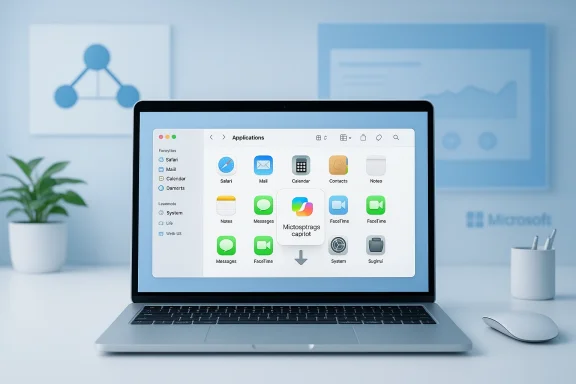
Microsoft has quietly started to include a “shim” for the Microsoft 365 Copilot app inside the Microsoft 365 apps for Mac suite installer used by enterprises — a small, deliberately inert placeholder that will appear in the Applications folder of freshly imaged Macs and, when launched, will pull down the full Microsoft 365 Copilot app from Microsoft’s servers. This change, rolling out to enterprise tenants starting in mid‑February 2026 as part of Microsoft’s Message Center notices, does not force Copilot onto existing installations but does change the default experience for new deployments that use the suite installer package. At the same time, Microsoft is experimenting with routing Outlook attachments on iPad to the native Word, Excel and PowerPoint apps instead of the built‑in previewer — two small shifts that together illustrate how Microsoft is nudging platform integration and deployment behaviors across macOS and iOS for commercial customers.

A silver laptop on a blue-tinted desk displays a grid of app icons on screen.Background​

Microsoft’s Copilot story has moved quickly from browser‑centered AI features to first‑party native apps and broad platform integration. The Copilot app for macOS and the Microsoft 365 Copilot ecosystem were introduced to bring AI‑driven document search, summarization, generation and “agents” into the desktop workflow. On Windows, Microsoft has already taken a more aggressive approach: companion Copilot apps and File Explorer integrations have been rolled out and, in many channel scenarios, the Microsoft 365 Copilot app began auto‑installing for devices that already had Microsoft 365 desktop apps installed.
For macOS, Microsoft has historically left users with more explicit consent pathways: the Copilot macOS app has been available for download, and administrators could deploy it separately. The new shim approach preserves that consent model while making Copilot discoverable by default in fresh enterprise deployments that rely on the suite installer. Microsoft’s deployment notices spell out that the shim is only a stub — the full app downloads only when the stub is opened — and that organizations can choose to exclude the shim during deployment.

What the shim change actually does​

What you will see in a fresh install​

  • After deploying Microsoft 365 apps using the official suite installer package, administrators and users will find a new app icon in the Applications folder named something like “Microsoft 365 Copilot.”
  • That icon is a shim — a small launcher that does not contain the full Copilot binary.
  • When a user opens the shim, it will connect to Microsoft’s distribution endpoint and download and install the full Microsoft 365 Copilot app, assuming network connectivity and macOS requirements are met.

What this is not​

  • The shim is not an automatic, background installation of the full Copilot app. Opening the icon triggers the download and install.
  • Existing Office installations are not retrofitted with the shim; this change applies to new installs performed using the suite installer package.
  • Administrators can exclude the shim from suite deployments if they prefer not to present Copilot in that way.

Rollout schedule and system requirements​

  • The rollout for the shim began in mid‑February 2026, with Microsoft messaging indicating a phased deployment expected to complete across tenants by roughly mid‑March 2026.
  • Administrators should note the minimum macOS requirement for the Copilot app (the Copilot Mac app targets macOS 14.0 or later in Microsoft’s guidance), and ensure Microsoft AutoUpdate (MAU) and connectivity requirements are in place so the shim can retrieve the full installer.

Why Microsoft is doing this: the benefits and the strategy​

Microsoft’s change is strategic and pragmatic. There are several clear benefits to the shim approach:
  • -Simplifies enterprise deployment: by bundling a lightweight shim into the common suite installer, IT teams can ensure Copilot is discoverable on devices without forcing a full install for every machine.
  • -Reduces package bloat for the suite installer: the shim minimizes the footprint of the core suite package while still providing a visible path to acquire Copilot.
  • -Gives end users choice: users still must interact with the shim to download the full app, which retains a degree of opt‑in behavior.
  • -Aligns macOS experience with Microsoft’s broader Copilot strategy: while Windows received more proactive Copilot distribution, macOS now gets a managed, enterprise‑friendly path to the same capabilities.
  • -Enables staged adoption: administrators can pilot Copilot availability and roll it out in waves without modifying the fundamental suite installer they already use.
From Microsoft’s product perspective, the shim is a low‑friction way to increase Copilot discoverability inside managed fleets while keeping deployment control in the hands of enterprise IT.

Risks and trade‑offs administrators must weigh​

No platform change is without trade‑offs. The shim model introduces several operational and governance considerations that IT teams must evaluate before broadly deploying suite installer packages that include the Copilot shim.

Privacy and compliance​

  • Administrators should verify how Copilot interacts with tenant data, local files, and cloud services in their environment. The Copilot Mac app is designed to integrate with Microsoft 365 work data when a user signs in, and some Copilot features access mailbox, calendar, document and SharePoint context to generate answers.
  • Data governance controls, eDiscovery, and retention policies should be reviewed to ensure Copilot’s behavior aligns with the organization’s compliance posture. In some regulated industries, even the ability to readily install a client that surfaces enterprise data may require formal approvals.

Network and bandwidth impact​

  • Because the shim downloads the full app on first launch, bulk deployments in organizations where users are likely to open the shim simultaneously could create bursts of download traffic. Administrators should plan bandwidth usage and consider internal caching or distribution solutions where appropriate.

Platform compatibility and patching​

  • The Copilot Mac app requires a modern macOS (documentation indicates macOS 14.0 or later for the current release), so organizations with mixed macOS versions must be prepared for installation failures or user confusion on older devices.
  • Microsoft AutoUpdate (MAU) being enabled on macOS devices is typically required to keep Microsoft apps current; administrators should ensure MAU is configured and that patching windows account for Copilot updates.

User experience and support burden​

  • Introducing a visible new app in the Applications folder can generate helpdesk calls — questions about what Copilot is, why it’s present, and how it uses data.
  • Support teams should be briefed on uninstall procedures, troubleshooting download failures for the shim, and Copilot licensing and sign‑in behavior.

Regulatory and regional differences​

  • Microsoft has previously implemented regionally specific deployment behavior for Copilot on Windows (notably exclusions for certain EEA scenarios). Administrators should confirm whether any regional exclusions or special policies apply to their tenants before deploying the new suite installer widely.

Practical guidance for administrators: a checklist​

If you manage macOS fleets and use the Microsoft 365 suite installer, here’s a practical, ordered set of steps to prepare for and control the Copilot shim rollout.
  • Verify Message Center and Roadmap notices for MC1230456 (or equivalent) in your Microsoft 365 admin center to view tenant‑specific deployment timing and any follow‑ups.
  • Confirm the macOS minimum supported version for your environment; plan to exclude devices running earlier macOS releases or to deploy Copilot selectively.
  • Decide on Copilot distribution policy: include the shim in new suite deployments to make Copilot discoverable, or exclude it if your governance requires explicit admin installs.
  • Ensure Microsoft AutoUpdate (MAU) is enabled and functioning across your managed macOS devices.
  • Validate network capacity and proxy/caching configurations so the shim can download the full app without blocking.
  • Pilot the shim in a small, representative group (a test ring) and log user support tickets, installation success rates, and any policy conflicts.
  • Update internal documentation and end‑user communications: explain what the shim looks like, how Copilot installs, and how users can opt out or uninstall.
  • Train helpdesk staff on Copilot sign‑in, licensing, and uninstall steps; provide ready scripts for IT automation (e.g., uninstall packages, Intune policies).
  • Review compliance and legal sign‑offs if your organization handles regulated data; consider legal counsel where required.
  • Monitor Microsoft’s release notes and Copilot admin documentation for changes to install behavior, licensing, or platform requirements.

Deployment controls: how to exclude the shim or distribute Copilot intentionally​

Microsoft’s admin and deployment guides provide several levers administrators can use:
  • Exclusion during suite installer creation: the suite installer supports excluding specific apps at packaging time. If your provisioning process builds a custom installer, explicitly remove the Copilot shim from that package to prevent it from landing on endpoints.
  • Intune and MDM deployment: deploy or block the Copilot shim via your MDM policy. If you intend to proactively install Copilot, use your management tooling (Intune, JAMF, Munki, etc.) to push the full app rather than relying on the shim mechanism.
  • Group‑based rollout: deploy Copilot to pilot groups first using targeted device or user assignments; keep the rest of the fleet free of the shim until testing concludes.
  • Uninstallation: for devices that unexpectedly show the Copilot shim, an automated removal script or MDM policy can uninstall the stub or the full app if it was subsequently installed.
Each environment is different; plan for both the administrative route (stop the shim at build time) and the remediation route (remove the shim post‑deployment if needed).

How this compares with Windows behavior​

Microsoft has taken a more assertive approach on Windows: companion Copilot apps and integrations into File Explorer were deployed to many Windows 11 systems when Microsoft 365 desktop apps were present. In some channels Microsoft even rolled out background installs of the Copilot app for Windows devices, prompting intense discussion among admins about consent and control.
By contrast, the macOS shim approach is comparatively conservative. It preserves an additional user action (open the shim) before the full Copilot binary is downloaded, and Microsoft’s guidance explicitly notes that existing installations are unaffected. For enterprises that manage both Windows and macOS fleets, this difference matters operationally: Windows endpoints may see Copilot appear automatically under Microsoft’s companion apps strategy, while macOS endpoints will see Copilot only if administrators include the shim or users open it.

The Outlook for iPad change: file attachments opening in Word/Excel/PowerPoint​

Microsoft is simultaneously experimenting with the Outlook mobile experience on iPad: in a Message Center item Microsoft described a change where Word, Excel and PowerPoint attachments opened from Outlook on iPad may launch the respective native app when it is installed, rather than being displayed in Outlook’s in‑app previewer.

Why this matters​

  • Opening attachments directly inside the corresponding native app improves editing fidelity and gives users immediate access to richer editing tools, but it also changes the security model: when a file opens in a separate app it may inherit that app’s clipboard, sharing and background behaviors.
  • The shift can be helpful for productivity — editing a large spreadsheet in the Excel app usually provides a better experience than the previewer — but organizations that rely on the in‑app previewer for data leakage controls or auditability must revalidate their mobile security posture.

What administrators should consider​

  • Mobile app management (MAM) policies: ensure that your MAM/MAM‑without‑enrollment rules still apply when files transition from Outlook into standalone Office apps.
  • Conditional access and app‑based protections: validate that the Word/Excel/PowerPoint mobile apps enforce the same conditional access and data protection controls as Outlook’s previewer.
  • User education: if the behavior is rolled out, communicate to iPad users how to revert to the previewer or how to open files in the app intentionally.
  • Pilot and telemetry: monitor behavior in a small pilot to measure how often users open attachments in the native apps and whether that increases data exfiltration risk vectors in your environment.

Governance: licensing, cost, and Copilot tiers​

Copilot’s presence as an app or a shim does not by itself change licensing, but there are practical considerations:
  • Copilot feature availability is tied to licensing tiers (for example, organization‑level Microsoft 365 Copilot licenses or per‑user Copilot provisioning). Installing the app does not automatically enable enterprise Copilot features if the tenant or user is not licensed.
  • Administrators should coordinate deployment decisions with licensing and procurement teams to ensure that making Copilot discoverable does not create confusion around entitlement or user expectations about feature access.

Critical takeaways: strengths and weaknesses of Microsoft’s approach​

Strengths​

  • Controlled discoverability: the shim balances Microsoft’s desire to increase Copilot visibility with enterprise controls and opt‑in behaviors.
  • Minimal installer footprint: the stub model keeps the suite installer lean and avoids shipping the full Copilot binary to every system.
  • Administrative choice: IT admins retain explicit exclusion ability during packaging and can manage Copilot distribution via existing MDM and deployment pipelines.

Weaknesses and open questions​

  • User confusion risk: end users and help desks may be surprised to find a new app in Applications after an imaging process, driving support tickets.
  • Bandwidth spikes and installation failures: simultaneous openings of the shim across a large fleet can produce download storms or partial installs if network configurations are restrictive.
  • Regulatory clarity: organizations operating under strict compliance regimes must confirm whether making Copilot discoverable alters any obligations around data handling, especially if Copilot features access tenant‑sourced information.
  • Potential consumer spillover: while the change targets enterprise suite installs, consumers who use the same suite package could see the shim appear if they install via an enterprise‑oriented installer image.

Recommended action plan for the next 30–90 days​

  • Immediately: review the Message Center item and confirm tenant delivery timing. Communicate the change to endpoint and security teams.
  • Within a week: assemble a pilot group of Mac devices and deploy the suite installer with the shim included to validate installation behavior and user flows.
  • Within a month: finalize a policy — either proactively include Copilot across specific groups or explicitly exclude the shim from generic suite installer images — and implement MDM rules accordingly.
  • Ongoing: monitor Copilot update notes and Microsoft’s release notes for any changes to the installation mechanism or new admin controls; update your deployment playbook as Microsoft refines the behavior.

Final analysis: pragmatic nudge, not a forced march​

Microsoft’s choice to deliver Copilot on macOS as a shim inside the Microsoft 365 apps for Mac suite installer is a pragmatic compromise. It advances Copilot’s discoverability in managed fleets while preserving choice and administrative control — a different stance from some of the more assertive Windows‑side pushes. For IT leaders, the change is not catastrophic, but it is consequential: it changes the baseline of what a freshly imaged Mac will look like in enterprise fleets and it requires deliberate policy decisions about inclusion, communication, and governance.
The companion Outlook mobile experiment on iPad underlines the broader theme: Microsoft is tightening integration between its communications client and the native Office applications, aiming to smooth workflow handoffs. That momentum will benefit users who want deeper app‑level experiences, but it also raises familiar enterprise questions about control, data handling and consistent policy enforcement across changing endpoints.
For now, the operational advice is straightforward: understand the Message Center guidance for your tenant, pilot carefully, and update deployment and user‑education materials. The shim is small and optional by design — but the decision to include it or not will ripple through provisioning, support and compliance processes for any organization that manages Mac fleets.

Source: Windows Latest Microsoft begins pushing Microsoft 365 Copilot on macOS if you use fresh installs of Microsoft 365 suite enterprise
 

Back
Top