

Microsoft’s latest Microsoft 365 Copilot wave, described in a Geeky Gadgets roundup of nine work-focused updates and tied to demos from Microsoft’s Mike Tholfsen, brings app-launcher changes, model switching, Copilot Notebooks, research comparison tools, mind maps, study guides, and AI-assisted document creation into the Microsoft 365 work surface. The interesting part is not that Copilot can do more tricks. It is that Microsoft is steadily moving Copilot from a chat box beside Office into the connective tissue of Office itself. For Windows users and IT departments, that makes the update less a productivity grab bag than another step toward a workplace where navigation, file creation, research, and synthesis are all expected to pass through an AI layer.
For three decades, Microsoft Office has been organized around applications. You opened Word to write, Excel to calculate, PowerPoint to present, Outlook to communicate, and OneNote or SharePoint to keep the supporting mess somewhere nearby. Microsoft 365 already blurred those lines, but Copilot is now pushing the suite toward a different model: start with the task, then let the system decide which app, model, file, or design surface should be involved.
That is the real significance of the redesigned app launcher, the familiar “waffle” in the Microsoft 365 header. On paper, being able to pin frequently used apps or surface a “Create” area for images and videos sounds like interface housekeeping. In practice, it is Microsoft admitting that the classic Microsoft 365 sprawl has become too large for users to navigate by memory.
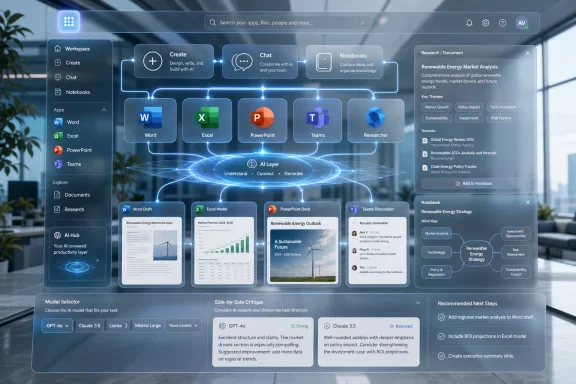
The launcher used to be a doorway into apps. Now it is becoming a doorway into intent. If Create, Chat, Notebooks, and app shortcuts sit in the same navigational layer, Microsoft is telling users that generating a visual, drafting a document, opening an app, and grounding work in existing files are no longer separate categories of work. They are steps in a single workflow.
That shift matters because Copilot’s biggest challenge has never been only model quality. It has been where the assistant lives. A powerful AI tool buried behind the wrong icon is just another enterprise feature that employees forget to use after the first demo. Microsoft is attacking that problem by putting Copilot affordances into the ordinary routes people already take through Microsoft 365.
The new launcher’s pinning controls are a quiet acknowledgement that no two Microsoft 365 tenants look alike. A sales team may live in Teams, Outlook, PowerPoint, Dynamics, and OneDrive. A finance group may care more about Excel, SharePoint, Power BI, and approval workflows. A school may route teachers through Teams, OneNote, Forms, and class materials. Giving users more control over the launcher helps, but the bigger story is the placement of AI creation next to conventional app access.
The “Create” module is especially revealing. Microsoft has been trying to make Copilot feel like an everyday tool rather than a novelty, and image or video generation is an obvious lure. But the enterprise version of that lure is different from consumer AI art. In a workplace, the promise is a campaign image, a training visual, a quick explainer, a first draft of a slide asset, or a graphic that would otherwise require bothering the design team.
That does not eliminate the need for design judgment. It does, however, lower the activation energy for visual work. The risk is that organizations get a flood of mediocre AI-generated visuals. The benefit is that many internal deliverables do not need agency-grade polish; they need clarity, speed, and enough consistency not to embarrass the department.
Microsoft’s bet is that users will tolerate AI output’s rough edges if the tool appears exactly when a workday bottleneck appears. The launcher is not merely prettier. It is part of Microsoft’s campaign to make Copilot feel unavoidable without making it feel like a separate product.
There are good reasons for that. Different large language models often behave differently on the same task. One may be better at concise drafting, another at long-context analysis, another at code, another at synthesis, another at cautious reasoning. In consumer AI tools, power users already switch models depending on the job. Microsoft is now bringing that habit into the workplace, but with enterprise constraints around security, identity, compliance, and data access.
The Geeky Gadgets summary frames this as a productivity win: use “Quick Response” for concise answers, “Think Deeper” for heavier analysis, and move between GPT and Claude when needed. That is plausible, but it introduces a new kind of user decision. If workers must understand which model is best for a board memo, a market analysis, a spreadsheet explanation, or a policy draft, the tool risks replacing one form of complexity with another.
Microsoft’s likely answer is progressive disclosure. Most users will stay in the default mode and let Copilot route requests. More advanced users will deliberately choose models, compare outputs, or use multi-model research features. That is sensible, but it also puts pressure on Microsoft’s interface design: the model picker must be powerful enough for specialists and invisible enough for everyone else.
For IT departments, model choice raises a different set of questions. Which models are enabled? Which regions process which workloads? How are prompts, files, and generated outputs governed? What happens when one model produces a more persuasive but less accurate answer than another? The model menu is not only a productivity feature. It is also a governance surface.
This is a smart direction. Anyone who uses generative AI for serious work knows the first answer is often only a starting point. It may be fluent but shallow, structured but incomplete, confident but wrong. A second model can expose blind spots, challenge assumptions, or simply frame the same material differently. The product idea behind Critique is that this comparison should not require opening another browser tab or pasting the same prompt into multiple services.
For analysts, researchers, consultants, lawyers, and managers, that could be genuinely useful. A market trend summary that is checked against another model’s interpretation is more valuable than a single polished paragraph. A policy draft that receives a critique from a second model may reveal ambiguity before it reaches a customer or regulator. A project proposal that survives model-on-model comparison may still be imperfect, but it has at least passed through a more adversarial first draft process.
Still, Microsoft should be careful not to oversell this as truth verification. Two models can agree and still be wrong. Multiple AI systems can share training-data weaknesses, institutional biases, or the same misunderstanding of a prompt. “Model Council” sounds reassuring, almost judicial, but it is not a substitute for source checking, domain expertise, or accountable human review.
The useful framing is not that Copilot now knows the answer. It is that Copilot can help users test the answer. That is a much more durable claim, and one enterprise buyers should take seriously.
By letting users create Word, Excel, and PowerPoint files directly from the Copilot chat environment, Microsoft is trying to collapse those steps. Chat becomes not just a place to ask for help, but a command center for producing work artifacts. That is where Copilot’s integration advantage over standalone AI tools is strongest.
A chatbot can draft a memo. Microsoft 365 Copilot can, in theory, draft the memo using the right tenant data, turn it into a Word document, create a PowerPoint from the same source material, reference the spreadsheet behind the numbers, and keep the output inside the organization’s existing compliance boundary. The difference is not merely convenience. It is workflow continuity.
The danger is that chat becomes overloaded. If every action begins with a prompt, users may trade familiar menus for a conversational guessing game. The best version of the Unified Plus Menu is not one where users type long instructions for everything. It is one where chat, buttons, file references, app creation, and design tools coexist, each doing what it is best at.
Microsoft learned this lesson painfully with earlier generations of Office assistants. Users do not want a mascot that interrupts work. They want the system to remove friction at the moment friction appears. The Unified Plus Menu is a test of whether Copilot can be an operating layer rather than another destination.
A notebook that can consolidate summaries, insights, references, and quick creation tools is Microsoft’s attempt to create a working memory for projects. The idea is not new; knowledge-management systems have promised this for years. What is different is that Copilot can sit on top of the material and produce summaries, drafts, study aids, visual maps, and derived documents without forcing users to manually structure everything first.
That matters because the failure mode of knowledge management has always been maintenance. People start with enthusiasm, then stop tagging, updating, linking, and curating. AI does not remove the need for good information hygiene, but it can reduce the amount of manual ceremony required to make a project space useful.
The reported overview page for Copilot Notebooks is important in that context. A notebook that merely stores material is just another folder. A notebook that summarizes what is there, identifies themes, supports quick creation, and lets users generate follow-on artifacts starts to look like a workspace.
For sysadmins and compliance teams, however, this is where the governance questions become unavoidable. If Copilot can draw from Excel, Word, PowerPoint, and potentially SharePoint sources, permissions and data classification need to be correct before the AI layer arrives. Copilot does not magically fix over-permissioned file shares. It can make their consequences more visible.
That changes the value proposition. A manually created mind map is only as good as the person building it in the moment. An AI-generated one can surface relationships across notes, documents, and references that might otherwise remain implicit. For project planning, onboarding, research synthesis, or post-meeting alignment, that could be useful.
The most practical use may be explanation. Complex work often fails not because nobody has the information, but because nobody can show how the pieces relate. A mind map can turn a pile of documents into a navigable structure. If users can click into nodes, ask for explanations, and trace relationships back to source material, the feature becomes more than a diagram generator.
The caution is that visual confidence can be dangerous. A neat map may imply that a project’s dependencies are cleaner than they really are. Missing data, stale files, or weak prompts can produce a map that looks authoritative while hiding uncertainty. Microsoft should make provenance and editability central, not optional.
Used well, mind maps could make Copilot Notebooks more approachable for visual thinkers and cross-functional teams. Used lazily, they will become another auto-generated artifact pasted into meetings without scrutiny.
That is potentially valuable for departments that lack dedicated instructional designers. A team rolling out a new process could collect the policy document, FAQ, slide deck, and meeting notes in a notebook, then generate practice material for employees. A support organization could turn troubleshooting documentation into quizzes for new hires. A school or university could use similar tooling for class materials, though institutional controls would matter.
The best version of this feature is not automated homework. It is retrieval practice built into the same environment where the material already lives. That makes learning less separate from work. Instead of sending employees to a disconnected learning portal, teams could generate reinforcement activities from the actual documents they use.
But there is an accuracy trap here too. A bad quiz can teach the wrong thing with great efficiency. If Copilot generates a misleading answer key from ambiguous source material, learners may internalize the error. Organizations using these features for training should treat generated study materials as drafts, not final curriculum.
Microsoft has a chance to make this safer by emphasizing review workflows, source links, and clear indication of which notebook materials were used. In a world where every department can generate training content, quality control becomes more important, not less.
Text generation alone is forgiving. A draft memo can be edited. A summary can be rewritten. A chat answer can be ignored. A presentation, by contrast, exposes whether the AI understands hierarchy, pacing, audience, visual balance, and the difference between a slide and a document chopped into rectangles.
If Copilot can create better first drafts of decks from notebook content, source documents, and user instructions, it could save enormous time. Many professionals spend hours transforming already-known information into slides. That is exactly the sort of format-shifting task AI should be good at.
Yet PowerPoint also reveals the limits of automation. A great presentation is not merely a collection of slides. It is an argument arranged in sequence. It knows what to leave out. It anticipates objections. It uses visuals deliberately. Microsoft’s design tools can help with polish, but users still need to supply judgment.
The most useful Copilot PowerPoint features will be those that help users move from raw material to a defensible narrative, not merely from prompt to pretty template. The difference between those two outcomes is the difference between productivity and clutter at higher resolution.
That is the paradox of enterprise AI productivity. The more integrated the system becomes, the more users expect it to behave like infrastructure. A standalone chatbot can be quirky. A Microsoft 365 feature that creates documents inside the tenant is held to a different standard. It must be reliable enough for ordinary workers, controllable enough for IT, and transparent enough for managers who need to trust the result.
Excel is the hardest part of that promise. Generating a spreadsheet is not like generating prose. Formulas, assumptions, data types, references, and financial logic must be right. A Copilot-created workbook can be useful as a starting point, but organizations should be wary of treating generated spreadsheets as authoritative without review. The cost of a plausible but incorrect spreadsheet can be much higher than the cost of a bland paragraph.
Word and PowerPoint have their own risks. A generated document can import outdated language from old files. A presentation can cite numbers without enough context. A polished proposal can flatten disagreement that was visible in the source material. The productivity gain is real, but so is the need for review discipline.
Microsoft’s best defense is grounding and traceability. Users need to know what sources Copilot used, where claims came from, and what assumptions the generated file made. Without that, AI document creation becomes a faster way to create documents nobody can fully trust.
Most valuable work still requires effort. Strategy requires judgment. Analysis requires skepticism. Writing requires audience awareness. Security requires paranoia. Administration requires patience. Copilot can reduce the friction around those activities, but it cannot remove responsibility for them.
For IT pros, the more important question is whether Copilot’s new surfaces create governed effort or unmanaged shortcuts. App launcher changes are relatively low risk. Model switching, research comparison, notebook grounding, and document generation are more consequential. They touch data access, information accuracy, retention policies, and user behavior.
Administrators should expect adoption to be uneven. Power users will experiment immediately with model selection, notebooks, and research tools. Casual users may only notice the launcher and document-creation shortcuts. Departments under deadline pressure will be tempted to push generated material into circulation quickly. That is where policy, training, and defaults matter.
The practical rollout conversation should include permissions hygiene, sensitivity labels, user education, and clear rules for when AI-generated outputs require human review. Copilot does not remove old Microsoft 365 governance work. It raises the stakes for doing it properly.
The short version is this:
The latest Microsoft 365 Copilot updates do not make work effortless, and Microsoft should probably stop pretending that is the goal. What they do is make a more serious argument: the future of Office is not a smarter Word, a smarter Excel, or a smarter PowerPoint, but a system that can move between them with context intact. If Microsoft can pair that ambition with trustworthy grounding, manageable controls, and interfaces that do not drown users in choices, Copilot may finally become less of an AI add-on and more of the workflow layer Microsoft has been trying to build all along.
 Microsoft Is Teaching Office to Stop Feeling Like Office
For three decades, Microsoft Office has been organized around applications. You opened Word to write, Excel to calculate, PowerPoint to present, Outlook to communicate, and OneNote or SharePoint to keep the supporting mess somewhere nearby. Microsoft 365 already blurred those lines, but Copilot is now pushing the suite toward a different model: start with the task, then let the system decide which app, model, file, or design surface should be involved.That is the real significance of the redesigned app launcher, the familiar “waffle” in the Microsoft 365 header. On paper, being able to pin frequently used apps or surface a “Create” area for images and videos sounds like interface housekeeping. In practice, it is Microsoft admitting that the classic Microsoft 365 sprawl has become too large for users to navigate by memory.
The launcher used to be a doorway into apps. Now it is becoming a doorway into intent. If Create, Chat, Notebooks, and app shortcuts sit in the same navigational layer, Microsoft is telling users that generating a visual, drafting a document, opening an app, and grounding work in existing files are no longer separate categories of work. They are steps in a single workflow.
That shift matters because Copilot’s biggest challenge has never been only model quality. It has been where the assistant lives. A powerful AI tool buried behind the wrong icon is just another enterprise feature that employees forget to use after the first demo. Microsoft is attacking that problem by putting Copilot affordances into the ordinary routes people already take through Microsoft 365.
The Waffle Is Now a Productivity Argument
The app launcher is easy to underestimate because it is not glamorous. Nobody buys an enterprise license because a grid of icons got smarter. But in Microsoft 365, navigation is policy by another name: what Microsoft puts one click away is what it expects users to do more often.The new launcher’s pinning controls are a quiet acknowledgement that no two Microsoft 365 tenants look alike. A sales team may live in Teams, Outlook, PowerPoint, Dynamics, and OneDrive. A finance group may care more about Excel, SharePoint, Power BI, and approval workflows. A school may route teachers through Teams, OneNote, Forms, and class materials. Giving users more control over the launcher helps, but the bigger story is the placement of AI creation next to conventional app access.
The “Create” module is especially revealing. Microsoft has been trying to make Copilot feel like an everyday tool rather than a novelty, and image or video generation is an obvious lure. But the enterprise version of that lure is different from consumer AI art. In a workplace, the promise is a campaign image, a training visual, a quick explainer, a first draft of a slide asset, or a graphic that would otherwise require bothering the design team.
That does not eliminate the need for design judgment. It does, however, lower the activation energy for visual work. The risk is that organizations get a flood of mediocre AI-generated visuals. The benefit is that many internal deliverables do not need agency-grade polish; they need clarity, speed, and enough consistency not to embarrass the department.
Microsoft’s bet is that users will tolerate AI output’s rough edges if the tool appears exactly when a workday bottleneck appears. The launcher is not merely prettier. It is part of Microsoft’s campaign to make Copilot feel unavoidable without making it feel like a separate product.
Model Choice Becomes a Feature, Not a Science Project
The reported inclusion of GPT-5 and Claude options in Microsoft 365 Copilot points to a larger change in enterprise AI: model selection is becoming part of the product interface. In the early Copilot pitch, Microsoft mostly sold the assistant as a unified intelligence layer grounded in the Microsoft Graph. Users did not need to care much about the model behind the curtain. That curtain is now opening.There are good reasons for that. Different large language models often behave differently on the same task. One may be better at concise drafting, another at long-context analysis, another at code, another at synthesis, another at cautious reasoning. In consumer AI tools, power users already switch models depending on the job. Microsoft is now bringing that habit into the workplace, but with enterprise constraints around security, identity, compliance, and data access.
The Geeky Gadgets summary frames this as a productivity win: use “Quick Response” for concise answers, “Think Deeper” for heavier analysis, and move between GPT and Claude when needed. That is plausible, but it introduces a new kind of user decision. If workers must understand which model is best for a board memo, a market analysis, a spreadsheet explanation, or a policy draft, the tool risks replacing one form of complexity with another.
Microsoft’s likely answer is progressive disclosure. Most users will stay in the default mode and let Copilot route requests. More advanced users will deliberately choose models, compare outputs, or use multi-model research features. That is sensible, but it also puts pressure on Microsoft’s interface design: the model picker must be powerful enough for specialists and invisible enough for everyone else.
For IT departments, model choice raises a different set of questions. Which models are enabled? Which regions process which workloads? How are prompts, files, and generated outputs governed? What happens when one model produces a more persuasive but less accurate answer than another? The model menu is not only a productivity feature. It is also a governance surface.
Critique and Model Council Turn AI Into Its Own Second Opinion
The most interesting research updates are the reported “Critique” and “Model Council” features, because they admit something vendors rarely put in large print: one AI answer is not enough. By comparing outputs side by side or routing a question through multiple reasoning agents, Microsoft is trying to turn model disagreement into a workflow rather than a failure mode.This is a smart direction. Anyone who uses generative AI for serious work knows the first answer is often only a starting point. It may be fluent but shallow, structured but incomplete, confident but wrong. A second model can expose blind spots, challenge assumptions, or simply frame the same material differently. The product idea behind Critique is that this comparison should not require opening another browser tab or pasting the same prompt into multiple services.
For analysts, researchers, consultants, lawyers, and managers, that could be genuinely useful. A market trend summary that is checked against another model’s interpretation is more valuable than a single polished paragraph. A policy draft that receives a critique from a second model may reveal ambiguity before it reaches a customer or regulator. A project proposal that survives model-on-model comparison may still be imperfect, but it has at least passed through a more adversarial first draft process.
Still, Microsoft should be careful not to oversell this as truth verification. Two models can agree and still be wrong. Multiple AI systems can share training-data weaknesses, institutional biases, or the same misunderstanding of a prompt. “Model Council” sounds reassuring, almost judicial, but it is not a substitute for source checking, domain expertise, or accountable human review.
The useful framing is not that Copilot now knows the answer. It is that Copilot can help users test the answer. That is a much more durable claim, and one enterprise buyers should take seriously.
The Unified Plus Menu Is Microsoft’s Attack on Context Switching
The Unified Plus Menu sounds like a minor interface flourish until you consider how much office work is wasted on switching contexts. A user starts in chat, realizes a document is needed, opens Word, hunts for a file, copies text, returns to chat, asks for a summary, opens PowerPoint, adjusts formatting, then moves the result into Teams. Every step is small. Together, they are the sludge of modern work.By letting users create Word, Excel, and PowerPoint files directly from the Copilot chat environment, Microsoft is trying to collapse those steps. Chat becomes not just a place to ask for help, but a command center for producing work artifacts. That is where Copilot’s integration advantage over standalone AI tools is strongest.
A chatbot can draft a memo. Microsoft 365 Copilot can, in theory, draft the memo using the right tenant data, turn it into a Word document, create a PowerPoint from the same source material, reference the spreadsheet behind the numbers, and keep the output inside the organization’s existing compliance boundary. The difference is not merely convenience. It is workflow continuity.
The danger is that chat becomes overloaded. If every action begins with a prompt, users may trade familiar menus for a conversational guessing game. The best version of the Unified Plus Menu is not one where users type long instructions for everything. It is one where chat, buttons, file references, app creation, and design tools coexist, each doing what it is best at.
Microsoft learned this lesson painfully with earlier generations of Office assistants. Users do not want a mascot that interrupts work. They want the system to remove friction at the moment friction appears. The Unified Plus Menu is a test of whether Copilot can be an operating layer rather than another destination.
Copilot Notebooks Are the New Battleground for Workplace Memory
Copilot Notebooks may be the most strategically important feature in this set because they address a problem every organization recognizes: work knowledge is scattered everywhere. The plan is in a Word document, the numbers are in Excel, the status update is in Teams, the presentation is in PowerPoint, the decision is buried in email, and the rationale lives in someone’s head.A notebook that can consolidate summaries, insights, references, and quick creation tools is Microsoft’s attempt to create a working memory for projects. The idea is not new; knowledge-management systems have promised this for years. What is different is that Copilot can sit on top of the material and produce summaries, drafts, study aids, visual maps, and derived documents without forcing users to manually structure everything first.
That matters because the failure mode of knowledge management has always been maintenance. People start with enthusiasm, then stop tagging, updating, linking, and curating. AI does not remove the need for good information hygiene, but it can reduce the amount of manual ceremony required to make a project space useful.
The reported overview page for Copilot Notebooks is important in that context. A notebook that merely stores material is just another folder. A notebook that summarizes what is there, identifies themes, supports quick creation, and lets users generate follow-on artifacts starts to look like a workspace.
For sysadmins and compliance teams, however, this is where the governance questions become unavoidable. If Copilot can draw from Excel, Word, PowerPoint, and potentially SharePoint sources, permissions and data classification need to be correct before the AI layer arrives. Copilot does not magically fix over-permissioned file shares. It can make their consequences more visible.
Mind Maps Are a Familiar Idea With a Better Data Source
Mind maps have been around forever, and in many enterprise settings they carry the faint smell of workshops, whiteboards, and abandoned brainstorming sessions. Microsoft’s AI-generated mind maps may fare better because they are not asking users to start from a blank canvas. They can be generated from notebook content, which means the map begins with the actual project materials rather than someone’s memory of them.That changes the value proposition. A manually created mind map is only as good as the person building it in the moment. An AI-generated one can surface relationships across notes, documents, and references that might otherwise remain implicit. For project planning, onboarding, research synthesis, or post-meeting alignment, that could be useful.
The most practical use may be explanation. Complex work often fails not because nobody has the information, but because nobody can show how the pieces relate. A mind map can turn a pile of documents into a navigable structure. If users can click into nodes, ask for explanations, and trace relationships back to source material, the feature becomes more than a diagram generator.
The caution is that visual confidence can be dangerous. A neat map may imply that a project’s dependencies are cleaner than they really are. Missing data, stale files, or weak prompts can produce a map that looks authoritative while hiding uncertainty. Microsoft should make provenance and editability central, not optional.
Used well, mind maps could make Copilot Notebooks more approachable for visual thinkers and cross-functional teams. Used lazily, they will become another auto-generated artifact pasted into meetings without scrutiny.
Study Guides Bring Copilot Into Training, Not Just Office Work
The study-guide tools are easy to pigeonhole as education features, but they have obvious workplace uses. Enterprises are training environments whether they admit it or not. Employees need to learn new policies, product details, compliance requirements, support procedures, sales messaging, and internal systems. If Copilot can generate flashcards, quizzes, and fill-in-the-blank exercises from notebook content, it becomes a lightweight training authoring tool.That is potentially valuable for departments that lack dedicated instructional designers. A team rolling out a new process could collect the policy document, FAQ, slide deck, and meeting notes in a notebook, then generate practice material for employees. A support organization could turn troubleshooting documentation into quizzes for new hires. A school or university could use similar tooling for class materials, though institutional controls would matter.
The best version of this feature is not automated homework. It is retrieval practice built into the same environment where the material already lives. That makes learning less separate from work. Instead of sending employees to a disconnected learning portal, teams could generate reinforcement activities from the actual documents they use.
But there is an accuracy trap here too. A bad quiz can teach the wrong thing with great efficiency. If Copilot generates a misleading answer key from ambiguous source material, learners may internalize the error. Organizations using these features for training should treat generated study materials as drafts, not final curriculum.
Microsoft has a chance to make this safer by emphasizing review workflows, source links, and clear indication of which notebook materials were used. In a world where every department can generate training content, quality control becomes more important, not less.
PowerPoint Remains the Place AI Productivity Has to Prove Itself
No Microsoft 365 AI update is complete without PowerPoint, because presentations are where corporate productivity theater and real communication collide. The reported enhancements let users switch between AI models for presentation generation and use expanded design options to create more polished slides. That sounds incremental, but PowerPoint is a uniquely revealing test for Copilot.Text generation alone is forgiving. A draft memo can be edited. A summary can be rewritten. A chat answer can be ignored. A presentation, by contrast, exposes whether the AI understands hierarchy, pacing, audience, visual balance, and the difference between a slide and a document chopped into rectangles.
If Copilot can create better first drafts of decks from notebook content, source documents, and user instructions, it could save enormous time. Many professionals spend hours transforming already-known information into slides. That is exactly the sort of format-shifting task AI should be good at.
Yet PowerPoint also reveals the limits of automation. A great presentation is not merely a collection of slides. It is an argument arranged in sequence. It knows what to leave out. It anticipates objections. It uses visuals deliberately. Microsoft’s design tools can help with polish, but users still need to supply judgment.
The most useful Copilot PowerPoint features will be those that help users move from raw material to a defensible narrative, not merely from prompt to pretty template. The difference between those two outcomes is the difference between productivity and clutter at higher resolution.
AI Document Creation Is the Feature Everyone Will Use and Blame
AI-powered document creation across Word, PowerPoint, and Excel is the inevitable center of gravity for Microsoft 365 Copilot. If users can generate files from notebook references, customize themes and layouts, and produce usable drafts with less manual assembly, they will use it. They will also blame it when the output is wrong, ugly, incomplete, or politically awkward.That is the paradox of enterprise AI productivity. The more integrated the system becomes, the more users expect it to behave like infrastructure. A standalone chatbot can be quirky. A Microsoft 365 feature that creates documents inside the tenant is held to a different standard. It must be reliable enough for ordinary workers, controllable enough for IT, and transparent enough for managers who need to trust the result.
Excel is the hardest part of that promise. Generating a spreadsheet is not like generating prose. Formulas, assumptions, data types, references, and financial logic must be right. A Copilot-created workbook can be useful as a starting point, but organizations should be wary of treating generated spreadsheets as authoritative without review. The cost of a plausible but incorrect spreadsheet can be much higher than the cost of a bland paragraph.
Word and PowerPoint have their own risks. A generated document can import outdated language from old files. A presentation can cite numbers without enough context. A polished proposal can flatten disagreement that was visible in the source material. The productivity gain is real, but so is the need for review discipline.
Microsoft’s best defense is grounding and traceability. Users need to know what sources Copilot used, where claims came from, and what assumptions the generated file made. Without that, AI document creation becomes a faster way to create documents nobody can fully trust.
The Enterprise Sale Is Not Effortless Work, but Governed Effort
The Geeky Gadgets framing leans into “effortless” work, which is the language every AI vendor loves. Microsoft’s more credible pitch is not that work becomes effortless. It is that repetitive, connective, and format-shifting labor becomes less wasteful. That distinction matters.Most valuable work still requires effort. Strategy requires judgment. Analysis requires skepticism. Writing requires audience awareness. Security requires paranoia. Administration requires patience. Copilot can reduce the friction around those activities, but it cannot remove responsibility for them.
For IT pros, the more important question is whether Copilot’s new surfaces create governed effort or unmanaged shortcuts. App launcher changes are relatively low risk. Model switching, research comparison, notebook grounding, and document generation are more consequential. They touch data access, information accuracy, retention policies, and user behavior.
Administrators should expect adoption to be uneven. Power users will experiment immediately with model selection, notebooks, and research tools. Casual users may only notice the launcher and document-creation shortcuts. Departments under deadline pressure will be tempted to push generated material into circulation quickly. That is where policy, training, and defaults matter.
The practical rollout conversation should include permissions hygiene, sensitivity labels, user education, and clear rules for when AI-generated outputs require human review. Copilot does not remove old Microsoft 365 governance work. It raises the stakes for doing it properly.
The Nine Updates Say More About Microsoft’s Direction Than Their Demos
These features are best understood as a pattern rather than a checklist. Microsoft is placing AI at the start of work, in the middle of work, and at the moment work becomes a file someone else will consume. That is a much bigger move than adding another sidebar.The short version is this:
- Microsoft is turning the app launcher into a higher-value entry point for AI-assisted creation and daily navigation.
- Model choice in Microsoft 365 Copilot signals that enterprise AI is moving beyond a one-model-fits-all abstraction.
- Critique and Model Council are useful because they treat model disagreement as a resource, not merely a defect.
- Copilot Notebooks could become the most important feature if they successfully organize project memory across Microsoft 365 files.
- Mind maps and study guides show Microsoft pushing Copilot into planning, explanation, onboarding, and training.
- AI-generated Word, Excel, and PowerPoint files will save time only if organizations preserve review, provenance, and permission discipline.
The latest Microsoft 365 Copilot updates do not make work effortless, and Microsoft should probably stop pretending that is the goal. What they do is make a more serious argument: the future of Office is not a smarter Word, a smarter Excel, or a smarter PowerPoint, but a system that can move between them with context intact. If Microsoft can pair that ambition with trustworthy grounding, manageable controls, and interfaces that do not drown users in choices, Copilot may finally become less of an AI add-on and more of the workflow layer Microsoft has been trying to build all along.
References
- Primary source: Geeky Gadgets
Published: Tue, 19 May 2026 12:47:19 GMT
9 New Microsoft Copilot Features to Make Work Easier - Geeky Gadgets
Explore the nine newest Microsoft Copilot features, including GPT-5 integration, advanced mind mapping, and the updated app launcher to streamline your daily workflow.www.geeky-gadgets.com - Official source: microsoft.com
Available today: GPT-5 in Microsoft 365 Copilot | Microsoft 365 Blog
Microsoft has launched GPT-5 in Microsoft 365 Copilot and Copilot Studio, featuring a system for more efficient problem-solving.www.microsoft.com - Related coverage: windowscentral.com
Microsoft Copilot to gain GPT-5 powered "smart" chat mode | Windows Central
OpenAI's GPT-5 generative AI model is expected to launch next month, and it looks like Copilot is set to gain access to it right alongside ChatGPT, as references to a new GPT-5 powered "Smart" chat mode have been spotted.www.windowscentral.com - Official source: support.microsoft.com
Hoe Microsoft 365 Copilot-notebooks werkt | Microsoft Support
Meer informatie over hoe Microsoft 365 Copilot-notebooks werkt. Copilot-notebooks is uw ai-werkruimte die alle inhoud samenbrengt die belangrijk is voor uw taak of project.support.microsoft.com - Related coverage: pcworld.com
Microsoft Copilot is now powered by GPT-5 too, mostly | PCWorld
Microsoft Copilot has successfully implemented OpenAI's GPT-5 model into Copilot. It's live on Microsoft's Copilot site, where you'll have to activate it.www.pcworld.com - Related coverage: techradar.com
Microsoft 365 confirms new premium tier focused on AI and productivity | TechRadar
Microsoft adds new E7 plan to cope with AI usagewww.techradar.com
- Related coverage: windowslatest.com
Windows 11's Copilot app confirms GPT-5, Microsoft 365 Copilot, Azure prepares for GPT-5
According to sources, GPT-5 could begin rolling out in the next few days, if everything goes to plan. www.windowslatest.com
- Related coverage: babble.cloud
GPT-5 Is Now in Microsoft Copilot: What It Means for Your Workday
GPT-5 has landed: find out about the benefits and challenges of the new release, and what it means for you and your business. www.babble.cloud
- Official source: techcommunity.microsoft.com
The Microsoft 365 Copilot app: Built for the new way of working | Microsoft Community Hub
The Microsoft 365 Copilot app is designed for the new way of working. Copilot is woven into your daily workflow—offering tools like secure AI chat, agents,... techcommunity.microsoft.com
- Official source: cdn-dynmedia-1.microsoft.com
- Official source: download.microsoft.com
