

Microsoft’s student offer condenses a year’s worth of premium Office features plus Copilot’s generative AI into a single, time‑limited opportunity for eligible college students — but the details matter: who qualifies, how to redeem, what’s actually included, and what to watch for when the free year ends. This guide walks students through the official steps to claim Microsoft 365 Personal with Copilot for 12 months, verifies the key technical and policy points against Microsoft’s own documentation and independent reporting, and flags the practical pitfalls that can turn a free year into an unwanted renewal or privacy surprise.
Microsoft announced a targeted education push under the “Microsoft Elevate” umbrella that includes free or discounted access to AI tools, LinkedIn Learning content, and educator grants. As part of that announcement, Microsoft said eligible college students can claim Microsoft 365 Personal free for 12 months, with Copilot integrated into core Office apps — provided they verify enrollment and sign up within the promotional window. Microsoft published the student offer on its Copilot pages and reiterated the signup window and eligibility in its White House announcement. This is a consumer‑tier subscription applied to students’ personal Microsoft accounts, not a campus‑managed Microsoft 365 Education tenant. That distinction affects file storage, administrative controls, and data governance: the subscription belongs to the student’s personal account and is subject to the normal Microsoft 365 Personal terms and renewal mechanics. Independent reporting confirmed the core facts and noted the signup deadline that students must respect.
(Editor’s note: This guide synthesizes Microsoft’s Copilot student page and official blog announcement with independent reporting and support documentation to verify key claims, deadlines, and technical requirements. Where secondary sources reported different deadlines or regional availability, Microsoft’s own pages and the official announcement were used as authoritative references. Readers should check the live Microsoft Copilot student page and their Microsoft account details during the sign‑up flow for the most current terms and dates.
Source: digit.in How to get Microsoft 365 Personal with Copilot for free for a year: Step-by-step guide
 Background / Overview
Microsoft announced a targeted education push under the “Microsoft Elevate” umbrella that includes free or discounted access to AI tools, LinkedIn Learning content, and educator grants. As part of that announcement, Microsoft said eligible college students can claim Microsoft 365 Personal free for 12 months, with Copilot integrated into core Office apps — provided they verify enrollment and sign up within the promotional window. Microsoft published the student offer on its Copilot pages and reiterated the signup window and eligibility in its White House announcement. This is a consumer‑tier subscription applied to students’ personal Microsoft accounts, not a campus‑managed Microsoft 365 Education tenant. That distinction affects file storage, administrative controls, and data governance: the subscription belongs to the student’s personal account and is subject to the normal Microsoft 365 Personal terms and renewal mechanics. Independent reporting confirmed the core facts and noted the signup deadline that students must respect. Who is eligible — the fine print
Basic eligibility
- Must be a college student (undergraduate or postgraduate) actively enrolled at an accredited institution. Microsoft’s messaging explicitly includes community‑college students in the U.S. and requires proof of enrollment.
Geographic availability
- Microsoft’s Copilot for Students page lists the offer as available in the United States, United Kingdom, and Canada. Availability of specific Copilot features can vary by device and region, so check the page for any regional restrictions.
Time window and deadlines
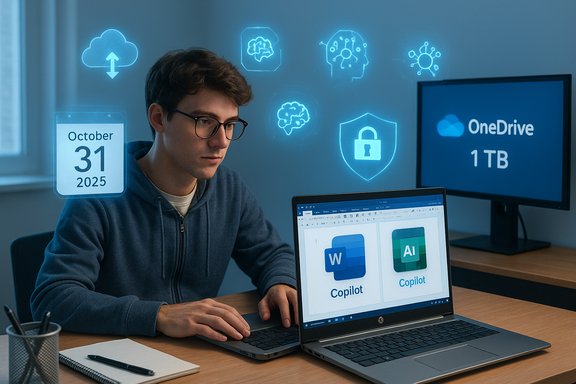
- Microsoft’s public announcement states students can sign up for the free 12‑month Microsoft 365 Personal subscription through October 31, 2025. This date is part of Microsoft’s White House announcement and is the key deadline for enrollment under the original program terms. If you see other published dates (some outlets reported different cutoffs), treat Microsoft’s official blog and Copilot pages as authoritative and check the sign‑up flow for the live deadline.
What counts as verification
- Typical verification methods include a valid school email address (for example a .edu address), a current student ID, acceptance letter, class schedule, or other dated institutional documentation. The exact items accepted will be shown in the Microsoft verification flow. Be ready to upload or present proof when prompted.
What the free year includes (features and limits)
When you successfully redeem the student offer you receive a standard Microsoft 365 Personal consumer subscription for 12 months, with Copilot integrated into supported apps. The headline inclusions are:- Desktop and web Office apps: Word, Excel, PowerPoint, OneNote, Outlook with Copilot features embedded where supported.
- Copilot tools across apps (drafting, summarizing, ideation, slide generation, exploratory data analysis). Feature specifics and available modes can vary by platform.
- 1 TB OneDrive cloud storage for your personal files and AutoSave‑backed workflows.
- Consumer‑level security and creative extras: Microsoft Defender consumer protections (where included), Microsoft Designer, and Clipchamp premium features as they are bundled into the Personal plan.
- Monthly AI usage/credit limits apply; some Copilot or Designer functions are metered under the consumer plan. Heavy or professional usage may require higher tiers in future.
- Copilot in Excel requires AutoSave: Excel Copilot features work only with files saved to OneDrive (or SharePoint) and with AutoSave enabled — unsaved local files will not be processed by Copilot. This is documented in Microsoft’s support pages.
- Feature availability varies by platform and by region; not every Copilot feature is identical on desktop, web, or mobile.
Step‑by‑step: How to claim Microsoft 365 Personal with Copilot (official flow)
Follow these steps exactly to minimize friction and avoid missed deadlines or verification problems.- Verify you meet eligibility: confirm active enrollment at an accredited college or university and gather proof documents (student ID, class schedule, acceptance letter, or valid school email).
- Open a browser and go to Microsoft’s official Copilot for Students page (the “Study smarter with Copilot and Microsoft 365” section). Click the Redeem free offer or Redeem now button.
- Sign in with your existing Microsoft account (Outlook, Hotmail, Live, or a personal Microsoft account). If you don’t have one, create a Microsoft account before proceeding.
- Follow the academic verification prompts. Depending on Microsoft’s verification service at the time, you may confirm by email (sent to a school address), upload documentation, or complete an instant verification step. Have your school email address and student documents ready.
- Expect an email from Microsoft within 24 hours that confirms the offer and provides next steps — check spam/junk folders if you don’t see it. Some users report verification emails can be delayed; if you don’t receive anything in 24–48 hours, retry the flow or check Microsoft support.
- Add a payment method if prompted. Historically, Microsoft’s promotions have requested a payment method to enable auto‑renewal after a promotional period; this does not mean you will be charged during the free year if you cancel before the renewal date but it’s common practice. Confirm the billing and renewal terms displayed during signup.
- Once redeemed, sign in to Office on the web or install the Office apps on your devices and sign in with the Microsoft account used to redeem the offer to access Copilot and the full Personal plan features.
Practical tips to avoid billing and verification headaches
- Add a calendar reminder 10–14 days before the end of the free year to either cancel or confirm renewal settings. Microsoft subscriptions typically auto‑renew unless you turn off recurring billing.
- Expect to provide a payment method during signup; treat this as a precautionary requirement for subscription management rather than immediate billing. Always confirm the displayed price and renewal policy in your account dashboard.
- Keep verification documents handy; if instant verification fails, you may be asked to upload a dated document. Provide clear scans to avoid delays.
- Use a personal Microsoft account for the Personal plan. If your institution already provides an institutional Microsoft 365 Education account, prefer the institution account for graded coursework and the personal account for private projects to avoid data governance confusion.
Privacy, data use, and Copilot training controls
Microsoft’s privacy and Copilot documentation explains distinctions between consumer and enterprise data handling:- For consumer Copilot interactions, Microsoft may use conversational data to help train models unless the user opts out. Users logged into a Microsoft Account can control whether their Copilot conversations are used for model training through account privacy settings; opting out will exclude past and future conversations from training within a stated processing window (changes propagate within Microsoft systems).
- For enterprise/organizational accounts, Microsoft maintains different data handling promises: business and education tenants typically have stronger contractual protections that exclude customer content from being used to train foundation models. That’s why the distinction between a campus‑managed tenant and a personal subscription matters.
- Immediately review Copilot privacy and training settings after activation and opt out of model‑training if you prefer. Microsoft’s page explains how to toggle training usage for conversations.
- If you plan to use Copilot on sensitive research or coursework, prefer the campus‑managed Education tenant (if your school provides it) or follow institution rules about data and submission practices.
Common problems and troubleshooting
- Verification email did not arrive: check spam, then retry the verification flow. Some users report delays of 24–48 hours during high demand. If repeated failures occur, contact Microsoft support.
- Payment method requested unexpectedly: this is standard for promotional flows that expect an auto‑renewal after a trial/promo period. Add the payment method but remember to turn off recurring billing in your Microsoft account if you do not intend to pay after the free year.
- Copilot features not visible in Excel: verify the file is stored in OneDrive (or SharePoint), has a supported file format, and AutoSave is on — otherwise Copilot in Excel will not work.
Academic integrity and how to use Copilot responsibly
Copilot can speed research, summarize readings, and help draft content, but it remains an assistant — it can hallucinate or produce plausible‑sounding inaccuracies. Students should:- Use Copilot to draft and research, but always verify facts and citations against primary sources. Treat outputs as drafts to be checked.
- Follow your institution’s policies on AI use in assignments. Some instructors may require disclosure when AI tools contribute to a submission; others may ban their use for certain assessments. Coordinate with instructors and honor codes.
- Keep prompt logs, notes, and versioned drafts to demonstrate academic integrity if required. This helps show how Copilot assisted rather than authored the final work.
Renewal, discounts after the free year, and what to expect
Microsoft indicated it will offer discounted renewal pricing for eligible students after the free year in previous student promotions; some reports have cited a roughly 50% discount for continuing student subscribers. However, post‑promo prices and discount mechanics can vary and may require re‑verification of student status. Treat any specific discount number as a reported figure until Microsoft lists the exact terms for post‑promo renewal in your account flow. Always check the renewal price in your Microsoft account before the free year ends. Practical choices:- If you only want the free year, turn off recurring billing immediately after activation and confirm the subscription expiry date in your Microsoft account. That prevents an automatic charge at renewal.
- If you plan to keep the subscription, be ready to re‑verify student status to qualify for any advertised student discount post‑promo.
Notable strengths and strategic context
- Huge immediate value: Students get a powerful productivity suite and 1 TB of cloud storage plus integrated Copilot features that can materially speed workflows like research, drafting, and data analysis. That’s a clear cost and time saver for many students.
- Skills and skilling tie‑ins: Microsoft paired the offer with LinkedIn Learning content and educator grants under Microsoft Elevate — an integrated approach that combines tooling with training and credentials. This increases the offer’s educational utility beyond mere software access.
- Policy visibility: Because the offer was announced at a White House AI Education Task Force event, it drew government and education attention, prompting institutions to consider academic policy updates and AI literacy programming.
Risks and caveats — what students and campus IT should watch for
- Auto‑renewal and unexpected billing: Payment details may be required at signup; if you forget to cancel or turn off recurring billing you could be charged at renewal. Add reminders and inspect billing settings right away.
- Privacy and model‑training: Consumer Copilot data may be used to train models unless you opt out. Students working with sensitive research or proprietary data should follow institutional guidance and consider alternative workflows.
- Feature limits and metering: Copilot usage can be metered under monthly AI credits. Heavy users (for example, students doing intensive data analysis or large volumes of generative content) may hit limits and need a higher tier.
- Institutional confusion: The Personal plan is not equivalent to institutional Microsoft 365 Education accounts. Campus IT should communicate clear guidance to students about which account to use for graded work, data residency, and support.
- Misinformation in secondary coverage: Some articles or posts reported different signup deadlines or availability windows. Always treat Microsoft’s official blog and the Copilot student page as authoritative and double‑check the sign‑up flow for the live terms. Microsoft’s announcement clearly specified a signup window through October 31, 2025; competing dates in other reports should be treated cautiously.
Quick checklist before you redeem
- Confirm active student status and have verification documents ready.
- Use or create a personal Microsoft account you control for the enrollment flow.
- Check regional availability (US, UK, Canada) on Microsoft’s Copilot student page.
- Add a payment method if prompted, then turn off recurring billing if you only want the free year.
- Review Copilot privacy settings and opt out of model training if you prefer.
Final analysis — claim it deliberately, not reflexively
For students who will actively use Office apps and benefit from Copilot’s drafting, research, and analysis features, the offer represents a substantial, immediate productivity upgrade and cost saving. Microsoft paired the software access with training and educator support under Microsoft Elevate, which increases the program’s educational reach. However, the offer also raises practical questions about billing, privacy, and campus policy. The most common problems are avoidable with simple precautions: check renewal settings, opt out of model training if you prefer, and use the correct account for coursework versus personal work. Institutional leaders should update academic integrity policies and create short, practical guidance for students so the technology enhances learning rather than undermines it. If you plan to claim Microsoft 365 Personal with Copilot as a student, do it with a plan: verify eligibility now, read the sign‑up terms closely, secure your data settings, and add a calendar reminder to confirm your renewal preferences before the free year expires.(Editor’s note: This guide synthesizes Microsoft’s Copilot student page and official blog announcement with independent reporting and support documentation to verify key claims, deadlines, and technical requirements. Where secondary sources reported different deadlines or regional availability, Microsoft’s own pages and the official announcement were used as authoritative references. Readers should check the live Microsoft Copilot student page and their Microsoft account details during the sign‑up flow for the most current terms and dates.
Source: digit.in How to get Microsoft 365 Personal with Copilot for free for a year: Step-by-step guide
