

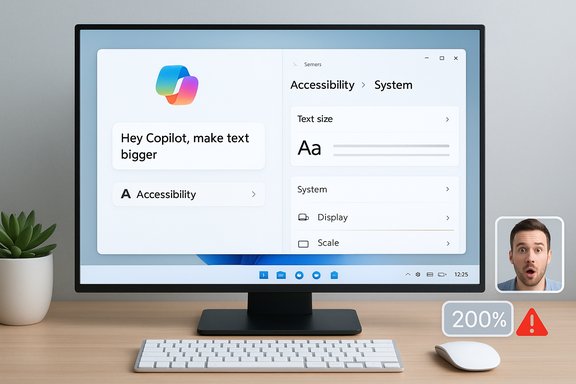
Microsoft’s latest Copilot spot did more than spark a meme cycle — it exposed a core risk in the company’s push to make Windows an “agentic” OS: an AI assistant shown on camera giving the wrong guidance for a simple accessibility task, then apparently being scrubbed from official social channels after the mistake was called out. The short influencer clip with Judner Aura (UrAvgConsumer) showed Copilot steering the user to the Display > Scale control and recommending “150%” — a value already selected on the machine — while the creator manually set 200% to fix the problem. The clip also omitted the accessibility-first path (Settings > Accessibility > Text size) that Microsoft’s documentation recommends for enlarging type without changing layout. Observers, reporters, and community commentators seized on the mismatch and Microsoft removed the shared post shortly afterward.
The short ad opens with a plain user scenario: “Hey Copilot — my grandma says the text is too small; make it bigger.” Copilot opens Settings and, instead of taking the user to the dedicated Text size accessibility control, highlights the Scale option under Display. When asked what percentage to choose, Copilot recommends 150%, even though the device’s Scale control in the visible UI already shows 150% as the current value. The on-screen host ignores Copilot’s guidance and switches the Scale setting to 200%, which visibly solves the readability issue.
Why this clipped sequence escalated into a broader controversy:
At the platform level, Microsoft continues to roll out Copilot Vision and related features across Windows 11 via staged Insider and public releases. Official Microsoft material and reputable reporting describe Vision as an opt‑in capability that, when enabled, can highlight UI elements and “show me how” within a shared app or window. Those features require explicit sharing and permissions and are being deployed in waves with region and device gating; Copilot Vision’s highlights function is available in the Copilot app and in preview channels in the U.S. as of the recent rollout cycle.
This incident should be a simple checklist for product and marketing teams everywhere: verify on-screen state, ask one clarifying question for ambiguous requests, require engineering sign-off for any demo that touches system settings, and be transparent when a demo fails. Those modest steps protect users, reduce regulatory and reputational risk, and make the path to a helpful, agentic OS far more credible.
The core lesson is practical: AI aids must be demonstrably anchored to the device they control. If the assistant can’t show that it sees and understands the screen — and if marketing presents otherwise — the result is not just comedy fodder; it’s a setback in trust that will take deliberate design and accountability to repair.
Source: Windows Latest Microsoft yanks Copilot ad after AI fails at a basic Windows 11 task grandma could spot
 Background: what the clip showed and why it matters
The short ad opens with a plain user scenario: “Hey Copilot — my grandma says the text is too small; make it bigger.” Copilot opens Settings and, instead of taking the user to the dedicated Text size accessibility control, highlights the Scale option under Display. When asked what percentage to choose, Copilot recommends 150%, even though the device’s Scale control in the visible UI already shows 150% as the current value. The on-screen host ignores Copilot’s guidance and switches the Scale setting to 200%, which visibly solves the readability issue.Why this clipped sequence escalated into a broader controversy:
- It demonstrated a failure of state awareness: an assistant advising a change without verifying the current setting undermines basic usefulness.
- It missed an accessibility-first solution. Windows 11 has two relevant controls: Text size (Settings > Accessibility > Text size) for enlarging system text only, and Scale & layout (Settings > System > Display > Scale) for scaling the entire UI. Choosing Scale when Text size is the more appropriate option can alter layout and app behavior in unwanted ways.
- The clip was published from an official Windows channel and amplified by an influencer, meaning the mistake didn’t look like a one-off experiment but a sanctioned demonstration of the product. The post’s subsequent removal added fuel to the story.
Overview: Copilot’s multimodal features and the visibility gap
Microsoft has been integrating Copilot broadly across Windows 11 with three headline capabilities: Copilot Voice (wake-word support, e.g., “Hey, Copilot”), Copilot Vision (permissioned screen sharing and visual analysis), and Copilot Actions (agentic automations that can perform multi-step tasks). The product roadmap and marketing show a clear aim: let Copilot see, listen, and act across the OS so users can complete tasks hands-free. Copilot Vision is central to the specific UX being demonstrated in the ad: it can accept a shared app or window, visually analyze that content, and highlight where a user should click. When enabled, Vision can point at UI elements and guide a user through a task. But that capability is opt-in and region-gated in many rollouts; if a demonstration used only generic voice triggers without activating Vision, Copilot would lack the screen-level input necessary to highlight and reliably read current settings. Several reports noted that a plain “Hey Copilot” voice command does not automatically enable Vision’s ability to annotate or verify on-screen values without an explicit screen-sharing session. This distinction — between an LLM-driven conversational assistant and a properly permissioned, screen-aware assistant — is where the demo appears to have broken down. The ad implied a level of screen awareness and state accuracy that Copilot either did not have at that moment or did not use correctly.Technical anatomy of the failure
Breaking the fault down helps understand both what went wrong and which engineering controls could have prevented it. Three overlapping technical failures are likely candidates:1. Intent detection and disambiguation failure
LLMs map freeform user requests to likely actions. “Make text bigger” is ambiguous: do you want only textual elements larger (an accessibility need) or should the entire UI scale up (a display configuration change)? A robust assistant should prompt a short clarifying question when ambiguity exists — for example, “Do you want only the text to appear larger, or everything on the screen?” The ad shows no such disambiguation, implying a model-level shortcut that mapped the utterance to the common remedy (display scaling) rather than the accessibility path.2. State‑awareness and UI parsing mismatch
Copilot Vision and related screen-aware tooling are supposed to read visible UI state (OCR + control metadata) before recommending changes. Recommending “150%” when the Scale control already displayed 150% is a concrete symptom that the assistant either failed to parse on-screen state, read an out-of-date cached value, or generated a canonical instruction without verification. This is the most damaging error class for system-level agents because it creates the impression of hallucination or blindness to the immediate context.3. Production/marketing artifact and QA gap
Marketing demos are often edited for brevity. Edits that change screen state between cuts or compress time can make a perfectly executed sequence look broken. Even if the clip resulted from a benign editing artifact, the responsibility for a public-facing demonstration lies with producers: check the final render for state consistency, and request a technical sign-off before posting. This was evidently missed in this case.Accessibility implications — this is not just PR
Accessibility is a measurable, legal, and ethical design axis. For users who rely on larger text to navigate their PC, directing them toward a control that changes layout and app scaling can create regressions in usability. The Text size slider is the accessibility-first control because it increases typography without altering window layouts; Scale affects everything on screen and may require sign-out or app restarts for full effect. An assistant that chooses the wrong control can therefore degrade the user experience it intends to improve. This has three practical consequences:- It can introduce layout regressions or unexpected rendering issues in apps not designed for aggressive scaling.
- It undermines trust among users who depend on accessible workflows. A single public misstep can discourage people from trying the assistant again.
- It invites regulatory scrutiny in regions with strict accessibility rules if an assistive demonstration misleads or harms users.
What Microsoft did (and what’s ambiguous)
WindowsLatest and related community threads reported that Microsoft removed the offending post after coverage pointed out the demo’s flaws; the article framed the deletion as a corrective move that avoids sending the wrong impressions in marketing. Independent reconstructions of the clip and the broader online reaction corroborate the narrative of a viral ad misfire followed by removal. However, publicly available, company-issued comments confirming the specific reason for removal or admitting a production error were not posted at the time of reporting; that absence leaves some aspects unverified.At the platform level, Microsoft continues to roll out Copilot Vision and related features across Windows 11 via staged Insider and public releases. Official Microsoft material and reputable reporting describe Vision as an opt‑in capability that, when enabled, can highlight UI elements and “show me how” within a shared app or window. Those features require explicit sharing and permissions and are being deployed in waves with region and device gating; Copilot Vision’s highlights function is available in the Copilot app and in preview channels in the U.S. as of the recent rollout cycle.
The correct way to change text size — verified step-by-step
For readers who want the reliable, documented method to enlarge text without altering layout, follow this sequence verified against Microsoft guidance and independent Windows coverage:- Open Settings (Windows key + I).
- Go to Accessibility.
- Select Text size.
- Use the slider to increase the text size to the desired value.
- Click Apply; wait for the change to apply.
- Open Settings.
- Go to System > Display.
- Under Scale & layout, select the Scale percentage (100%, 125%, 150%, 200%, etc..
- Sign out and back in if prompted for full effect.
Marketing, QA and product lessons — a pragmatic checklist
This incident offers concrete, low-cost improvements that would materially reduce the chance of similar public missteps:- Pre‑shoot state verification: Confirm all on-screen values match the demo script before recording. A signed checklist that logs UI state would catch a 150% vs 200% mismatch.
- Force clarifying prompts: When user intent is ambiguous, require one short clarifying question in the assistant flow (e.g., “Text only, or whole UI?”). This mitigates a broad class of mapping errors.
- Technical sign-off for demos: Marketing should require engineering validation for any recording that shows stateful, on-device actions. Demos involving on-screen state are not “creative” content — they are technical documentation by another name.
- Show limitations in the spot: If Vision or other permissions are required, include a subtle on-screen note that the assistant is using screen-sharing mode. This reduces the impression that the assistant is omniscient.
- Add post‑release technical Q&A: If a demo misrepresents a workflow, release a short explainer video with the correct flow and a transparent note on what went wrong. That’s often more effective than deletion alone.
Strengths of Microsoft’s approach (what’s working)
It’s important to separate marketing execution from the underlying technology strengths being developed:- Copilot Vision and on‑device features are real and increasingly capable. Microsoft’s staged rollout and explicit opt‑in model for Vision show a reasonable balance between capability and privacy control. Vision can highlight elements and help users accomplish tasks when properly invoked.
- The company is building local inference pathways and hardware guidance (Copilot+ PCs, NPU guidance) that, in principle, reduce latency and allow more private, responsive on-device experiences. These architectural moves are defensible and materially different from vaporous AI claims.
- Where Copilot works well, it can reduce friction for routine, repetitive tasks and provide helpful accessibility improvements if the assistant is reliable and state-aware.
Risks and wider implications
At the same time, several meaningful risks emerge from this episode and Microsoft’s broader strategy:- Trust erosion among power users and accessibility-dependent users. Repeated public failures damage adoption and make it harder to introduce genuinely beneficial agentic features.
- Legal and compliance exposure. Misleading accessibility demonstrations or Assistive workflows that degrade user experience could invite complaints under accessibility laws or standards in some jurisdictions.
- Overpromising in marketing. If ads present a polished “magical” assistant that fails in real-world usage, customers and IT buyers will be justified in treating the claims skeptically. That can slow enterprise procurement and OEM partner enthusiasm.
- Two-tier experience risk. The Copilot+ PC program and 40+ TOPS guidance for on-device inferencing create a split in capability between new AI-optimized machines and legacy hardware, raising fairness and support questions.
What Microsoft should and could do next — practical roadmap
A balanced remediation plan should emphasize transparency, short-term fixes, and longer-term product changes:- Public, concise clarification: Acknowledge the mismatch in the ad and provide the correct Copilot flow for changing text size. This rebuilds some credibility quickly.
- Release an official, reproducible how-to that demonstrates the Text size and Scale paths and shows precisely when Copilot Vision is required. Visual, reproducible guidance rebuilds trust faster than silence.
- Push a micro‑UX change: When a user says “make text bigger,” require Copilot to ask one clarifying question before choosing a path. This is low-engineering-cost but high-impact.
- Marketing QA gate: Require technical sign-off for any video that demonstrates stateful Copilot behavior; check for editing artifacts.
- Invest in state‑verification telemetry: Improve UI parsing and synchronous state checks so Copilot never proposes a value without verifying it. This reduces a major class of embarrassment and error.
Conclusion: a teachable moment for agentic Windows
The deleted Copilot ad is more than a viral embarrassment — it’s a clear, public demonstration of the gap between agentic aspiration and operational reality. Microsoft has real technical momentum: Copilot Vision, on-device inference, and agent connectors are tangible capabilities that will, over time, change how people interact with PCs. But those capabilities require rigorous grounding in state-awareness, disambiguation, and accessibility-conscious defaults.This incident should be a simple checklist for product and marketing teams everywhere: verify on-screen state, ask one clarifying question for ambiguous requests, require engineering sign-off for any demo that touches system settings, and be transparent when a demo fails. Those modest steps protect users, reduce regulatory and reputational risk, and make the path to a helpful, agentic OS far more credible.
The core lesson is practical: AI aids must be demonstrably anchored to the device they control. If the assistant can’t show that it sees and understands the screen — and if marketing presents otherwise — the result is not just comedy fodder; it’s a setback in trust that will take deliberate design and accountability to repair.
Source: Windows Latest Microsoft yanks Copilot ad after AI fails at a basic Windows 11 task grandma could spot
