

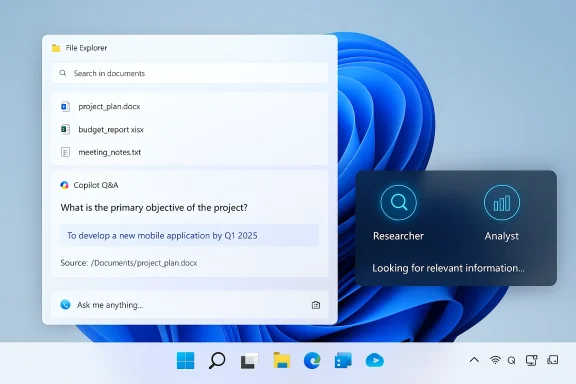
Microsoft’s latest push folds Copilot from a helpful sidebar into the connective tissue of Windows 11 — the taskbar and File Explorer — turning the OS’s search box into a conversational command center, surface-level AI agents into persistent background workers you can monitor from the taskbar, and File Explorer into a contextual document assistant that answers questions without opening files.
Microsoft has been steadily repositioning Copilot from an optional helper to a system-level productivity layer across Windows, Office, and OneDrive. Over the past two years the company shipped Copilot in multiple forms — a sidebar, a dedicated app, and integrations inside Office — but the shift now is to make Copilot a primary interaction surface in the desktop experience. That change was signaled in Microsoft’s Windows experience announcements and multiple preview builds, which emphasize a hybrid model of cloud and on-device AI: conversational search and agent orchestration from the taskbar, inline file Q&A inside File Explorer, and optional on-device acceleration for Copilot+ hardware.
The new experience is being staged through preview channels and feature gates: some capabilities appear in Insider builds and are rolling out progressively, others are tied to Microsoft 365 subscription entitlements or to Copilot+ certified hardware with NPUs (neural processing units). The net effect for users is intended to be less hunting through folders and more asking — and having Copilot fetch answers from emails, calendar entries, local files, SharePoint and OneDrive — directly from the taskbar or File Explorer. Early previews and community reporting show these features arriving in phases rather than as a single launch.
Key user-facing behaviors to expect:
The agent model is built around the idea that some tasks require extended time — a Researcher agent might spend several minutes aggregating public sentiment or comparing specs — and users should be able to continue their work while agents run. The UI choices (progress bars, hover cards, pause/cancel controls) attempt to address the “mystery” problem that comes with long-running AI tasks. Early previews document these behaviors and Microsoft’s documentation confirms the agent-first direction.
Put simply: File Explorer shifts from “a list of folders” to “a window into document content.” Instead of repeated open/close cycles, Copilot gives relevant passages, summary bullets, and structured Q&A on demand.
Practically, this means:
Key differences:
The feature set is rolling out in stages, with some capabilities limited by hardware (Copilot+ NPUs) or subscription and admin configuration. The right approach is pragmatic: pilot, validate, educate, and then scale. When managed thoughtfully, the Copilot-infused taskbar and File Explorer can feel less like a novelty and more like a reliable, time-saving coworker — provided you keep a close eye on permissions, audit trails, and hardware gates.
Source: Digital Trends Copilot is coming to your Windows taskbar and File Explorer
 Background / Overview
Microsoft has been steadily repositioning Copilot from an optional helper to a system-level productivity layer across Windows, Office, and OneDrive. Over the past two years the company shipped Copilot in multiple forms — a sidebar, a dedicated app, and integrations inside Office — but the shift now is to make Copilot a primary interaction surface in the desktop experience. That change was signaled in Microsoft’s Windows experience announcements and multiple preview builds, which emphasize a hybrid model of cloud and on-device AI: conversational search and agent orchestration from the taskbar, inline file Q&A inside File Explorer, and optional on-device acceleration for Copilot+ hardware.The new experience is being staged through preview channels and feature gates: some capabilities appear in Insider builds and are rolling out progressively, others are tied to Microsoft 365 subscription entitlements or to Copilot+ certified hardware with NPUs (neural processing units). The net effect for users is intended to be less hunting through folders and more asking — and having Copilot fetch answers from emails, calendar entries, local files, SharePoint and OneDrive — directly from the taskbar or File Explorer. Early previews and community reporting show these features arriving in phases rather than as a single launch.
What’s changing on the taskbar: Ask Copilot becomes a composer and agent launcher
From search box to conversational composer
The familiar search box on Windows 11’s taskbar can be optionally replaced by a compact Copilot composer that accepts text, voice, and small visual captures. Instead of only matching filenames and indexed terms, the composer is designed to accept natural-language queries like “When is my performance review due?” and — with permissions — synthesize answers by scanning your calendar, emails, and recent documents. Microsoft positions this as a way to reduce friction: you type once and the system pulls together relevant context across local and cloud sources.Key user-facing behaviors to expect:
- The search field accepts complete, conversational prompts rather than purely keyword queries.
- You can hit a Copilot key (or Windows key + C) or say the wake phrase “Hey, Copilot” to begin voice-driven interactions.
- Small inline visual captures (Copilot Vision) can be used to help the assistant understand screen contents, enabling contextual answers without copying/pasting.
Agents you can watch while you work
One of the most visible new ideas is the integration of AI agents that can run as background tasks. Type the @ symbol in the Ask Copilot composer and you’ll see a menu of available agents (examples shown in demos include Researcher and Analyst). When you launch an agent it doesn’t disappear into a browser tab — it shows as an icon on the taskbar with a progress indicator, and you can hover for a quick summary or click to open the full workspace. The design treats agents as monitorable workloads: a green checkmark and summary indicate completion; intermediate results surface so you don’t have to wait blindly.The agent model is built around the idea that some tasks require extended time — a Researcher agent might spend several minutes aggregating public sentiment or comparing specs — and users should be able to continue their work while agents run. The UI choices (progress bars, hover cards, pause/cancel controls) attempt to address the “mystery” problem that comes with long-running AI tasks. Early previews document these behaviors and Microsoft’s documentation confirms the agent-first direction.
File Explorer gets Copilot: instant insights without opening files
Copilot Control and inline Q&A
File Explorer now surfaces SharePoint and OneDrive entries alongside local files, and it exposes Copilot-driven insights inline. Hovering over a document in File Explorer Home can reveal summaries, extraction of key points, and Q&A — all without launching Word or Acrobat. The Copilot Control is presented as a quick-access interface that shows snippets such as “over 70% of employees prefer sustainable materials” drawn from the document’s text, accompanied by context and a path to the source. This approach is designed to keep users inside the file manager and dramatically reduce the time spent opening and scanning files.Put simply: File Explorer shifts from “a list of folders” to “a window into document content.” Instead of repeated open/close cycles, Copilot gives relevant passages, summary bullets, and structured Q&A on demand.
Supported file surfaces and multi-source results
Previews and Microsoft’s product notes indicate that Copilot in File Explorer works across:- Local files and folders (standard indexed locations)
- OneDrive and SharePoint content where a user is signed in and has permission
- Recent or shared documents surfaced in the Home view
On-device AI, Copilot+ PCs, and hardware gates
What Copilot+ hardware enables
Microsoft is shipping a dual-path model: standard Windows 11 machines rely on cloud compute for Copilot features, while certified Copilot+ PCs with on-board NPUs can run deeper, private inference tasks locally. On-device capabilities tied to Copilot+ hardware include semantic file search, faster vision and dictation primitives (Fluid Dictation), and some offline “Click to Do” actions that transform UI selection into structured steps. The Verge and Microsoft’s Windows team emphasize that NPUs allow offline semantic indexing and local query resolution for privacy and speed.Practically, this means:
- Standard machines get cloud-powered conversational search and Copilot features.
- Copilot+ machines can perform semantic file search and some Copilot operations without sending all content to the cloud, reducing latency and improving privacy for sensitive data.
- Rollouts for Copilot+ features are staged and hardware-dependent; initial support has targeted ARM-based and certain OEM-certified devices with NPU capabilities, with broader CPU vendor support promised over time.
Where the hardware gate matters
The Copilot+ gate affects a few real-world scenarios: if your laptop lacks an NPU, you will still be able to ask Copilot to summarize a cloud-hosted document (the content goes to Microsoft services under consent), but you won’t get the same low-latency, on-device semantic search across your entire machine. Enterprises and privacy-focused users will want to consider Copilot+ certification when purchasing devices intended for heavy Copilot usage.Privacy, security, and governance: real benefits, real questions
Opt-in connectors and data boundaries
Microsoft emphasizes explicit consent: connectors that let Copilot access Outlook, Gmail, Drive, or other accounts are opt-in. For workspace scenarios, Copilot uses explicit permissions and Azure-controlled policies to limit data access and to support enterprise governance. The company has also documented sandboxing steps and an on-device registry (Model Context Protocol) to manage how agents discover and interact with tools. These are important guardrails, but they don’t eliminate risk.Attack surface and enterprise controls
Embedding Copilot into the taskbar and File Explorer makes AI more discoverable — which is fantastic for productivity but raises governance questions:- How will organizations prevent accidental leakage when agents access multiple sources (mail, files, SharePoint)?
- What controls do IT admins have to restrict Copilot features for regulated data stores?
- How will DLP (data loss prevention) and audit trails capture agent activity that spans local and cloud resources?
User-facing privacy trade-offs
For individual users, the most important point is consent. Copilot’s usefulness depends on access to calendar items, emails, and documents. If you permit that access, Copilot can answer contextual questions with high precision; if you don’t, the experience will be more limited. Microsoft’s design choices (taskbar-based opt-in composer, visible agent icons, and hover summaries) attempt to make activity transparent, but users should still audit which accounts and connectors they’ve granted and review the Copilot privacy settings in the Copilot app.Enterprise deployment and IT guidance
What IT teams must plan for
Enterprises looking to adopt the new taskbar and File Explorer Copilot features need a practical rollout plan:- Inventory which users should have Copilot access and whether those users have Copilot+ hardware.
- Review tenant-level connector policies and DLP configurations before enabling email, SharePoint, or OneDrive access.
- Pilot with a small group in a controlled environment to validate auditing, retention, and compliance behavior.
- Update endpoint management policies to control the Copilot app and decide whether to permit taskbar integration for managed devices.
Licensing and feature parity
Some Copilot capabilities — especially those tied to Microsoft 365 Copilot and certain agents — depend on subscription tiers or opt-in connectors. Organizations should confirm licensing entitlements (Personal vs. Business vs. Premium/Enterprise Copilot features) before promising functionality to end users.Productivity upside: why this matters for everyday workflows
- Faster retrieval: Natural-language queries reduce time spent formulating precise filenames or folder paths.
- Context-aware results: Copilot synthesizes calendar, mail, and file data to answer compound questions like “Which documents mention the Q3 budget and were shared with Jenna?”
- Multitasking agents: Background agents can compile reports while users continue other work, improving throughput for repetitive research tasks.
- Inline file actions: Summaries, FAQs, and value extraction in File Explorer mean fewer app switches and less friction for basic analysis.
Competitive context: how Microsoft’s approach compares
Google has implemented a similar idea in mobile: Gemini integration inside the Files app and Drive lets users ask questions about PDFs and folders without importing documents into a separate tool. That approach — inline document analysis and AI surfacing inside a native file manager — mirrors Microsoft’s intent for File Explorer, albeit with different platform and subscription constraints. The market is converging on a model where AI is a contextual assistant inside file and document surfaces rather than a separate app.Key differences:
- Microsoft is building agents that persist on the taskbar and can run multi-step workflows; Google’s model is primarily inline file analysis and assistant sidebars.
- Microsoft emphasizes a hybrid cloud/on-device model with Copilot+ NPUs for offline privacy; Google’s implementation is currently more cloud- and subscription-centric.
Known limits and unverifiable claims
Several specifics remain gated, experimental, or demonstrational in nature:- Exact performance and indexing scope for on-device semantic search depends on hardware, OS build, and indexing settings; public demos suggest broad capabilities, but real-world coverage may be narrower.
- The visual polishing in early demos (progress bars, hover summaries, green checkmarks) has been observed in Insider builds and demos; behavior and exact UI elements may change before general availability. For these UI cues, treat preview behavior as indicative but not authoritative until Microsoft ships to mainstream channels.
Practical recommendations for users and IT teams
- For individual users:
- Opt in selectively to connectors and review Copilot permissions periodically.
- If you handle sensitive documents, prefer Copilot+ hardware or keep sensitive content out of indexed locations until admin controls are verified.
- Learn the new shortcuts (Copilot key, Windows key + C, or “Hey, Copilot”) and the @ composer to summon agents quickly.
- For IT administrators:
- Test in a controlled Insider or pilot ring before wide deployment.
- Confirm licensing and connector entitlements for users who need cross-account search.
- Validate DLP and audit trails for agent-driven actions that span mail and files.
- Consider hardware procurement guidelines if you want on-device semantic search for endpoint fleets.
Conclusion: productive convenience with governance required
Microsoft’s decision to plant Copilot directly in the taskbar and File Explorer crystallizes a new desktop paradigm: the operating system itself becomes an actively helpful assistant. For users, that promises real productivity wins — fewer context switches, faster retrieval, and background agents that do the grunt work. For organizations, it raises governance, privacy, and deployment questions that must be answered before a broad rollout.The feature set is rolling out in stages, with some capabilities limited by hardware (Copilot+ NPUs) or subscription and admin configuration. The right approach is pragmatic: pilot, validate, educate, and then scale. When managed thoughtfully, the Copilot-infused taskbar and File Explorer can feel less like a novelty and more like a reliable, time-saving coworker — provided you keep a close eye on permissions, audit trails, and hardware gates.
Source: Digital Trends Copilot is coming to your Windows taskbar and File Explorer
