

Microsoft Edge keeps Bing as its default search engine, but the browser gives Windows users a straightforward way to switch the address bar search provider to Google, DuckDuckGo, Yahoo, Yandex, or another compatible service. The setting is not on Edge’s front-page customization screen or its general Appearance page; it is located in the browser’s privacy and search settings, under Address bar and search.
On current desktop versions of Microsoft Edge for Windows 10 and Windows 11, use this route:
That opens the relevant Address bar and search page directly, avoiding several clicks through the Settings interface.
The key wording to look for is “Search engine used in the address bar.” This controls where Edge sends ordinary searches entered into the omnibox — the combined address and search bar at the top of the browser window.
into the address bar, Edge sends that query to Google rather than Bing.
The setting can also affect an optional search box in the Edge toolbar when that box is enabled. That separate field is visually similar to the address bar, but it is not the same component. Users who prefer a cleaner browser interface can disable the extra search box in Edge’s Appearance settings and rely solely on the address bar.
It is important to understand what the setting does not automatically change:
That behavior is usually caused by a separate setting on the same Address bar and search page.
Look for a setting with wording similar to:
Search on new tabs uses search box or address bar
Set it to:
Address bar
This setting changes how Edge treats text entered into the prominent search area on a new tab. Rather than sending the query directly through the new tab page’s search box, Edge routes it through the browser address bar, where the selected default search engine applies.
This is an important distinction. The visual search field may remain on the new tab page, but searches entered there should honor the address-bar provider after the setting is changed to Address bar.
Common options may include:
However, it does not work for every website. Edge requires a compatible search endpoint, generally one that supports the web standards and patterns Edge expects for a searchable provider.
Open the dedicated page by entering:
Alternatively, navigate through Settings to the Address bar and search section, then select Manage search engines or Search engines, depending on the Edge release and interface wording.
This page does more than list Google, Bing, and DuckDuckGo. It may also contain shortcuts for websites that Edge has detected as searchable, including sites such as:
A generic example might look like this:
Once added, the engine can often be made the default by opening its three-dot menu and selecting Make default. Exact menu labels can differ slightly as Edge evolves, but the basic workflow remains the same.
does not tell Edge how to submit a query.
Instead, perform a search on the target site, then inspect the address in the browser. If the search query appears in the address, replace the actual words with
For instance, if searching for
the template should normally be:
Not every site uses simple query URLs. Some services rely on JavaScript, session data, POST requests, or URL structures that do not translate cleanly into a custom Edge search engine. In those cases, manual configuration may be unreliable even if the website itself works normally.
Suppose a user adds a Windows documentation site with the shortcut
Edge recognizes the shortcut and searches that selected site for the terms that follow. This can be considerably faster than visiting the website, locating its search field, and entering the same phrase manually.
There is also a privacy consideration. A direct search on a particular site may expose the query only to that site, whereas starting with a general web search can involve an additional search provider and potentially more tracking or profiling systems.
To switch Edge to Google:
That said, using Google in Edge does not turn Edge into Chrome. Search engine choice and browser choice are separate decisions. Edge continues to use its own update channel, settings model, Microsoft account sync options, privacy controls, and Windows integrations.
However, users should not assume that choosing DuckDuckGo makes all browsing anonymous. Websites still receive connection information, cookies may still be used, and browser extensions, account sign-ins, network-level monitoring, and other services can affect privacy.
The quality and underlying sourcing of results can differ from other providers, so it is sensible to compare searches involving technical support, local information, shopping, and news before making a long-term default choice.
A custom Edge search engine can be an excellent productivity tool for these use cases, but only if the URL template is valid and the service is trustworthy. Avoid adding unknown search sites that appear in deceptive advertisements, browser pop-ups, or bundled-software prompts.
Location:
Location:
In Settings, the section is usually named Start, home, and new tabs. Users can choose options such as:
Users who want a consistent workflow can configure all three independently:
Review every installed extension, especially those related to:
A legitimate extension may request access to search behavior for a genuine reason, but that does not automatically make the change desirable. Read extension permissions carefully and obtain extensions only from reputable stores or trusted vendors.
In Windows, review recently installed apps through Settings > Apps > Installed apps. Remove unfamiliar software, particularly if the search changes began immediately after installation.
It is also wise to run a trusted security scan if Edge redirects queries to suspicious domains, displays intrusive ads, opens unexpected tabs, or refuses to retain browser settings.
Type:
into the address bar to see whether policies are active. If a setting is marked as managed, local changes may not persist. This is expected behavior on many business-managed devices, where organizations configure browsers for compliance, security, internal search, or support requirements.
Users should not attempt to bypass legitimate workplace or school policies. The appropriate solution is to ask the device administrator whether an alternative provider can be approved.
Review Edge sync settings and check other signed-in devices if the browser keeps reverting after apparently successful changes. Also ensure that the active Edge profile is the intended one; separate work, personal, and guest profiles can each have different search settings.
Within Address bar and search, Edge provides controls for search and site suggestions. Users who prefer fewer queries to be transmitted before pressing Enter should review the option that shows suggestions based on typed characters.
Turning suggestions off can improve privacy by limiting real-time query suggestions, but it also reduces convenience. The browser may no longer predict searches, surface relevant pages quickly, or suggest URLs as effectively.
The best setting depends on the user’s priorities:
This two-part test matters because Edge’s default provider setting can be correct while the new tab page still directs searches differently.
From there, Windows users can select a supported provider, add compatible custom engines, configure keyword shortcuts, and ensure new-tab searches are routed through the address bar. The choice does not replace every Microsoft search experience in Windows, but it does control one of the browser’s most frequently used actions.
For users who spend hours each day searching documentation, troubleshooting Windows, researching purchases, finding local services, or navigating internal business resources, that small adjustment can make Edge feel considerably more personal, efficient, and aligned with their preferred approach to search.
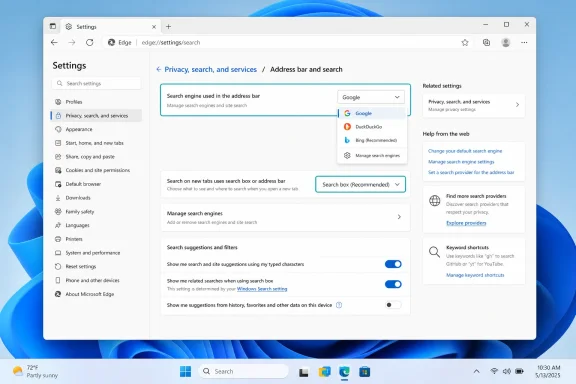 The Exact Microsoft Edge Settings Path
On current desktop versions of Microsoft Edge for Windows 10 and Windows 11, use this route:- Open Microsoft Edge.
- Select the Settings and more button — the three-dot menu in the upper-right corner.
- Choose Settings.
- Select Privacy, search, and services from the left sidebar.
- Scroll to, or open, Search and connected experiences.
- Choose Address bar and search.
- Find Search engine used in the address bar.
- Select the preferred provider from the drop-down menu.
edge://settings/searchThat opens the relevant Address bar and search page directly, avoiding several clicks through the Settings interface.
The key wording to look for is “Search engine used in the address bar.” This controls where Edge sends ordinary searches entered into the omnibox — the combined address and search bar at the top of the browser window.
What Changing the Search Engine Actually Changes
Changing the default search provider affects searches typed into the Edge address bar. For example, if Google is selected and a user types:best Windows 11 backup softwareinto the address bar, Edge sends that query to Google rather than Bing.
The setting can also affect an optional search box in the Edge toolbar when that box is enabled. That separate field is visually similar to the address bar, but it is not the same component. Users who prefer a cleaner browser interface can disable the extra search box in Edge’s Appearance settings and rely solely on the address bar.
It is important to understand what the setting does not automatically change:
- The Microsoft Edge new tab page may still visually feature Bing branding, Microsoft Start content, Copilot entry points, or a Bing-oriented search field.
- The Windows taskbar search is governed by Windows Search and Microsoft services, not by the Edge search-engine setting.
- Searches made from widgets, Copilot, Start menu results, or certain Microsoft apps are not necessarily redirected to the chosen browser search engine.
- A page’s built-in search form uses the website’s own search system, not the Edge default provider.
Why the New Tab Search Box Can Still Use Bing
One of the most confusing aspects of Microsoft Edge search customization is the new tab page. A user can successfully choose Google or DuckDuckGo as the browser’s default address bar search engine, open a fresh tab, type into the large search field, and still land on Bing.That behavior is usually caused by a separate setting on the same Address bar and search page.
Use the Address Bar for New Tab Searches
After setting the preferred search engine, return to:edge://settings/searchLook for a setting with wording similar to:
Search on new tabs uses search box or address bar
Set it to:
Address bar
This setting changes how Edge treats text entered into the prominent search area on a new tab. Rather than sending the query directly through the new tab page’s search box, Edge routes it through the browser address bar, where the selected default search engine applies.
This is an important distinction. The visual search field may remain on the new tab page, but searches entered there should honor the address-bar provider after the setting is changed to Address bar.
Why Microsoft Separates These Settings
Microsoft’s design reflects the fact that Edge’s new tab page is more than a blank browser page. It is a Microsoft content surface that can include:- News and personalized content
- Weather and finance cards
- Microsoft Rewards elements
- Copilot integrations
- Work or school account content
- Quick links and productivity widgets
Available Search Engines and Why a Favorite May Not Appear
The default-search-engine drop-down typically includes several well-known providers. The exact list can vary by Edge version, country or region, browser profile, and search engines that Edge has already detected.Common options may include:
- Bing
- DuckDuckGo
- Yahoo
- Yandex
Let Edge Discover the Search Provider
Microsoft Edge can identify many compatible search providers after a user visits their site and performs a search. This is often the simplest solution.- Open the desired search engine’s website.
- Perform one or more normal searches using its search form.
- Open:
edge://settings/search - Check Search engine used in the address bar again.
However, it does not work for every website. Edge requires a compatible search endpoint, generally one that supports the web standards and patterns Edge expects for a searchable provider.
How to Add a Custom Search Engine Manually
If a preferred search engine does not appear in the default-provider list, Edge also lets users manage its broader database of recognized search engines.Open the dedicated page by entering:
edge://settings/searchEnginesAlternatively, navigate through Settings to the Address bar and search section, then select Manage search engines or Search engines, depending on the Edge release and interface wording.
This page does more than list Google, Bing, and DuckDuckGo. It may also contain shortcuts for websites that Edge has detected as searchable, including sites such as:
- Wikipedia
- YouTube
- Amazon
- Microsoft 365 services
- Favorites
- Browsing history
- Open tabs
- Developer documentation portals
- Enterprise knowledge bases
Adding a Search URL
Select Add to create a custom search engine entry. Edge will ask for three main pieces of information:- Search engine — the friendly name shown in Edge.
- Shortcut — a keyword that can be typed before a search term.
- URL with
%sin place of the query — the search URL template.
%s placeholder is essential. It tells Edge where to insert the words entered by the user.A generic example might look like this:
Code:
Search engine: Example Search
Shortcut: ex
URL: [url]https://search.example.com/?q=%s[/url]Use a Genuine Search URL Template
The most common mistake is pasting a normal homepage URL rather than a search URL. A homepage such as:[url unfurl="true"]https://www.example.com[/url]does not tell Edge how to submit a query.
Instead, perform a search on the target site, then inspect the address in the browser. If the search query appears in the address, replace the actual words with
%s.For instance, if searching for
windows produces:[url unfurl="true"]https://www.example.com/search?q=windows[/url]the template should normally be:
[url unfurl="true"]https://www.example.com/search?q=%s[/url]Not every site uses simple query URLs. Some services rely on JavaScript, session data, POST requests, or URL structures that do not translate cleanly into a custom Edge search engine. In those cases, manual configuration may be unreliable even if the website itself works normally.
Use Search Shortcuts for Faster Browsing
Custom search engines are useful even when they are not set as the default. The shortcut field lets Edge act as a quick launcher for site-specific searches.Suppose a user adds a Windows documentation site with the shortcut
docs. They can then type something like this into the Edge address bar:docs BitLocker recovery keyEdge recognizes the shortcut and searches that selected site for the terms that follow. This can be considerably faster than visiting the website, locating its search field, and entering the same phrase manually.
Practical Shortcut Examples
A well-organized Edge setup might include keywords such as:gfor Googleddgfor DuckDuckGowfor Wikipediaytfor YouTubeamzfor Amazonmsfor Microsoft Learnwffor a trusted Windows support communityjirafor an internal issue trackerkbfor a corporate knowledge base
There is also a privacy consideration. A direct search on a particular site may expose the query only to that site, whereas starting with a general web search can involve an additional search provider and potentially more tracking or profiling systems.
Google in Edge: A Simple and Supported Choice
Microsoft Edge is based on Chromium, the open-source browser project also used by Google Chrome and several other browsers. As a result, Google works normally as an Edge search provider.To switch Edge to Google:
- Enter:
edge://settings/search - Open the Search engine used in the address bar menu.
- Select Google.
- If necessary, set Search on new tabs uses search box or address bar to Address bar.
That said, using Google in Edge does not turn Edge into Chrome. Search engine choice and browser choice are separate decisions. Edge continues to use its own update channel, settings model, Microsoft account sync options, privacy controls, and Windows integrations.
DuckDuckGo, Yahoo, and Other Alternatives
Different search engines make different trade-offs involving result quality, privacy, personalization, advertisements, regional coverage, AI-generated summaries, and integration with account services.DuckDuckGo
DuckDuckGo is a popular choice for people who want less individualized search profiling. Its privacy approach makes it attractive to users who prefer search results that are less dependent on a long-term personal search history.However, users should not assume that choosing DuckDuckGo makes all browsing anonymous. Websites still receive connection information, cookies may still be used, and browser extensions, account sign-ins, network-level monitoring, and other services can affect privacy.
Yahoo
Yahoo remains available as a familiar general web search option in many Edge configurations. It may be useful for users already accustomed to its content ecosystem or those who prefer its presentation of results.The quality and underlying sourcing of results can differ from other providers, so it is sensible to compare searches involving technical support, local information, shopping, and news before making a long-term default choice.
Regional and Specialized Search Providers
Some users prefer regional services for language-specific results or local business coverage. Others use specialized engines for academic references, programming questions, product searches, video, image discovery, or internal corporate data.A custom Edge search engine can be an excellent productivity tool for these use cases, but only if the URL template is valid and the service is trustworthy. Avoid adding unknown search sites that appear in deceptive advertisements, browser pop-ups, or bundled-software prompts.
Homepage, Startup Pages, and Search Engines Are Different Settings
A common source of confusion is the term homepage. Setting Google as a startup page is not the same as making Google the Edge default search engine.Default Search Engine
This setting controls searches typed into the address bar.Location:
edge://settings/searchStartup Page
This controls what Edge opens when the browser launches.Location:
edge://settings/startHomeNTPIn Settings, the section is usually named Start, home, and new tabs. Users can choose options such as:
- Open the new tab page
- Open tabs from the previous session
- Open specific pages
Home Button
The optional browser Home button is another separate feature. It can be configured to open a specific page when clicked, but it does not control the search provider.Users who want a consistent workflow can configure all three independently:
- Use DuckDuckGo or Google for address bar searches.
- Open a chosen website when Edge starts.
- Set the Home button to return to a personal dashboard, search engine, or intranet.
Why a Search Engine Keeps Changing Back
If Edge repeatedly returns to Bing or switches to an unfamiliar search engine, the problem may be more significant than a missed settings change. Search-engine hijacking has long been a common symptom of unwanted browser extensions, questionable software bundles, aggressive adware, and organizational management policies.Check Extensions First
Open:edge://extensionsReview every installed extension, especially those related to:
- Coupons and shopping deals
- PDF conversion
- Video downloading
- Wallpaper or new-tab customization
- Search tools
- “Quick access” utilities
- Unknown productivity add-ons
- Crypto, proxy, VPN, or download-manager tools
A legitimate extension may request access to search behavior for a genuine reason, but that does not automatically make the change desirable. Read extension permissions carefully and obtain extensions only from reputable stores or trusted vendors.
Review Recently Installed Software
Some desktop applications attempt to change browser search behavior during installation. This may happen through optional offers that are preselected, poorly explained, or bundled with free utilities.In Windows, review recently installed apps through Settings > Apps > Installed apps. Remove unfamiliar software, particularly if the search changes began immediately after installation.
It is also wise to run a trusted security scan if Edge redirects queries to suspicious domains, displays intrusive ads, opens unexpected tabs, or refuses to retain browser settings.
Check Whether Edge Is Managed
On work, school, or shared computers, an administrator may set the default search provider through Edge management policies. In that situation, the search engine menu can be locked, greyed out, or overwritten after a browser restart.Type:
edge://policyinto the address bar to see whether policies are active. If a setting is marked as managed, local changes may not persist. This is expected behavior on many business-managed devices, where organizations configure browsers for compliance, security, internal search, or support requirements.
Users should not attempt to bypass legitimate workplace or school policies. The appropriate solution is to ask the device administrator whether an alternative provider can be approved.
Consider Sync Across Devices
An Edge profile signed in with a Microsoft account can synchronize selected preferences across devices. If a search setting changes on one machine, profile synchronization can potentially make the same change appear elsewhere.Review Edge sync settings and check other signed-in devices if the browser keeps reverting after apparently successful changes. Also ensure that the active Edge profile is the intended one; separate work, personal, and guest profiles can each have different search settings.
Privacy and Search Suggestions: An Important Companion Setting
Selecting a privacy-oriented search engine is only one part of a broader browsing privacy strategy. Edge can display suggestions as users type in the address bar, drawing on browsing history, favorites, previous searches, and the selected search provider.Within Address bar and search, Edge provides controls for search and site suggestions. Users who prefer fewer queries to be transmitted before pressing Enter should review the option that shows suggestions based on typed characters.
Turning suggestions off can improve privacy by limiting real-time query suggestions, but it also reduces convenience. The browser may no longer predict searches, surface relevant pages quickly, or suggest URLs as effectively.
The best setting depends on the user’s priorities:
- Choose suggestions on for speed and convenience.
- Choose suggestions off for a more restrained data-sharing posture.
- Clear browsing data periodically if local history-based suggestions are unwanted.
- Use separate Edge profiles for work, family, and personal browsing to reduce crossover between contexts.
The Best Way to Verify the Change
After selecting a new provider, test it directly from the address bar.- Open a new Edge tab.
- Click the address bar at the top of the window.
- Enter a distinctive search phrase, such as:
Edge default search engine test - Press Enter.
- Confirm that the search-results page belongs to the intended provider.
edge://settings/search and make sure new-tab searches are set to use the Address bar rather than the native search box.This two-part test matters because Edge’s default provider setting can be correct while the new tab page still directs searches differently.
A Small Setting With a Noticeable Daily Impact
The place to manage or change search engines in Microsoft Edge is Settings > Privacy, search, and services > Search and connected experiences > Address bar and search. The fastest route is simply enteringedge://settings/search in the browser.From there, Windows users can select a supported provider, add compatible custom engines, configure keyword shortcuts, and ensure new-tab searches are routed through the address bar. The choice does not replace every Microsoft search experience in Windows, but it does control one of the browser’s most frequently used actions.
For users who spend hours each day searching documentation, troubleshooting Windows, researching purchases, finding local services, or navigating internal business resources, that small adjustment can make Edge feel considerably more personal, efficient, and aligned with their preferred approach to search.
References
- Primary source: Petri IT Knowledgebase
Published: 2026-07-24T14:43:41+00:00
Where in Microsoft Edge Can I Manage Search Engines?
Learn how to change the default search engine used in the Microsoft Edge address bar. petri.com
- Official source: learn.microsoft.com
Microsoft Edge Browser Policy Documentation DefaultSearchProviderKeyword | Microsoft Learn
Windows and Mac documentation for supported Microsoft Edge Browser policy: Default search provider keywordlearn.microsoft.com - Official source: support.microsoft.com
Change your default search engine in Microsoft Edge | Microsoft Support
Learn how to change your default search engine in Microsoft Edge.support.microsoft.com - Official source: cdn-dynmedia-1.microsoft.com
- Official source: download.microsoft.com