

Microsoft Edge’s password manager has become easier to use in daily browsing, but harder to find if you are following an older guide. The controls once associated with Wallet, Microsoft Authenticator autofill, or legacy Edge settings now live under Passwords and autofill and Microsoft Password Manager. That change matters because Edge can now handle saved passwords, password health checks, strong-password suggestions, passkeys, cross-device sync, and mobile autofill from a more unified location.
For Windows users who already spend most of their time in Edge, the built-in manager can remove a surprising amount of friction. It remembers credentials at sign-in, fills them when needed, checks them for security problems, and makes passwords available across signed-in devices. But convenience does not eliminate risk: the feature needs careful sync settings, device-level protection, and disciplined handling of exported data.
This guide explains how to use Microsoft Edge Password Manager with the current settings structure, what its security tools actually do, and where users should be cautious.
Microsoft Password Manager is Edge’s consumer-facing password and passkey management system. It is designed for people signed in to Edge using a personal Microsoft account, such as an Outlook.com, Hotmail.com, Live.com, or personal Microsoft account used with Windows.
Its practical role is straightforward:
On some installations, Edge may expose a Passwords shortcut directly from the three-dot menu. That is a quicker route, but the full Microsoft Password Manager page is the central place to review settings and saved credentials.
The key distinction is that Edge’s password manager is not simply a local browser feature. When sync is enabled, it becomes part of a broader Microsoft account experience. That makes it useful for people moving among a Windows desktop, laptop, Mac, Android phone, iPhone, or iPad—but it also means deletion and privacy choices can affect more than one device.
The most important change is the retirement of Wallet in Microsoft Edge as the main destination for passwords, payment data, and personal information. The underlying saved data did not simply vanish; password management moved into the Passwords and autofill area of Edge settings.
Microsoft also discontinued Authenticator autofill. Microsoft Authenticator remains important for sign-in approvals, one-time codes, and certain enterprise passkey scenarios, but it is no longer the consumer password-autofill hub it once was. Likewise, the Microsoft Autofill extension for Chrome is retired.
For ordinary Edge users, the practical result is simple: use Edge itself.
Avoid tutorials that direct you to any of the following as the main place to manage Edge passwords:
After selecting the account, choose Sign in to sync data. Edge will then associate the browser profile with that Microsoft account.
To confirm that password sync is active on desktop:
To review what Edge syncs on a phone or tablet:
This is especially relevant on company-issued Windows PCs. An administrator may disable password export, prevent password saving, turn off password monitoring, block passkey storage, or enforce device authentication before autofill. If an option is missing or greyed out, it may not be a browser malfunction; it may be a policy decision.
Choose the save option in the prompt. Edge will associate the username and password with that site, making them available for future autofill.
If Edge does not ask to save a password, check the save-prompt setting:
When a compatible site offers to create a passkey, Edge may present options for where to save it. Depending on the device and setup, you may be able to save the passkey to:
The critical point is that a saved password and a saved passkey can coexist. Creating a passkey does not necessarily remove the original password from the website or from Edge.
That verification requirement is more than a minor inconvenience. It prevents someone who has momentary access to an unlocked computer from casually opening Edge settings and copying an entire password vault.
To edit a saved login:
Delete a saved entry if:
The feature can flag passwords that are:
Edge may display a Check, Scan now, or similarly worded command depending on the current interface. There is also a direct settings route available through Edge’s internal settings pages, but the standard settings path is easier to remember and less likely to create confusion when the interface changes.
Password monitoring is useful, but it is not a complete security solution. A password can be risky even if it has not appeared in a known leak, and a password flagged as leaked should be changed at the affected website rather than merely removed from Edge.
The feature cannot prevent a third-party website from being breached. What it can do is shorten the time between a known exposure and your response. That time matters, particularly when a leaked password has been reused elsewhere.
Edge can generate strong passwords during account creation and password changes.
To enable suggestions:
If the suggestion does not appear automatically, right-clicking in the password field may expose a Suggest strong password option.
This is especially important on a shared household PC, a laptop used in public environments, or a desktop that may be left unlocked during the day.
To enable it:
With device authentication enabled, an intruder still may be able to browse public content in an unlocked Edge window, but they face an additional barrier before accessing saved accounts. That distinction is meaningful.
It is not a substitute for locking Windows when stepping away. Instead, it is a second layer that reduces the consequences of one common mistake.
This is one of the few cases where old and new Microsoft identity tools can overlap. Personal passwords may have moved to Edge, while organization-managed passkeys can still depend on Authenticator settings.
To export:
Follow these precautions:
To remove passwords from the current desktop device without immediately propagating the change, turn off sync first:
For passkeys stored in Microsoft Password Manager, sign in to Edge using a personal Microsoft account, then open:
For locally stored, device-bound Windows passkeys, open:
From there, select the More option beside a passkey and choose Delete passkey if it is no longer needed.
This separation can feel confusing at first. It exists because passkeys may be held by different credential providers: a local Windows device, a synced password manager, a security key, or another platform service. The right place to manage a passkey depends on where it was saved.
Other limitations deserve equal attention:
The most effective setup combines password sync with device authentication, strong generated passwords, regular security checks, and careful control over mobile autofill. Passkeys should be adopted where available, particularly for high-value accounts, while traditional passwords should remain unique and securely stored until those sites support passwordless sign-in.
The feature is at its best when treated as a security tool rather than a convenience checkbox. Edge can remember the credentials, but the user still needs to protect the account, the devices, and the exported data that make the password manager useful.
For Windows users who already spend most of their time in Edge, the built-in manager can remove a surprising amount of friction. It remembers credentials at sign-in, fills them when needed, checks them for security problems, and makes passwords available across signed-in devices. But convenience does not eliminate risk: the feature needs careful sync settings, device-level protection, and disciplined handling of exported data.
This guide explains how to use Microsoft Edge Password Manager with the current settings structure, what its security tools actually do, and where users should be cautious.
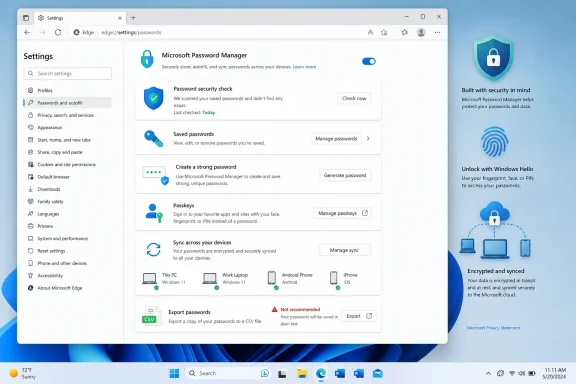 Overview: What Microsoft Password Manager Does
Microsoft Password Manager is Edge’s consumer-facing password and passkey management system. It is designed for people signed in to Edge using a personal Microsoft account, such as an Outlook.com, Hotmail.com, Live.com, or personal Microsoft account used with Windows.Its practical role is straightforward:
- Save usernames and passwords when you sign in to websites
- Autofill those credentials on future visits
- Sync saved passwords across Edge installations signed in with the same account
- Store and use passkeys when a website supports them
- Suggest strong passwords during account creation or password changes
- Identify passwords that are weak, reused, or found in known leaks
- Require device authentication before showing or filling saved passwords
- Import passwords from another browser or a CSV file
- Export passwords for migration to another password manager
Settings and more > Settings > Passwords and autofill > Microsoft Password ManagerOn some installations, Edge may expose a Passwords shortcut directly from the three-dot menu. That is a quicker route, but the full Microsoft Password Manager page is the central place to review settings and saved credentials.
The key distinction is that Edge’s password manager is not simply a local browser feature. When sync is enabled, it becomes part of a broader Microsoft account experience. That makes it useful for people moving among a Windows desktop, laptop, Mac, Android phone, iPhone, or iPad—but it also means deletion and privacy choices can affect more than one device.
Background: Why Older Edge Password Instructions No Longer Work
The naming and location of Edge’s autofill tools have changed several times. That has produced a frustrating mix of outdated instructions, retired products, and paths that no longer appear in the browser.The most important change is the retirement of Wallet in Microsoft Edge as the main destination for passwords, payment data, and personal information. The underlying saved data did not simply vanish; password management moved into the Passwords and autofill area of Edge settings.
Microsoft also discontinued Authenticator autofill. Microsoft Authenticator remains important for sign-in approvals, one-time codes, and certain enterprise passkey scenarios, but it is no longer the consumer password-autofill hub it once was. Likewise, the Microsoft Autofill extension for Chrome is retired.
For ordinary Edge users, the practical result is simple: use Edge itself.
Avoid tutorials that direct you to any of the following as the main place to manage Edge passwords:
- Microsoft Wallet
- Microsoft Authenticator autofill
- Microsoft Autofill Chrome Extension
- Custom Primary Password
- Windows Credential Manager
Set Up Edge Password Sync First
Password saving works locally, but sync is what turns Edge Password Manager into a useful multi-device tool. With sync enabled, saved passwords can follow the same signed-in Edge profile across supported devices.Sign in with a personal Microsoft account
Start by opening Edge and selecting the profile icon near the upper-right corner of the browser window. Choose an existing account or select Add new account if the account is not already listed.After selecting the account, choose Sign in to sync data. Edge will then associate the browser profile with that Microsoft account.
To confirm that password sync is active on desktop:
- Open Settings and more using the three-dot menu.
- Select Settings.
- Open Profiles.
- Select Sync.
- Ensure that the Passwords sync toggle is enabled.
Set up sync on Android, iPhone, or iPad
On mobile Edge, tap the profile image, open Accounts, select the Microsoft account, and choose Sign in to sync.To review what Edge syncs on a phone or tablet:
- Open Edge.
- Tap the menu button.
- Select Settings.
- Tap the profile image.
- Open Sync.
- Turn the desired sync categories on or off.
- Select Done when available.
Personal accounts and managed profiles are not the same
Microsoft Password Manager is aimed at personal account profiles. If Edge is signed in with a work or school account, some features may be unavailable, hidden, or controlled by organizational policy.This is especially relevant on company-issued Windows PCs. An administrator may disable password export, prevent password saving, turn off password monitoring, block passkey storage, or enforce device authentication before autofill. If an option is missing or greyed out, it may not be a browser malfunction; it may be a policy decision.
Save Passwords and Passkeys as You Browse
The easiest way to build a password vault in Edge is to let the browser save credentials at the point of use.Save a website password
When signing in to a website for the first time, enter the username and password normally. After the sign-in succeeds, Edge should offer to save the credentials.Choose the save option in the prompt. Edge will associate the username and password with that site, making them available for future autofill.
If Edge does not ask to save a password, check the save-prompt setting:
- Open Settings and more > Settings.
- Select Passwords and autofill.
- Open Microsoft Password Manager.
- Select More settings.
- Turn on Ask to save passwords and passkeys.
Save passkeys when websites offer them
Passkeys are not merely another kind of password. They are a passwordless sign-in method based on cryptographic credentials, typically unlocked through Windows Hello, a device PIN, Touch ID, Face ID, fingerprint authentication, or another device-level verification method.When a compatible site offers to create a passkey, Edge may present options for where to save it. Depending on the device and setup, you may be able to save the passkey to:
- Microsoft Password Manager
- The current Windows device through Windows Hello
- A physical security key
- Another available credential manager
The critical point is that a saved password and a saved passkey can coexist. Creating a passkey does not necessarily remove the original password from the website or from Edge.
Find, View, Edit, and Remove Saved Passwords
Saved credentials are managed from the Microsoft Password Manager page inside Edge.View a saved password
To locate a saved password on desktop:- Open Edge.
- Select Settings and more.
- Choose Settings.
- Open Passwords and autofill.
- Select Microsoft Password Manager.
- Find the website entry.
- Select the arrow beside the entry.
- Select the eye icon to reveal the password.
That verification requirement is more than a minor inconvenience. It prevents someone who has momentary access to an unlocked computer from casually opening Edge settings and copying an entire password vault.
Edit credentials after changing them on a website
A common mistake is to update a password on a website but neglect to update the saved Edge entry. The next login then fails because Edge keeps autofilling the old password.To edit a saved login:
- Open Microsoft Password Manager.
- Select the entry for the website.
- Choose Edit.
- Update the username or password.
- Select Save.
Remove old or duplicate entries
Removing obsolete credentials is as important as storing good ones. Duplicate entries can cause Edge to offer the wrong account, while old passwords create clutter and increase the chance of using outdated credentials.Delete a saved entry if:
- The account has been closed
- The password was changed elsewhere and cannot be updated
- The entry belongs to a duplicate or incorrect username
- The login was imported by mistake
- The website address is no longer legitimate
- A shared account should no longer be accessible from the device
Use Password Security Check to Find Weak Links
A password manager is most valuable when it does more than remember passwords. Edge’s Password security check looks for credentials that deserve attention.The feature can flag passwords that are:
- Leaked — found in known public credential leaks
- Reused — used across more than one saved account
- Weak — easy to guess or insufficiently robust
Settings and more > Settings > Passwords and autofill > Microsoft Password Manager > Password security checkEdge may display a Check, Scan now, or similarly worded command depending on the current interface. There is also a direct settings route available through Edge’s internal settings pages, but the standard settings path is easier to remember and less likely to create confusion when the interface changes.
How to prioritize the results
Not every warning carries the same urgency. Address results in this order:- Leaked passwords for email, banking, shopping, cloud storage, and social accounts
- Reused passwords, especially if they protect a primary email account
- Weak passwords on accounts that contain personal data or payment information
- Older, low-value accounts that are no longer used
Password monitoring is useful, but it is not a complete security solution. A password can be risky even if it has not appeared in a known leak, and a password flagged as leaked should be changed at the affected website rather than merely removed from Edge.
Keep leak scanning enabled
In More settings, Edge provides a control for scanning passwords for leaks. Keeping it enabled is sensible for most personal users.The feature cannot prevent a third-party website from being breached. What it can do is shorten the time between a known exposure and your response. That time matters, particularly when a leaked password has been reused elsewhere.
Generate Strong Passwords Instead of Inventing Them
Human-created passwords tend to repeat patterns. Even when people try to be creative, they often reuse a base word, append predictable numbers, or make small variations across sites. Those habits undermine the purpose of using a password manager.Edge can generate strong passwords during account creation and password changes.
To enable suggestions:
- Go to Settings and more > Settings.
- Select Passwords and autofill.
- Open Microsoft Password Manager.
- Select More settings.
- Turn on Suggest strong passwords.
If the suggestion does not appear automatically, right-clicking in the password field may expose a Suggest strong password option.
Why generated passwords are the better default
A generated password has several advantages:- It is usually far harder to guess than a human-created password.
- It avoids personal details, familiar words, and predictable substitutions.
- It is less likely to be reused across sites.
- You do not need to memorize it if Edge is securely managing it.
Require Device Authentication Before Autofill
One of the most useful Edge Password Manager settings is the requirement to authenticate with the device before Edge reveals or fills a saved website password.This is especially important on a shared household PC, a laptop used in public environments, or a desktop that may be left unlocked during the day.
To enable it:
- Open Settings and more > Settings.
- Select Passwords and autofill.
- Open Microsoft Password Manager.
- Select More settings.
- Confirm that Autofill passwords and passkeys is enabled.
- Choose Prompt for the device sign-in options before viewing or filling website password.
- Complete the device authentication request.
Why this setting is worth the extra step
Without device authentication, an unlocked browser session can be dangerously powerful. Anyone sitting at the computer may be able to sign in to websites where Edge fills credentials automatically.With device authentication enabled, an intruder still may be able to browse public content in an unlocked Edge window, but they face an additional barrier before accessing saved accounts. That distinction is meaningful.
It is not a substitute for locking Windows when stepping away. Instead, it is a second layer that reduces the consequences of one common mistake.
Make Edge Your Mobile Autofill Provider
Signing in to Edge on a phone lets you view synced passwords, but it does not automatically make Edge the system-wide password provider. To fill credentials in other apps and browsers, Edge needs to be selected as the mobile device’s autofill service.On iPhone and iPad
Use the iOS or iPadOS Settings app:- Open Settings.
- Select General.
- Open Autofill & Passwords.
- Under Autofill From, select Edge.
On Android
Android menu labels vary by phone maker, but the general flow is:- Open the device Settings app.
- Search for Autofill.
- Open the preferred autofill service setting.
- Select Change if necessary.
- Choose Edge.
A mobile passkey caveat
Users with work or school passkeys associated with Microsoft Authenticator should be careful before disabling Authenticator as an available credential provider. Personal Edge autofill and enterprise passkey requirements do not always follow the same rules.This is one of the few cases where old and new Microsoft identity tools can overlap. Personal passwords may have moved to Edge, while organization-managed passkeys can still depend on Authenticator settings.
Import, Export, and Delete Passwords Safely
Password portability is essential. It makes it possible to move into Edge from another browser or leave Edge for a different password manager. But the migration process introduces a major security concern: CSV files are plain text.Import passwords into Edge
To import passwords from a CSV file:- Open Settings and more > Settings.
- Select Profiles.
- Choose Import browser data.
- Under Other import locations, select Import next to Import passwords now.
- Choose Passwords CSV file.
- Select Choose file.
- Open the CSV file.
- Select Done after the import completes.
Export passwords from Edge
Password export is available on desktop Edge, not Edge for Android or iOS.To export:
- Open Edge.
- Select Settings and more, or press
Alt + F. - Select Passwords.
- Open the More menu.
- Choose Export passwords.
- Confirm the export.
- Choose a save location for the CSV file.
Treat exported CSV files as an emergency-grade secret
An exported password CSV file is not a secure backup format. It can expose website addresses, usernames, and passwords to anyone who can open the file.Follow these precautions:
- Create the export only when you are ready to use it.
- Save it only to a trusted, encrypted local location.
- Do not leave it in Downloads, Desktop, email attachments, shared cloud folders, or USB drives.
- Do not upload it to websites or send it through messaging apps.
- Import it immediately into the destination password manager.
- Permanently delete it after confirming the import succeeded.
Deleting passwords without unintentionally affecting every device
When sync is active, clearing saved passwords can remove them from all devices using the same Edge sync profile. That behavior is useful when intentionally cleaning up a compromised password list, but alarming when the goal is only to clean a single computer before selling it or handing it to someone else.To remove passwords from the current desktop device without immediately propagating the change, turn off sync first:
- Open Settings and more > Settings > Profiles > Sync.
- Turn off sync.
- Open Privacy, search, and services.
- Find Clear browsing data.
- Select Choose what to clear.
- Select the desired time range.
- Select Passwords.
- Choose Clear now.
Understand Passkey Management in Windows 11
Passwords and passkeys are related but managed differently. Edge is the main place to inspect traditional saved website passwords, while Windows 11 also provides its own passkey controls.For passkeys stored in Microsoft Password Manager, sign in to Edge using a personal Microsoft account, then open:
Windows Settings > Accounts > Passkeys > Advanced optionsFor locally stored, device-bound Windows passkeys, open:
Windows Settings > Accounts > PasskeysFrom there, select the More option beside a passkey and choose Delete passkey if it is no longer needed.
This separation can feel confusing at first. It exists because passkeys may be held by different credential providers: a local Windows device, a synced password manager, a security key, or another platform service. The right place to manage a passkey depends on where it was saved.
Strengths and Risks of Edge Password Manager
Microsoft Edge Password Manager is a credible built-in option for personal users who want a low-friction path away from reused passwords and handwritten credential lists.The strongest reasons to use it
Its most compelling strengths are integration and accessibility:- It is built into a browser already included with Windows.
- It syncs across signed-in Edge devices.
- It supports stronger password habits through generation and reuse detection.
- It can flag leaked credentials.
- It supports passkeys as websites adopt passwordless sign-in.
- It can use device-based authentication before revealing or autofilling passwords.
- It offers an export path, reducing lock-in concerns.
The risks that still need attention
The major risk is that password security becomes tied to the security of the Microsoft account and every device signed into the Edge profile. If an attacker compromises the account or gains access to an unlocked, poorly protected device, synced passwords may become exposed.Other limitations deserve equal attention:
- Password health checks identify known problems but cannot guarantee a password is safe.
- Password export creates an unprotected CSV file.
- Browser-based password managers may not offer every organizational, sharing, auditing, or emergency-access feature found in dedicated password manager products.
- Users can become confused by separate personal Microsoft accounts, work accounts, browser profiles, Windows passkeys, and mobile autofill providers.
- Managed devices may limit features without obvious explanations.
Conclusion
Microsoft Edge Password Manager is no longer hiding behind Wallet or Microsoft Authenticator autofill. Its current home is Settings > Passwords and autofill > Microsoft Password Manager, where personal Microsoft account users can save credentials, review them, inspect password health, create stronger passwords, manage passkeys, and enable safeguards before autofill.The most effective setup combines password sync with device authentication, strong generated passwords, regular security checks, and careful control over mobile autofill. Passkeys should be adopted where available, particularly for high-value accounts, while traditional passwords should remain unique and securely stored until those sites support passwordless sign-in.
The feature is at its best when treated as a security tool rather than a convenience checkbox. Edge can remember the credentials, but the user still needs to protect the account, the devices, and the exported data that make the password manager useful.