

A broken Microsoft Edge installation is frustrating, but on a Windows PC it rarely calls for the drastic measures suggested by old forum posts and recycled PowerShell scripts. The modern, supported approach is simpler: repair Edge from Windows Settings first, then use an official installer or broader Windows repair only when the browser remains missing, damaged, or unable to launch.
Microsoft Edge is more deeply integrated with Windows than a conventional third-party browser. That changes what “reinstalling” means on a typical Windows 10 or Windows 11 device. In many cases, Windows does not offer a normal Uninstall button for Edge because the browser and its web platform support are used by parts of the operating system and installed applications.
The good news is that Edge’s built-in repair process is specifically intended to restore its program files while preserving normal browser data. That makes it the safest starting point for most users dealing with crashes, blank windows, startup failures, update problems, or an Edge icon that no longer works.
Before downloading anything, distinguish between an Edge application problem and a broader issue involving Windows, a user profile, an extension, security software, or the network.
A full reinstall can restore damaged browser files, but it will not necessarily cure every issue that appears inside Edge. For example, a malfunctioning extension, corrupt cached website data, a blocked download endpoint, malware, low available memory, or a damaged Windows component can make Edge seem broken even when the browser installation itself is intact.
The most effective troubleshooting order is:
That typically includes:
The repair process requires an internet connection because Windows needs to obtain the necessary browser files. It also needs administrative approval, so a standard user account may be prompted for administrator credentials.
That can happen when an IT department deploys the browser, manages updates, prevents local changes, or applies security settings through device management. In that situation, attempting to bypass the restriction with scripts or registry modifications is a poor idea. It can violate policy, interfere with management tools, and cause the browser to be reinstalled or reconfigured automatically.
The appropriate route on a managed PC is to contact the organization’s IT administrator. On a personal PC, an unavailable Modify option can also justify trying the official Edge installer after confirming that Windows is fully updated.
This method is especially useful if:
However, it is not a magic fix for every browser problem. If Edge launches after reinstalling but immediately crashes when a certain extension loads, or if every browser on the PC has connectivity errors, the cause lies elsewhere.
Open Edge, select the three-dot menu, choose Settings, and open About Microsoft Edge. The browser checks for available updates in that area and applies them when appropriate.
An update-first approach makes sense when:
Settings > Privacy, search, and services > Clear browsing data > Choose what to clear
Choose an appropriate time range, then clear items such as:
For a website-specific issue, clearing only the affected site’s cookies and cached content is often preferable to wiping all browsing data.
Open the Edge extensions area and temporarily disable nonessential add-ons. Start with:
Open Windows Terminal, PowerShell, or Command Prompt, then run:
The
This is a practical option when a technician needs a repeatable installation command, when a script manages multiple applications, or when the graphical installer is inconvenient. It is not inherently more powerful than the official installer; it is simply another supported distribution path.
If the
This does not prevent users from installing another browser or setting another browser as the default. A user can prefer Firefox, Chrome, Brave, Opera, or another browser for daily use without attempting to remove Edge from Windows.
The availability of this option depends on more than physical location. It can be affected by:
Forced-removal methods can:
For persistent macOS issues, distinguish between reinstalling the application and rebuilding the user profile. Rebuilding a profile can erase local data, so confirm sync status and back up essential information before taking that step.
For Debian- and Ubuntu-based distributions, the
On managed Linux systems, repository configuration and browser packages may be controlled centrally. As on Windows, local repair attempts should not override organizational policies.
Warning signs include:
Settings > System > Recovery > Fix problems using Windows Update > Reinstall now
This is a broader repair than reinstalling Edge. It can repair Windows system files and components that the browser depends upon, making it useful when Edge failures accompany update errors or widespread operating-system instability.
The option may not appear on every PC. It can be unavailable on managed work or school devices, on older Windows 11 configurations, or when update policies prevent the feature from being used. Keep the computer connected to power and the internet for the duration of the process.
If repair does not work, install a fresh copy from Microsoft’s official download page or use WinGet on supported systems. On macOS, Linux, Android, iPhone, and iPad, use the platform-appropriate official installer or app store. And when Edge failures arrive alongside Windows Update errors, broken Settings pages, or multiple unstable apps, shift the focus from the browser to repairing Windows itself.
The safest Edge reinstall is the one that restores the browser without relying on obsolete Edge Legacy commands, forced uninstalls, registry edits, or untrusted third-party cleanup tools.
Microsoft Edge is more deeply integrated with Windows than a conventional third-party browser. That changes what “reinstalling” means on a typical Windows 10 or Windows 11 device. In many cases, Windows does not offer a normal Uninstall button for Edge because the browser and its web platform support are used by parts of the operating system and installed applications.
The good news is that Edge’s built-in repair process is specifically intended to restore its program files while preserving normal browser data. That makes it the safest starting point for most users dealing with crashes, blank windows, startup failures, update problems, or an Edge icon that no longer works.
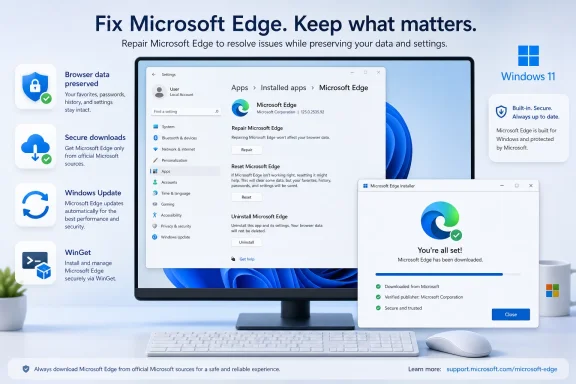 Overview: Repair Before You Reinstall
Before downloading anything, distinguish between an Edge application problem and a broader issue involving Windows, a user profile, an extension, security software, or the network.A full reinstall can restore damaged browser files, but it will not necessarily cure every issue that appears inside Edge. For example, a malfunctioning extension, corrupt cached website data, a blocked download endpoint, malware, low available memory, or a damaged Windows component can make Edge seem broken even when the browser installation itself is intact.
The most effective troubleshooting order is:
- Restart the PC and close all Edge processes.
- Update Edge if it still opens.
- Remove or disable suspicious extensions.
- Clear cached browsing data if websites fail or pages render incorrectly.
- Use Repair from Windows Settings.
- Download and run the official Edge installer if repair is unavailable or unsuccessful.
- Repair Windows itself if Edge is only one symptom of wider operating-system damage.
What the Windows Edge Repair Option Actually Does
On Windows 10 and Windows 11, the Repair feature is the preferred recovery method for Microsoft Edge. It downloads the files needed to repair or reinstall the browser and ordinarily leaves personal browser content intact.That typically includes:
- Favorites and bookmarks
- Saved passwords
- Browsing settings
- Extensions
- Profiles
- History stored locally
- Synced Edge data associated with a Microsoft account or work account
The repair process requires an internet connection because Windows needs to obtain the necessary browser files. It also needs administrative approval, so a standard user account may be prompted for administrator credentials.
Repair Microsoft Edge from Windows Settings
For most Windows users, this is the supported answer to the question of how to reinstall Microsoft Edge.Step-by-step repair instructions
- Close Microsoft Edge completely.
Close every Edge window. If other accounts are signed in on the PC, ensure Edge is closed for those users as well. - Open Start and select Settings.
- Select Apps.
- Open Installed apps.
On some Windows 10 builds, the equivalent area may appear as Apps & features. - Find Microsoft Edge in the installed-app list.
- Select the menu beside Microsoft Edge and choose Modify.
- Approve the User Account Control prompt by selecting Yes.
- Confirm the PC has an active internet connection.
- Select Repair and allow the process to finish.
- Restart Windows if prompted, then open Edge and test it.
If the Modify button is missing
If Modify is not available, do not assume that Edge has been removed or that Windows is corrupted. On work, school, and company-managed PCs, Edge may be controlled by organizational policy.That can happen when an IT department deploys the browser, manages updates, prevents local changes, or applies security settings through device management. In that situation, attempting to bypass the restriction with scripts or registry modifications is a poor idea. It can violate policy, interfere with management tools, and cause the browser to be reinstalled or reconfigured automatically.
The appropriate route on a managed PC is to contact the organization’s IT administrator. On a personal PC, an unavailable Modify option can also justify trying the official Edge installer after confirming that Windows is fully updated.
Reinstall Edge with the Official Microsoft Installer
When Windows Settings repair fails, Edge is missing, or the browser still refuses to launch after repair, download a fresh installer from the official Microsoft Edge download page using another working browser.This method is especially useful if:
- Edge opens briefly and immediately closes.
- Edge has no visible program entry in a normal state.
- A failed update left the browser unable to start.
- The repair function produces an error.
- You are reinstalling Edge on macOS or Linux.
- You need a clean installer after removing Edge in a region and Windows configuration where removal is supported.
Safe installer workflow
- Open a browser that still works, such as Chrome, Firefox, or another installed browser.
- Visit the official Microsoft Edge download page.
- Choose the download that matches the operating system and device architecture when prompted.
- Download the installer.
- Open the downloaded file.
- Approve the Windows security prompt only after verifying that the installer is from Microsoft.
- Let the setup program complete.
- Restart the computer if setup requests it.
Why a fresh installer can help
The official installer can replace browser executables and supporting files that may not have been corrected by a regular update cycle. It also ensures that the installed copy is brought forward to a supported current release rather than restoring an outdated browser package from an old backup.However, it is not a magic fix for every browser problem. If Edge launches after reinstalling but immediately crashes when a certain extension loads, or if every browser on the PC has connectivity errors, the cause lies elsewhere.
Updating Edge Before Reinstalling It
If Microsoft Edge can still open, an update may solve the problem with less disruption than repair or reinstall.Open Edge, select the three-dot menu, choose Settings, and open About Microsoft Edge. The browser checks for available updates in that area and applies them when appropriate.
An update-first approach makes sense when:
- Edge opens normally but feels unstable.
- A specific feature is missing after a recent rollout.
- Websites display compatibility warnings.
- The browser reports an outdated version.
- A crash began after a failed or incomplete background update.
Clear Data and Disable Extensions Before Blaming the Installation
A damaged Edge installation is only one possible explanation for browser trouble. If Edge opens but slows down, freezes on certain sites, shows blank pages, or becomes unstable after login, first look at the data and add-ons that load with the profile.Clear cached data carefully
To clear data in Edge, open:Settings > Privacy, search, and services > Clear browsing data > Choose what to clear
Choose an appropriate time range, then clear items such as:
- Cached images and files
- Cookies and other site data
- Browsing history
For a website-specific issue, clearing only the affected site’s cookies and cached content is often preferable to wiping all browsing data.
Disable extensions
Extensions can cause browser crashes, slow startup, redirect searches, modify websites, block scripts, or create compatibility problems after an Edge update.Open the Edge extensions area and temporarily disable nonessential add-ons. Start with:
- Coupon and shopping extensions
- Download helpers
- Unfamiliar VPN extensions
- Tab-management tools
- Script blockers
- Extensions installed from outside a well-known store
- Add-ons that were updated shortly before the problem began
Reinstalling Microsoft Edge with WinGet
Advanced users and IT-conscious home users can also use WinGet, Windows Package Manager, to install Edge from the command line.Open Windows Terminal, PowerShell, or Command Prompt, then run:
winget install --id Microsoft.Edge -eThe
-e option requests an exact match for the package identifier. If prompted, review and accept package or source agreements only after confirming the package is the expected Microsoft Edge entry.This is a practical option when a technician needs a repeatable installation command, when a script manages multiple applications, or when the graphical installer is inconvenient. It is not inherently more powerful than the official installer; it is simply another supported distribution path.
When WinGet is unavailable
WinGet is supplied through App Installer on supported Windows versions, but it may not be installed, registered, or available in the command path on every system. It can also be restricted on managed devices.If the
winget command is not recognized:- Check for App Installer in the Microsoft Store.
- Install or update App Installer if permitted.
- Restart the terminal.
- Run
winget --versionto confirm that the command is available. - Retry the Edge installation command.
winget.exe from third-party download sites. If Windows Package Manager itself is broken, repair the supported Windows app-management components rather than introducing an untrusted executable.Can You Uninstall Microsoft Edge on Windows?
For most Windows installations, Microsoft Edge cannot be removed through the standard consumer uninstall flow. That is intentional. Edge is treated as a core Windows component and supports web-based functionality used across the operating system and apps.This does not prevent users from installing another browser or setting another browser as the default. A user can prefer Firefox, Chrome, Brave, Opera, or another browser for daily use without attempting to remove Edge from Windows.
The European Economic Area exception
Windows provides a different Edge removal path for eligible devices configured in the European Economic Area. On supported editions and Windows versions, the normal Uninstall option may appear in the Installed apps settings.The availability of this option depends on more than physical location. It can be affected by:
- The Windows region configuration
- Windows version and servicing level
- Device edition
- Management policy
- Whether the device is joined to an organization
- Local regulatory implementation
Why forced removal is risky
Old tutorials often recommend uninstall commands designed for Microsoft Edge Legacy, the pre-Chromium browser that reached end of support on March 9, 2021. Those instructions are obsolete and should not be treated as a modern Edge repair strategy.Forced-removal methods can:
- Damage Windows servicing assumptions
- Break web-dependent Windows experiences
- Cause update failures
- Remove files that an official Edge update expects to find
- Create policy conflicts on managed devices
- Leave shortcuts, update services, or application registrations in an inconsistent state
Reinstall Microsoft Edge on macOS
On macOS, Edge behaves much more like a conventional installed application. You can remove it from the Applications folder and then install a new copy from Microsoft’s official download page.Remove and reinstall Edge on a Mac
- Quit Microsoft Edge.
- Open Finder.
- Open the Applications folder.
- Locate Microsoft Edge.
- Control-click the app and choose Move to Trash.
- Empty the Trash if a fully removed application copy is required.
- Download the current macOS installer from Microsoft.
- Open the downloaded installer package.
- Follow the on-screen installation steps.
For persistent macOS issues, distinguish between reinstalling the application and rebuilding the user profile. Rebuilding a profile can erase local data, so confirm sync status and back up essential information before taking that step.
Reinstall Microsoft Edge on iPhone, iPad, and Android
Mobile Edge is installed and updated through the platform’s normal app store. The process is simpler than on Windows, but it still benefits from a cautious approach.iPhone and iPad
To reinstall Edge on iPhone or iPad:- Touch and hold the Microsoft Edge app icon.
- Select Remove App.
- Choose Delete App.
- Open the App Store.
- Search for Microsoft Edge.
- Confirm the publisher is Microsoft.
- Select Get or the cloud download icon.
Android
On Android:- Open Google Play Store.
- Search for Microsoft Edge.
- Open the Microsoft Edge listing.
- Choose Uninstall.
- After removal completes, select Install.
Reinstall Microsoft Edge on Linux
Microsoft Edge is available for Linux through official packages. The correct download depends on the distribution and package format.For Debian- and Ubuntu-based distributions, the
.deb package is the usual choice. Other supported distribution options may use a different package format or repository method.Recommended Linux process
- Download the package from the official Microsoft Edge download page.
- Select the package compatible with the Linux distribution.
- Open the package using the distribution’s software installer, or install it with the appropriate package-management command.
- Complete the installation.
- Update Edge later through the distribution’s configured package-management system when the Microsoft repository is available.
On managed Linux systems, repository configuration and browser packages may be controlled centrally. As on Windows, local repair attempts should not override organizational policies.
When the Problem Is Really Windows, Not Edge
If Edge remains broken after repair and reinstall, look for signs that the entire Windows installation is unhealthy.Warning signs include:
- Microsoft Store apps fail to open.
- Windows Update repeatedly fails.
- Multiple built-in applications crash.
- Settings pages are blank or unresponsive.
- File Explorer is unstable.
- System components report missing or damaged files.
- Other browsers also cannot connect or download updates.
Use Windows Update repair when appropriate
Open:Settings > System > Recovery > Fix problems using Windows Update > Reinstall now
This is a broader repair than reinstalling Edge. It can repair Windows system files and components that the browser depends upon, making it useful when Edge failures accompany update errors or widespread operating-system instability.
The option may not appear on every PC. It can be unavailable on managed work or school devices, on older Windows 11 configurations, or when update policies prevent the feature from being used. Keep the computer connected to power and the internet for the duration of the process.
A Practical Recovery Checklist
For a personal Windows PC, the following sequence is efficient, low-risk, and aligned with how Edge is maintained today:- Restart the computer.
- Check that Windows has current updates.
- Open Edge and update it through About Microsoft Edge if possible.
- Disable suspicious extensions.
- Clear cached website data if the browser opens but pages fail.
- Repair Edge through Settings > Apps > Installed apps > Microsoft Edge > Modify > Repair.
- Run the official Microsoft Edge installer from another browser if repair fails.
- Use
winget install --id Microsoft.Edge -eif a command-line installation method is preferred and WinGet is available. - Run a Windows security scan if browser behavior suggests malware or unwanted software.
- Use Windows 11’s Windows Update repair option when the browser problem is part of larger system corruption.
The Bottom Line
Reinstalling Microsoft Edge in a modern Windows environment should begin with Repair, not removal. The Settings repair tool restores the browser through a supported process and is designed to preserve normal browser data, making it the best first-line response to crashes, startup failures, and damaged installations.If repair does not work, install a fresh copy from Microsoft’s official download page or use WinGet on supported systems. On macOS, Linux, Android, iPhone, and iPad, use the platform-appropriate official installer or app store. And when Edge failures arrive alongside Windows Update errors, broken Settings pages, or multiple unstable apps, shift the focus from the browser to repairing Windows itself.
The safest Edge reinstall is the one that restores the browser without relying on obsolete Edge Legacy commands, forced uninstalls, registry edits, or untrusted third-party cleanup tools.
References
- Primary source: Technobezz
Published: 2026-07-24T19:18:07.731000+00:00
Loading…
www.technobezz.com - Official source: support.microsoft.com
Loading…
support.microsoft.com - Official source: learn.microsoft.com
Loading…
learn.microsoft.com - Official source: microsoft.com
Loading…
www.microsoft.com - Official source: cdn-dynmedia-1.microsoft.com
- Official source: download.microsoft.com