

Microsoft has quietly restored a simple, native terminal text editor to Windows: Microsoft Edit — a compact, open‑source TUI (text user interface) editor you can run directly from Command Prompt, PowerShell, or Windows Terminal without switching to a GUI. The tool is designed for quick edits — think configuration files, quick notes and on‑the‑fly fixes — and is distributed both as a GitHub project and via the Windows Package Manager. This feature marks a deliberate move to give Windows users the same low‑friction, terminal‑first editing experience long available on Unix‑like systems, while keeping the binary tiny enough to ship inside Windows images.
Key facts to keep in mind:
Source: Windows Central How to edit text files directly from Command Prompt and PowerShell
 Background
Why a native terminal editor mattered
For decades Windows users relied on GUIs (Notepad, Notepad++) for quick textual edits. The old MS‑DOS Editor filled the gap in 16/32‑bit days but was eventually left behind as Windows moved to 64‑bit and GUI‑first tooling. Power users who wanted a fast, in‑terminal workflow had to install third‑party editors like Vim, Nano, or Micro. Microsoft Edit closes that gap by offering a first‑party, minimal editor designed to run inside a terminal environment and be easily scriptable or invocable from existing command‑line workflows.The project and its pedigree
Microsoft Edit is an open‑source project hosted on GitHub under an MIT license. The repository and release activity show active development, a Rust‑based codebase, and explicit packaging guidance for Windows and Linux distributions. Microsoft also prepared release builds that are intended to ship with specific Windows feature updates, so the editor is both community‑facing and platform‑backed.Overview: what Edit is and what it isn’t
- What it is
- A compact, terminal user interface editor for quick, distraction‑free edits.
- Cross‑platform builds (Windows and Linux) and 64‑bit binaries are available.
- Built for the terminal: VT output, good Unicode support, and keyboard + mouse support in many terminal emulators.
- What it isn’t
- Not a full IDE or replacement for Visual Studio Code, Notepad++, or Vim for advanced editing and development workflows.
- Intentionally minimal: core editing features (undo/redo, cut/copy/paste, find & replace) but not a plugin ecosystem or extensive automation features out of the box.
Installation and verification
Official routes
- Install using Windows Package Manager (winget):
- Open an elevated Command Prompt or Windows Terminal.
- Run: winget install --id Microsoft.Edit
This is the recommended and simplest method on modern Windows where WinGet is available. Microsoft documents the winget install workflow and uses package IDs to guarantee exact installs. - Download from GitHub Releases:
- Binaries are distributed on the project’s releases page for each supported architecture. You can extract the zip and place edit.exe in a folder on your PATH, or use the provided package for your distribution. The GitHub repo explicitly points to Releases for manual install options.
- Linux packaging:
- Several Linux package repositories and distributions (MSYS2, community repos) have packaged the project, making installation via the native package manager straightforward.
Quick verification
- After install, run:
- edit — launches the editor.
- edit filename.txt — opens or creates filename.txt for editing.
- If edit is present in a Windows feature image (some Insider or 25H2 channels), invoking edit with no installation step may open the editor directly. Confirmed release notes indicate certain builds include the binary.
How to use Edit from Command Prompt and PowerShell
Starting the editor
- From an ordinary command prompt:
- Type: edit and press Enter.
- To open a specific file:
- Type: edit filename.txt or edit C:\path\to\file.txt.
- To open with elevated privileges:
- Run your terminal as Administrator, or use the Windows sudo feature (if enabled) with sudo edit — Microsoft documents the new sudo for Windows experience and how it elevates commands directly from unelevated consoles. Enabling sudo for Windows is available in Windows 11 24H2+ via Developer settings; be mindful of the security considerations Microsoft calls out.
Basic workflow and shortcuts
- Save: Ctrl+S
- Exit: Ctrl+Q
- Word wrap toggle: Alt+Z (per builds / UI convention)
- Navigation: standard arrow keys, common File/Edit menu access via Alt key combos.
- Find & Replace: built into the Edit menu with regex support in recent builds; basic undo/redo and clipboard operations are supported.
Opening multiple files and switching
- The editor supports opening more than one file in the same session and switching between them via the File/Goto UI or keyboard shortcuts (Ctrl+P used in some builds to pick a file). This makes quick edits across several configuration files convenient.
Technical details and packaging — verified facts
Language, architecture and builds
- The project is primarily implemented in Rust, with cross‑platform goals and VT‑based terminal output. The repository and release notes confirm Rust as the language and emphasize small binary size and Unicode handling.
64‑bit support and cross‑platform
- Release assets and packaging show Windows x86_64 and aarch64 builds, along with Linux artifacts. Community packages (MSYS2, Linux distro repos) also distribute the binary. GitHub release notes explicitly reference Windows and Linux packaging.
Binary size: what to expect (verify before assuming)
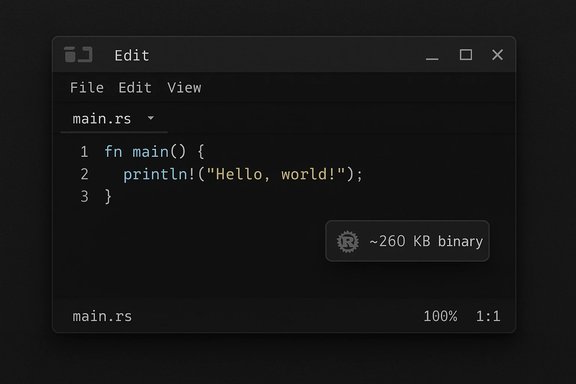
- Early coverage described the binary as “very small” and cited measurements described as “under 250KB.” Independent package and installer metadata reports place the installed executable size in the ~260‑270 KB range for recent versions — for example, one package record reports edit.exe as approximately 266,800 bytes (~260.55 KB). Distribution packages and linux packaging metadata report sizes in the same ballpark (packages tend to compress / expand differently across repos). That means the “under 250KB” phrasing in some promotional pieces is imprecise; real‑world packaged binaries seen in repositories are slightly larger but still extremely compact for modern apps. Flag this as a small discrepancy to be aware of when you quote exact sizes.
Features and UX: what to expect in daily use
Built for speed and simplicity
- Edit intentionally exposes a small set of features that cover the most common terminal editing tasks: multi‑file session support, a File/Edit/View menu, find/replace (regex), word wrap, status bar, and visible control characters. The UI is not modal like Vim; it opts for discoverable shortcuts and a familiar menu bar for users migrating from Notepad.
Terminal‑friendly behavior
- The editor prefers VT‑style output and works well with modern terminals (Windows Terminal, terminal emulators on Linux). That design decision improves compatibility over older Console APIs and helps features like mouse support and proper Unicode handling across SSH sessions.
Automation and pipelines — caution advised
- Several third‑party writeups and community posts suggest piping output into Edit (e.g., dir | edit) or reading stdin — a common Unix pattern. However, the official documentation and reference materials do not prominently document stdin/pipe behavior, and terminal programs vary in how they treat stdin when they allocate full‑screen terminal control. Until the project explicitly documents reliable stdin‑pipe behavior, treat pipe‑to‑edit workflows as experimental: test them on your environment before embedding them in scripts or automation. In short: piping may work in some contexts, but do not assume full Unix‑style stdin semantics without verification.
Administration, security and deployment considerations
Elevation and the new Windows sudo
- Microsoft added a "sudo for Windows" feature to allow elevating commands from an unelevated console session; when sudo is enabled in Developer settings on supported builds, commands like sudo edit can elevate the process without launching a separate Administrator shell. Microsoft warns that enabling sudo has security implications and administrators should evaluate the risk in managed environments. For system files or protected locations, prefer launching the terminal as Administrator directly to avoid misconfigurations.
Enterprise deployment and packaging
- If you plan to deploy Edit at scale:
- Use winget manifests or your enterprise package management tooling to control the exact version and installer scope.
- Verify package signatures and checksums from the GitHub releases and vendor packages before broad distribution.
- Test behavior with your endpoint management policies (UAC, AppLocker, Windows Defender ATP rules, etc. to ensure the editor doesn’t conflict with compliance rules.
Audit, telemetry and open source transparency
- The project is open source (MIT), so you can review the code, build artifacts locally, or audit binaries before distribution. For security‑sensitive environments, prefer building from source or validate release artifacts against the published GPG/SHA signatures where available. GitHub release notes include verifiable commit signatures on some tags.
Comparing Edit with existing terminal editors
- Vs. Nano / Micro: Edit is similar in goals — approachable and non‑modal — but Microsoft prioritized an extremely small binary and tight Windows integration rather than the larger feature set micro offers. If you want a lightweight, familiar interface with Windows first‑class support, Edit is a strong choice.
- Vs. Vim / Neovim: Vim remains the specialist’s choice for complex text manipulation, scripting, and plugins. Edit deliberately sacrifices advanced features for approachable simplicity.
- Vs. Notepad: Notepad is a GUI app and now includes richer features in modern builds. Edit’s niche is terminal‑embedded editing where launching a GUI is disruptive.
Practical tips and best practices
- Use winget for installation and upgrades: winget install --id Microsoft.Edit; winget upgrade --id Microsoft.Edit. This keeps versions manageable and auditable.
- For urgent edits to system files, run the terminal as Administrator rather than relying on sudo wrappers unless sudo for Windows is known and approved in your environment.
- Keep a fallback editor (Notepad / Notepad++) for binary or very large file edits. Edit is excellent for day‑to‑day text but not optimized as an ultra‑large file editor yet.
- Validate any pipeline usage (piping command output into edit) in a sandbox before using in scripts; behaviour can vary between terminal hosts.
Myths, gotchas and what to watch for
- Myth: “Edit is identical to the old MS‑DOS Editor.”
Reality: Edit is a modern reimagining written in Rust with cross‑platform support; it shares a name and intent but not implementation or legacy limits. The old MS‑DOS Editor had 16‑bit memory constraints. The new Edit is free of those legacy memory constraints. - Claim: “The binary is under 250KB.”
Reality: That figure appears as a marketing shorthand in some outlets; independent package reports put the binary in the ~260–270 KB range in packaged form. The difference is small in practical terms, but accuracy matters when you quote exact sizes — flag any exact size claim and verify against the release assets you downloaded. - Pipe behavior: “dir | edit works everywhere.”
Reality: Some community writeups demonstrate piping into Edit, but official documentation doesn’t make a blanket guarantee. Terminal I/O semantics vary, so treat piping support as something you must verify on the exact platform and build you use.
The bigger picture: why this matters for Windows users
Microsoft Edit is small in scope but meaningful in signal. By shipping a native terminal editor, Microsoft acknowledges and supports terminal‑first workflows that developers, sysadmins and power users have relied on in other ecosystems for years. The decision to keep the binary small, open‑source it, and include it in Windows images (on certain channels) suggests Microsoft is investing in making Windows a friendlier host for terminal‑based tooling. That lowers friction for remote work, SSH sessions, and quick fixes on headless or constrained systems.Conclusion
Microsoft Edit fills a practical, previously missing role on Windows: a tiny, native, terminal‑friendly text editor that opens from Command Prompt, PowerShell, or Windows Terminal and handles routine editing tasks without context switching. It’s open‑source, packaged for Windows and Linux, and available through winget for easy installs. While it won’t replace advanced editors, it’s a welcome addition to the Windows toolkit — especially for administrators and developers who live in the shell.Key facts to keep in mind:
- Install via: winget install --id Microsoft.Edit or download from GitHub.
- The editor is cross‑platform and built in Rust, with 64‑bit binaries for Windows and Linux.
- Binary sizes reported in packaging metadata are roughly ~260–270 KB; some press pieces round that down — verify against the release you download if the exact size matters.
- Use sudo edit only if your build supports Windows sudo and the feature is enabled; otherwise, run an elevated terminal for system file edits.
Source: Windows Central How to edit text files directly from Command Prompt and PowerShell
