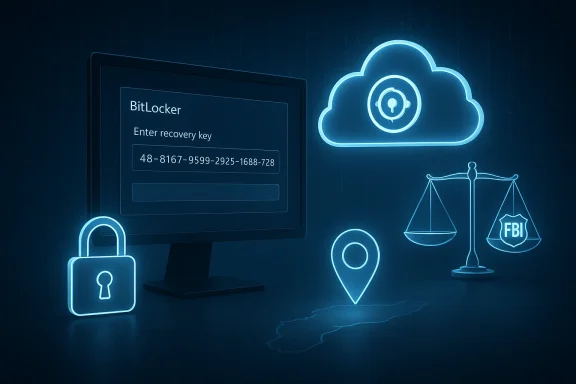
Microsoft has confirmed that, when it possesses a BitLocker recovery key tied to a customer’s account and receives valid legal process, it will produce that key to law enforcement — a revelation that sharply reframes how effectively BitLocker protects disk contents in practice and forces every Windows user and admin to reassess key custody, defaults, and threat models.
In late January 2026 reporting tied to a federal fraud investigation in Guam made public what security practitioners had long warned was a realistic but under-communicated risk: federal agents obtained court-authorized access to BitLocker recovery keys that Microsoft had stored for customers, then used those keys to decrypt seized laptops. Microsoft told reporters it complies with valid legal process to produce keys it controls and that it receives roughly 20 requests for BitLocker keys per year, many of which it cannot fulfill because keys were not stored in its systems.
BitLocker itself is cryptographically sound: modern Windows implementations use XTS‑AES for volume encryption and integrate with a Trusted Platform Module (TPM) to protect keys on-device. The security boundary that prevents disk decryption is the secrecy of the keys. A BitLocker recovery key — a 48‑digit numeric protector used as a last resort — will decrypt a protected volume regardless of TPM state. That recovery key is therefore the practical weak point: if someone else (including Microsoft) holds it, the encryption can be defeated without attacking the cipher.
The practical lesson from the Guam case is straightforward but consequential: cryptography is only as private as your key management model. When device encryption defaults are paired with cloud escrow of recovery keys, a legal process that reaches the provider can yield full-disk access.
The commonly available backup options for a recovery key are:
Forcloud‑backed key escrow reduces the risk of data loss and simplifies recovery. For people whose safety or privacy depends on exclusive control of their encryption keys, defaultceptable. The only reliable way to keep keys out of a provider’s hands is explicit, user‑controlled key custody: local accounts at setup, offy keys, TPM+PIN protectors, or enterprise BYOK/HSM solutions.
Actionable next steps for readers:
—
Source: TechRadar Microsoft confirms it will give your BitLocker encryption keys to the FBI
 Background: what was reported and why this matters
In late January 2026 reporting tied to a federal fraud investigation in Guam made public what security practitioners had long warned was a realistic but under-communicated risk: federal agents obtained court-authorized access to BitLocker recovery keys that Microsoft had stored for customers, then used those keys to decrypt seized laptops. Microsoft told reporters it complies with valid legal process to produce keys it controls and that it receives roughly 20 requests for BitLocker keys per year, many of which it cannot fulfill because keys were not stored in its systems. BitLocker itself is cryptographically sound: modern Windows implementations use XTS‑AES for volume encryption and integrate with a Trusted Platform Module (TPM) to protect keys on-device. The security boundary that prevents disk decryption is the secrecy of the keys. A BitLocker recovery key — a 48‑digit numeric protector used as a last resort — will decrypt a protected volume regardless of TPM state. That recovery key is therefore the practical weak point: if someone else (including Microsoft) holds it, the encryption can be defeated without attacking the cipher.
The practical lesson from the Guam case is straightforward but consequential: cryptography is only as private as your key management model. When device encryption defaults are paired with cloud escrow of recovery keys, a legal process that reaches the provider can yield full-disk access.
Overview of how BitLocker key backup works in Windows 11
Microsoft has progressively moved toward enabling device encryption automatically on qualifying Windows 11 devices during out‑of‑box setup (OOBE). When a user signs in with a Microsoft account (MSA) or an organization account during OOBE, Windows often backs up the BitLocker recovery key to that online account automatically. Signing in with a local account during setup typically avoids the automatic cloud escrow.The commonly available backup options for a recovery key are:
- Save to your Microsoft account (cloud escrow).
- Save to a USB drive or file that you control (local backup).
- Print the key and store the paper in a secure place.
- For crow to Active Directory or Azure/Entra ID under org control.
Key technical facts verified
- BitLocker uses strong, modern symmetric encryption primitives (XTS‑AES). The algorithmic strengtcryption impractical; the realistic attack surface is key disclosure or mismanagement.
- The recovery protector is a 48‑digit recovery key (or a key file) deliberately designed as a last‑resort unlock method. Possession of that key grants full decryption capability.
- On many Windows 11 installs, signing in with a Microsoft account during OOBE will cause automatic backing up of the recovery key to the account — that cloud copy is what companies and courts can target.
- Microsoft has stated publicly that it will provide recovery keys to law enforcement when presented with valid legal process and that it receives roughly 20 such requests annually.
Why this is controversial: legal process meets default design
There are three linked dimensions that make the Microsoft confirmation significant.- Architectural defaults: Microsoft’s decision to make cloud escrow the easy default for many users has operational consequences. Defaults shape behavior — most users do not consciously choose a key backup strategy during OOBE.
- Legal compulsion: when keys are held by the provider, a valid search warrant, subpoena, or court order aimed at the provider can be an efficient path for law enforcement to obtain full-disk access without the technical difficulty of breaking encryption. That makes provider-held keys practically producible.
- Civil liberties and safety: producing a recovery key yields access to all data on a drive, across time. Privacy advocates and some legislators argue that the risk of overcollection and the danger to vulnerable people in hostile jurisdictions are too high if providers retoduce keys under compulsion. Senator Ron Wyden called Microsoft’s architectural choice “simply irresponsible.”
Strengths of Microsoft’s approach (and why the company made soft’s design is not accidental; it balances hard, competing needs.
- Usability and data recovery: Cloud escrow prevents catastrophic data loss. If a user forgets credentials or a device enters recovery mode, the provi the only practical recovery option for non‑technical users. That reduces support costs and user harm.
- Enterprise manageability: Central escrow to Azure AD / Entra ID or AD DS is a valuable IT feature. IT admins depend on central key recovery to redeploy devices, audit access, and conduct legitimate investigations within an organization. For managed devices, provider or enterprise escrow is often a business requirement.
- Platform integration: Tying encryption to Microsoft accounts integrates recovery into the existing identity and lifecycle model for Windows devices, which simplifies onboarding for many customers and OEM scenarios.
Risks and failure modes you should worry about
- Compelled disclosure and overcollection: A single recovery key opens an entire drive; investigators may legally gather data beyond the immediate scope of a warrant. That inre and risk of mission creep.
- Concentration and insider risk: Centralized storage of recovery keys concentrates value for attackers and malicious insiders. While providers operate with robust controls, breaches and insider misuse are realistic adversarial scenarios.
- Cross‑jurisdictional exposure: Provider compliance obligations or mutual legal assistance from foreign governments can expose keys and data beyond the originating country’s legal protections. A key produced under one jurisdiction’s order may facilit a device physically located elsewhere.
- Account compromise: If an attacker gains control of a Microsoft account, they may find recovery keys stored in that account, enabling decryption if they also have physical access to the device. Account security therefore becomes a direct component of disk encryption security.
- Operational brittleness: TPM and pre‑boot checks are intentionally strict. Hardware changes, firmware updates, or certain servicing operations may force recovery mode; if the recovery key isn’t accessible, that can lead to permanent data loss. Automatic cloud escrow reduces this customer pain point — but only if the escrowed copy is accessible to the true owner.
How to keep your BitLocker keys private — practical and verified steps
If your threat model values provider‑blind confidentiality — i.e., you do not want Microsoft (or any provider) to be able to produce your recovery keys — you must take explicit actions. Below are concrete, verifiable steps you can follow now; the commands and UIs mentioned are standard and widely documented.Immediate checklist (for consumers)
- Check whether your device’s recoverMicrosoft account.
- Open Settings → Privacy & security → Device encryption (or Control Panel → BitLocker on Pro/Enterprise).
- Where offered, choose Back up your recovery key and note whether it lists your Microsoft account as a storage location. Verify by signing into your Microsoft account’s device/recovery key page.
- If you don’t want Microsoft to hold the key, export the recovery key to media you control:
- In Manage BitLocker, choose Back up your recovery key → Save to a file (copy it to a USB) or Print.
- Store that copy in two secure, separate places (e.g., a safe and a password manager with strong encryption).
- Remove the cloud copy (if present) and ensure future keys are not auto‑escrowed:
- After you’vline copy, sign into the Microsoft account and delete the recovery key entry for that device (follow Microsoft account UI prompts).
- For future installs, use a local account during OOBE to avoid automatic cloud backup, or explicitly choose the “save to USB/print” options when enabling BitLocker.
- Add a pre‑boot authentication (TPM + PIN) for stronger protection:
- Require additional rtup in BitLocker/Group Policy (TPM + PIN). This prevents TPM‑only attacks and increases the difficulty for someone who has only the device and a cloud key but not the PIN.
- Maintain independent, tested backups:
- If you opt out of cloud escrow, you increase the risk of permanent lockout. Ensure you have reliable backups of your important data in different media/locations.
For power users and IT administrators
- Use enterprise key management: escrow key’s Active Directory or Azure/Entra ID, or adopt customer‑managed key (BYOK) and External Key Manager (EKM) solutions backed by HSMs. Require multi‑party authorization and strict audit trails for any key retrieval.
- Enforce policy through Intune/Group Policy:
- Configure where protectors are stored and disallow pert escrow on managed devices.
- Test recovery workflows and require multi-person approval for any legal‑process response.
- Keep logs and rehearse legal responses:
- Train legal, security and helpdesk teams on what to do if served with orders for keys. Maintain operational playbooks that limit scope creep and document chain‑of‑custody.
Quick command-line checks
- To lis (run elevated PowerShell):
- manage-bde -protectors -get C:
- To export a recovery key to file:
- Use the Manage BitLocker GUI or manaet and copy the 48‑digit key to a secure file then remove cloud copies through account settings.
Step‑by‑step: a privacy-first OOBE recipe (one recommended path)
- During OOBE, create a local administrator account rather than signing in worces an MSA, complete setup with a temporary account, then convert to a local account and remove the MSA. Tools like autounattend.xml or deployment tooling can preseed local accounts for repeatable setups.
- Enable BitLocker manually after setup, choosing “Save to a file” or “Print the recovery key.” Do not select Microsoft account backup.
- Store the exported key offline (USB in safe, printed copy in a fireproof safe or safety deposit box), and enroll a TPM+PIN protector for startup. Test entering the PIN and confirm recovery workflow works before putting the device into active use.
- Maintain a documented, tested recovery plan: at least two offline copies, one offsite; test restoring from your backups periodically.
What Microsoft and policymakers should do next (recommendations)
- Make key‑custody explicit during OOBE: require a clear, unavoidable step that explains whether the recovery key will be uploaded to the cloud, and require users to choose an explicit backup location (cloud, USB, print). Defaults should reflect the most privacy‑preserving option for those who indicate concern.
- Offer a provider‑blind backup optendors offer backup schemes where the provider cannot decrypt keys without an additional user secret. Microsoft should provide a zero‑knowledge path for consumer backups that is not hidden behind enterprise configurations.
- Improve transparency reporting: providers should publish granular statistics about recovery‑key requests, including the number of requests, their outcomes, the legal basis (as much as permissible), and whether gag orders accompanied them. That would help public oversight without undermining investigations.
- Strengthen legal safeguards: lawmakers should scrutinize the interplay between secrecy orders and key production, and consider requiring narrower scope, time limits, and judicial review for compelled disclosure of keys that unlock broad swathes of private data.
Balanced conclusion and practical takeaway
The Guam case and Microsoft’s confirmation that it will provide BitLocker keys on valid legal orders are not a failure of cryptography; BitLocker’s algorithms remain robust. Instead, they are a stark reminder that security is socio‑technical: defaults, account models, and legal processes determine whether encryption protects privacy in practice.Forcloud‑backed key escrow reduces the risk of data loss and simplifies recovery. For people whose safety or privacy depends on exclusive control of their encryption keys, defaultceptable. The only reliable way to keep keys out of a provider’s hands is explicit, user‑controlled key custody: local accounts at setup, offy keys, TPM+PIN protectors, or enterprise BYOK/HSM solutions.
Actionable next steps for readers:
- Immediately confirm whether your recovery keys are stored in any Microsoft account and, if you prefer provider‑blind confidentiality, export and remove the cloud copies following the checklist above.
- For organizations, move to customer‑managed key solutions and enforce key escrow policies that keep keys under enterprise control rather than individual personal accounts.
- Demand clearer UI and transparency from vendors: defaults should be visible, reversible, and respectful of different user threat models.
—
Source: TechRadar Microsoft confirms it will give your BitLocker encryption keys to the FBI