

Microsoft announced Intelligent Terminal 0.1 at Build 2026 on June 2 as an experimental, open-source fork of Windows Terminal that adds an AI agent pane for command-line help without changing the standard Windows Terminal app. That distinction is the whole story. Microsoft is not merely adding a chatbot to another corner of Windows; it is testing whether the command line can become an agent workspace while leaving the trusted terminal alone. For once, the company’s AI strategy looks less like forced distribution and more like product discipline.
The smartest thing about Intelligent Terminal is not the AI pane, the Copilot default, or the keyboard shortcuts. It is the fork.
Windows Terminal has become one of Microsoft’s rare modern Windows success stories: open source, useful, fast enough, and broadly liked by developers who are otherwise quick to punish gimmicks. It replaced a neglected command-line experience with tabs, panes, profiles, GPU-accelerated rendering, and a more coherent home for PowerShell, Command Prompt, WSL, SSH, and developer shells. It earned its place by doing terminal things well.
That is why directly injecting Copilot into Windows Terminal would have been risky. The terminal is not a content feed, a start page, or a search box; it is a working surface where precision matters. When a developer runs a migration, deletes files, signs a package, rotates credentials, or deploys infrastructure, an unwanted assistant is not just clutter. It is a potential trust violation.
Microsoft appears to understand that this time. Intelligent Terminal leaves Windows Terminal intact and offers a separate experimental application for people who actually want agent integration. That opt-in posture will not satisfy every AI skeptic, but it changes the argument from “Microsoft is forcing AI into my tools” to “Microsoft is building a parallel tool for an emerging workflow.”
That is a much better place to be. The Windows ecosystem has enough AI fatigue already, and developers are especially allergic to tools that become slower, noisier, or more opinionated without consent. By forking rather than mutating the mainline terminal, Microsoft has created a safety valve for experimentation.
Intelligent Terminal is aimed directly at that loop. Its pitch is not that AI will replace the shell, but that an agent can sit beside the shell, read enough context to explain what just happened, and suggest what to do next. In the best case, it reduces context switching and makes the terminal less punishing without flattening it into a GUI wizard.
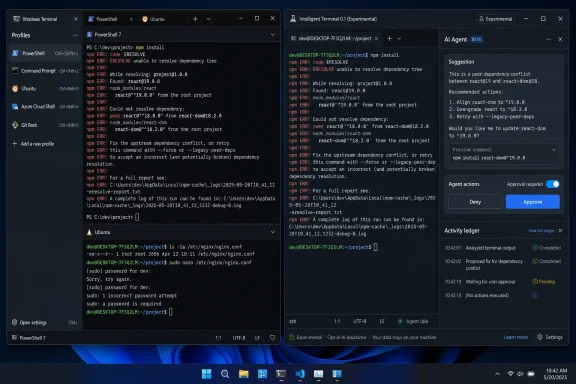
The interface described so far is deliberately familiar. Intelligent Terminal is essentially Windows Terminal with an agent pane, session tracking, background task handling, and error detection. Users can open an agent chat pane, ask for help with the current terminal state, and let the agent run longer tasks without taking over the active session.
That matters because the command line’s power comes from continuity. A terminal session has working directories, environment variables, command history, process state, virtual environments, active SSH sessions, and accumulated context that a browser tab does not have. The promise of Intelligent Terminal is that the assistant can observe enough of that context to be useful without requiring the user to narrate everything manually.
The danger, of course, is the same context. A terminal is where secrets leak, destructive commands run, and assumptions become outages. An AI agent in a terminal is only useful if users can understand what it sees, what it is allowed to do, and when it is merely suggesting versus acting.
That means the terminal can discover and work with compatible local agent CLIs installed on the machine. Reports and Microsoft’s own positioning point to agents such as GitHub Copilot CLI, Claude Code, OpenAI Codex, and Google Gemini as examples of the kind of tools that can fit into this model. In other words, Intelligent Terminal is not merely a Copilot window bolted to a shell; it is an attempt to make the terminal an agent host.
This is where the product becomes strategically interesting. Microsoft has spent the last several years turning Copilot into both a brand and a platform, but the developer world is moving toward a messier, multi-agent reality. One team may standardize on GitHub Copilot, another may prefer Claude Code, another may experiment with Codex, while security-conscious shops may want local or self-hosted agents for certain workflows.
A protocol-based approach gives Microsoft a way to own the surrounding experience without insisting on owning every model interaction. That is very Windows: create the surface, bless the integration pattern, and let the tool ecosystem compete inside it. If the shell becomes a place where agents work, Microsoft would rather that place be a Microsoft terminal.
There is also a defensive logic here. Developers already run agents inside terminals, editors, browser-based IDEs, and custom wrappers. If Microsoft does not provide a first-class Windows experience for that behavior, somebody else will. Intelligent Terminal gives Microsoft a sanctioned experiment before the agentic command-line workflow calcifies elsewhere.
A failed command is a narrow, high-signal moment. The tool knows what command was run, what the shell returned, and where the user is working. That is better context than a generic chatbot prompt and a cleaner interaction than pasting a stack trace into a search engine.
The agent pane also changes the ergonomics of command-line troubleshooting. Instead of breaking flow to research an error elsewhere, the user can keep the failure, explanation, and proposed fix in the same workspace. The best version of this is not “AI does everything”; it is “AI shortens the path between a cryptic failure and the next reasonable attempt.”
That sounds modest, but modest is good. Much of the backlash to AI in Windows has come from Microsoft presenting general-purpose assistance as if it were universally desired. Here, the use case is narrower and more defensible. A terminal user who has just hit a dependency error, permissions failure, missing package, bad flag, broken path, or failing test may actually want help at that moment.
Still, error detection must be conservative. If Intelligent Terminal lights up constantly, hallucinates fixes, or nudges users toward unsafe commands, it will become just another disabled feature. The command line rewards confidence, but it punishes misplaced confidence brutally.
Microsoft’s description suggests that when an agent needs to complete a longer or more complex operation, it can run that task in the background while the user keeps working in the active terminal session. A separate agent management pane then tracks active and past agent sessions, lets users inspect task details, resume earlier sessions, and dismiss completed work.
That is a subtle but important shift. Chat is conversational; background task management is operational. Once an agent is no longer merely answering questions but carrying out multi-step work over time, the terminal becomes closer to an orchestration surface.
Developers already feel this tension in AI coding tools. A useful agent may edit files, run tests, inspect logs, retry commands, and iterate on a fix. That is helpful when it works and infuriating when it loses track of state, spawns too many processes, or confidently races ahead after a partial failure. The terminal is both the natural place for that loop and one of the least forgiving places to get it wrong.
The management pane is Microsoft’s attempt to give this activity a visible home. If one tab is running tests, another is scaffolding a script, and a third is trying to diagnose a package conflict, users need more than vibes to know what the agents are doing. They need a ledger.
That ledger may turn out to be the difference between a novelty and a workflow. The biggest problem with agentic tools is not always raw model quality; it is observability. Users need to know what task is running, what context it used, what commands it executed, what changed, what failed, and what still requires human approval.
That is exactly the sort of feature that reveals Microsoft’s broader design intent. The terminal is not just gaining a chatbot; it is gaining a dispatch mechanism. The user does not have to switch modes completely, open a separate app, or write a long prompt from scratch. The active session becomes the starting point.
For power users, this could feel natural. Command palettes already serve as a middle ground between menus and memorized shortcuts. They let users express intent without hunting through settings, and they are common in developer tools such as Visual Studio Code. Adding agent actions to that pattern makes sense.
But the design also raises the stakes for context boundaries. “Send the current terminal context” sounds convenient until the current context includes secrets, proprietary paths, customer names, infrastructure details, or command output that should not leave the machine. Microsoft will need to make the visibility model painfully clear if it wants enterprise trust.
The fork helps here again. An experimental Intelligent Terminal can afford to test these patterns with users who knowingly opted in. Windows Terminal proper should not become the place where admins discover, after the fact, that terminal context was being packaged for an assistant.
A terminal-integrated agent touches several sensitive surfaces at once. It may observe shell output, infer project structure, interact with source code, run commands, and keep session history. Depending on configuration, it may connect to a cloud-hosted model, a corporate-approved service, or a local agent. That makes policy enforcement essential.
The fact that Intelligent Terminal is not part of the default Windows 11 setup is therefore not a minor packaging detail. It is an administrative boundary. Organizations can decide whether to allow it, which agents are permitted, whether GitHub Copilot is approved, whether local-only options are required, and whether the shell integration is acceptable.
The same is true for installation. Reports indicate that users can install Intelligent Terminal through the Microsoft Store, winget, or GitHub, with
The enterprise question will not be “Is AI in the terminal good?” It will be “Can we prove what it can see and do?” The winning version of this product will offer clear policies for agent selection, telemetry, context sharing, command execution, approval prompts, audit logs, and disablement. Without those controls, the tool will remain a developer toy in regulated environments.
Microsoft’s advantage is that it already sells to those environments. Its disadvantage is that enterprise buyers have long memories. If Intelligent Terminal feels like a clever wrapper around uncontrolled agent behavior, it will be blocked. If it feels like a manageable shell companion with auditable boundaries, it may find a home.
Intelligent Terminal lands differently because the problem is obvious. Command-line users really do search for errors. They really do forget flags. They really do juggle docs, terminals, editor panes, and issue trackers. They really do ask language models to explain shell output already.
The question is not whether there is demand. The question is whether Microsoft can deliver help without making the terminal feel less deterministic. Developers do not object to tools that save time; they object to tools that interrupt, obscure, or surprise them.
That is why the product’s separation from Windows Terminal is not cosmetic. It is a recognition that AI is no longer automatically additive. In 2026, “now with AI” can be a warning label as easily as a feature badge. Microsoft’s decision to ship a sibling app instead of altering the trusted app is an implicit admission that enthusiasm must be earned.
There is a lesson here for the rest of Windows. The most credible AI integrations are not the ones placed everywhere; they are the ones placed where the workflow already contains friction that models can plausibly reduce. Terminal errors are such a place. Random OS surfaces are often not.
That matters because terminal users are prone to pushing tools into real work quickly. If an assistant can explain one error well, someone will soon ask it to fix a build, refactor a script, modify deployment commands, or troubleshoot production logs. That is where early software can become dangerous.
The right mental model is not “new default terminal.” It is “lab build for agent-native command-line workflows.” The standard Windows Terminal remains the stable choice for users who want a terminal to behave like a terminal. Intelligent Terminal is for people willing to test what happens when a terminal becomes a supervised agent workspace.
There will be bugs. There will be bad suggestions. There will be awkward setup edges around agent CLIs, shell integration, session hooks, and model-specific behavior. There will be uncertainty over which agents support which capabilities consistently. There will be a long gap between a good demo and a tool that sysadmins trust on machines that matter.
None of that makes the experiment unimportant. If anything, it makes the fork more justified. Microsoft needs a place to break things without breaking one of the best developer tools it has shipped in years.
This division of labor is healthy. Windows Terminal can be the stable base. Intelligent Terminal can be the opinionated experiment. If features mature, prove useful, and gain user trust, Microsoft can decide later whether some should migrate back, remain separate, or influence the main project indirectly.
The fork also protects community goodwill. Windows Terminal’s open-source roots matter because developers can inspect, contribute, and criticize the tool in public. Adding AI directly to that project could have turned routine terminal development into a proxy war over Copilot. Keeping the AI-heavy work in a separate fork reduces that blast radius.
There is still a branding problem, though. Many users will see “Microsoft,” “Terminal,” and “AI” and assume Windows Terminal is being stuffed with Copilot. Microsoft will have to communicate the split repeatedly and clearly. The company has not always excelled at that kind of restraint.
If it does, the result could be a rare win-win: AI enthusiasts get a native Windows playground for agentic shell work, and everyone else keeps the terminal they already rely on.
AI agents tend to pull in the opposite direction. They summarize, infer, autocomplete, and act. They are probabilistic systems entering a deterministic workspace. The tension is productive only if the user remains in control.
For Intelligent Terminal, that means proposed commands should be visible before execution. Risky actions should require approval. Destructive operations should be treated differently from read-only diagnostics. Session history should be inspectable. Context sharing should be understandable. The user should never wonder whether the agent did something behind the curtain.
This is not merely a security preference. It is a usability requirement. The fastest way to make terminal users abandon an assistant is to make them distrust the state of their own shell.
The best agent behavior may be surprisingly conservative. Explain the error. Suggest the next command. Offer to run a diagnostic. Show the plan. Wait for approval. Record what happened. That may sound less magical than autonomous remediation, but in a terminal, less magic is often the point.
If Microsoft leans into that culture, Intelligent Terminal could feel like a natural extension of command-line work. If it tries to turn the shell into an AI-driven black box, it will collide with the very users it hopes to attract.
That shift has been building for a while. Coding assistants began in editors, but real software work does not stay in editors. It spills into package managers, test runners, shells, containers, cloud CLIs, local databases, logs, and deployment scripts. An agent that cannot operate in the terminal is boxed out of much of the development lifecycle.
Microsoft’s bet is that Windows needs a first-class version of this workflow. Not a web chat that knows about code in the abstract, and not a hidden subprocess launched by an editor extension, but a visible terminal surface where agents and humans share state. That is a more serious idea than another Copilot sidebar.
The irony is that the terminal, one of computing’s oldest interfaces, may become one of the more practical homes for agentic AI. It already represents intent as commands. It already exposes output as text. It already chains tools together. It already supports long-running work. In some ways, the shell is the original automation substrate.
What AI changes is who writes the next command. Intelligent Terminal does not answer that question conclusively, but it gives Microsoft a place to experiment with the handoff.
The caution is equally practical. This is an experimental tool that may observe terminal context, install shell integration, track sessions, and route requests through whichever agent the user chooses. That combination deserves the same scrutiny you would give any tool that sits near source code, credentials, build systems, or infrastructure commands.
 Microsoft Forks the Terminal Because Trust Is the Feature
The smartest thing about Intelligent Terminal is not the AI pane, the Copilot default, or the keyboard shortcuts. It is the fork.Windows Terminal has become one of Microsoft’s rare modern Windows success stories: open source, useful, fast enough, and broadly liked by developers who are otherwise quick to punish gimmicks. It replaced a neglected command-line experience with tabs, panes, profiles, GPU-accelerated rendering, and a more coherent home for PowerShell, Command Prompt, WSL, SSH, and developer shells. It earned its place by doing terminal things well.
That is why directly injecting Copilot into Windows Terminal would have been risky. The terminal is not a content feed, a start page, or a search box; it is a working surface where precision matters. When a developer runs a migration, deletes files, signs a package, rotates credentials, or deploys infrastructure, an unwanted assistant is not just clutter. It is a potential trust violation.
Microsoft appears to understand that this time. Intelligent Terminal leaves Windows Terminal intact and offers a separate experimental application for people who actually want agent integration. That opt-in posture will not satisfy every AI skeptic, but it changes the argument from “Microsoft is forcing AI into my tools” to “Microsoft is building a parallel tool for an emerging workflow.”
That is a much better place to be. The Windows ecosystem has enough AI fatigue already, and developers are especially allergic to tools that become slower, noisier, or more opinionated without consent. By forking rather than mutating the mainline terminal, Microsoft has created a safety valve for experimentation.
The Command Line Was Always an AI Target
The command line may look like hostile territory for AI, but in practice it is one of the more obvious places to put an assistant. Shell work is full of brittle syntax, context-dependent failures, environment quirks, terse error messages, and half-remembered incantations. Even experienced users spend a surprising amount of time copying output into a browser, searching a documentation page, scanning Stack Overflow or GitHub issues, then returning to the terminal to try a variant of the command.Intelligent Terminal is aimed directly at that loop. Its pitch is not that AI will replace the shell, but that an agent can sit beside the shell, read enough context to explain what just happened, and suggest what to do next. In the best case, it reduces context switching and makes the terminal less punishing without flattening it into a GUI wizard.
The interface described so far is deliberately familiar. Intelligent Terminal is essentially Windows Terminal with an agent pane, session tracking, background task handling, and error detection. Users can open an agent chat pane, ask for help with the current terminal state, and let the agent run longer tasks without taking over the active session.
That matters because the command line’s power comes from continuity. A terminal session has working directories, environment variables, command history, process state, virtual environments, active SSH sessions, and accumulated context that a browser tab does not have. The promise of Intelligent Terminal is that the assistant can observe enough of that context to be useful without requiring the user to narrate everything manually.
The danger, of course, is the same context. A terminal is where secrets leak, destructive commands run, and assumptions become outages. An AI agent in a terminal is only useful if users can understand what it sees, what it is allowed to do, and when it is merely suggesting versus acting.
Copilot Is the Default, but the Protocol Is the More Interesting Bet
GitHub Copilot is the default agent experience when available, which is exactly what anyone would expect from Microsoft. The more interesting detail is that Intelligent Terminal is built around Agent Client Protocol compatibility rather than a single hard-wired Microsoft assistant.That means the terminal can discover and work with compatible local agent CLIs installed on the machine. Reports and Microsoft’s own positioning point to agents such as GitHub Copilot CLI, Claude Code, OpenAI Codex, and Google Gemini as examples of the kind of tools that can fit into this model. In other words, Intelligent Terminal is not merely a Copilot window bolted to a shell; it is an attempt to make the terminal an agent host.
This is where the product becomes strategically interesting. Microsoft has spent the last several years turning Copilot into both a brand and a platform, but the developer world is moving toward a messier, multi-agent reality. One team may standardize on GitHub Copilot, another may prefer Claude Code, another may experiment with Codex, while security-conscious shops may want local or self-hosted agents for certain workflows.
A protocol-based approach gives Microsoft a way to own the surrounding experience without insisting on owning every model interaction. That is very Windows: create the surface, bless the integration pattern, and let the tool ecosystem compete inside it. If the shell becomes a place where agents work, Microsoft would rather that place be a Microsoft terminal.
There is also a defensive logic here. Developers already run agents inside terminals, editors, browser-based IDEs, and custom wrappers. If Microsoft does not provide a first-class Windows experience for that behavior, somebody else will. Intelligent Terminal gives Microsoft a sanctioned experiment before the agentic command-line workflow calcifies elsewhere.
The Agent Pane Turns Error Messages Into Product Real Estate
The most practical feature is automatic error detection. During setup, users can enable shell integration that lets Intelligent Terminal monitor command failures and surface suggestions when it sees something fixable. That is the kind of AI feature that may actually survive contact with daily work because it starts from a real annoyance rather than a marketing storyboard.A failed command is a narrow, high-signal moment. The tool knows what command was run, what the shell returned, and where the user is working. That is better context than a generic chatbot prompt and a cleaner interaction than pasting a stack trace into a search engine.
The agent pane also changes the ergonomics of command-line troubleshooting. Instead of breaking flow to research an error elsewhere, the user can keep the failure, explanation, and proposed fix in the same workspace. The best version of this is not “AI does everything”; it is “AI shortens the path between a cryptic failure and the next reasonable attempt.”
That sounds modest, but modest is good. Much of the backlash to AI in Windows has come from Microsoft presenting general-purpose assistance as if it were universally desired. Here, the use case is narrower and more defensible. A terminal user who has just hit a dependency error, permissions failure, missing package, bad flag, broken path, or failing test may actually want help at that moment.
Still, error detection must be conservative. If Intelligent Terminal lights up constantly, hallucinates fixes, or nudges users toward unsafe commands, it will become just another disabled feature. The command line rewards confidence, but it punishes misplaced confidence brutally.
Background Tasks Are Where Assistance Becomes Agency
The agent chat pane is easy to understand. The more consequential feature is background task handling.Microsoft’s description suggests that when an agent needs to complete a longer or more complex operation, it can run that task in the background while the user keeps working in the active terminal session. A separate agent management pane then tracks active and past agent sessions, lets users inspect task details, resume earlier sessions, and dismiss completed work.
That is a subtle but important shift. Chat is conversational; background task management is operational. Once an agent is no longer merely answering questions but carrying out multi-step work over time, the terminal becomes closer to an orchestration surface.
Developers already feel this tension in AI coding tools. A useful agent may edit files, run tests, inspect logs, retry commands, and iterate on a fix. That is helpful when it works and infuriating when it loses track of state, spawns too many processes, or confidently races ahead after a partial failure. The terminal is both the natural place for that loop and one of the least forgiving places to get it wrong.
The management pane is Microsoft’s attempt to give this activity a visible home. If one tab is running tests, another is scaffolding a script, and a third is trying to diagnose a package conflict, users need more than vibes to know what the agents are doing. They need a ledger.
That ledger may turn out to be the difference between a novelty and a workflow. The biggest problem with agentic tools is not always raw model quality; it is observability. Users need to know what task is running, what context it used, what commands it executed, what changed, what failed, and what still requires human approval.
The Command Palette Becomes a Dispatch Layer
Intelligent Terminal also extends the Command Palette with AI actions. The idea is simple: invoke the palette, type a request, send the current terminal context to an agent, and keep working while the agent handles the task.That is exactly the sort of feature that reveals Microsoft’s broader design intent. The terminal is not just gaining a chatbot; it is gaining a dispatch mechanism. The user does not have to switch modes completely, open a separate app, or write a long prompt from scratch. The active session becomes the starting point.
For power users, this could feel natural. Command palettes already serve as a middle ground between menus and memorized shortcuts. They let users express intent without hunting through settings, and they are common in developer tools such as Visual Studio Code. Adding agent actions to that pattern makes sense.
But the design also raises the stakes for context boundaries. “Send the current terminal context” sounds convenient until the current context includes secrets, proprietary paths, customer names, infrastructure details, or command output that should not leave the machine. Microsoft will need to make the visibility model painfully clear if it wants enterprise trust.
The fork helps here again. An experimental Intelligent Terminal can afford to test these patterns with users who knowingly opted in. Windows Terminal proper should not become the place where admins discover, after the fact, that terminal context was being packaged for an assistant.
The Opt-In Model Is Also an Enterprise Escape Hatch
For home users and hobbyist developers, Intelligent Terminal is mostly a question of taste. For enterprise IT, it is a governance problem wrapped in a productivity pitch.A terminal-integrated agent touches several sensitive surfaces at once. It may observe shell output, infer project structure, interact with source code, run commands, and keep session history. Depending on configuration, it may connect to a cloud-hosted model, a corporate-approved service, or a local agent. That makes policy enforcement essential.
The fact that Intelligent Terminal is not part of the default Windows 11 setup is therefore not a minor packaging detail. It is an administrative boundary. Organizations can decide whether to allow it, which agents are permitted, whether GitHub Copilot is approved, whether local-only options are required, and whether the shell integration is acceptable.
The same is true for installation. Reports indicate that users can install Intelligent Terminal through the Microsoft Store, winget, or GitHub, with
winget install Microsoft.IntelligentTerminal serving as the direct command-line route. That is convenient for developers, but it is also something admins can monitor and control through existing software management practices.The enterprise question will not be “Is AI in the terminal good?” It will be “Can we prove what it can see and do?” The winning version of this product will offer clear policies for agent selection, telemetry, context sharing, command execution, approval prompts, audit logs, and disablement. Without those controls, the tool will remain a developer toy in regulated environments.
Microsoft’s advantage is that it already sells to those environments. Its disadvantage is that enterprise buyers have long memories. If Intelligent Terminal feels like a clever wrapper around uncontrolled agent behavior, it will be blocked. If it feels like a manageable shell companion with auditable boundaries, it may find a home.
AI Fatigue Makes Restraint a Competitive Feature
Microsoft’s AI rollout across Windows has often suffered from a mismatch between capability and consent. Copilot buttons, AI-assisted settings, generative features in inbox apps, and cloud-connected experiences have all arrived into a user base that does not share one unified appetite for assistance. Some users want every productivity shortcut they can get. Others see each integration as bloat, telemetry, or a solution looking for a problem.Intelligent Terminal lands differently because the problem is obvious. Command-line users really do search for errors. They really do forget flags. They really do juggle docs, terminals, editor panes, and issue trackers. They really do ask language models to explain shell output already.
The question is not whether there is demand. The question is whether Microsoft can deliver help without making the terminal feel less deterministic. Developers do not object to tools that save time; they object to tools that interrupt, obscure, or surprise them.
That is why the product’s separation from Windows Terminal is not cosmetic. It is a recognition that AI is no longer automatically additive. In 2026, “now with AI” can be a warning label as easily as a feature badge. Microsoft’s decision to ship a sibling app instead of altering the trusted app is an implicit admission that enthusiasm must be earned.
There is a lesson here for the rest of Windows. The most credible AI integrations are not the ones placed everywhere; they are the ones placed where the workflow already contains friction that models can plausibly reduce. Terminal errors are such a place. Random OS surfaces are often not.
The Name Overpromises, the Version Number Tells the Truth
“Intelligent Terminal” is a very Microsoft name in the bad sense: grand, generic, and slightly allergic to humility. The version number is more honest. This is 0.1 software, experimental by design, and users should treat it accordingly.That matters because terminal users are prone to pushing tools into real work quickly. If an assistant can explain one error well, someone will soon ask it to fix a build, refactor a script, modify deployment commands, or troubleshoot production logs. That is where early software can become dangerous.
The right mental model is not “new default terminal.” It is “lab build for agent-native command-line workflows.” The standard Windows Terminal remains the stable choice for users who want a terminal to behave like a terminal. Intelligent Terminal is for people willing to test what happens when a terminal becomes a supervised agent workspace.
There will be bugs. There will be bad suggestions. There will be awkward setup edges around agent CLIs, shell integration, session hooks, and model-specific behavior. There will be uncertainty over which agents support which capabilities consistently. There will be a long gap between a good demo and a tool that sysadmins trust on machines that matter.
None of that makes the experiment unimportant. If anything, it makes the fork more justified. Microsoft needs a place to break things without breaking one of the best developer tools it has shipped in years.
Windows Terminal Survives by Not Becoming the Experiment
The existence of Intelligent Terminal also clarifies what Windows Terminal should be. It should remain the dependable, broadly useful command-line host for Windows. It should keep improving performance, profiles, rendering, accessibility, settings, shell integration, and platform fit. It should not become a battleground for every AI idea Microsoft wants to test.This division of labor is healthy. Windows Terminal can be the stable base. Intelligent Terminal can be the opinionated experiment. If features mature, prove useful, and gain user trust, Microsoft can decide later whether some should migrate back, remain separate, or influence the main project indirectly.
The fork also protects community goodwill. Windows Terminal’s open-source roots matter because developers can inspect, contribute, and criticize the tool in public. Adding AI directly to that project could have turned routine terminal development into a proxy war over Copilot. Keeping the AI-heavy work in a separate fork reduces that blast radius.
There is still a branding problem, though. Many users will see “Microsoft,” “Terminal,” and “AI” and assume Windows Terminal is being stuffed with Copilot. Microsoft will have to communicate the split repeatedly and clearly. The company has not always excelled at that kind of restraint.
If it does, the result could be a rare win-win: AI enthusiasts get a native Windows playground for agentic shell work, and everyone else keeps the terminal they already rely on.
The Real Test Is Whether Agents Can Respect the Shell
The command line has a culture as much as an interface. It prizes composability, explicitness, reproducibility, and plain text. A good terminal tool does not hide too much. It shows the command, shows the output, and lets the user decide what happens next.AI agents tend to pull in the opposite direction. They summarize, infer, autocomplete, and act. They are probabilistic systems entering a deterministic workspace. The tension is productive only if the user remains in control.
For Intelligent Terminal, that means proposed commands should be visible before execution. Risky actions should require approval. Destructive operations should be treated differently from read-only diagnostics. Session history should be inspectable. Context sharing should be understandable. The user should never wonder whether the agent did something behind the curtain.
This is not merely a security preference. It is a usability requirement. The fastest way to make terminal users abandon an assistant is to make them distrust the state of their own shell.
The best agent behavior may be surprisingly conservative. Explain the error. Suggest the next command. Offer to run a diagnostic. Show the plan. Wait for approval. Record what happened. That may sound less magical than autonomous remediation, but in a terminal, less magic is often the point.
If Microsoft leans into that culture, Intelligent Terminal could feel like a natural extension of command-line work. If it tries to turn the shell into an AI-driven black box, it will collide with the very users it hopes to attract.
The Terminal Is Becoming a Front End for Agent Work
Intelligent Terminal is part of a larger shift in developer tools: the terminal is no longer just where humans type commands. It is becoming one of the primary places where AI agents act on behalf of humans.That shift has been building for a while. Coding assistants began in editors, but real software work does not stay in editors. It spills into package managers, test runners, shells, containers, cloud CLIs, local databases, logs, and deployment scripts. An agent that cannot operate in the terminal is boxed out of much of the development lifecycle.
Microsoft’s bet is that Windows needs a first-class version of this workflow. Not a web chat that knows about code in the abstract, and not a hidden subprocess launched by an editor extension, but a visible terminal surface where agents and humans share state. That is a more serious idea than another Copilot sidebar.
The irony is that the terminal, one of computing’s oldest interfaces, may become one of the more practical homes for agentic AI. It already represents intent as commands. It already exposes output as text. It already chains tools together. It already supports long-running work. In some ways, the shell is the original automation substrate.
What AI changes is who writes the next command. Intelligent Terminal does not answer that question conclusively, but it gives Microsoft a place to experiment with the handoff.
The Practical Read for Windows Power Users
For now, Intelligent Terminal is worth watching rather than blindly adopting. It is an early preview of a plausible future, not a replacement for Windows Terminal. The strongest case for it is narrow and practical: fewer context switches when commands fail, better visibility into agent tasks, and a cleaner way to use Copilot or another compatible agent inside a Windows-native terminal.The caution is equally practical. This is an experimental tool that may observe terminal context, install shell integration, track sessions, and route requests through whichever agent the user chooses. That combination deserves the same scrutiny you would give any tool that sits near source code, credentials, build systems, or infrastructure commands.
Microsoft’s AI Terminal Gamble Comes Down to Five Concrete Choices
The early shape of Intelligent Terminal suggests Microsoft has learned at least some lessons from Windows AI backlash. The next phase will show whether those lessons survive product pressure, monetization pressure, and the temptation to make the assistant more aggressive than users want.- Intelligent Terminal is a separate experimental fork of Windows Terminal, not a forced AI update to the standard Windows Terminal app.
- The tool adds an agent pane, automatic error detection, background task handling, session management, and AI actions in the Command Palette.
- GitHub Copilot CLI is the default agent experience when available, but the design is meant to support Agent Client Protocol-compatible agents beyond Microsoft’s own stack.
- The most credible use case is not replacing command-line expertise, but reducing the browser-and-forum loop that follows failed commands and obscure errors.
- Enterprise adoption will depend less on the AI demo and more on controls for context sharing, agent selection, command execution, auditability, and policy enforcement.
- The project’s success depends on respecting terminal culture: show the plan, show the command, require approval when risk rises, and never make users guess what changed.
References
- Primary source: Windows Central
Published: 2026-06-13T13:26:10.298655
I tried Microsoft’s new AI-powered Terminal, and it is a surprisingly different experience | Windows Central
Microsoft's new Intelligent Terminal brings AI agents to the command line without changing the Windows Terminal experience developers already know.www.windowscentral.com - Related coverage: techtimes.com
Microsoft Intelligent Terminal Ships at Build 2026: AI Agent Fork Leaves Mainline Terminal Alone
Microsoft Intelligent Terminal arrived at Build 2026 as a separate, opt-in fork of Windows Terminal with native AI agent support via Agent Client Protocol. The MIT-licensed app passes shell contextwww.techtimes.com - Official source: devblogs.microsoft.com
Announcing Intelligent Terminal 0.1 - Windows Command Line
Today we're announcing Intelligent Terminal version 0.1, an open-source experimental fork of Windows Terminal with native agent integration. Get starteddevblogs.microsoft.com - Related coverage: phoronix.com
Microsoft Announces Open-Source "Intelligent Terminal" - Phoronix
Microsoft today announced their newest open-source creation..www.phoronix.com
- Related coverage: winbuzzer.com
Microsoft Tests AI Agents in New Intelligent Terminal Fork
Microsoft´s new Intelligent Terminal adds a docked AI agent pane for failed shell commands, giving developers a separate Windows Terminal fork to test fixes. winbuzzer.com
- Related coverage: windowsforum.com
Microsoft Intelligent Terminal 0.1: AI agents via an opt-in Windows Terminal fork | Windows Forum
Microsoft announced Intelligent Terminal 0.1 on June 2, 2026, as an open-source experimental fork of Windows Terminal for Windows users, adding native AI...windowsforum.com
- Official source: developer.microsoft.com
Microsoft Build 2026 recap: vision, launches, and top sessions - Microsoft for Developers
Catch up on Microsoft Build 2026 with the vision lead-off, top developer announcements, and must-watch sessions across the Microsoft developer ecosystem.developer.microsoft.com - Related coverage: technobezz.com
Microsoft Forks Windows Terminal Into Intelligent Terminal for AI Agent Experiments | Technobezz
Microsoft forks Windows Terminal into an open-source AI experiment, Intelligent Terminal 0.1, learning from Recall's rollout to offer opt-in agent integration.www.technobezz.com - Related coverage: earlyterms.com
Intelligent Terminal — Infrastructure | EarlyTerms
Intelligent Terminal is an open-source fork of Windows Terminal that embeds AI coding agents directly into the shell — not as a plugin, but as a first-class paneearlyterms.com - Related coverage: pasqualepillitteri.it
Intelligent Terminal 0.1: Microsoft Forks Windows Terminal and Puts AI Agents Inside It
Microsoft ships Intelligent Terminal 0.1 at Build 2026: an open-source fork of Windows Terminal with a built-in AI agent and Agent Client Protocol support.pasqualepillitteri.it
- Related coverage: bleepingcomputer.com
Hands on with Intelligent Terminal, an AI-powered Windows Terminal
Microsoft has created an open-source fork of Windows Terminal calledwww.bleepingcomputer.com
- Related coverage: techradar.com
10 products that launched at Microsoft Build — and what happened to them | TechRadar
From Windows 8 to Copilot, here’s everything that was born at Buildwww.techradar.com - Related coverage: tomsguide.com
Biggest Microsoft Build 2026 announcements — agentic AI, RTX Spark Dev Box, GitHub Copilot app, new MAI models, and more | Tom's Guide
All the big news from Microsoft's AI-focused eventwww.tomsguide.com - Official source: techcommunity.microsoft.com
