

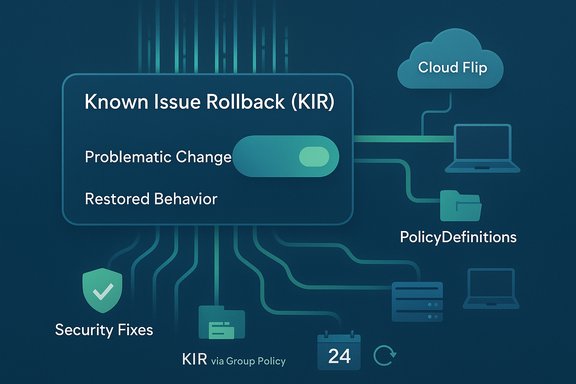
Microsoft's Known Issue Rollback (KIR) is the stop‑gap that lets Windows selectively "flip the switch" on a problematic change without uninstalling an entire cumulative update — a surgical mitigation that preserves security fixes while restoring functionality for affected users and enterprises.
Windows servicing is a constant balancing act between shipping security updates and avoiding regressions that break workflows. Historically, when a cumulative update introduced a regression, IT teams faced three poor choices: uninstall the whole update (and lose security fixes), block the update entirely, or endure the breakage while waiting for a corrective patch. That trade‑off drove Microsoft to build a mitigation layer — Known Issue Rollback — to restore prior behavior for narrowly scoped changes while leaving the rest of the update intact. KIR reached functional completeness with Windows 10, version 2004, and has been extended to supported client and server releases since then.
KIR is intentionally a temporary measure: it remedies immediate usability or compatibility problems and buys engineering time to produce a permanent fix in a later servicing update. Administrators should treat KIR as a mitigation, not a root‑cause repair.
This is not a wholesale "rewind" of packages. Instead, KIR modifies the runtime decision logic (a configuration flip) so the OS behaves as it did before the problematic change. Because the LCU (Latest Cumulative Update) remains installed, security content is preserved.
Source: Neowin Microsoft explains the magic behind Windows Known Issue Rollback (KIR)
 Background
Windows servicing is a constant balancing act between shipping security updates and avoiding regressions that break workflows. Historically, when a cumulative update introduced a regression, IT teams faced three poor choices: uninstall the whole update (and lose security fixes), block the update entirely, or endure the breakage while waiting for a corrective patch. That trade‑off drove Microsoft to build a mitigation layer — Known Issue Rollback — to restore prior behavior for narrowly scoped changes while leaving the rest of the update intact. KIR reached functional completeness with Windows 10, version 2004, and has been extended to supported client and server releases since then.KIR is intentionally a temporary measure: it remedies immediate usability or compatibility problems and buys engineering time to produce a permanent fix in a later servicing update. Administrators should treat KIR as a mitigation, not a root‑cause repair.
How KIR works — the technical anatomy
Runtime feature flags and conditional code paths
At the core of KIR is a development pattern already used across Windows: many changes are built with runtime feature flags or conditional code paths. When a change is toggled on at runtime, new behavior executes; if toggled off, the system executes the previous, known‑good path. KIR leverages these switches — rather than uninstalling files — to decide at runtime which branch to run. That design minimizes surface area and avoids rolling back unrelated security fixes or unrelated parts of the same cumulative update.This is not a wholesale "rewind" of packages. Instead, KIR modifies the runtime decision logic (a configuration flip) so the OS behaves as it did before the problematic change. Because the LCU (Latest Cumulative Update) remains installed, security content is preserved.
Delivery channels — cloud flip vs. enterprise policy
KIR activation differs by device management category:- Consumer / unmanaged devices: Microsoft delivers KIR configurations via the Windows Update cloud. The configuration is pushed to devices and typically applied within a stated operational window (Microsoft communicates an approximate 24‑hour window for the cloud propagation). A restart is often required to evaluate the runtime decision and complete the rollback.
- Enterprise / managed devices: Microsoft publishes a Group Policy (ADMX/ADML) template packaged as an MSI for the specific KB and OS build. Administrators install the MSI into the Group Policy central store (PolicyDefinitions) or locally, enable the KIR policy for the affected KB/build, and then force policy refreshes and restart target machines to apply the rollback. This preserves administrative control in locked‑down environments.
Scope and deliberate limits
A key, deliberate limitation: KIR only applies to non‑security updates and non‑security behavioral changes. Microsoft does not use KIR to revert security fixes, because doing so could reintroduce vulnerabilities. When a regression stems from a security patch, administrators may face more difficult trade‑offs and must consider alternative mitigations.Enterprise activation: practical steps and deployment hygiene
What Microsoft provides
When a KIR is needed for enterprise environments, Microsoft packages a policy definition MSI that targets specific Windows versions and KB identifiers. The MSI places ADMX/ADML administrative templates in the Group Policy administrative templates folder (PolicyDefinitions). Each KIR package is tailored to the KB and build(s) affected, and administrators must select and deploy the correct MSI for their OS build.Typical deployment steps (high level)
- Download the KIR Group Policy MSI that matches the affected Windows version and KB identifier.
- Install the MSI on the Group Policy management workstation (this copies the ADMX/ADML into PolicyDefinitions).
- Create or edit a Group Policy Object (GPO) that targets impacted computers. Enable the KIR policy setting for the specified KB/issue.
- Link the GPO and optionally apply WMI filters to scope precisely. Force a gpupdate /force or wait for normal Group Policy propagation (often 90–120 minutes), then restart affected machines. A restart is typically required for the runtime decision to evaluate.
Applying KIR via Intune and other management tools
Intune and modern Endpoint Manager workflows can ingest the ADMX/ADML or deploy the MSI artifact, allowing administrators to apply the KIR through existing device configuration pipelines. SCCM/ConfigMgr customers should stage the ADMX in their central store and apply the GPO (or equivalent configuration profile) to the affected collections after proper testing.Consumer activation and the "cloud flip"
For retail and unmanaged devices, Microsoft treats KIR as a Windows Update configuration change and pushes the configuration through the cloud. Microsoft reports that, once staged, affected devices typically receive and apply that configuration within a short window (commonly cited as within 24 hours), and a restart speeds the activation. This cloud‑driven approach is what allows Microsoft to sometimes halt a bad change before it reaches the majority of devices — if the issue is detected during staged rollout windows, most end users may never notice the regression.Real‑world examples and case studies
KIR has been used repeatedly in the wild to mitigate several high‑impact regressions. The following are anonymized, representative cases based on public advisories and community reporting.WinRE / pre‑boot input regression (example)
A servicing cycle shipped a combined SSU+LCU that, on certain systems, broke WinRE input (USB keyboard/mouse) and left users unable to interact with recovery screens. Microsoft treated the failure as a recoverability risk and published a KIR for consumer devices via the cloud and an MSI/Group Policy artifact for managed devices; administrators were advised to create recovery media and deploy the KIR via Group Policy if necessary. The combined SSU+LCU packaging complicated uninstall semantics in some scenarios, making KIR the safer remediation than manual uninstall.MSI / UAC hardening regression (example)
A security hardening that tightened MSI repair flows introduced a regression where per‑user repairs began prompting UAC and failing for standard users, causing mass failures in lab/classroom and education environments. Microsoft documented the regression, advised caution, and published a KIR to selectively relax the behavior for impacted builds while engineers prepared a more granular servicing update that restores both security and compatibility. The guidance emphasized avoiding wholesale disabling of UAC and warned about registry workarounds that re‑expose the security surface.False lifecycle banner (ESU) — display/UI regression (example)
An incorrect UI banner indicating end‑of‑support appeared for some ESU‑entitled devices, creating unnecessary alarm. Microsoft corrected the display via a cloud configuration change for connected devices and offered a KIR package (MSI/Group Policy) for locked‑down environments that block cloud configuration. This incident highlighted KIR's value for air‑gapped networks where cloud toggles are ineffective.Strengths: why KIR matters
- Surgical mitigation: KIR targets only the problematic change, not the entire update, preserving security fixes and other improvements.
- Faster remediation for users: For consumer devices, Microsoft can deliver the KIR through Windows Update and often remediate devices within the same day; for enterprise devices, Group Policy MSI lets administrators deploy quickly to affected rings.
- Lower operational cost: Admins avoid orchestrating mass uninstall campaigns, imaging rollbacks, or accepting prolonged downtime.
- Granularity: KIR artifacts are per‑KB and per‑build, enabling precisely targeted rollbacks in heterogenous estates.
Limitations and risks — what KIR cannot solve
- Not a root‑cause fix: KIR conceals the regression by restoring prior behavior; it does not diagnose or repair underlying engineering defects. Long‑term reliance on KIR can mask systemic problems that require proper fixes.
- Limited to non‑security changes: If the regression originates from a security patch, KIR is not used (to avoid reintroducing vulnerabilities), leaving administrators to choose between functionality and security.
- Enterprise complexity: KIR packages are KB and build specific; installing the wrong MSI or mis‑scoping the policy can produce inconsistent behavior across the fleet. Enterprises must manage central stores, WMI filters, and pilot procedures carefully.
- Possible masking of OEM/driver incompatibilities: If the regression stems from an interaction between Windows changes and third‑party drivers/firmware, KIR may hide the symptom while leaving upstream compatibility problems unresolved. That can surface again later.
- Telemetry dependence and privacy trade‑offs: Fast detection of regressions often relies on diagnostic telemetry. Organizations that restrict telemetry to protect privacy may reduce the speed at which Microsoft detects and stages KIRs; conversely, using telemetry raises privacy concerns that some environments cannot accept.
Operational guidance — recommended best practices for IT
Triage checklist when a suspected regression appears
- Verify the exact OS build and installed KBs (winver; Settings → Windows Update → View update history).
- Consult Microsoft Release Health and the relevant KB for any known issues and KIR artifacts.
- For ESU / lifecycle concerns verify entitlement with authoritative checks (for example, slmgr.vbs /dlv) rather than relying on Settings banners.
If a KIR is available and appropriate
- Obtain the correct KIR MSI that matches the affected KB and OS build.
- Test the KIR on a small pilot group (1–5%) to ensure no side effects.
- Install the ADMX/ADML into the Group Policy Central Store (PolicyDefinitions) or on the management workstation.
- Create a tightly scoped GPO (use OU scoping or WMI filters). Set the KIR policy as documented and force gpupdate /force on test machines.
- Reboot affected machines to complete the runtime toggle evaluation and validate restored behavior.
Monitoring and cleanup
- Monitor device health and targeted telemetry to confirm the rollback restored intended behavior. If the permanent fix arrives in a later update, the KIR setting becomes inert; administrators can remove the ADMX/ADML, but it is optional because once the code path is corrected the KIR toggle no longer affects behavior. Maintain an inventory of which systems had the KIR applied to ensure proper re‑assessment after the permanent fix.
When to avoid uninstalling updates
Uninstalling an LCU to fix a regression is generally the least desirable option because it reintroduces security exposure and complicates lifecycle tracking (SSU permanence, combined package caveats). Prefer KIR or targeted hotfixes where possible; only remove an LCU after careful risk analysis and with compensating controls in place.Security and compliance considerations
- KIR is designed to preserve security updates; administrators should treat KIR as a compatibility tool, not a broad permission to relax security settings.
- Avoid registry or undocumented workarounds that re‑open the attack surface the original patch intended to close; such workarounds may be tempting but carry real security risk. Microsoft and security researchers warn against global UAC disables or registry toggles that broadly weaken protection.
- For regulated or high‑security environments, insist on a narrow KIR scope and a rapid plan to return to the hardened posture once vendors or Microsoft deliver a definitive fix. Maintain documented exceptions and compensating controls while the KIR is applied.
Practical checklist for admins (quick reference)
- Confirm OS build and KBs installed.
- Check Microsoft Release Health for KIR artifacts.
- Pilot the KIR on a small group before broad rollout.
- Use tight scoping (OU, WMI) and change control for KIR GPOs.
- Reboot to apply the KIR runtime toggle.
- Track which hosts applied KIR and plan to re‑validate after the permanent fix.
Final analysis — when KIR is the right tool
Known Issue Rollback is an operationally pragmatic lever: it reduces downtime and avoids throwing away security updates when a non‑security behavioral change causes significant disruption. For enterprise teams that must preserve availability and compliance while minimizing security risk, KIR is often the best available mitigation. However, it is not an excuse to postpone proper engineering fixes or to accept degraded security hygiene indefinitely.- Use KIR when the regression is clear, scoped, and the cost of an uninstall or paused security updates is higher than the transient risk the KIR introduces.
- Avoid using KIR as a long‑term substitute for vendor or ISV remediation — track and remove KIR artifacts after the permanent fix is installed.
- Maintain robust pilot, monitoring, and rollback procedures — the operational cost of misapplied KIR artifacts can be significant across a large, heterogeneous estate.
Source: Neowin Microsoft explains the magic behind Windows Known Issue Rollback (KIR)
