

Microsoft has pulled back the curtain on Known Issue Rollback (KIR), the behind-the-scenes mechanism that lets Windows selectively undo problematic non‑security changes delivered in updates—using runtime feature flags, Group Policy templates, and the Windows Update cloud to flip specific behaviors back to their prior state without uninstalling entire updates.
Windows updates are a constant trade-off between delivering new fixes and avoiding regressions. Historically, when an update caused a regression, administrators had three painful options: uninstall the whole update (losing security fixes), block the update entirely, or accept the problem and wait for a corrective patch. Those choices forced many organizations into uncomfortable compromises between security, compliance, and productivity.
To address that dilemma, Microsoft introduced Known Issue Rollback as a mitigation layer that can revert individual changes made by an update while leaving the rest of the update intact. The capability reached functional completeness with Windows 10, version 2004, and has since been extended across supported client and server releases. KIR is intended as a temporary, surgical response: it buys time and restores usability while engineers deliver a permanent fix in a subsequent update.
This isn't a binary rollback of files or packages. Instead, KIR modifies the runtime decision logic so the system behaves as it did before the problematic change. That design minimizes surface area and avoids rolling back unrelated security fixes or other important changes that arrived in the same update.
This cloud‑driven approach is what lets Microsoft stop bad changes before they impact a large proportion of devices—if identification and mitigation happen during staged rollout windows, most end users may never notice the problematic update at all.
That said, KIR is a mitigation mechanism—not a panacea. Overreliance on KIR creates a risk that engineering teams delay delivering robust fixes. Enterprises must treat KIR as part of a broader resilience strategy: combine rapid mitigation with thorough investigation, patch validation, and vendor coordination. Administrators should also be mindful of the operational particulars—matching MSIs to exact builds, scoping Group Policy correctly, and tracking KIR lifecycle—to avoid creating management complexity of their own.
In short, KIR is a practical safety net that, when used deliberately and in coordination with change control and vendor engagement, substantially reduces the pain of update regressions. It restores a workable balance between delivering security fixes and preserving operational continuity—but it depends on disciplined use, visibility into the environment, and a commitment to delivering permanent fixes as soon as possible.
Source: Neowin Microsoft explains the magic behind Windows Known Issue Rollback (KIR)
 Background
Windows updates are a constant trade-off between delivering new fixes and avoiding regressions. Historically, when an update caused a regression, administrators had three painful options: uninstall the whole update (losing security fixes), block the update entirely, or accept the problem and wait for a corrective patch. Those choices forced many organizations into uncomfortable compromises between security, compliance, and productivity.To address that dilemma, Microsoft introduced Known Issue Rollback as a mitigation layer that can revert individual changes made by an update while leaving the rest of the update intact. The capability reached functional completeness with Windows 10, version 2004, and has since been extended across supported client and server releases. KIR is intended as a temporary, surgical response: it buys time and restores usability while engineers deliver a permanent fix in a subsequent update.
How KIR works: the technical mechanics
Runtime feature flags and code paths
At the core of KIR is a simple development pattern: many changes shipped in Windows updates are engineered with runtime feature flags—conditional branches in the code that can run the new behavior or the previous behavior based on configuration. When Microsoft detects a regression tied to one of those changes, it can flip the configuration so that the system executes the pre‑update code path instead.This isn't a binary rollback of files or packages. Instead, KIR modifies the runtime decision logic so the system behaves as it did before the problematic change. That design minimizes surface area and avoids rolling back unrelated security fixes or other important changes that arrived in the same update.
Delivery and activation channels
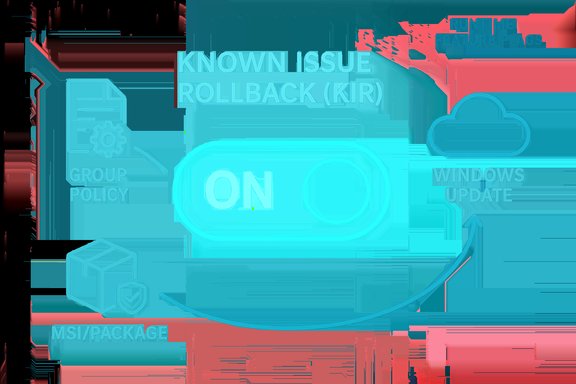
KIR activation flows differ by device management category:- Enterprise-managed devices: Microsoft publishes a Group Policy template (distributed as an MSI) that IT administrators deploy into their Group Policy infrastructure. The template exposes a setting that, when applied and followed by a restart, causes the device to disable the specified change.
- Retail/consumer devices: Microsoft delivers the KIR configuration through the Windows Update cloud. The configuration is pushed as a nonsecurity update-style change; affected devices receive it and apply it—typically within 24 hours—often requiring a restart to complete activation.
Scope: non‑security updates only
A fundamental and intentional limitation of KIR is that it applies only to non‑security updates. Microsoft’s rationale is straightforward: rolling back code that contains a security fix could reintroduce vulnerabilities. KIR is therefore a tool for preserving functionality and productivity while security fixes remain installed and intact.Temporary and lifecycle behavior
KIR entries have a limited lifespan. Once Microsoft issues a follow‑on update that incorporates a true fix for the underlying regression, the KIR configuration becomes unnecessary and benign. Administrators can remove the Group Policy template, but if they do not, the setting simply has no effect once the code path has been corrected in a subsequent update.Enterprise activation: what IT admins need to know
How Group Policy templates are provided
When Microsoft decides a KIR is needed for enterprise environments, it builds a policy definition MSI targeted at specific Windows versions and KB updates. The MSI installs Administrative Template files under the Group Policy definitions folder. Each KIR package is tailored to the KB and Windows build(s) affected; administrators must select the MSI that matches their OS build.Typical deployment steps
- Download the KIR Group Policy MSI that matches the affected Windows version and KB identifier.
- Install the MSI on the management workstation used for Group Policy administration (this places ADMX/ADML files into PolicyDefinitions).
- Create or edit a Group Policy Object (GPO) that targets the impacted computers.
- Enable the KIR policy setting for the specific KB/issue in the GPO.
- Link the GPO and optionally use WMI filters to scope it precisely.
- Force policy refreshes or wait for standard group policy propagation (90–120 minutes typical), then ensure affected machines restart.
Monitoring and cleanup
- After deployment, monitor device health and targeted telemetry to confirm the rollback restored the intended behavior.
- Once the permanent fix arrives in a later update, the KIR policy becomes inert; administrators can remove the templates, but doing so is optional because the setting no longer affects behavior after remediation.
Consumer activation: the cloud flip
For unmanaged or retail devices, Microsoft treats KIR activation as a Windows Update configuration change. The company publishes the KIR configuration to its update infrastructure, notifies devices, and within an operational window (Microsoft states within 24 hours), affected devices receive and apply the change. Users can expedite the effect by rebooting after receiving the KIR payload.This cloud‑driven approach is what lets Microsoft stop bad changes before they impact a large proportion of devices—if identification and mitigation happen during staged rollout windows, most end users may never notice the problematic update at all.
Strengths: why KIR matters
- Surgical mitigation: KIR targets only the broken change, allowing security updates and unrelated fixes to remain installed and active.
- Faster remediation for users: Consumer devices can receive an automatic remediation within 24 hours; enterprise devices can be remediated via quick policy deployment.
- Lower operational cost: Administrators don’t need to orchestrate mass uninstall campaigns, roll back images, or accept prolonged downtime.
- Granularity for mixed environments: Per‑KB and per‑OS version KIR templates let organizations apply mitigations only where needed.
- Reduces risk of security exposure: By avoiding full uninstall rollbacks, KIR helps preserve recent security fixes even while correcting regressions.
Limitations and risks: where KIR can fall short
Not a substitute for proper fixes
KIR is intentionally temporary. It conceals the regression by restoring prior behavior, but it does not diagnose or repair the root cause. Long‑term reliance on KIR to preserve operations risks masking systemic problems that require engineering fixes.Limited to non‑security changes
Because KIR does not apply to security updates, administrators dealing with regressions in security fixes have no KIR escape hatch. That policy protects users from reintroduced vulnerabilities but creates difficult trade‑offs when a security patch also causes functional regressions.Complexity and fragmentation in enterprises
- KIR templates are version- and KB-specific. Administrators must ensure they install the correct MSI for the precise OS build, or the policy will not match devices.
- In large, heterogeneous estates, tailoring the KIR scope via WMI filters and GPO links can be operationally heavy.
- Misconfiguration or deploying the wrong KIR can result in inconsistent behavior across the fleet.
Possible masking of OEM/driver bugs
Some regressions are caused by interactions between Windows changes and third‑party drivers or OEM firmware. Applying a KIR may hide the symptom without addressing upstream compatibility problems with vendors. That can leave systems vulnerable to future regressions when OEM drivers are updated or when new hardware arrives.Telemetry and diagnostics dependency
KIR activation decisions—particularly on the service side—rely on diagnostic data and root cause analysis. Organizations that limit telemetry may reduce Microsoft’s ability to detect regressions early, which can delay KIR delivery to consumer devices. Conversely, telemetry use raises privacy concerns for some environments.Edge cases: not every change can be toggled
KIR depends on changes being implemented with runtime flags or toggles. Some kinds of fixes are not amenable to such toggles—especially low‑level binary changes or architectural refactors. For those changes, the only remedies remain uninstall, delay, or a new patch.Real‑world patterns and examples
- Large rollout windows: Microsoft’s staged rollout process gives the company a critical window to detect regressions. Often a KIR can be published before a faulty update reaches the majority of devices.
- Printer and USB regressions: In recent years there have been several high‑visibility incidents where printing behavior regressed after a non‑security update. KIR was used to revert the specific print‑path modification while preserving the rest of the update.
- Network and connectivity regressions: Wi‑Fi and remote desktop regressions that only affected certain drivers or network stacks were often mitigated by KIR toggles targeted at those code paths.
- Boot and BitLocker edge cases: When updates touch pre‑boot and encryption components, regressions can be disruptive. KIR cannot affect security bits, but it can revert nonsecurity helper behavior to reduce recovery scenarios in many cases.
Practical advice: how to use KIR responsibly
For IT administrators
- Inventory and mapping: Maintain a mapping of Windows builds and deployed KBs in your estate. KIR templates are build-specific; accurate inventory is critical.
- Rapid test and scope: When a KIR MSI is available, test it on a pilot group and use precise WMI filters to avoid blanket application.
- Communicate: Notify affected stakeholders about KIR deployment, expected restarts, and monitoring windows. Even though KIR is less disruptive than uninstalling updates, restarts may still be required.
- Log and monitor: After applying KIR, watch service health, telemetry, and user reports to confirm mitigation effectiveness.
- Clean up: Once the permanent fix is released, remove KIR templates as part of configuration hygiene—even though they are typically inert after the fix.
For vendors and ISVs
- Implement feature flags where practical: Building changes with runtime toggles makes them KIR‑friendly and reduces outage risk.
- Test against staged Windows updates: Use preproduction rings and validation labs to catch interactions between platform changes and your drivers or services.
- Coordinate with Microsoft: When an update affects third‑party components, early collaboration can help build targeted KIR mitigations and speed permanent repairs.
Operational checklist: deploying a KIR (high level)
- Identify the impacted OS builds and KB IDs.
- Download the matching KIR Group Policy MSI from the official distribution location.
- Install the MSI on your Group Policy management system.
- Create a GPO and configure the KIR ADM/ADMX setting.
- Scope the GPO with WMI filters if necessary.
- Link the GPO to the target OU and force a policy update or wait for normal propagation.
- Ensure affected machines restart to apply the rollback.
- Monitor systems and remove the KIR after the updated patch is released.
Governance, compliance, and security considerations
- KIR keeps security fixes installed, which helps maintain compliance posture—an important advantage over uninstalling entire updates.
- Ensure change control and documentation when applying KIRs. Because KIR adjusts runtime behavior, auditors will want to see rationale, scope, and removal plans.
- Maintain a clear timeline: KIRs are intended as short‑duration mitigations. Track the KIR lifecycle, and plan for the eventual restoration to the permanent fixed state.
What KIR does not solve
- KIR does not repair underlying code defects. It restores prior behavior but does not replace the engineering work required to resolve the bug.
- KIR is not a universal tool for security regressions. If a security patch causes functional issues, KIR cannot be used to revert the security fix.
- KIR cannot retroactively change update binaries; it controls runtime behavior only when code has been designed to support it.
Final analysis: pragmatic power with caveats
Known Issue Rollback is one of the most pragmatic additions to the Windows servicing toolset in recent years. It recognizes a simple truth of modern software delivery: even carefully tested fixes can cause regressions in the real world. By enabling Microsoft to flip a configuration and restore prior behavior, KIR reduces the blast radius of problematic updates and keeps both security and productivity intact.That said, KIR is a mitigation mechanism—not a panacea. Overreliance on KIR creates a risk that engineering teams delay delivering robust fixes. Enterprises must treat KIR as part of a broader resilience strategy: combine rapid mitigation with thorough investigation, patch validation, and vendor coordination. Administrators should also be mindful of the operational particulars—matching MSIs to exact builds, scoping Group Policy correctly, and tracking KIR lifecycle—to avoid creating management complexity of their own.
In short, KIR is a practical safety net that, when used deliberately and in coordination with change control and vendor engagement, substantially reduces the pain of update regressions. It restores a workable balance between delivering security fixes and preserving operational continuity—but it depends on disciplined use, visibility into the environment, and a commitment to delivering permanent fixes as soon as possible.
Source: Neowin Microsoft explains the magic behind Windows Known Issue Rollback (KIR)
