

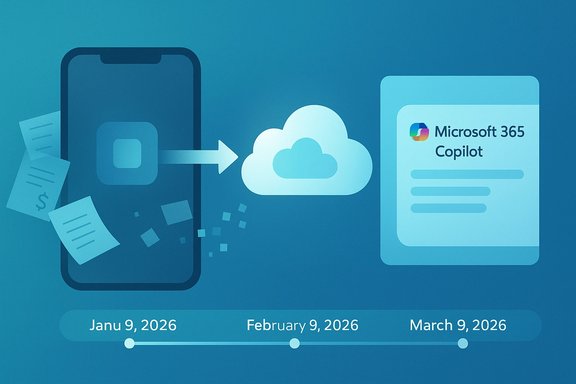
Microsoft’s quietly staged euthanasia of Microsoft Lens — the compact, dependable mobile document scanner that many Windows and Office users relied on for quick scans and OCR — landed this week with concrete dates: the app entered a formal retired state on January 9, 2026; it will be removed from the Apple App Store and Google Play Store on February 9, 2026; and its scanning capabilities will cease when Microsoft turns off the underlying services on March 9, 2026. These changes force users to choose between migrating to Microsoft’s cloud-first alternatives (OneDrive and Microsoft 365 Copilot), exporting and backing up existing scans, or switching to third‑party scanning apps — and they underline a broader shift inside Microsoft from smaller, single-purpose mobile utilities to consolidated, AI‑led platforms.
Microsoft Lens (formerly Office Lens) has been a simple, high‑quality mobile document scanner for more than a decade. It made capturing paper receipts, whiteboards, business cards, and printed or handwritten notes effortless on iOS and Android devices, and it integrated with Office apps for OCR, Immersive Reader, and export to Word, PDF, PowerPoint, and OneNote.
Now, Microsoft is formally retiring the standalone Lens mobile app and folding its capabilities into other Microsoft properties. The company’s official support guidance points users to OneDrive’s built‑in scanner or to the Microsoft 365 Copilot app as the recommended alternatives; it notes that OneDrive’s scan feature saves files to the cloud by default and does not provide the same local‑save convenience Lens once offered. Microsoft’s notice also warns that access to previously created scans requires that you remain signed into the last active account used in Lens.
From a product strategy perspective, there are clear advantages:
If you are a power user, teacher, or IT admin who values predictability, the prudent immediate responses are simple:
The immediate, verifiable facts — Lens moving to retired status on January 9, 2026, removal from app stores on February 9, 2026, and the backend shutdown preventing new scans on March 9, 2026 — should guide planning and backups. Back up your scans, confirm your account is current, and try OneDrive and Copilot scanning workflows soon to discover whether they meet your needs or whether a different app is the better long‑term home for your mobile scanning.
Source: Windows Latest Microsoft Lens just retired on iOS and Android, stops working March 9, as the company wants to focus on Copilot
 Overview
Microsoft Lens (formerly Office Lens) has been a simple, high‑quality mobile document scanner for more than a decade. It made capturing paper receipts, whiteboards, business cards, and printed or handwritten notes effortless on iOS and Android devices, and it integrated with Office apps for OCR, Immersive Reader, and export to Word, PDF, PowerPoint, and OneNote.Now, Microsoft is formally retiring the standalone Lens mobile app and folding its capabilities into other Microsoft properties. The company’s official support guidance points users to OneDrive’s built‑in scanner or to the Microsoft 365 Copilot app as the recommended alternatives; it notes that OneDrive’s scan feature saves files to the cloud by default and does not provide the same local‑save convenience Lens once offered. Microsoft’s notice also warns that access to previously created scans requires that you remain signed into the last active account used in Lens.
Background: timeline and messaging
Microsoft’s public timeline for Lens has shifted in coverage and reporting over the past months. Multiple tech outlets reported earlier announcements and phase‑out schedules in 2025, and Microsoft’s formal support page now lists the January–March 2026 timeline that governs final removal, store delisting, and service cutoff. That mismatch between early coverage and the official support entry is typical for multi‑stage retirements and product consolidations, but it’s important for users to rely on the company’s support notice for the authoritative dates and migration guidance. Key dates you need to know:- January 9, 2026: Microsoft Lens enters retired status for iOS and Android. The app will receive no future updates.
- February 9, 2026: Microsoft will begin removing the app listing from the Apple App Store and Google Play Store. If you need the app after that date, it must already be installed on your device before removal.
- March 9, 2026: Microsoft will disable the backend services that power new scanning in Lens. After this cutoff, the app will not create new scans. Existing scans may still be viewable if the app remains installed and you’re signed into the same account.
What’s changing for users and organizations
The user experience: from local convenience to cloud default
Microsoft Lens offered flexible outputs: you could save scans to OneDrive, OneNote, Word, or directly to local storage (camera roll or device folders) depending on your preferences. The OneDrive scanning alternative — the successor Microsoft is recommending — saves scans to OneDrive by default and does not provide a one‑tap “save to local device” option. That means users who relied on Lens to keep quick local copies will need to adjust workflows, either by manually downloading files from OneDrive to local storage or by choosing a third‑party scanner that supports local saving. One immediate implication: offline scanning and usage that depended on local storage will be less convenient. Because OneDrive routes scanned images to the cloud, users who require immediate local access (for example field workers without consistent data connectivity or teams that need local archiving) must either change habits or keep an installed copy of Lens until the March 9 cutoff.Data access and account dependency
Microsoft’s support guidance is explicit: to access past scans retained in the Lens app after the retirement phase begins, you must remain signed into your last active Microsoft account on the app. If you uninstall the app after the retirement phase or you lose access to the account, your stored scans in the Lens app may become inaccessible. That sign‑in requirement creates a narrow set of risk scenarios for users who share devices or change accounts. Backing up scans right away is the prudent move.Enterprise and admin considerations
For organizations using Lens at scale — schools, small businesses, field teams, and legacy workflows — the retirement means administrators must plan for:- Retrieving and archiving stored scans from devices or user OneDrive accounts.
- Adjusting mobile device management (MDM) policies that used Lens as part of a documented process.
- Reviewing compliance and retention policies to ensure scanned records meet regulatory requirements when they are hosted in OneDrive rather than locally or in on‑prem repositories.
The alternatives: OneDrive and Microsoft 365 Copilot (and others)
Microsoft recommends two replacements: the OneDrive mobile app’s scanner and the Microsoft 365 Copilot app. Each has tradeoffs.- OneDrive scanning: built into the OneDrive mobile app (tap + → Scan). It produces clean scanned documents and saves them to your OneDrive folders automatically. However, it saves to cloud storage only — you cannot save scans directly to local device storage via OneDrive’s scanner. You can manually download files from OneDrive later. This is Microsoft’s official migration path.
- Microsoft 365 Copilot app: includes scanning capabilities and is Microsoft’s broader AI‑driven productivity platform, where scanning is integrated with Copilot workflows. Copilot is being positioned as the strategic place for continuing investment, but early coverage indicates feature parity is not yet exact: Copilot lacks some Lens‑specific conveniences (business card scanning, certain Immersive Reader integrations, and some export nuances) at launch. Users should evaluate Copilot’s scanning quality and features against their needs before assuming it is a one‑for‑one replacement.
Feature parity and functionality loss
A central complaint among users of the Lens retirement is the loss of certain small but meaningful features. Independent reporting and early hands‑on coverage identify gaps between Lens and the suggested Copilot/OneDrive replacements:- Business card scanning and structured contact extraction — a Lens specialty — is not fully available in Copilot’s then‑current scanning workflow.
- Immersive Reader and read‑aloud integration (useful for accessibility and education) was a prominent part of the Office Lens/OneNote pipeline and may behave differently inside the consolidated apps. Historically, Lens paired with Azure/Immersive features for richer output; how and when those experiences appear in Copilot will vary by app updates.
- Direct exports to Word, PowerPoint, OneNote and local device folders were convenient in Lens; the OneDrive flow emphasizes cloud saving, and Copilot’s export workflows focus on AI augmentation rather than simple file output. Users who made workflow scripts around Lens will need to adapt.
The cloud question: will Lens stop working because Microsoft turns off a server?
Many reports note that Lens relies on cloud services (OCR and processing layers tied to Microsoft’s backend), so when Microsoft disables those services the app’s core functionality will stop working. Microsoft’s retirement notice implies such service dependency by setting a hard shutdown date for scanning capabilities, and historical product architecture demonstrates that OCR and advanced image processing in Microsoft’s mobile apps often rely on Azure Cognitive Services. However, the exact operational split between local on‑device processing and cloud processing for every feature in Lens is not published in granular detail, so while it is reasonable to expect the app to require server connectivity for some features, the precise internal implementation is not publicly documented. Users should therefore plan on the app losing scanning functionality when the backend service is shut down rather than assuming local modes will continue to function. Caution: any claim about which exact engine (on‑device vs. Azure cloud Read API) performs each step should be treated as an informed inference unless Microsoft supplies a technical breakdown. Where product dependences are business‑critical, assume the worst‑case — that dependent cloud services will be disabled — and export or back up accordingly.Practical migration steps (what to do now)
If you use Microsoft Lens on mobile devices, follow these steps to minimize disruption and preserve your scans.- Install or verify the app on your device before February 9, 2026, if you intend to keep using Lens until the service cutoff. Microsoft will remove Lens from app stores starting February 9, 2026.
- Open Lens and confirm you are signed into the account you last used with the app. Only the last active signed‑in account can access previously saved scans after retirement phases begin.
- Export or back up important scans now:
- Upload the scans to your cloud storage (OneDrive, Google Drive) or copy them to a local computer.
- Export scans as PDFs, Word files, or images depending on how you use them.
- For enterprise users, collect scans into managed OneDrive or SharePoint locations that enforce retention policies.
- Validate new workflows:
- If you will use OneDrive’s scanner, test how scanning, OCR, and export behave, and confirm whether you need to manually download scans for local use.
- If you adopt Microsoft 365 Copilot, test the scanning and AI‑assisted workflows and note any missing features you rely on today.
- Replace Lens in documentation and training materials, and communicate the change and deadlines to colleagues, students, and stakeholders.
- Identify devices with Lens installed.
- Require immediate export of records if needed for compliance.
- Configure MDM to prevent accidental app uninstalls before March 9, 2026.
- Update help desk scripts and training materials.
Risks, privacy and compliance considerations
Consolidating scanning into OneDrive and Copilot moves more image data into Microsoft’s cloud by default. That has both operational and compliance ramifications.- Data residency and retention: Files saved to OneDrive are subject to tenant and Microsoft 365 retention, region, and compliance settings. For organizations bound by data residency rules, ensure OneDrive storage location and retention policies meet those requirements.
- Access control: The OneDrive model centralizes storage under Microsoft accounts; user access depends on account permissions. Losing access to the signing account may make historical Lens scans inaccessible. Back up critical assets using an admin‑controlled destination.
- Security posture: Storing sensitive scans (IDs, receipts, contracts) in OneDrive is functionally secure if enterprise controls are used, but moving from local to cloud storage changes the threat model. Organizations should apply conditional access, MFA, DLP, and encryption policies where appropriate.
Why Microsoft is making this move: strategic consolidation into AI and Copilot
Microsoft’s public message is straightforward: the company is consolidating effort into fewer, higher‑leverage products where it will invest — namely, OneDrive and Microsoft 365 Copilot. This reflects a larger industry trend: maintaining a long tail of single‑purpose utilities is costlier as development teams focus on AI‑driven platforms that combine multiple features, data integration, and the ability to monetise value through subscriptions and enterprise licenses.From a product strategy perspective, there are clear advantages:
- Easier cross‑feature innovation when scanning is native to OneDrive/Copilot.
- Centralised data stores that enable richer AI experiences (contextual summarization, search, and workflow automation).
- Reduced fragmentation of feature sets across multiple small apps.
The long view: what the Lens shutdown means for Windows users
The retirement of Microsoft Lens is a small but instructive example of how big platform companies are re‑architecting mobile productivity. For Windows users and Office customers, this event signals a broader consolidation around cloud‑first, AI‑enabled workflows. That will produce benefits in the long run — tighter integrations with Copilot, better automated extraction, and improved search inside OneDrive — but it also breeds short‑term pain: broken workflows, lost conveniences, and an increased reliance on cloud service availability and account continuity.If you are a power user, teacher, or IT admin who values predictability, the prudent immediate responses are simple:
- Back up your documents.
- Test the OneDrive and Copilot scanning flows now.
- Prepare alternate local‑first scanning strategies if you must have offline access.
Conclusion
Microsoft Lens’s retirement is symptomatic of a broader product strategy: consolidate, centralize, and invest in AI platforms rather than maintain a broad set of single‑purpose utilities. The shift will likely produce richer, more integrated scanning and productivity experiences in OneDrive and Microsoft 365 Copilot over time, but for now it creates a narrow transition window and several practical challenges for users who rely on Lens’s local‑save convenience, accessibility features, or particular export pathways.The immediate, verifiable facts — Lens moving to retired status on January 9, 2026, removal from app stores on February 9, 2026, and the backend shutdown preventing new scans on March 9, 2026 — should guide planning and backups. Back up your scans, confirm your account is current, and try OneDrive and Copilot scanning workflows soon to discover whether they meet your needs or whether a different app is the better long‑term home for your mobile scanning.
Source: Windows Latest Microsoft Lens just retired on iOS and Android, stops working March 9, as the company wants to focus on Copilot
