

Microsoft’s software for macOS has quietly matured from rough ports into a first‑class, often native experience — and for Mac users who need cross‑platform muscle, that matters. What started as Word and Excel running in compatibility mode is now a full productivity ecosystem: Microsoft 365 on macOS supports system Dark Mode, Continuity Camera and other macOS features; OneDrive tightly integrates into Finder with Files On‑Demand; OneNote and Outlook offer robust cross‑device sync; Edge brings a Chromium engine with unique organizational tools; and Copilot — Microsoft’s AI assistant — has a native macOS app with clear hardware and OS requirements. This roundup verifies those claims, explains where Microsoft shines on the Mac, flags a few marketing‑driven simplifications, and gives practical guidance for Mac users deciding which Microsoft apps to adopt.
Microsoft and Apple went from antagonists to partners in the Mac era, and that shift shows in real product work. Microsoft now ships Mac‑optimized builds of its core productivity apps, and it’s pushing cloud and AI features into macOS in ways that emphasize parity with Windows and native macOS behavior. The result for many users is the ability to run professional workflows on a Mac without sacrificing features or corporate compatibility.
At the same time, some phrasing in roundups and promotional copy — for example, that Microsoft provides a single “unified Office application available for Mac” — needs precision. Microsoft has shipped a true unified Office app primarily on mobile platforms (iPhone and iPad), while macOS users still typically run the dedicated Word, Excel, PowerPoint, and Outlook applications (though Microsoft has added desktop widgets and a unified Office hub in some channels). That distinction is important for readers who expect a single desktop binary to replace the traditional Mac apps. The mobile “Office” consolidation is documented in Microsoft’s mobile history and reporting.
Microsoft tools for macOS now offer both the polish Mac users expect and the enterprise power many workplaces require — provided you verify hardware and OS requirements, especially for AI features like Copilot. For those balancing macOS ease with cross‑platform work, this Microsoft suite checklist and the verification details above will help you install, test, and roll out the right apps for your needs.
Source: The Mac Observer 6 Best Microsoft Software for Mac Users
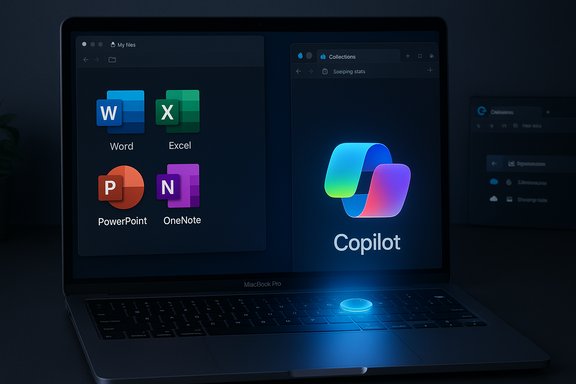 Background / Overview
Microsoft and Apple went from antagonists to partners in the Mac era, and that shift shows in real product work. Microsoft now ships Mac‑optimized builds of its core productivity apps, and it’s pushing cloud and AI features into macOS in ways that emphasize parity with Windows and native macOS behavior. The result for many users is the ability to run professional workflows on a Mac without sacrificing features or corporate compatibility.At the same time, some phrasing in roundups and promotional copy — for example, that Microsoft provides a single “unified Office application available for Mac” — needs precision. Microsoft has shipped a true unified Office app primarily on mobile platforms (iPhone and iPad), while macOS users still typically run the dedicated Word, Excel, PowerPoint, and Outlook applications (though Microsoft has added desktop widgets and a unified Office hub in some channels). That distinction is important for readers who expect a single desktop binary to replace the traditional Mac apps. The mobile “Office” consolidation is documented in Microsoft’s mobile history and reporting.
1) Microsoft 365 / Office for Mac — the core productivity suite
What’s actually included and how it behaves on macOS
Microsoft 365 remains the canonical productivity option for mixed‑platform teams. On macOS you get full versions of:- Word — documents with modern editing, referencing and collaboration features
- Excel — advanced spreadsheets and pivot tools
- PowerPoint — full presenter and design features
- Outlook — mail, calendar and scheduling
- OneNote — notebooks and research capture (covered separately)
- plus OneDrive and Teams integrations when you subscribe
The “unified Office app” claim — nuance required
Some guides suggest you can access everything through a single “Office” app on macOS. That unified app has been a real product on iPhone and iPad (combining Word, Excel and PowerPoint into one mobile app), but on macOS the core desktop apps remain separate for full feature parity and performance. Mac users should expect a launcher/hub and cross‑app integration, not a single monolithic app that replaces Word/Excel/PowerPoint on the desktop. The mobile unified Office app story and the desktop reality have both been documented in coverage of Microsoft’s product line.Why Microsoft 365 often wins on Mac for professionals
- Deep compatibility with enterprise file formats, macros and collaboration tools.
- Manageability for IT (Azure AD, Intune, Exchange support).
- Regular feature updates via Microsoft 365 versus the slower cadence of one‑time purchases.
- Native macOS polish: Dark Mode, Continuity Camera, and other system integrations reduce cognitive context switching.
2) Microsoft OneNote — flexible note capture with cross‑platform sync
What it does well for Mac users
OneNote is a free, free‑form notebook app that mixes typed notes, ink (on iPad/mac with Apple Pencil), audio, screen clippings and attachments. For Mac users who research or plan across devices, OneNote’s searchable notebooks and cloud sync are indispensable: notebooks sync via OneDrive and are accessible across Windows, macOS, iOS and the web. Microsoft’s OneNote FAQ explicitly documents OneNote’s continuous sync with OneDrive and offline caching behavior.Strengths and practical uses
- Research and reference: store web clips and PDF excerpts in organized notebooks.
- Cross‑device continuity: edits on iPad, Mac, Windows and web sync almost instantly.
- Free tier availability: OneNote is available without a Microsoft 365 subscription for basic usage, which lowers the barrier to entry.
Caveats and limitations
- Feature parity across platforms varies; some advanced Windows‑only OneNote features historically exist.
- IT‑managed notebooks require careful OneDrive/SharePoint configuration for large teams.
3) Microsoft OneDrive — Finder integration and Files On‑Demand
How OneDrive integrates with macOS
OneDrive is Microsoft’s cloud storage with a macOS client that integrates into Finder through Finder extensions and overlays. The Files On‑Demand feature (available on macOS 10.14 and later) shows all your OneDrive files in Finder without downloading them until you open them, saving local disk space. Microsoft’s support documentation lays out Files On‑Demand behavior, requirements, and how Finder shows file status (cloud vs. local).Why this matters to Mac users
- Files appear and behave like local files in Finder, making cloud‑backed workflows intuitive.
- Automatic sync and OneDrive integration reduce the need to constantly transfer files between Mac and other devices.
- Enterprise features (SharePoint, Teams‑backed libraries) can be surfaced through the OneDrive client.
Practical tips
- Turn on Finder integration via System Settings > Extensions to enable overlays.
- Use Files On‑Demand to mark large archives as “online‑only” and only fetch what you need.
4) Microsoft Edge — a fast, Chromium‑based alternative on macOS
Features Mac users care about
Edge on Mac is the Chromium engine with Microsoft‑specific features that bite into productivity and privacy: Collections, Sleeping Tabs, Vertical Tabs, built‑in Immersive Reader, and tracking prevention. Microsoft’s Edge Learning Center lists these organizer features and how to use them, while independent tech outlets have documented resource‑saving tools like Sleeping Tabs. Edge also positions itself as a privacy‑conscious alternative to Chrome with built‑in tracking prevention settings.Why choose Edge over Safari or Chrome?
- Collections are handy for research or shopping — save snippets, images and links into a sharable board.
- Sleeping Tabs reduces CPU and memory impact, improving battery life on laptops.
- Seamless integration with Microsoft services (Favorites, Collections export to Word/OneNote, password health) benefits users who live in the Microsoft 365 ecosystem.
Trade‑offs
- Some users prefer Safari for system battery optimizations and tighter Apple ecosystem privacy features.
- Edge follows Chromium’s extension model and recent Chromium shifts (e.g., Manifest V3) have raised debate among privacy and extension communities.
5) Microsoft Copilot — macOS app brings AI to the desktop (verified specs)
What Copilot does on macOS
Copilot is Microsoft’s generative AI assistant across Microsoft 365 apps and now as a native macOS app. The macOS Copilot app supports file uploads, image generation (DALL·E integration in Microsoft’s ecosystem), voice interactions and a “Think Deeper” mode for complex problem solving. Multiple independent outlets confirm the native macOS release and list its requirements: macOS 14 (Sonoma) or later, and Apple Silicon (M1 or later) — Intel Macs are not supported by the native Copilot app. These technical requirements are consistent across independent reporting and Microsoft’s distribution in the Mac App Store.Why this is a major step for Mac users
- A native Copilot app reduces context switching between browser tabs and desktop workflows, and offers a system‑level shortcut/launcher to invoke the AI quickly.
- Copilot’s availability on macOS aligns Microsoft’s AI ambitions with Apple hardware, and Microsoft has made features like Voice and Think Deeper broadly available for users.
Requirements and practical considerations (explicitly verified)
- macOS 14.0 or later (Sonoma).
- Apple Silicon: M1 chip or later (Intel Macs are not supported by the native app release).
- Copilot has both free and paid tiers; Copilot Pro adds access to the latest AI models at Microsoft’s published price points for Pro tiers. Independent coverage and Microsoft app store notes reflect this tiering.
Risks and limitations
- Privacy and data governance: enterprise admins should validate Copilot’s handling of tenant data and compliance options before broad rollout.
- Hardware limit: Intel Mac users will need to use Copilot via the web or other non‑native routes until Microsoft expands support.
- Over‑reliance on AI outputs without human verification is a general risk; Copilot can accelerate drafting and summarization but should not be treated as infallible.
6) Microsoft Outlook for Mac — email, calendar and scheduling in one app
The modern Outlook experience on macOS
Outlook for Mac bundles email, calendar and tasks into a single app that supports major account types (Exchange, Microsoft 365, Gmail, IMAP). Microsoft has modernized the Outlook interface for macOS, and in recent years Microsoft made the redesigned Outlook app available without an active Microsoft 365 subscription for core features. Independent coverage documented Outlook’s broader free availability on Mac and the app’s continuing improvements for calendar and mail management.Why professionals pick Outlook on Mac
- Integration with Exchange and Microsoft scheduling features (room mailboxes, delegation).
- Tight calendar/email fusion for high‑volume scheduling.
- Consistent behavior across Windows and Mac for enterprise deployments.
Caveats
- Some niche Exchange administrative features or add‑ins may still favor Windows clients.
- Feature parity is improving but can lag slightly behind Windows in carrier or admin‑specific areas.
A short practical checklist: which Microsoft apps should a Mac user install first?
- Microsoft 365 (Word, Excel, PowerPoint) — if you need full compatibility and advanced features.
- OneDrive — for Finder integration and Files On‑Demand to avoid local storage bloat.
- Outlook — if you manage corporate email and calendars via Exchange or Microsoft 365.
- Edge — if you want Microsoft‑centric browsing features like Collections and Sleeping Tabs.
- Copilot (native macOS app) — for AI‑assisted drafting, summarization and research (requires M1+ and macOS 14+).
- OneNote — for freeform note capture and cross‑device sync.
Strengths: why Microsoft software is compelling on the Mac
- Cross‑platform parity with enterprise features: Microsoft keeps the feature set robust so Mac users in corporate environments aren’t second‑class citizens.
- Native macOS integrations: Dark Mode, Continuity Camera, Finder integration and other macOS features make the apps feel polished.
- Cloud and AI enhancements: OneDrive + Microsoft 365 + Copilot compose a modern workflow that reduces manual work and speeds insight.
- Choice of deployment models: subscription (Microsoft 365) or perpetual licenses (Office one‑time purchases) let organizations choose what fits. Recent reporting on Office 2024 and one‑time licensing options documents Microsoft’s continued support for both models.
Risks, gotchas and things to verify before adopting
- Hardware requirements for Copilot. The native Copilot macOS app requires Apple Silicon and Sonoma (macOS 14). Intel Mac owners must use Copilot in browser contexts or wait for expanded support. This is explicitly documented in macOS app announcements and third‑party reporting.
- Unified Office messaging can be misleading. The “Office app” consolidation is real for mobile; desktop macOS users still rely on separate, fully featured apps. Don’t assume the mobile “one app” experience maps 1:1 to macOS.
- Data governance with Copilot. Organizations must evaluate how Copilot handles sensitive content and confirm admin controls and contractual safeguards before broad enterprise rollout.
- Extension and privacy shifts in Chromium. Edge runs on Chromium; changes to Chromium extension handling and Manifest V3 transitions can affect power users who depend on specific extensions.
- Feature parity nuances. While core functions are near parity, tiny interaction differences across macOS and Windows versions (especially in legacy features) occasionally crop up — test mission‑critical macros, add‑ins and integrations before migrating heavy workloads.
Deep dive: verifying the key platform claims
- Claim: Office apps on Mac support Dark Mode and Continuity Camera. Verification: Microsoft and multiple outlets documented Dark Mode and Continuity Camera support in Office for macOS releases.
- Claim: OneDrive integrates into Finder and supports Files On‑Demand. Verification: Microsoft Support describes Files On‑Demand for Mac, Finder overlays, and the macOS version requirements.
- Claim: Copilot has a native macOS app and requires macOS 14 + M1 or later. Verification: Multiple independent tech outlets plus Microsoft App Store notes confirm system requirements and native macOS rollout.
- Claim: Edge is a strong alternative with Collections and privacy features. Verification: Microsoft’s Edge Learning Center and coverage by Ars Technica/TechRepublic document Collections, Sleeping Tabs and privacy controls.
Final verdict: the best Microsoft software mix for Mac users (concise)
- For everyday productivity and compatibility: Microsoft 365 (Word, Excel, PowerPoint) on Mac gives the smoothest cross‑platform experience.
- For synced notes and research: OneNote is the best free‑to‑start notebook for multi‑device use.
- For cloud storage that behaves like local files: OneDrive with Finder integration and Files On‑Demand.
- For browsing with organizational features and Microsoft integrations: Microsoft Edge.
- For AI assistance and generative workflows: Copilot (native macOS app) — only on Apple Silicon with macOS 14+.
- For professional mail and scheduling: Outlook for Mac.
Microsoft tools for macOS now offer both the polish Mac users expect and the enterprise power many workplaces require — provided you verify hardware and OS requirements, especially for AI features like Copilot. For those balancing macOS ease with cross‑platform work, this Microsoft suite checklist and the verification details above will help you install, test, and roll out the right apps for your needs.
Source: The Mac Observer 6 Best Microsoft Software for Mac Users
