

Microsoft added Microsoft Planner “Local Custom Fields/Columns” to the Microsoft 365 Roadmap on July 1, 2026, listing it as an in-development worldwide feature for desktop, Mac, and web clients, with general availability currently targeted for October 2026. The feature sounds small because it is framed as fields and columns, the sort of plumbing most users only notice when it is missing. But for Planner, this is a larger statement about where Microsoft wants everyday work management to live. If the company gets it right, Planner becomes less of a lightweight task board and more of a credible operational workspace for teams that have been living uneasily between Planner, Lists, Excel, Project, and third-party tools.
Planner has long been easy to explain and hard to stretch. It gives teams buckets, assignments, due dates, checklists, labels, comments, files, and a board that maps cleanly onto the way many people think about work. That simplicity is its appeal, but it has also been its ceiling.
The new roadmap item changes that equation by bringing custom local fields and columns to plans. Microsoft says users will be able to add Text, Number, Date, Yes/No, and Choice fields, then view and update that data across Board, Grid, and Task details. Sorting, filtering, grouping, and bulk editing are part of the promise, which matters because custom metadata is only useful if it can shape the view of work rather than merely decorate a task card.
That phrase, local custom fields, deserves attention. Microsoft is not describing an enterprise-wide taxonomy managed from a central Project administration console, nor a Dataverse-first customization surface aimed at solution architects. It is describing plan-level customization for teams that need their tasks to carry the vocabulary of their work.
That is a subtle but important move. The modern workplace does not suffer from a shortage of task apps; it suffers from task apps that force teams to translate their process into someone else’s columns. A marketing team wants campaign stage, content type, launch region, and review risk. An IT team wants asset tag, environment, change window, severity, and approval status. A facilities team wants site, vendor, inspection date, cost estimate, and compliance flag. Planner’s default fields are not wrong. They are just generic.
That strategy has given Microsoft enormous reach, but it has also created a strange escalation path. A team begins with Planner because it is approachable. Then the work becomes more structured, and someone asks for an extra field. Suddenly the team is debating whether to move to Microsoft Lists, build a Power App, upgrade to Planner premium, use Project, export to Excel, or buy a dedicated work-management platform.
Custom fields attack that escalation problem at the point where it usually begins. Most teams do not outgrow Planner because they need earned value management or a full critical-path engine. They outgrow it because they need to track one or two pieces of information that Planner does not understand.
This is why the roadmap item is more consequential than its administrative language suggests. Microsoft is not just adding columns. It is trying to keep work inside Planner at the moment when teams would otherwise fork the process into spreadsheets and shadow systems.
Microsoft’s inclusion of Board, Grid, and Task details in the roadmap description suggests it understands that custom fields cannot be trapped in a single view. A field that appears only in a detailed task pane becomes an afterthought. A field that appears in Grid but cannot influence Board views becomes a reporting artifact. A field that can be sorted, filtered, grouped, and bulk edited becomes part of the team’s working model.
That is the dividing line between novelty and usefulness. A “customer tier” field matters if a support manager can group the board by it. A “change risk” field matters if an IT lead can filter high-risk changes before a release window. A “content channel” field matters if a marketing manager can bulk update a campaign backlog without opening every card one by one.
Bulk editing may be the most workmanlike feature in the roadmap item, but it is also one of the most important. Real plans are messy. People create tasks quickly, omit fields, use inconsistent values, and then need to normalize the plan before it becomes useful. Without bulk editing, custom fields become another data-quality chore. With it, they can become a manageable layer of structure.
That creates an obvious question for administrators: who gets this new local custom fields feature, and under what license? The roadmap item simply lists Planner as the product and General Availability as the release ring. It does not, by itself, settle every packaging question. Microsoft’s existing documentation has treated custom fields as an advanced capability associated with premium plans, but the roadmap language here is broad enough that tenants will need to watch the rollout carefully.
This is familiar Microsoft 365 territory. Features often arrive with a clean product label and a messier licensing reality. A capability may appear in the app, but creation, editing, viewing, conversion, or advanced usage may depend on whether the plan is basic or premium and whether the user has the right subscription.
For IT departments, that matters more than the marketing copy. If custom fields are premium-only, the feature becomes a reason to standardize some teams on Planner premium rather than a universal upgrade to Planner. If they land more broadly, Microsoft will have given the base Planner experience a major competitiveness boost. Either way, admins should expect questions from users the moment a teammate sees columns in one plan and not another.
But Microsoft’s more immediate competition is often Microsoft itself. Many organizations already own the pieces needed to build richer tracking systems inside Microsoft 365. Lists offers custom columns, views, filtering, formatting, and integration with Power Platform. Excel remains the universal escape hatch. Project provides more formal planning. Dataverse can underpin serious business applications. SharePoint can be bent into almost anything by a determined administrator with enough patience.
Planner’s problem has been that it sits in the middle of those options. It is easier than Lists, but less structured. Friendlier than Project, but less powerful. More task-focused than Excel, but less flexible. Custom fields narrow that gap without requiring users to leave the Planner mental model.
That is the strategic value for Microsoft. The company does not need Planner to beat every specialist tool feature-for-feature. It needs Planner to be good enough that a team already living in Teams, Outlook, SharePoint, and Microsoft 365 does not create another SaaS island just to track a few extra columns.
Microsoft’s use of local fields suggests this feature is designed for plan-level autonomy rather than centralized schema control. That is sensible for Planner’s audience. It also means governance will be a human process, not merely a technical one.
Admins and team owners should assume that custom fields will sprawl unless they set expectations. Templates, naming conventions, and plan creation guidance will matter. If every department invents its own field names for the same concepts, reporting across plans will remain difficult even if each individual plan becomes more useful.
This is not a reason to reject the feature. It is the ordinary price of giving teams tools that match their work. The mistake would be pretending that local customization automatically produces organizational insight. It produces better local tracking first. Cross-team reporting comes later, and only if the organization does the boring standardization work.
Planner’s Microsoft Graph story has historically been useful for core task and plan operations, but not always equal to the richer surfaces Microsoft exposes in the UI, especially around newer premium capabilities. That gap is familiar across Microsoft 365: the user interface gets a feature, Power Automate gets partial awareness, Graph arrives later, and admins spend the interim building workarounds.
Custom fields will not fully matter to IT unless they can participate in automation. A field named “change window” should be usable in approval flows. A field named “cost estimate” should be available to reporting. A field named “customer impact” should be available to dashboards. If field data is trapped inside Planner’s UI, the feature will still help teams, but it will not become a serious operational substrate.
This is where Microsoft’s roadmap item leaves open the most important implementation detail. The company is promising local fields in the Planner experience, not explicitly promising a complete API, export, governance, or analytics model. Those may come, or they may lag. Until Microsoft is clearer, admins should treat October 2026 as the beginning of the feature’s practical evaluation, not the end of the story.
That is useful, but it raises predictable compliance questions. What data should users put in custom fields? Is it discoverable? Is it retained? Is it covered by existing eDiscovery, retention, and auditing behavior? Does the answer differ between basic plans, premium plans, group-backed plans, personal plans, or plans surfaced through Teams?
Microsoft has documentation around Planner and Microsoft Purview, but coverage varies by plan type and scenario. Organizations that operate under legal hold, regulatory retention, or strict information governance rules should not assume that every new Planner field inherits the same controls they rely on elsewhere.
The safer administrative stance is to treat custom fields as potentially sensitive business data from day one. That means updating guidance before users discover the feature organically. It also means avoiding field templates that invite people to enter regulated data unless the organization has confirmed the compliance posture.
The release ring is listed as General Availability, which implies Microsoft is not advertising a Targeted Release phase in the roadmap entry as presented. Even so, Microsoft 365 rollouts rarely feel instantaneous to users. Some tenants see changes earlier than others, and feature visibility can depend on licensing, client version, admin settings, and service-side rollout waves.
For admins, the practical response is to start preparing in late summer or early fall rather than waiting for October. The work is not technically complex, but it is organizationally consequential. Decide which teams should pilot custom fields, what naming conventions make sense, and whether existing Planner-based workflows should be converted or left alone.
The worst rollout pattern would be unmanaged enthusiasm. Users will see custom columns and begin solving real problems with them. That is good. But six months later, the tenant may contain hundreds of plans with overlapping fields, inconsistent choices, and no path to reporting. A small amount of guidance before launch can prevent a much larger cleanup project afterward.
Lists is a structured data tool that can track work. Planner is a task tool that is becoming more structured. That distinction matters because users experience them differently. Planner starts with assignment, progress, buckets, due dates, and team execution. Lists starts with rows, columns, and views.
The new feature does not erase the boundary. It makes the boundary less painful. A team that needs a task board with a few extra fields can stay in Planner. A team that needs complex list formatting, relational-ish tracking, heavy metadata, or SharePoint-centric governance may still belong in Lists. A team that needs formal scheduling, dependencies, and portfolio reporting may still need Planner premium or Project-style capabilities.
Microsoft’s best outcome is not that Planner replaces Lists. It is that users no longer have to choose Lists merely because Planner cannot hold a “region” or “risk level” field. That is a healthier division of labor.
A good custom fields implementation should feel almost invisible. A plan owner adds a field. The field appears where users expect it. It can be edited inline. It can be filtered and grouped without ceremony. It does not break mobile or Teams experiences. It does not require a licensing scavenger hunt. It does not vanish from exports, automations, or reporting surfaces.
That is harder than it sounds. Cross-client consistency across web, desktop, Mac, Teams, and mobile-adjacent experiences is one of Microsoft 365’s perennial challenges. A feature that works beautifully in the web app but poorly in Teams will generate confusion. A field that appears in Grid but not in the task card will feel half-built. A choice field that cannot be managed cleanly will degrade over time.
The roadmap description is promising because it names the right surfaces: Board, Grid, and Task details. The execution test will be whether those surfaces behave like one product rather than three partial views of the same data.
The preparation does not need to be elaborate. It does need to be deliberate. Teams should decide which fields belong in Planner, which belong in Lists or line-of-business systems, and which should not be captured in task tools at all. Plan owners should be encouraged to reuse field names and choice values where departments share a process.
The organizations that benefit most will be the ones that treat custom fields as a lightweight modeling tool, not as a dumping ground. A few well-chosen fields can transform a plan. A dozen poorly defined fields can make Planner feel like a spreadsheet with worse formulas.
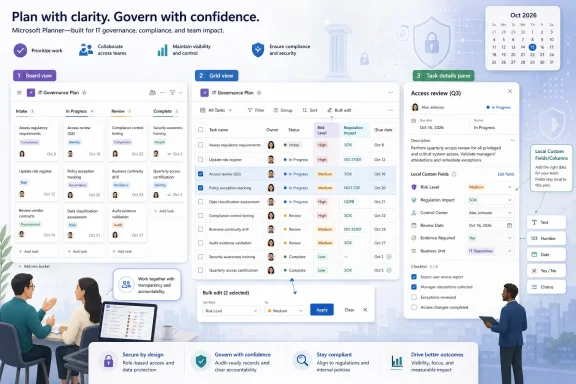 Microsoft Is Giving Planner the Metadata It Always Needed
Planner has long been easy to explain and hard to stretch. It gives teams buckets, assignments, due dates, checklists, labels, comments, files, and a board that maps cleanly onto the way many people think about work. That simplicity is its appeal, but it has also been its ceiling.The new roadmap item changes that equation by bringing custom local fields and columns to plans. Microsoft says users will be able to add Text, Number, Date, Yes/No, and Choice fields, then view and update that data across Board, Grid, and Task details. Sorting, filtering, grouping, and bulk editing are part of the promise, which matters because custom metadata is only useful if it can shape the view of work rather than merely decorate a task card.
That phrase, local custom fields, deserves attention. Microsoft is not describing an enterprise-wide taxonomy managed from a central Project administration console, nor a Dataverse-first customization surface aimed at solution architects. It is describing plan-level customization for teams that need their tasks to carry the vocabulary of their work.
That is a subtle but important move. The modern workplace does not suffer from a shortage of task apps; it suffers from task apps that force teams to translate their process into someone else’s columns. A marketing team wants campaign stage, content type, launch region, and review risk. An IT team wants asset tag, environment, change window, severity, and approval status. A facilities team wants site, vendor, inspection date, cost estimate, and compliance flag. Planner’s default fields are not wrong. They are just generic.
The Old Planner Tradeoff Was Simplicity Versus Seriousness
For years, Microsoft’s task-management stack has felt less like a product family and more like a set of neighboring countries with confusing borders. To Do owns personal tasks. Planner owns team tasks. Lists owns structured tracking. Project, now folded into the broader Planner story, owns formal project management. Teams hosts pieces of all of it, depending on where the user starts.That strategy has given Microsoft enormous reach, but it has also created a strange escalation path. A team begins with Planner because it is approachable. Then the work becomes more structured, and someone asks for an extra field. Suddenly the team is debating whether to move to Microsoft Lists, build a Power App, upgrade to Planner premium, use Project, export to Excel, or buy a dedicated work-management platform.
Custom fields attack that escalation problem at the point where it usually begins. Most teams do not outgrow Planner because they need earned value management or a full critical-path engine. They outgrow it because they need to track one or two pieces of information that Planner does not understand.
This is why the roadmap item is more consequential than its administrative language suggests. Microsoft is not just adding columns. It is trying to keep work inside Planner at the moment when teams would otherwise fork the process into spreadsheets and shadow systems.
Columns Are the Real Interface of Work
The board gets the screenshots, but the grid is where operational truth usually lives. Boards are excellent for flow, ownership, and prioritization. Grids are better for review meetings, cleanup, auditing, bulk correction, and the grim but necessary work of making sure the data is not lying.Microsoft’s inclusion of Board, Grid, and Task details in the roadmap description suggests it understands that custom fields cannot be trapped in a single view. A field that appears only in a detailed task pane becomes an afterthought. A field that appears in Grid but cannot influence Board views becomes a reporting artifact. A field that can be sorted, filtered, grouped, and bulk edited becomes part of the team’s working model.
That is the dividing line between novelty and usefulness. A “customer tier” field matters if a support manager can group the board by it. A “change risk” field matters if an IT lead can filter high-risk changes before a release window. A “content channel” field matters if a marketing manager can bulk update a campaign backlog without opening every card one by one.
Bulk editing may be the most workmanlike feature in the roadmap item, but it is also one of the most important. Real plans are messy. People create tasks quickly, omit fields, use inconsistent values, and then need to normalize the plan before it becomes useful. Without bulk editing, custom fields become another data-quality chore. With it, they can become a manageable layer of structure.
This Is Also a Licensing Story, Whether Microsoft Says So Loudly or Not
Planner’s direction cannot be separated from Microsoft’s larger effort to merge the old Planner experience with Project for the web and premium work-management capabilities. Microsoft has been positioning the “new Planner” as a single place for basic task management and more advanced project work, with premium plans unlocking capabilities such as timeline views, dependencies, goals, sprints, workload views, and custom fields.That creates an obvious question for administrators: who gets this new local custom fields feature, and under what license? The roadmap item simply lists Planner as the product and General Availability as the release ring. It does not, by itself, settle every packaging question. Microsoft’s existing documentation has treated custom fields as an advanced capability associated with premium plans, but the roadmap language here is broad enough that tenants will need to watch the rollout carefully.
This is familiar Microsoft 365 territory. Features often arrive with a clean product label and a messier licensing reality. A capability may appear in the app, but creation, editing, viewing, conversion, or advanced usage may depend on whether the plan is basic or premium and whether the user has the right subscription.
For IT departments, that matters more than the marketing copy. If custom fields are premium-only, the feature becomes a reason to standardize some teams on Planner premium rather than a universal upgrade to Planner. If they land more broadly, Microsoft will have given the base Planner experience a major competitiveness boost. Either way, admins should expect questions from users the moment a teammate sees columns in one plan and not another.
The Competitive Target Is Not Just Trello or Asana
It is tempting to read this feature as Microsoft catching up with standalone work-management tools. That is partly true. Trello, Asana, Monday.com, ClickUp, Smartsheet, Airtable, and countless vertical tools have trained users to expect custom fields as a basic part of structured work.But Microsoft’s more immediate competition is often Microsoft itself. Many organizations already own the pieces needed to build richer tracking systems inside Microsoft 365. Lists offers custom columns, views, filtering, formatting, and integration with Power Platform. Excel remains the universal escape hatch. Project provides more formal planning. Dataverse can underpin serious business applications. SharePoint can be bent into almost anything by a determined administrator with enough patience.
Planner’s problem has been that it sits in the middle of those options. It is easier than Lists, but less structured. Friendlier than Project, but less powerful. More task-focused than Excel, but less flexible. Custom fields narrow that gap without requiring users to leave the Planner mental model.
That is the strategic value for Microsoft. The company does not need Planner to beat every specialist tool feature-for-feature. It needs Planner to be good enough that a team already living in Teams, Outlook, SharePoint, and Microsoft 365 does not create another SaaS island just to track a few extra columns.
Local Flexibility Creates Governance Debt
There is a reason enterprises tend to both demand and fear custom fields. They let teams express local reality, but they also create local inconsistency. One plan’s “Priority” is another plan’s “Severity.” One team’s “Blocked” choice might mean waiting on legal, while another’s means the server is offline. Dates can mean due dates, target dates, review dates, launch dates, or “someone asked for a date so we filled one in.”Microsoft’s use of local fields suggests this feature is designed for plan-level autonomy rather than centralized schema control. That is sensible for Planner’s audience. It also means governance will be a human process, not merely a technical one.
Admins and team owners should assume that custom fields will sprawl unless they set expectations. Templates, naming conventions, and plan creation guidance will matter. If every department invents its own field names for the same concepts, reporting across plans will remain difficult even if each individual plan becomes more useful.
This is not a reason to reject the feature. It is the ordinary price of giving teams tools that match their work. The mistake would be pretending that local customization automatically produces organizational insight. It produces better local tracking first. Cross-team reporting comes later, and only if the organization does the boring standardization work.
The API Question Will Decide How Far This Goes
For WindowsForum’s more technical readers, the obvious next question is not whether users can add a Choice field in Grid view. It is whether developers, automation builders, and reporting teams can reliably read, write, provision, and govern those fields through supported interfaces.Planner’s Microsoft Graph story has historically been useful for core task and plan operations, but not always equal to the richer surfaces Microsoft exposes in the UI, especially around newer premium capabilities. That gap is familiar across Microsoft 365: the user interface gets a feature, Power Automate gets partial awareness, Graph arrives later, and admins spend the interim building workarounds.
Custom fields will not fully matter to IT unless they can participate in automation. A field named “change window” should be usable in approval flows. A field named “cost estimate” should be available to reporting. A field named “customer impact” should be available to dashboards. If field data is trapped inside Planner’s UI, the feature will still help teams, but it will not become a serious operational substrate.
This is where Microsoft’s roadmap item leaves open the most important implementation detail. The company is promising local fields in the Planner experience, not explicitly promising a complete API, export, governance, or analytics model. Those may come, or they may lag. Until Microsoft is clearer, admins should treat October 2026 as the beginning of the feature’s practical evaluation, not the end of the story.
Security and Compliance Teams Will Ask Where the New Data Lives
Custom fields also change the data profile of Planner tasks. A generic task title like “Review renewal” is one thing. A plan with custom fields for customer name, contract value, health status, incident severity, patient category, or legal risk is another. The feature encourages users to put more business context directly into Planner.That is useful, but it raises predictable compliance questions. What data should users put in custom fields? Is it discoverable? Is it retained? Is it covered by existing eDiscovery, retention, and auditing behavior? Does the answer differ between basic plans, premium plans, group-backed plans, personal plans, or plans surfaced through Teams?
Microsoft has documentation around Planner and Microsoft Purview, but coverage varies by plan type and scenario. Organizations that operate under legal hold, regulatory retention, or strict information governance rules should not assume that every new Planner field inherits the same controls they rely on elsewhere.
The safer administrative stance is to treat custom fields as potentially sensitive business data from day one. That means updating guidance before users discover the feature organically. It also means avoiding field templates that invite people to enter regulated data unless the organization has confirmed the compliance posture.
October 2026 Is a Planning Date, Not a Promise Carved in Stone
The roadmap item lists general availability for October 2026, worldwide, across desktop, Mac, and web. That is the kind of date IT departments can pencil into planning calendars, but Microsoft 365 roadmap dates are estimates rather than contractual commitments. Features can move, narrow, expand, or roll out unevenly across tenants.The release ring is listed as General Availability, which implies Microsoft is not advertising a Targeted Release phase in the roadmap entry as presented. Even so, Microsoft 365 rollouts rarely feel instantaneous to users. Some tenants see changes earlier than others, and feature visibility can depend on licensing, client version, admin settings, and service-side rollout waves.
For admins, the practical response is to start preparing in late summer or early fall rather than waiting for October. The work is not technically complex, but it is organizationally consequential. Decide which teams should pilot custom fields, what naming conventions make sense, and whether existing Planner-based workflows should be converted or left alone.
The worst rollout pattern would be unmanaged enthusiasm. Users will see custom columns and begin solving real problems with them. That is good. But six months later, the tenant may contain hundreds of plans with overlapping fields, inconsistent choices, and no path to reporting. A small amount of guidance before launch can prevent a much larger cleanup project afterward.
Planner Moves Closer to Lists Without Becoming Lists
The natural comparison is Microsoft Lists, which already offers custom columns, multiple data types, formatting, filtering, views, and a strong SharePoint-backed governance model. If Planner gains local custom fields, why not just use Lists? The answer is that Lists and Planner organize work around different centers of gravity.Lists is a structured data tool that can track work. Planner is a task tool that is becoming more structured. That distinction matters because users experience them differently. Planner starts with assignment, progress, buckets, due dates, and team execution. Lists starts with rows, columns, and views.
The new feature does not erase the boundary. It makes the boundary less painful. A team that needs a task board with a few extra fields can stay in Planner. A team that needs complex list formatting, relational-ish tracking, heavy metadata, or SharePoint-centric governance may still belong in Lists. A team that needs formal scheduling, dependencies, and portfolio reporting may still need Planner premium or Project-style capabilities.
Microsoft’s best outcome is not that Planner replaces Lists. It is that users no longer have to choose Lists merely because Planner cannot hold a “region” or “risk level” field. That is a healthier division of labor.
The Feature Succeeds If It Stays Boring
There is a temptation in Microsoft 365 to attach every product improvement to Copilot, agents, or AI-infused orchestration. This Planner feature does not need that treatment to be important. Its value is in being boring, reliable, visible, and fast.A good custom fields implementation should feel almost invisible. A plan owner adds a field. The field appears where users expect it. It can be edited inline. It can be filtered and grouped without ceremony. It does not break mobile or Teams experiences. It does not require a licensing scavenger hunt. It does not vanish from exports, automations, or reporting surfaces.
That is harder than it sounds. Cross-client consistency across web, desktop, Mac, Teams, and mobile-adjacent experiences is one of Microsoft 365’s perennial challenges. A feature that works beautifully in the web app but poorly in Teams will generate confusion. A field that appears in Grid but not in the task card will feel half-built. A choice field that cannot be managed cleanly will degrade over time.
The roadmap description is promising because it names the right surfaces: Board, Grid, and Task details. The execution test will be whether those surfaces behave like one product rather than three partial views of the same data.
The Admin Playbook Starts Before the Button Appears
This is the rare Microsoft 365 feature that should interest both end users and governance-minded administrators. Users get flexibility. Admins get a new place where business data can accumulate. Both sides are right to care.The preparation does not need to be elaborate. It does need to be deliberate. Teams should decide which fields belong in Planner, which belong in Lists or line-of-business systems, and which should not be captured in task tools at all. Plan owners should be encouraged to reuse field names and choice values where departments share a process.
The organizations that benefit most will be the ones that treat custom fields as a lightweight modeling tool, not as a dumping ground. A few well-chosen fields can transform a plan. A dozen poorly defined fields can make Planner feel like a spreadsheet with worse formulas.
The October Planner Upgrade Is Small Enough to Adopt and Big Enough to Govern
The concrete story here is simple: Microsoft is preparing to let Planner users add and manage local custom fields across major Planner views. The strategic story is larger: Microsoft is trying to make Planner flexible enough for real operational work without forcing every team into Lists, Project, or another SaaS platform.- Microsoft lists Planner local custom fields and columns as in development, with worldwide general availability currently targeted for October 2026.
- The planned field types are Text, Number, Date, Yes/No, and Choice, which cover the most common lightweight tracking needs.
- Microsoft says the fields will work across Board, Grid, and Task details, with sorting, filtering, grouping, and bulk editing.
- Administrators should watch licensing closely because custom fields have historically been associated with premium Planner capabilities.
- Teams should standardize field names and choice values early if they want future reporting to be useful.
- Security and compliance teams should treat custom fields as business data, not harmless visual labels.
References
- Primary source: Microsoft 365 Roadmap
Published: 2026-07-01T23:03:18.2442931Z
Microsoft 365 Roadmap | Microsoft 365
The Microsoft 365 Roadmap lists updates that are currently planned for applicable subscribers. Check here for more information on the status of new features and updates.www.microsoft.com
- Official source: learn.microsoft.com
Is custom field creation supported in Microsoft Planner via Microsoft Graph API? - Microsoft Q&A
Hello Team, I would like to check whether there are any plans to support custom field creation in Microsoft Planner through the Microsoft Graph. Currently, it appears that Planner only supports predefined task properties, and creating additional custom…learn.microsoft.com - Official source: support.microsoft.com
Advanced capabilities with premium plans in Planner | Microsoft Support
How to use the advanced capabilities of Planner's premium plan and how to upgrade to the premium plan.support.microsoft.com - Official source: techcommunity.microsoft.com
- Related coverage: windowsreport.com
- Related coverage: techyorker.com
How to Create Custom Fields in the New Microsoft Planner - TechYorker
×Recommended: Maximize Your PC's Performance with Chipps AI Assistant →Recommended: Click Here to Fix Windows Issues and Optimize System Performance... techyorker.com
- Related coverage: umatechnology.org
How to Create Custom Fields in the New Microsoft Planner - UMA Technology
Steps to Create Custom Fields in Microsoft Planner umatechnology.org
- Official source: cdn-dynmedia-1.microsoft.com
