

Microsoft is rolling back the clutter that has long made the Windows Update history page look like a technical scrapbook by introducing simplified, standardized update titles that focus on the essentials: the update type, the KB (Knowledge Base) reference, and the build or version number.
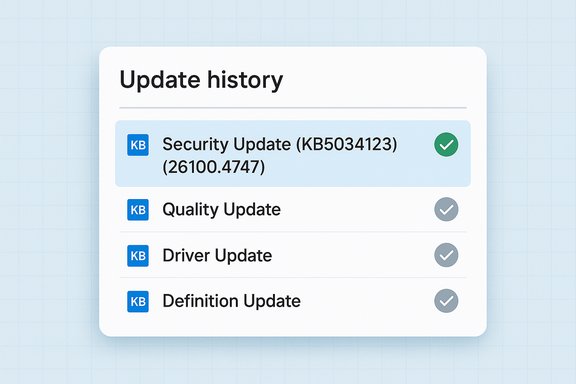
For years, Windows Update entries have been dense with technical metadata—version tokens like 25H2 or 24H2, architecture markers such as x64-based systems, and date prefixes—that made entry names long, inconsistent, and difficult for everyday users to parse. That complexity has been especially visible in Settings > Windows Update > Update history, where users and administrators alike often complain that titles are noisy and hard to scan quickly. Microsoft’s new titling approach aims to replace that clutter with a predictable, readable naming pattern across most update types. The official support announcement describes the change as a “simplified and standardized titling system” and gives examples such as labeling the regular monthly cumulative release as simply Security Update (KBxxxxxxx) (build number) and optional end-of-month releases as Preview Update (KBxxxxxxx) (build number). The company says the objective is clarity and easier readability in the UI.
Source: TweakTown Ever thought Windows 11's updates were confusingly named? Microsoft is fixing this
 Background
For years, Windows Update entries have been dense with technical metadata—version tokens like 25H2 or 24H2, architecture markers such as x64-based systems, and date prefixes—that made entry names long, inconsistent, and difficult for everyday users to parse. That complexity has been especially visible in Settings > Windows Update > Update history, where users and administrators alike often complain that titles are noisy and hard to scan quickly. Microsoft’s new titling approach aims to replace that clutter with a predictable, readable naming pattern across most update types. The official support announcement describes the change as a “simplified and standardized titling system” and gives examples such as labeling the regular monthly cumulative release as simply Security Update (KBxxxxxxx) (build number) and optional end-of-month releases as Preview Update (KBxxxxxxx) (build number). The company says the objective is clarity and easier readability in the UI. Why this change matters
Short, consistent titles are not just cosmetic. They influence how quickly users can:- Identify whether an update is security-related or a preview.
- Locate the relevant KB article for details about fixes and mitigations.
- Diagnose why a reinstall or rollback might be appearing in Update history.
What’s changing — concrete examples
Microsoft’s documentation provides a small set of canonical examples to show the format. These illustrate the move from long, multi-element titles to compact, human-readable ones:- Monthly cumulative security release:
- New title example: Security Update (KB5034123) (26100.4747).
- Monthly non-security optional release:
- New title example: Preview Update (KB5062660) (26100.4770).
- .NET Framework updates:
- .NET Framework Security Update (KB5056579) or .NET Framework Preview Update (KB5056579).
- Driver, AI component, and Visual Studio updates will follow the same simplified naming pattern: a concise descriptor followed by a KB when available and a version/build identifier where relevant.
Which updates are affected — scope and exceptions
The simplified titling applies to a specific set of update classes:- Windows OS quality updates: monthly security updates, monthly preview (non-security) updates, and out-of-band security updates.
- .NET Framework updates.
- Driver updates.
- AI component updates.
- Visual Studio updates.
How users and admins will see it
The simplified titles start appearing in consumer and managed devices via server-side rollout—there is no toggle in Windows Settings to revert to the older verbose titles. You will see the new titles in:- Settings > Windows Update.
- Settings > Windows Update > Update history.
Strengths: what Microsoft gets right
- Improved readability and user experience. For typical users, shorter names reduce cognitive load and make it easier to spot whether an item is a security patch or a preview release. The KB-first approach makes the primary identifier obvious and actionable.
- Consistency across update types. Standardized labels for .NET, drivers, AI components, and Visual Studio bring predictable UI behavior, which benefits both support staff and power users who need to scan update histories quickly.
- Preserving enterprise workflows. By keeping Catalog and WSUS titles largely unchanged, Microsoft reduces the risk of breaking update management tooling, patch automation scripts, or third-party reporting systems that parse those strings. This careful scope control is pragmatic for compatibility.
- Accessibility and localization benefits. Shorter titles are easier to present to assistive technologies (screen readers) and are less likely to truncate in localized UIs, improving clarity for users on smaller screens or in translated locales.
Risks and potential downsides
- Loss of immediate context for some admins. Engineers who are used to quickly reading the version token (e.g., 25H2) in the title for rollout status will need to rely on the KB and build numbers instead. That’s not a technical loss, but it’s an adjustment that can slow down quick visual audits.
- Third-party tooling assumptions. Although Microsoft has preserved the Catalog/WSUS titles, some third-party monitoring tools and custom scripts ingest the Settings UI or client-side logs where the new simplified titles could interfere with poorly designed parsers. Administrators with brittle string-matching may need to update logic.
- Ambiguity for non-KB literate users. While the KB number is the canonical identifier, many end users don’t immediately know how to use a KB number to find details. Short titles reduce immediate context and shift the burden onto users to search KB articles—something that’s fine for advanced users but may frustrate others. Clearer in-UI linking to KB pages or an on-hover summary would further improve this change.
- Server-side rollout inconsistencies. Because this is a server-side titling change, rollout timing could vary across regions and device rings; some users may see mixed naming formats for different updates during the transition window, which can be confusing in the short term.
Enterprise impact and recommended actions for IT teams
IT teams must treat this as a low-risk but real change that warrants a short compatibility checklist. The following steps will help organizations adapt smoothly:- Inventory scripts and monitoring tools that parse update titles or rely on specific title substrings. Update them to use KB numbers or build numbers instead of brittle text matches.
- Update internal documentation and playbooks to reflect the new title format, demonstrating how to map new titles to Catalog entries when necessary.
- Educate help-desk staff to use the KB and build numbers when triaging update failures, since the KB is now the primary identifier surfaced in the UI.
- If you use third-party patch management or SIEM tools that ingest client-side update metadata, confirm whether those systems read the Catalog/WSUS titles (unchanged) or the in-OS titles (changed). Request vendor guidance if needed.
- Consider adding a short internal knowledge snippet showing how to quickly retrieve full catalog information for a KB using PowerShell or the Microsoft Update Catalog website for cases where the simplified title isn’t enough context.
Quick PowerShell tip for admins
To map a displayed KB to Catalog details, a common PowerShell approach is:- Use the KB number from the Update history entry.
- Query the Microsoft Update Catalog programmatically or search the Security Update Guide with the KB to obtain more detailed metadata and CVE listings.
User experience considerations and what Microsoft should still fix
The naming simplification is welcome, but there are several user experience gaps that remain unaddressed:- Better explanatory context in Update history: a one-line summary about the purpose of the update or whether it’s safe to delay would make simplified names more actionable.
- More informative failure diagnostics: hexadecimal error codes like 0x800f0983 are cryptic to most users; a short plain-English clue and a direct link to troubleshooting steps would reduce frustration.
- Repeated update occurrences: an explanation when an update appears again (e.g., repair reapply, dependency, or remediation) would reduce confusion when users see the same KB multiple times.
- Scheduled reboots and surprise restarts: clearer UI signals and scheduling controls that reduce unexpected interruptions remain a usability priority.
Accessibility, localization, and UI mechanics
Shorter titles have direct accessibility benefits: they are easier to read through screen readers and less likely to be clipped or wrapped awkwardly in translated UIs. This is important not just for consumer comfort but for compliance with accessibility standards and for internationalized deployments. For smaller screens and devices with limited layout width, removing long suffixes is an immediate win. From a localization perspective, fewer translatable tokens embedded in a title reduces translation errors and improves layout stability across languages. That said, care must be taken so that updates still surface localized summaries or tooltips to explain the update’s impact in the user’s preferred language.How this fits into Microsoft’s broader servicing strategy
This titling change sits within a larger servicing philosophy shift that prioritizes predictable monthly security updates (historically known as Patch Tuesday releases) and optional preview releases at month-end. By clarifying the UI labels, Microsoft is signaling a desire to make update intent clearer to end users while preserving the full technical payload in KB articles and the Update Catalog. The company balances consumer clarity with enterprise reliability by preserving Catalog/WSUS strings for distribution and management. Media outlets and community sites picked up the announcement quickly; coverage emphasizes that this is primarily a UI change that won’t alter the substance of updates or how they are delivered to managed environments. Independent reporting confirmed that the change is rolling out server-side and that feature updates retain the existing versioned naming conventions.Rumors and unverifiable claims — cautionary note
Community chatter and some tech outlets have floated speculation about future release cadence and possible version names—examples include talk of a 26H1 release for ARM devices followed by 26H2 for all machines. Those claims are rumors and should be treated as unverified unless confirmed by official Microsoft announcements. When picking apart naming changes, it’s important not to conflate the current UI simplification with speculative product roadmaps that lack confirmation. Any unconfirmed rumor should be flagged as such and monitored for official updates.Practical guidance for everyday users
- When you see a simplified title like Security Update (KBxxxxxxx) in Update history, copy the KB and paste it into a web search or the Microsoft support site to read the full release notes and CVE details.
- If an update fails and you get an error code, search the KB first; many KB pages include troubleshooting steps or links to support articles. If the KB lacks troubleshooting detail, use the Windows support forums and the Windows Message Center for possible workarounds.
- For those who manage multiple devices: rely on Catalog/WSUS titles or the KB/build mapping instead of the client UI strings when automating update approval or compliance checks. This preserves accuracy throughout the lifecycle.
Verdict: a pragmatic, user-focused refinement with sensible boundaries
Microsoft’s simplified Windows Update titles are a thoughtful and pragmatic improvement to the daily experience of millions of Windows users. The change reduces UI noise, encourages reliance on authoritative KB identifiers, and preserves enterprise compatibility by leaving Catalog and feature-update naming intact. For typical consumers, this will make update history easier to scan and understand. For enterprise teams, the change is low-risk but does require a swift audit of any tooling that parses update titles. That said, the simplification does not solve larger usability issues around update failure diagnostics, unexplained repeated updates, or disruptive reboots. Those gaps continue to be the bigger sources of friction for both users and admins. The titling change is a step in the right direction—cleaner, more consistent labels are useful—but it should be seen as one improvement among many needed to make Windows Update truly transparent and friendly.Final recommendations
- Microsoft: consider pairing title simplification with in-UI KB preview links, clearer failure diagnosis text, and an “explain why this reappeared” trace for repeated KBs.
- IT teams: update parsing logic to use KBs/builds, and brief support staff about the new naming conventions.
- Users: use the KB number as your bookmark for deeper investigation and rely on official KB pages for the canonical details.
Source: TweakTown Ever thought Windows 11's updates were confusingly named? Microsoft is fixing this
