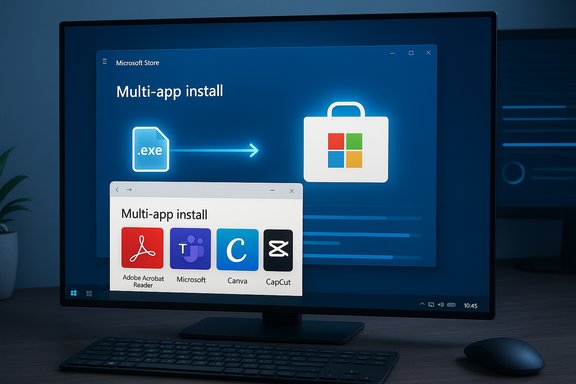
Microsoft has quietly added a simple but powerful convenience: you can now build a one‑click installer that downloads and launches multiple Store apps in one go, creating a single .exe “multi‑app install” pack from the Microsoft Store website that the Store app will execute on your PC.
Microsoft’s new Multi‑app install feature lets users select a curated set of apps on the Microsoft Store website and generate a single installer file that triggers the Microsoft Store app to download and install each chosen application automatically. That single file is a small launcher executable — it doesn’t contain full installers — and its job is to hand off the selected list to the Store, which performs the downloads and installation work. The capability appears on the Store’s web catalog as a “Multi‑app install” button and currently exposes a limited, curated list of popular apps (roughly dozens at launch). This change is notable because it brings the Microsoft Store into direct feature competition with multi‑installer services such as Ninite and the bulk‑install workflows many users build with Windows Package Manager (winget). It’s aimed at making machine provisioning and repeated setups less tedious for enthusiasts, IT staff, and anyone who moves between machines frequently.
If Microsoft intends the multi‑app pack to scale beyond consumer convenience, expect the following logical next steps:
For power users and enterprises, the existing advantages of winget (automation, manifest control, private sources) and Ninite Pro’s enterprise features keep those tools relevant. Microsoft’s offering narrows the casual user gap and showcases the Store’s evolving role in Windows provisioning. If Microsoft expands catalog coverage, adds programmatic access, and integrates the feature into the Store app and its enterprise tooling, this could become a standard convenience for broader deployments. For now, it’s a well‑executed convenience feature — impressive, but not yet a complete paradigm shift.
Source: Windows Central Microsoft takes a swing at Ninite with its own multi-app install package feature powered by the Microsoft Store
 Overview
Microsoft’s new Multi‑app install feature lets users select a curated set of apps on the Microsoft Store website and generate a single installer file that triggers the Microsoft Store app to download and install each chosen application automatically. That single file is a small launcher executable — it doesn’t contain full installers — and its job is to hand off the selected list to the Store, which performs the downloads and installation work. The capability appears on the Store’s web catalog as a “Multi‑app install” button and currently exposes a limited, curated list of popular apps (roughly dozens at launch). This change is notable because it brings the Microsoft Store into direct feature competition with multi‑installer services such as Ninite and the bulk‑install workflows many users build with Windows Package Manager (winget). It’s aimed at making machine provisioning and repeated setups less tedious for enthusiasts, IT staff, and anyone who moves between machines frequently. Background: why multi‑app installers matter
Multi‑app installers are widely used by:- People who rebuild or replace PCs frequently and want to restore a preferred app set quickly.
- IT pros and small teams who provision machines repeatedly with the same software list.
- Power users who prefer a one‑pass setup rather than clicking dozens of installer pages.
- Manual: visiting each vendor site and running installers — slow and error‑prone.
- Scripted/package‑manager: using winget, Chocolatey, Scoop, or custom scripts for reproducible installs.
- Third‑party aggregators: services like Ninite that let you tick boxes and generate a single installer.
How Microsoft’s Multi‑app install works (practical mechanics)
What the downloaded file actually is
- The Microsoft Store website builds a small launcher .exe when you click “Install selected.”
- The downloaded .exe is not a bundle of installers; it’s a hand‑off executable that tells the Microsoft Store app which apps to fetch and install.
- When executed, the Store app opens and begins downloading and installing the selected titles automatically — little to no UI in the launcher itself.
Where you create a pack
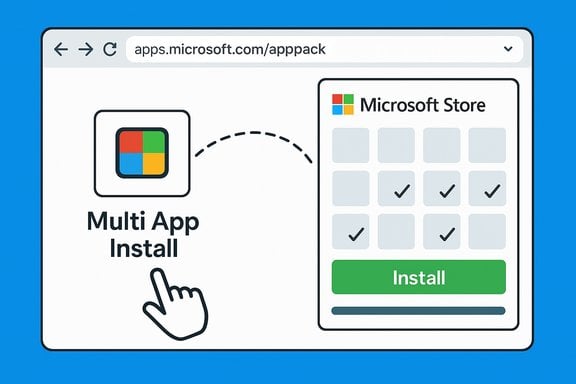
- Packs are created on the Microsoft Store website (apps.microsoft.com/apppack). There is currently no way to author a multi‑app pack inside the Microsoft Store desktop application itself — creation is web‑only.
Catalog coverage and curation
- At launch the catalog is curated: only a subset of popular Store listings appear on the multi‑app install page (Windows Central reports about 48 mainstream apps such as Spotify, Discord, Telegram, and others as examples). That means you can’t yet pick any arbitrary Store listing — only those included on the multi‑app page.
Comparing Microsoft’s approach with Ninite and winget
Ninite — the simple third‑party benchmark
- Ninite has long been the consumer reference: tick apps, download a single installer, run it, and Ninite’s tool fetches installers and runs them with silent options. It’s simple, broadly supported, and convenient for personal and small business installs.
- Ninite’s strengths: broad app coverage, consistent silent install behavior, and an established, minimal UI. It’s also deployable in enterprise contexts via its Pro offering. Ninite performs the download+install itself, packaging the process into one networked session.
Winget — the built‑in automation and enterprise option
- Winget (Windows Package Manager) is Microsoft’s command‑line package manager for Windows and excels at scripting, automation, and enterprise provisioning. You can compose multi‑package install commands, export/import manifests, and integrate into provisioning pipelines. Winget is also capable of unattended installs (with flags to accept agreements and request silent installs), and it supports private sources for enterprise governance.
- Flexibility: winget > Ninite > Microsoft multi‑app (today).
- Ease of use for non‑technical users: Microsoft multi‑app ≈ Ninite > winget.
- Enterprise deployment and governance: winget > Ninite (Pro features exist) > Microsoft multi‑app (today, limited).
- Trust/vetting: Microsoft multi‑app benefits from Store vetting and unified updates where available.
Strengths of Microsoft’s new multi‑app packs
- Integrated trust model — The Store’s vetting and update pipeline provide a security and consistency advantage compared with downloading raw installers from the web. Users who prefer the safety of a curated store get that benefit and the convenience of a single launcher.
- Simplicity and friction reduction — For non‑technical users, the one‑click generation and single execution is approachable: no command line, no scripting, no manual agreement juggling.
- Leverages existing infrastructure — By handing off to the Microsoft Store app for actual installation, Microsoft avoids reinventing download infrastructure and benefits from existing update and telemetry integration.
- Good for small‑scale provisioning — If your app set is covered by the curated list, this is a fast way to get a fresh machine into working shape without deep custom tooling.
Limitations, risks, and unknowns
- Limited catalogue (curation, not everything in the Store): The multi‑app page currently only includes a subset of Store offerings. If your apps aren’t in that list, the feature provides no benefit. This is the single most visible shortcoming today.
- Web‑only creation: You must use the Store website to assemble packs — the Store app cannot create them yet. That’s awkward for environments that restrict web access or for scripted provisioning flows.
- Not a replacement for enterprise deployment tools: The current implementation appears designed for consumer ease, not for centralized enterprise management. Enterprises needing policy‑driven deployments, approval workflows, and manifest governance will still prefer winget with private sources, Intune, SCCM/ConfigMgr, or similar management solutions. Microsoft’s enterprise story for app distribution remains centered on Intune and WinGet-managed manifests.
- Installer behavior and silent installs: Because the Store performs installation, the ability to run truly silent or customized installs depends on how the Store and individual app packaging behave. This is less flexible than winget manifests where silent flags and automation parameters are explicit and scriptable.
- Supply‑chain and provenance concerns: Any mechanism that automates installs must be treated as code — manifests and generated installers should be audited for provenance in managed environments. Winget’s manifest model and private source pattern are better suited to enterprise governance than a web‑generated .exe.
Security and governance: what to watch for
- Multi‑app packs will reduce the number of separate browser downloads (good for reducing phishing and fake installers), but they introduce a new vector: the launcher executable and the Store hand‑off.
- For managed fleets, rely on enterprise controls (Intune, AppLocker, Group Policy) to allow or restrict the use of web‑generated installers. Intune already supports bulk app installs in the Company Portal and other UI improvements; admins should evaluate adding guardrails before enabling broad use.
- For unattended or silent deployments, winget’s manifest auditability and private source model is preferable because manifests are explicit, versioned, and can be code‑reviewed. Treat the new multi‑app packs as a convenience for end users rather than a secure provisioning pipeline for critical enterprise systems.
Practical guide: how to create and use a multi‑app pack
- Open your browser and go to the Microsoft Store web page for multi‑app installs (apps.microsoft.com/apppack).
- Click the Multi‑app install entry or button to view the curated app grid.
- Tick the checkboxes for the apps you want to include in your pack (the page groups apps into categories for discovery).
- Click Install selected to download the single .exe launcher file. Save it to a convenient location.
- Run the downloaded .exe on the target PC. The Microsoft Store app will open and begin downloading and installing your selected apps. You may need to sign into the Microsoft Store on that device.
- Ensure the target PC has the Microsoft Store app and that the user account is signed into a Microsoft account if the Store requires it.
- For headless or offline provisioning, this approach is not ideal because the launcher relies on the Store app and network access to the Store catalog.
- If you want full automation for provisioning multiple enterprise machines, export/import with winget or use Intune and private manifest sources instead.
How this fits into Microsoft’s broader app management strategy
Microsoft has broadened the Store’s scope in recent years — accepting Win32, MSIX, PWA, and other packaging formats — while integrating with the Windows Package Manager and enterprise tooling. The multi‑app install packs are another small but visible step: they improve first‑run experience and consumer provisioning, and they make the Store more relevant for everyday app installs. However, they stop short of replacing existing developer and enterprise workflows that require manifest control, automation, and governance.If Microsoft intends the multi‑app pack to scale beyond consumer convenience, expect the following logical next steps:
- Add pack creation inside the Microsoft Store app (so web access isn’t mandatory).
- Expand catalog coverage or allow arbitrary Store listings to be included.
- Add programmatic pack creation (an API for IT tools) and an admin approval workflow.
- Integrate with Intune and winget import/export flows for hybrid consumer/enterprise provisioning.
Who should use Microsoft’s multi‑app packs now?
- Casual users who prefer a graphical, store‑backed flow to reinstall a common app set when setting up a new PC.
- Enthusiasts who migrate between multiple personal devices and want a fast, low‑risk way to restore core apps.
- Small teams without a formal device‑management stack who want a quick restore path for members’ machines.
- IT departments that need controlled, auditable provisioning and rollback.
- Power users who require silent, customizable installs or installs of apps not present in the curated Store list.
- Offline installations or locked down environments where the Store app/web access is restricted.
Final analysis — is this a “Ninite killer”?
The Microsoft multi‑app install pack is not a straight replacement for Ninite or winget today. It’s a complementary consumer‑friendly convenience that leverages the Store’s vetting and update model. For many everyday scenarios — setting up a fresh personal laptop or giving a family member a standard app list — it’s cleaner and safer than chasing installers online. That payoff is immediate and meaningful.For power users and enterprises, the existing advantages of winget (automation, manifest control, private sources) and Ninite Pro’s enterprise features keep those tools relevant. Microsoft’s offering narrows the casual user gap and showcases the Store’s evolving role in Windows provisioning. If Microsoft expands catalog coverage, adds programmatic access, and integrates the feature into the Store app and its enterprise tooling, this could become a standard convenience for broader deployments. For now, it’s a well‑executed convenience feature — impressive, but not yet a complete paradigm shift.
Quick takeaways
- Microsoft now offers a web‑created multi‑app installer that launches the Microsoft Store to fetch and install the selected apps.
- It’s designed for simplicity and trust; it’s best suited to consumers and casual provisioning.
- For scripted, auditable, enterprise provisioning, winget and managed Intune workflows remain superior today.
- Expect the feature to evolve; watch for expanded app coverage, Store app integration, and potential enterprise APIs.
Source: Windows Central Microsoft takes a swing at Ninite with its own multi-app install package feature powered by the Microsoft Store