

Microsoft’s Microsoft Store has quietly added a smartphone‑style convenience that could change how many people set up Windows PCs: a Multi‑app install feature that lets you assemble a curated bundle of apps in a browser, download a tiny launcher, and have the Store download and install all selected titles automatically — no per‑app web‑hopping, no repeated prompts, and no manual juggling of installer windows.
The Microsoft Store has long been a secondary route for Windows software for many enthusiasts and IT pros, who instead used direct vendor downloads, package managers, or third‑party bundlers like Ninite. Over the past year Microsoft has reworked the Store for performance, Win32 support, and better app management — improvements that culminate in this multi‑app installer capability and a more credible alternative to the older ad‑ridden download labyrinth. Microsoft’s developer blog reports a 25% reduction in Store launch time and a 50% reduction in download hanging issues following the Store overhaul. The new multi‑app approach is notable for two reasons. First, it brings a one‑click consumer UX — familiar from mobile app stores — to Windows desktop provisioning. Second, it does so while preserving the Store’s vetting and update pipeline, which can reduce risk compared with collecting installers from many different websites. Early reporting and hands‑on coverage describe the experience as close to Ninite in convenience while remaining Store‑centric under the hood.
Microsoft has also paired this convenience with measurable Store improvements — faster launch times and fewer stalled downloads — that make the experience feel genuinely modern and reliable. If the company expands catalog coverage and exposes programmatic controls or Store‑to‑Intune hooks, multi‑app packs could graduate from a handy consumer trick to a credible provisioning option for broader audiences. For now, it’s a big UX win for anyone who installs software often and a meaningful nudge toward the Store as a first stop for Windows software.
Source: PCMag Australia Microsoft Store Offers Multi-App Install Bundles to Speed Up Windows Setup
 Background
The Microsoft Store has long been a secondary route for Windows software for many enthusiasts and IT pros, who instead used direct vendor downloads, package managers, or third‑party bundlers like Ninite. Over the past year Microsoft has reworked the Store for performance, Win32 support, and better app management — improvements that culminate in this multi‑app installer capability and a more credible alternative to the older ad‑ridden download labyrinth. Microsoft’s developer blog reports a 25% reduction in Store launch time and a 50% reduction in download hanging issues following the Store overhaul. The new multi‑app approach is notable for two reasons. First, it brings a one‑click consumer UX — familiar from mobile app stores — to Windows desktop provisioning. Second, it does so while preserving the Store’s vetting and update pipeline, which can reduce risk compared with collecting installers from many different websites. Early reporting and hands‑on coverage describe the experience as close to Ninite in convenience while remaining Store‑centric under the hood. How Multi‑App Install Works
The mechanics, in plain English
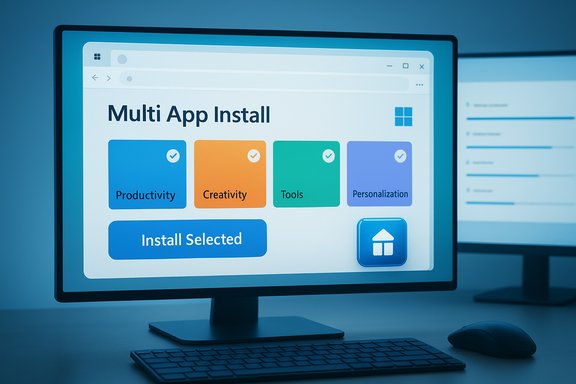
- From a desktop browser, the Microsoft Store exposes a Multi‑app install control that opens a curated grid of selectable apps.
- You tick the apps you want and click Install Selected. The site builds and downloads a very small launcher executable — not a payload of bundled installers.
- When you run that small .exe on a Windows PC, it opens the Microsoft Store app on that machine and hands off the list of selected apps. The Store then downloads and installs each title, using its own delivery and packaging systems. The launcher is an orchestration handoff rather than an archive of installers.
What the user sees
- A browser page with a categorized grid (Productivity, Creativity, Social, Tools, Personalization, Entertainment).
- Checkboxes for apps and an Install Selected button.
- A downloaded .exe file which, when executed, opens the Microsoft Store and proceeds with installs automatically — usually requiring minimal user interaction beyond possible Store sign‑in.
What’s in the Catalog Today (and What’s Not)
At launch the catalog is curated, not exhaustive. Reports and hands‑on tests list mainstream titles in the grid such as Adobe Acrobat Reader, Microsoft Teams, OneNote, ChatGPT, iCloud, Dropbox, CapCut, Canva, Photoshop, Telegram, Facebook, Instagram, and community favorites like f.lux and BreeZip. These examples demonstrate that Microsoft prioritized well‑packaged, broadly used applications for reliability. Why curation? Each included app must have packaging and install behavior that plays nicely with the Store’s orchestrated flow. That raises the bar for predictable installs, but it also means a lot of niche, specialized, or newly published Store listings won’t be available in bundles immediately. Expect the list to expand over time, but don’t assume parity with the full Store catalog yet.Benefits: Why This Matters for Consumers and Enthusiasts
- Fewer clicks, less friction. The multi‑app experience is familiar to smartphone users: pick, download once, run once, and wait. This reduces onboarding time when you set up a new PC or refresh a device.
- Leverages Store vetting and updates. Because the Store performs the installs, users benefit from Microsoft’s packaging and (where offered) unified update mechanisms rather than grabbing installers from disparate websites, lowering supply‑chain exposure.
- Parallel downloads and speed improvements. The Store’s modernized download engine supports parallel downloads and improved progress reporting, which shortens the elapsed time for multiple installs compared with sequential manual installs. Microsoft claims the Store has been optimized for faster launch and fewer stalled downloads as part of this broader update.
- Shareable and repeatable. The generated .exe is a portable artifact that can be saved or passed to a friend or family member to replicate the same app set — a practical convenience for tech support or reprovisioning a device.
Real Limits: Why This Isn’t Ninite (Yet) — Or an Enterprise Replacement
The feature is useful, but it has deliberate constraints that affect who should rely on it.Curation and Coverage
- The multi‑app page exposes a subset of Store listings. If your favourite niche app isn’t included, you get no benefit from the pack. Microsoft appears to be expanding coverage deliberately and conservatively to ensure stable installs.
Web‑only pack creation
- Packs are assembled in a browser on the Store web catalog; there’s currently no UI in the desktop Store app for composing packs. That’s awkward for environments that restrict web access or for scripted provisioning.
Not designed for enterprise governance
- Enterprises typically need manifest auditability, silent‑install guarantees, approval workflows, private package sources, and integration with Intune/SCCM. The generated launcher is a black‑box artifact compared with winget manifests or Intune/Company Portal deployments, which are auditable, scriptable, and suitable for policy‑driven rollouts. For managed fleets, winget, Intune, or ConfigMgr remain the recommended options.
Limited automation and customization
- The Store‑driven install behavior depends on how each developer packages an app in the Store. Some Store packages are sandboxed or trimmed, and there’s less control over silent flags and fine‑grained installer parameters than you get with winget manifests or vendor MSI installers.
Dependency on Microsoft infrastructure
- The launcher hands off to the Microsoft Store app — the target device needs a functional Store, network access, and in many cases a signed‑in Microsoft account. That makes the approach unsuitable for headless, air‑gapped, or heavily restricted deployments.
Comparison: Microsoft Multi‑App Packs vs Ninite vs winget
- Ease of use (consumer): Microsoft multi‑app ≈ Ninite > winget. The Store packs are GUI‑driven and web‑friendly; Ninite already offered a similar check‑box convenience for years. winget is command‑line oriented and less approachable for non‑technical users.
- Coverage and flexibility: winget > Ninite > Microsoft multi‑app (today). winget supports thousands of community and vendor manifests; Ninite supports a broad set of common apps and predictable silent installs; the Store’s curated pack list is the most limited at launch.
- Auditability and enterprise readiness: winget (manifest + private sources) > Ninite Pro (enterprise offering) > Microsoft multi‑app packs. Enterprises require explicit manifest control, which winget and Intune provide; the web‑generated launcher is a convenience artifact without the same reviewable manifest model.
- Security model: Microsoft multi‑app benefits from Store vetting (publisher verification and delivery through Microsoft channels), whereas Ninite downloads from its own servers and winget pulls from community or vendor sources. Vetting tradeoffs vary by model; Store orchestration reduces the chance of malicious third‑party installers, but the consumption model and governance needs differ.
Security, Supply‑Chain and Governance Considerations
- New launcher vector. The small web‑generated .exe is a legitimate new artifact; organizations should treat any downloaded executable as code and apply standard controls: AppLocker, Windows Defender Application Control, Intune policies, or similar restrictions.
- Provenance and auditing. winget manifests are text files that can be version‑controlled, reviewed, and linked to private sources; the current Store pack launcher lacks that same transparency. For regulated environments, that difference matters for compliance and change control.
- Update cadence conflicts. If your environment expects to control app update timing, relying on Store updates may conflict with internal patch windows or vendor channels. Admins should align update policies across Windows Update, Store updates, and third‑party patch systems where needed.
- Account and infrastructure dependencies. The multi‑app workflow typically requires the Store to be functional and the user to sign in. This reduces suitability for sealed kiosk systems or devices that cannot contact Microsoft services.
Practical Guide: How to Create and Use a Multi‑App Pack
- Open a desktop browser and navigate to the Microsoft Store web catalog (look for the Multi‑app install control on the site).
- Click the Multi‑app install button to open the curated app grid.
- Toggle the checkboxes for the apps you want in your bundle, and then click Install Selected. The site will generate and prompt you to download a small installer .exe.
- Save the downloaded .exe to a convenient location and run it on the target PC. The Microsoft Store app will open and begin installing the selected apps. You may be asked to sign in to the Microsoft Store on that device.
- Ensure the target machine has the Microsoft Store app and an internet connection.
- For unattended or headless automation, use winget manifests or Intune instead. The Store pack is primarily a GUI convenience.
The UX and Technical Tradeoffs — A Balanced Assessment
Notable strengths
- Consumer‑grade workflow. The multi‑app feature reduces onboarding friction and fits users who prefer a simple, store‑backed install flow.
- Safer defaults. Because the Store performs downloads, users avoid many malicious installer traps common on the web.
- Performance improvements across the Store. Microsoft’s Store updates (faster launches, reduced download hanging) compound the multi‑app experience to make it feel modern and responsive.
Potential risks and limitations
- Catalog gaps and curation lag. Power users and specialists will find missing apps; the feature is only as useful as the apps Microsoft approves for the grid.
- Black‑box artifact. The downloaded launcher is opaque compared with manifest‑driven package managers, complicating audit and automation.
- Not a fleet provisioning tool. Enterprises must continue using winget, Intune, or ConfigMgr for governance, private sources, and scripted, silent installs.
What to Watch Next
Microsoft could evolve the multi‑app packs in several logical ways that would increase their usefulness:- Add pack creation inside the Microsoft Store desktop app (eliminating the web‑only limitation).
- Expand catalog coverage and make more Store listings eligible for inclusion in packs.
- Offer programmatic pack creation or APIs that let small IT teams generate packs reproducibly, perhaps with an approval workflow or integration with winget/Intune.
Final Verdict
The Microsoft Store’s Multi‑app install packs are a pragmatic, well‑timed feature that reduces friction for everyday Windows setup. For consumers, family IT support, refurbishers, and enthusiasts who want a quick, trusted way to restore a core app set, the new packs are an unambiguous win. They import the best parts of the one‑click bundlers many users already appreciate, while keeping the attested safety of the Store delivery pipeline. At the same time, the feature is deliberately conservative: curated app coverage, web‑only pack creation, and a lack of manifest transparency mean it won’t displace winget, Intune, or other enterprise mechanisms for fleet provisioning anytime soon. Administrators and power users should treat the packs as a consumer‑facing convenience and continue to rely on established tools for scriptable, auditable deployments.Microsoft has also paired this convenience with measurable Store improvements — faster launch times and fewer stalled downloads — that make the experience feel genuinely modern and reliable. If the company expands catalog coverage and exposes programmatic controls or Store‑to‑Intune hooks, multi‑app packs could graduate from a handy consumer trick to a credible provisioning option for broader audiences. For now, it’s a big UX win for anyone who installs software often and a meaningful nudge toward the Store as a first stop for Windows software.
Source: PCMag Australia Microsoft Store Offers Multi-App Install Bundles to Speed Up Windows Setup
