

Microsoft’s Store is quietly offering a new convenience: build a bundle of apps in your browser, download a single small launcher, run it on a PC and have the Microsoft Store app fetch and install the selected titles — up to a curated limit — in one go.
The Microsoft Store’s new “multi‑app install” capability appears as a web‑only workflow that exposes a curated grid of Store listings grouped into categories such as Productivity, Creativity, Social, Entertainment, Tools & Utilities, and Personalization. From that grid you can check boxes for the apps you want, click an Install Selected button and download a single executable (.exe). Running that tiny launcher opens the Microsoft Store on the target PC and instructs it to download and install the chosen apps automatically. This is an orchestration hand‑off: the downloaded file does not contain the full installers, it simply triggers the Store to perform the actual downloads and installs. The feature behaves like the mainstream third‑party tool Ninite in user experience — choose a set of apps, get one installer, run it once — but there are important architectural and governance differences that change where and how this is useful. Microsoft’s offering leverages the Store’s vetting and delivery pipeline rather than bundling installers from publisher sites into a single payload. Independent reports and hands‑on testing from several outlets and community threads confirm the mechanics described above.
Ninite remains the more complete consumer/SMB tool for broad app coverage and silent automation; winget and Intune remain the canonical choices for enterprise automation and governance. That said, Microsoft has the infrastructure and reach to make multi‑app packs a significant provisioning option if it chooses to invest in manifesting, APIs, and enterprise integration. Early adopters should use the Store multi‑app installer as a convenience for non‑critical provisioning tasks while watching for Microsoft to add programmatic and governance features that would broaden the tool’s appeal to power users and IT departments.
Microsoft’s incremental approach makes sense: start with a curated, web‑only convenience that tests the UX and telemetry signals, then expand the catalog and surface governance features if demand and telemetry justify it. That roadmap would let Microsoft move from “nice consumer convenience” to “trusted provisioning tool” without jeopardizing enterprise expectations for auditability and control.
The multi‑app pack fills a long overdue hole in the Windows first‑run experience. It’s not a panacea, but it does what it sets out to do: reduce friction, keep installs in the Store’s control plane, and make the first‑hour PC setup smoother for everyday users. The real value question will be how quickly Microsoft opens the catalog, exposes auditable pack representations, and integrates the capability with its enterprise provisioning stack.
Source: theregister.com Microsoft Store trying 16-at-once app installer
 Background / Overview
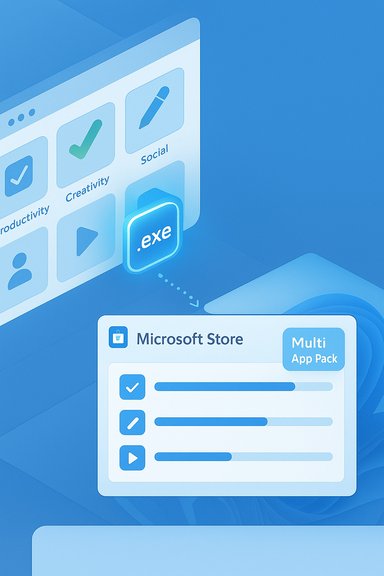
The Microsoft Store’s new “multi‑app install” capability appears as a web‑only workflow that exposes a curated grid of Store listings grouped into categories such as Productivity, Creativity, Social, Entertainment, Tools & Utilities, and Personalization. From that grid you can check boxes for the apps you want, click an Install Selected button and download a single executable (.exe). Running that tiny launcher opens the Microsoft Store on the target PC and instructs it to download and install the chosen apps automatically. This is an orchestration hand‑off: the downloaded file does not contain the full installers, it simply triggers the Store to perform the actual downloads and installs. The feature behaves like the mainstream third‑party tool Ninite in user experience — choose a set of apps, get one installer, run it once — but there are important architectural and governance differences that change where and how this is useful. Microsoft’s offering leverages the Store’s vetting and delivery pipeline rather than bundling installers from publisher sites into a single payload. Independent reports and hands‑on testing from several outlets and community threads confirm the mechanics described above. How the multi‑app installer works
The launcher model: pointer, not payload
- When you click Install Selected on the Store’s web page, the site builds and serves a small launcher .exe.
- That .exe is a hand‑off — it opens and passes the list of apps to the Microsoft Store app installed on Windows.
- The Store app then downloads and installs each package, often in parallel where supported, using Microsoft’s delivery infrastructure and the Store’s packaging.
Where you create a pack (web only for now)
Packs are currently authored through the Microsoft Store website (a page often referenced as apps.microsoft.com/apppack in early reports). At the time of reporting, the desktop Microsoft Store app does not provide a UI to assemble multi‑app packs — creation is web‑only. That means the creation flow depends on browser access to the Store site and on the downloaded launcher being run on a Windows machine with a functioning Microsoft Store app.Catalog curation and limits
Microsoft’s initial rollout is curated — only a subset of Store listings appear in the multi‑app grid. Reports vary on the exact count of eligible titles (some hands‑on reports listed roughly “dozens,” one hands‑on piece showed about 48 apps, while other early community posts mentioned different totals). There is also a reported selection cap when creating a pack: you can check multiple titles but the UI enforces an upper limit on how many apps you can include in a single pack (early hands‑on reports and community testing indicate a limit in the mid‑teens). These numeric details appear to vary by region and by how frequently Microsoft expands the grid, so treat precise counts as provisional. Verify the available list and limits in your region by visiting the Store’s multi‑app page.Hands‑on user experience (what to expect)
The typical flow is short and smartphone‑like:- Open the Microsoft Store web page and click the Multi‑app install button.
- Browse the categorized grid and tick the apps you want.
- Click Install Selected and download the generated launcher .exe.
- Run the .exe on the target PC; the Microsoft Store app launches and begins parallel downloads and installs.
- The target PC must have the Microsoft Store app and network access to it.
- You may be required to sign into the Store on that device to complete app installations tied to specific accounts.
- Offline or heavily restricted enterprise networks that block the Store will render the launcher ineffective.
- Some apps still require in‑app consent flows or first‑run onboarding that the Store orchestration can’t bypass; this reduces the “silent install” guarantees available from scripted package managers.
Why Microsoft is doing this: UX + trust
The move addresses a long‑standing UX friction in Windows setup. Historically, first‑run provisioning on Windows has been a multi‑site scavenger hunt for installers and prompts. By bringing a checkbox, one‑click bundling model to the Store web catalog, Microsoft can:- Reduce user friction on first run (fewer manual downloads and repeated prompts).
- Keep downloads and future updates within the Store’s vetted distribution and update pipeline.
- Potentially increase Store conversions and engagement by making the Store the convenient default source for well‑known apps.
How this compares to Ninite and winget — a practical showdown
Ninite (consumer and SMB favorite)
- Ninite composes a single installer that downloads and runs the publishers’ installers directly, automating clicks and choosing safe defaults (no toolbars, correct architecture, right language).
- It supports a broad catalog of popular free apps and offers a Pro tier with management, silent automation, and reporting features tailored to businesses. Ninite’s architecture bundles a configuration ID into the generated installer; when run, that installer contacts Ninite servers to fetch the latest app installers and then installs them locally.
- Broad app coverage and mature automation.
- Proven, simple silent installs and update workflows.
- Pro features for remote management and enterprise deployments.
- Ninite downloads from publisher sites and operates outside the Store ecosystem; updates and entitlement management are separate.
- Microsoft’s Store approach gives stronger end‑to‑end Store governance: packages and updates can flow through Microsoft’s vetted channels instead of a third party.
Windows Package Manager (winget)
- winget is Microsoft’s command‑line package manager offering scripted, reproducible installs, manifest file versioning, and private sources.
- It’s the tool of choice for IT teams who need auditability, silent flags, automation, and integration into CI/CD or device management pipelines. winget supports export/import of installed package lists for reproducible provisioning.
- Scriptable and auditable; suited to large fleet provisioning.
- Can be combined with private manifests and integrated into Intune or other management tools.
- Not as approachable for non‑technical users; requires command‑line familiarity or third‑party GUIs.
- winget is purpose‑built for automation, not necessarily for the casual one‑click consumer onboarding that a web multi‑app pack targets.
Head‑to‑head summary
- For quick consumer setups and trusted Store apps: Microsoft’s multi‑app packs are a clean, safe UX that reduces manual steps.
- For enterprise, regulated, or highly automated deployments: winget, Intune, or Ninite Pro remain the better, auditable choices.
- For the broadest app coverage and deep automation features today: Ninite still has the edge.
Benefits — who wins with the Microsoft Store multi‑app installer
- Simplicity for everyday users: a mobile‑style “pick and install” flow that removes dozens of web visits.
- Leverages Store trust: downloads and update channels are Store‑driven, reducing the surface for fake/malicious installers.
- Small, portable launcher: no huge single download — the launcher remains small because installs happen inside the Store app.
- Parallel downloads: the Store’s backend can download and install multiple titles concurrently, speeding perceived setup time.
Risks, limits and governance concerns
Limited catalog and curation friction
At rollout the selection is curated; many niche or specialized apps aren’t part of the grid. That reduces the feature’s value for power users and admins who rely on a specific toolset. Reported catalog counts vary between hands‑on reports — treat precise numbers as provisional and check the app pack page for your region.Not designed for enterprise auditability
The web‑generated launcher lacks the explicit manifest, JSON/YAML audit trail and private source features that enterprise teams expect from winget manifests or signed deployment artifacts. Enterprises need reproducible, auditable, and signed manifests plus private hosting options — these are still best addressed with winget, Intune, or Ninite Pro.Dependence on Microsoft infrastructure
If the Store is blocked by network policy, removed from the device, or experiencing an outage, a web‑authored pack cannot be applied. Offline provisioning remains outside this tool’s remit.Silent installs and installer behavior
Because the Store executes installs under its packaging model, the guarantee of fully silent, unattended installs is weaker than with package managers that let you pass automation flags. Some apps will still surface first‑run dialogs or post‑install onboarding that require manual interaction.New vector: launcher executable
Any executable downloaded from the web is a potential vector; admins should treat web‑generated installers as code and control their use with standard enterprise controls (AppLocker, Intune policies, or Group Policy). For large fleets, prefer managed deployment channels.What Microsoft should (and might) do next
The multi‑app pack is a promising starting point. Logical and high‑value evolutions include:- Expose a manifest format and signed pack files so packs can be reviewed, stored in VCS, or distributed via private channels.
- Add pack authoring in the Store desktop app, removing the web‑only friction for restricted environments.
- Offer programmatic APIs for creating packs so power users and small IT teams can integrate pack generation into scripts and automation pipelines.
- Integrate with Intune and winget: enable Intune admins to consume packs or convert a pack into a winget manifest for auditability in enterprise workflows.
- Scale the catalog and open publisher opt‑in so more Store listings can become eligible sooner.
Practical recommendations
For home users and enthusiasts
- Use the Microsoft Store multi‑app installer to quickly restore a common app set on a new or newly imaged PC.
- Verify the apps you want are present on the multi‑app page before relying on this feature.
- Keep a copy of the pack launcher if you plan to reuse it frequently, but expect the launcher merely to point to the Store, not to be a portable offline bundle.
For small businesses and IT admins
- Treat multi‑app packs as a convenience for ad‑hoc provisioning of a small number of unmanaged machines.
- Prefer managed tools (Intune, winget with private sources, or Ninite Pro) for repeatable, auditable deployments and for handling apps not present in the Store grid. winget export/import patterns are valuable when you want deterministic, scriptable setups for multiple devices.
For enterprises and regulated environments
- Continue to rely on Intune, ConfigMgr, and winget manifests with private repositories; do not adopt the web multi‑app pack as a sanctioned provisioning mechanism until Microsoft offers signed manifests, APIs, and enterprise audit features.
- Apply enterprise policies to block or restrict web‑generated installers until a governance model is available.
Cross‑check and verification notes
Multiple independent hands‑on reports and documentation indicate the same core behaviors: the Store web page generates a tiny launcher .exe which instructs the Microsoft Store app to download and install the selected titles; the catalog is curated and not exhaustive; the pack creation UX is web‑only for now. These behaviors are corroborated by Windows Central and multiple community and forum writeups. Specific numeric claims (catalog totals, the exact maximum number of apps selectable per pack) vary across early reports and regionally; these counts are provisional and may change as Microsoft expands the feature, so confirm exact figures on the Store’s app pack page for your locale if those numbers matter operationally. Where precise counts or definitive Microsoft roadmaps were quoted in third‑party coverage, those items are noted as early reporting or estimates; they remain subject to change pending official Microsoft communications or a more global rollout.Final assessment — realistic, pragmatic verdict
Microsoft’s multi‑app installer is a pragmatic, well‑timed addition to the Store. For consumers and enthusiasts it answers a real pain point with an approachable, Store‑backed solution that reduces friction and leverages Microsoft’s vetted delivery chain. For IT pros and enterprises, the feature is interesting but not yet a replacement for existing provisioning pipelines because it lacks the manifest auditability, silent‑install guarantees, private source support, and API control that enterprises require.Ninite remains the more complete consumer/SMB tool for broad app coverage and silent automation; winget and Intune remain the canonical choices for enterprise automation and governance. That said, Microsoft has the infrastructure and reach to make multi‑app packs a significant provisioning option if it chooses to invest in manifesting, APIs, and enterprise integration. Early adopters should use the Store multi‑app installer as a convenience for non‑critical provisioning tasks while watching for Microsoft to add programmatic and governance features that would broaden the tool’s appeal to power users and IT departments.
Microsoft’s incremental approach makes sense: start with a curated, web‑only convenience that tests the UX and telemetry signals, then expand the catalog and surface governance features if demand and telemetry justify it. That roadmap would let Microsoft move from “nice consumer convenience” to “trusted provisioning tool” without jeopardizing enterprise expectations for auditability and control.
The multi‑app pack fills a long overdue hole in the Windows first‑run experience. It’s not a panacea, but it does what it sets out to do: reduce friction, keep installs in the Store’s control plane, and make the first‑hour PC setup smoother for everyday users. The real value question will be how quickly Microsoft opens the catalog, exposes auditable pack representations, and integrates the capability with its enterprise provisioning stack.
Source: theregister.com Microsoft Store trying 16-at-once app installer
