Microsoft’s Microsoft Store has quietly become the easiest — and safest — way to make Windows 11 actually look like something you want to use, thanks to a freshly launched Themes department that centralizes hundreds of downloadable themes and simplifies applying them with a single click. The change is small in scope but outsized in impact: it fixes a long-standing discoverability problem, restores a canonical catalog for officially curated themes, and gives both casual users and power customizers a one-stop place to refresh their desktop without hunting through obscure web pages or installing risky third‑party packs.
Source: Windows Central https://www.windowscentral.com/soft...-the-microsoft-store-is-your-unlikely-savior/
 Background
Why themes mattered — and why Microsoft changed course
For years Microsoft offered two parallel paths to dress your desktop: a dedicated themes download page and the Microsoft Store. In January Microsoft signaled it would retire the standalone theme webpage and steer users to the Store instead, reasoning that the Store provides a better modern experience and simpler management. That decision left a gap: the Store did contain hundreds of themes, but until now they were hard to find and poorly organized, forcing users to scroll through an alphabetized mess or rely on memory to locate a favorite look. The Themes department addresses that exact problem by creating a curated, searchable collection inside the Microsoft Store where themes are grouped, surfaced by trends and editorial picks, and connected to Settings so applying a new look is immediate and reliable. Microsoft’s announcement frames it as a personalization push — “your PC, your personality” — and positions the Store as the canonical place for safe, trusted themes from Microsoft and partner creators.Timeline and corroboration
- Microsoft updated its documentation to show the support page for separate theme downloads will be retired, directing users to the Store instead.
- Industry coverage noted that retiring the separate themes page would force users to rely on the Store and called attention to gaps in the Store’s discoverability before this week’s change.
- Microsoft’s Windows Experience Blog published the official announcement describing the new Themes department, listing sample themes and saying the collection now contains over 400 themes, with 35+ recent additions.
What’s new in the Microsoft Store Themes department
Clearer organization and first-click application
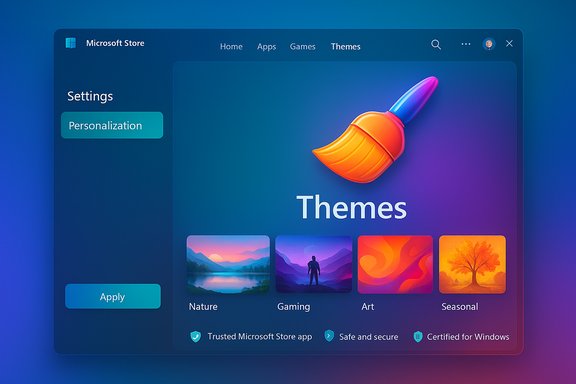
The core improvements are straightforward and user‑facing:- A dedicated Themes department inside the Microsoft Store that groups themes by curation, popularity, and categories such as nature, gaming, art, and seasonal collections. This replaces the old alphabetized listing that made discovery difficult.
- One‑click apply: themes downloaded from the Store now integrate cleanly with Windows Personalization so a theme can be applied directly from the Store result or via the Themes page in Settings. This removes manual unpacking of .themepack files and searching for the right Settings panel.
- UI affordance: a paintbrush icon for Themes appears below the AI Hub shortcut in the Store, making the collection visible in-store navigation.
- Curation and editorial picks: Microsoft highlights trending themes and seasonal picks (for example, mainstream game tie‑ins such as Sea of Thieves and photo‑driven packs like Dreamscapes), which helps users who just want to refresh their desktop without deep searching.
The catalog and related apps
Microsoft says the collection hosts over 400 themes, and the announcement explicitly references both official partner themes and user‑facing accessories such as TranslucentTB, Lively Wallpaper, and Seelen UI as complementary ways to customize a machine. Those apps remain available in the Store and are listed as suggestions alongside the Themes department.Why this matters for everyday users
Immediate benefits
- Discoverability: casual users who previously didn’t know where to find themes now have the Store’s search, filters, and editorial space to explore looks without external downloads. This reduces the temptation to pull packs from untrusted sources.
- Simplicity: one click to download and apply a theme is a real quality‑of‑life improvement. For non‑technical users, fewer manual steps means fewer opportunities to break a desktop setup.
- Trust and integrity: themes distributed through the Store are handled with Microsoft’s packaging and distribution controls, lowering the risk of bundled adware or tampered assets compared with random downloads from obscure sites.
Benefits for creators and Microsoft
- A single publication channel simplifies distribution and analytics for creators who publish themes.
- Monetization and discoverability opportunities for theme authors (where permitted) become easier to manage within the Store’s developer tooling.
- Consistency across devices: Store-delivered themes align with Windows Settings, improving sync behavior across devices tied to the same Microsoft account.
How to use the Themes department — practical steps
- Open the Microsoft Store from the taskbar or Start menu.
- Look for the paintbrush icon below the AI Hub shortcut or search for “themes”.
- Browse curated categories or trending picks and click a theme you like.
- Click “Get” or “Install” and then choose “Apply” when the Store completes the download. The theme will propagate to Settings > Personalization > Themes.
- If a theme doesn’t immediately appear under Settings → Personalization → Themes, open the Themes page and choose “Browse themes” to confirm the downloaded pack is present.
- If you want to save a theme’s exact configuration (wallpaper order, accent colors, sounds), open Personalization and use the Save option to create a named theme file you can reapply later.
Deeper customization: when themes aren’t enough
Themes are ideal for surface-level personalization — wallpapers, accent colors, cursors, and sounds — but many power users want more granular UI control. For those users, the Microsoft Store Themes department should be treated as the first step, not the final word.- For animated or interactive backgrounds: apps like Lively Wallpaper or Wallpaper Engine (Steam) deliver dynamic desktops and richer visuals than static theme packs. Lively is listed in the Store and integrates comfortably with Windows.
- For taskbar and Start menu changes: community favorites such as Start11, StartAllBack, ExplorerPatcher, TranslucentTB, and RoundedTB offer behavior and layout tweaks the Themes department won’t touch. These tools are still valid choices for users who need functional modifications rather than cosmetic ones — but they operate outside Microsoft’s theme packaging and often require additional caution.
- For full UI reskins: if you want a complete shell makeover (Windows 10 style, macOS dock, or Windows 95 nostalgia), third‑party utilities and skin engines remain the route — keep in mind these carry higher compatibility and security considerations.
Critical analysis — strengths and tradeoffs
What Microsoft did well
- Solves the discoverability problem: placing themes into an organized department addresses the primary complaint users had after the dedicated theme webpage was deprecated. This is a usability-first change that benefits the broadest group of Windows users.
- Improves trust and management: Store distribution reduces the chance of malicious theme packs or poorly packaged content reaching mainstream users.
- Ecosystem cohesion: themes in the Store tie into Settings and Microsoft account sync, which helps maintain consistent appearance across devices.
Risks and unresolved gaps
- Loss of legacy archives: retiring the old theme webpage removed a canonical archive of .themepack files that some users relied on; not all legacy theme packs were immediately available in the Store, and some users reported missing favorites during the transition. Microsoft’s recommendation to use the Store assumes parity that didn’t always exist when the site shuttered. This means some themes may have been lost or delayed in the migration. Users who relied on the legacy page should verify that their favorite packs exist in the new catalog before the old page disappears.
- Store UI and experiment noise: the Store itself has been subject to recent UI experiments and redesigns that not all users like. A store that’s changing rapidly can complicate discoverability until navigation settles down. Some community voices criticized earlier Store redesigns for looking unfinished, which raises the question of whether a newly added Themes department will be consistently visible across A/B experiments.
- Partial feature sets: certain theme elements, such as packaged sound schemes, have been reported by some users to not apply correctly when delivered via the Store compared with legacy .themepack behavior. Users should verify whether sounds and other non-wallpaper assets actually take effect after applying a Store theme. If not, manual tweaks or packing checks may be required. This is a practical limitation that Microsoft should address.
- Enterprise and manageability concerns: while the Store makes things easier for consumer devices, organizations may prefer centralized, offline deployments or curated images. IT admins must evaluate whether Store-sourced themes fit their device‑management policies or whether themes should be managed via group policy, MDM, or packaged customization images instead.
Security and privacy considerations
- Store-delivered content is safer but not infallible. Themes that come through the Microsoft Store benefit from the Store’s packaging, distribution, and developer identity controls, which reduces the chance of malware. However, users should still be wary of third‑party themes that request unusual capabilities or include surprising assets. Stick to Microsoft‑published packs or well‑known partners when possible.
- Embedded content may call home. Some themes and wallpaper apps pull images or data from online sources. If you’re privacy‑conscious, review the theme or app description to understand whether assets are local or fetched from the cloud. For corporate devices, block unknown outbound connections or test themes in isolated environments.
- Sounds and packaged assets: a minority of users report missing .wav files or absent sound schemes when applying Store themes; that may be an implementation gap rather than a security issue, but it’s worth verifying the content of a downloaded theme folder if that asset type matters to you.
Enterprise perspective and manageability
For IT admins
- Policy controls still matter: organizations that restrict access to the Microsoft Store can control theme availability via group policy and MDM. If you want to allow curated personalization, consider packaging approved themes into your organizational image or using managed Store for Business/education workflows.
- Test before wide deployment: any theme that changes desktop configuration should be tested in a staging environment to ensure it doesn’t conflict with accessibility settings, kiosk modes, or corporate software that relies on consistent theming.
- Offline or captive networks: if your environment restricts internet access, confirm whether your chosen themes can be deployed via offline installers or pushed through configuration management tools.
Recommendations — practical guidance
- Casual user: open the Store’s Themes department and browse curated picks; apply a theme directly and use Settings → Personalization → Themes → Save to keep the configuration.
- Power customizer: treat the Themes department as the baseline for wallpapers and colors; use dedicated apps (TranslucentTB, Rainmeter, Lively) for behavior and animated backgrounds, and always test third‑party shell modifications on a VM first.
- IT admin: do not assume Store themes are appropriate for managed devices; create a trust and deployment strategy that either uses a curated Store for Business channel or packages theme assets into your imaging workflow.
- Archivist / legacy user: if you relied on the old Microsoft themes page, verify the presence of your favorite packs in the Store now and export or save any legacy configurations before the support page is fully retired. Evidence indicates some older packs were not present in the initial migration, so act sooner rather than later.
What Microsoft should fix next
- Ensure feature parity between the retiring theme page and the Store catalog so no official themes vanish during the migration.
- Fix known issues where non‑visual assets (like sound schemes) don’t apply reliably from Store themes.
- Make the Themes department persistent across A/B experiments and Store UI permutations so users can always find it where Microsoft promises it will be.
- Provide an explicit "download for offline deployment" option or an enterprise packaging guide so organizations can adopt approved themes at scale.
Conclusion
The Microsoft Store’s new Themes department is an elegantly simple fix with real practical value: it centralizes and curates the themes people want while simplifying application and reducing the hazards of rooting around for .themepack files on the web. For average users, it’s a useful and low‑risk way to reclaim a little personality from an operating system that many find visually prescriptive. For power users and enterprises, it’s a welcome improvement — but not a replacement — for the deeper tooling and packaging workflows they already rely on. Microsoft still needs to close the parity and implementation gaps left by retiring the legacy themes page, but putting themes in the Store is an important step toward a cleaner, safer personalization story for Windows 11.Source: Windows Central https://www.windowscentral.com/soft...-the-microsoft-store-is-your-unlikely-savior/