

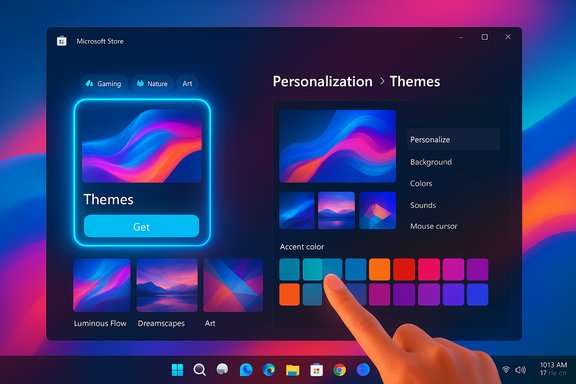
Microsoft has quietly built a one-click personalization gateway into Windows 11 by adding a dedicated Themes department to the Microsoft Store — a curated storefront that now hosts more than 400 downloadable theme packages (with 35+ new collections added at rollout) and allows users to apply complete wallpaper-and-accent-color sets directly from the Store into Settings with a single click.
For years, Windows users who wanted to change the look of their desktops relied on a mixture of built-in themes, third‑party downloads, and an aging Microsoft themes web page that provided direct .themepack files for offline archiving. Microsoft’s recent move centralizes theme discovery and delivery inside the Microsoft Store, positioning themes next to apps, games, and utilities and bringing editorial curation, trending collections, and Store-style discovery to personalization. That shift follows Microsoft’s decision to retire the legacy theme-download web page and steer users toward a Store-first distribution model. Community reporting and developer commentary flagged the retirement months earlier; the Store-first rollout is Microsoft’s primary alternative to the legacy archive. Why this matters now: with people increasingly expecting phone-like, instantaneous theming experiences, Microsoft’s update removes several manual steps that historically discouraged casual personalization — especially for users who were never comfortable manually assembling wallpapers and accent color settings. The new department is, at its core, an accessibility and discoverability play for personalization.
Microsoft’s little design nudge makes personalization feel closer to what phone users expect: fast, curated, and one-click. That convenience will help more people express themselves through their desktops. The trade-offs — archival loss, discoverability quirks, enterprise deployment friction — are real but fixable if Microsoft addresses parity and offline needs. Until then, treat the new Themes department as the simplest and safest way to refresh your Windows 11 desktop, but not the only tool in a customizer’s toolbox.
Source: Digital Trends Microsoft makes theming your Windows 11 PC as easy as phones, but not as much fun
 Background / Overview
For years, Windows users who wanted to change the look of their desktops relied on a mixture of built-in themes, third‑party downloads, and an aging Microsoft themes web page that provided direct .themepack files for offline archiving. Microsoft’s recent move centralizes theme discovery and delivery inside the Microsoft Store, positioning themes next to apps, games, and utilities and bringing editorial curation, trending collections, and Store-style discovery to personalization. That shift follows Microsoft’s decision to retire the legacy theme-download web page and steer users toward a Store-first distribution model. Community reporting and developer commentary flagged the retirement months earlier; the Store-first rollout is Microsoft’s primary alternative to the legacy archive. Why this matters now: with people increasingly expecting phone-like, instantaneous theming experiences, Microsoft’s update removes several manual steps that historically discouraged casual personalization — especially for users who were never comfortable manually assembling wallpapers and accent color settings. The new department is, at its core, an accessibility and discoverability play for personalization. What the new Themes department contains
Catalog size and curation
- Catalog breadth: The Microsoft Store Themes department hosts over 400 themes at launch, with more than 35 collections listed as new additions — a mix of Microsoft-produced packs, partner-created photography and art collections, and officially licensed franchise themes.
- Representative packs: Microsoft highlighted sample themes such as Luminous Flow, Mountain Dwellings, Dreamscapes, Sea of Thieves Official, Blooming Dimensions, Neon Dreams, World National Parks, and several official game or brand tie-ins.
- Editorial design: Themes are surfaced via editorial categories — gaming, nature, art, seasonal and mood collections — and via Store-style recommendations and trending lists aimed at reducing choice fatigue for mainstream users.
Packaging and behavior
Each Store-distributed theme is a packaged experience that may include:- Desktop wallpapers (single images or playlists that rotate).
- Suggested accent colors applied to Windows UI elements.
- Optional scheduling or rotation behavior (varies by theme).
- In some cases, sound schemes and cursors, though support for every packaged element can vary compared with legacy .themepack behavior.
How it works for end users
The goal here is simplicity: find a theme in the Store, click Get, and apply it. The theme then appears in Settings so you can switch or manage it like any other theme.- Open the Microsoft Store app (taskbar or Start).
- Navigate to the Themes department (paintbrush icon or search “themes”).
- Browse curated lists, select a theme, and click Get or Install.
- Apply the downloaded theme directly (it will appear under Settings > Personalization > Themes).
- If a theme doesn’t show immediately in Settings, use the Browse themes option on the Themes page in Settings to confirm the download.
- You can save a theme’s exact configuration (wallpaper order, accent colors, sounds) in Settings by using the Save option, producing a named theme file for re-use.
Why Microsoft made this change — the stated rationale
Microsoft frames the department as a way to make personalization “natural and accessible,” appealing to a broad audience: gamers who want franchise art, creatives who want curated photography, and casual users who want a fresh desktop without fiddly setup. They explicitly say the department is intended to make it faster to find and apply a complete look with a single click, and they’re inviting creators to publish themes through a Theme Publisher Interest Form. From Microsoft’s perspective, the centralized Store model brings:- Better discoverability through editorial curation and algorithmic surfacing.
- Safer packaging and review workflows compared with ad‑hoc web downloads.
- A consistent installation and update mechanism that ties into Microsoft account sync.
Strengths — what the change gets right
1. Real usability improvement for mainstream users
The largest practical win is reduced friction. Applying a complete set of wallpapers and colors in one click lowers the barrier for personalization, a clear benefit for non-technical users who previously found theme assembly tedious. The Store’s editorial categories and trending lists reduce search friction and will likely increase adoption of custom desktop looks.2. Improved safety and platform governance
Delivering themes through the Store subjects theme packages to submission rules and Store vetting. That reduces the risk of malicious or tampered theme packs being distributed from untrusted third‑party sites. For the average user, that’s a meaningful security improvement.3. Integration and manageability
Themes installed from the Store integrate cleanly with Settings > Personalization > Themes, meaning they behave like first-class Windows personalization assets and support centralized management and syncing to other devices tied to the same Microsoft account. That is a practical quality‑of‑life upgrade.4. Opportunity for creators
For photographers, designers, and brands, the Store provides familiar developer tooling, editorial channels, and analytics — all useful for professional distribution and visibility. It’s a simpler route to reach millions of Windows users than one-off website uploads.Risks, trade-offs, and unanswered questions
A. Loss of direct archival .themepack downloads
The legacy Microsoft themes web page allowed users to download .themepack files to disk for offline storage, sharing, and bulk archiving. The Store-first model reduces that simple file‑save workflow: themes are account-linked Store installs rather than immediate file downloads. That change removes a convenient archival path and has already prompted community warnings to back up favorites while the old page still exists. If you care about keeping a local library, you should export or save theme files now. Caution: Microsoft’s blog claims parity across theme content, but earlier community reports indicate not every legacy theme migrated or was discoverable in the Store at launch; users should verify individually that beloved packs are available.B. Discoverability is improved in theory, not guaranteed
While editorial curation helps, the Microsoft Store’s discoverability has historically been inconsistent and subject to UI experiments and A/B tests. Users searching for niche or older packs may still face filter or indexing problems; the Store’s marketing and promotional mechanics could also drive visibility toward paid or promoted bundles. That introduces a risk that the most visible themes will not necessarily be the highest quality or the ones that long-time customizers prefer.C. Power-user and enterprise friction
Power users and administrators lose the convenience of a file-based distribution model. Enterprises that need to include approved themes in images or deploy them offline will want explicit offline packaging or deployment guidance. Right now the Store’s account-linked model complicates managed distributions unless Microsoft provides an explicit offline-deploy path or enterprise packaging guidance. Administrators should prepare to adopt Group Policy or MDM strategies to control Store access and theme deployment.D. Partial feature parity and edge cases
Some advanced theme features — packaged sound schemes, cursors, or unusual scheduling behaviors — may not always apply as expected when a theme is installed via the Store, compared with the older .themepack behavior. Early community reports show occasional mismatches, so users who rely on non‑wallpaper elements in a theme should verify all aspects after installing.Security, privacy, and governance implications
Centralizing themes in the Store has clear security advantages — curated packaging, submission reviews, the Store’s publisher identity — all of which reduce the chance that visual assets become vehicles for malware. However, there are trade-offs around telemetry and personalization.- Store recommendations and editorial surfaces may use account-level signals and telemetry to recommend themes, so users who want minimal cross‑service profiling should review privacy toggles for personalized experiences.
- Themes that include dynamic or cloud-hosted content may require network access; prudent users should inspect permissions and network calls if privacy is a concern.
- Marketplace dynamics mean editorial and algorithmic placement can bias visibility; users should be aware that the most visible packs are not always the best or the most privacy‑friendly.
Creator and publisher guidance (practical)
If you’re an artist, photographer, or brand considering publishing themes in the Store, here are the practical takeaways:- Expect a Store-style submission and review process; the benefits include access to editorial channels and Store analytics.
- Consider the packaging differences compared with static .themepack files: Store themes may be tied to Store update mechanics and might be account-managed rather than purely file-based.
- Watch for potential competition with promoted or paid content; editorial placement can increase downloads, but smaller creators should weigh the submission costs and timelines.
Practical recommendations for users
- If you rely on older or favorite theme packs, back them up now as local .themepack files before the legacy pages are retired. Save the files and keep a local offline archive to avoid losing access.
- Use the Store Themes department for quick exploration and for safe, one-click application of curated looks; it’s ideal for casual personalization and day-to-day variety.
- Power users who need custom or functional modifications (taskbar behavior, shell reskins, animated backgrounds) should retain proven third‑party tools such as Lively Wallpaper, Rainmeter, TranslucentTB, or Start11; these offer behavior changes the Themes department won’t provide.
- Administrators should test Store-based theme deployment in a staging environment and request an explicit offline deployment option from Microsoft if they plan to roll themed images out at scale. Enterprises that restrict Store access via Group Policy or MDM need to update policies to ensure approved themes remain reachable.
The broader picture — Store-first personalization and Microsoft’s strategy
The Themes department is a microcosm of Microsoft’s broader Store-centric approach: centralize discovery, apply editorial curation, and fold non-app content into the Store’s managed ecosystem. That approach streamlines updates and safety for consumers while increasing Microsoft’s content surface for editorial promotion and analytics. For the average user, the new hub reduces friction; for power users it signals a subtle narrowing of distribution models in favor of platform-controlled channels. This strategy brings short-term convenience and longer-term trade-offs: easier discovery and safer packaging now; a potential loss of long-tail archival content and file-based workflows later. The net result will depend on how Microsoft addresses parity gaps, offline deployment options, and discoverability refinements — and whether community creators can adapt to Store tooling without losing reach.Quick walkthrough: applying a Store theme (step-by-step)
- Open Microsoft Store.
- Click the paintbrush icon or search for “themes” to reach the Themes department.
- Browse by category or trending picks; click a theme tile to preview.
- Click Get / Install. The Store will download the theme and expose it to Settings.
- Open Settings > Personalization > Themes and either apply the downloaded theme or fine‑tune elements (wallpaper order, accent colors, sounds). Use Save to create a named theme backup if you want to preserve the configuration.
Final analysis and what to watch
Microsoft’s Store Themes department is a useful, practical improvement for most Windows 11 users — it reduces friction, improves safety, and makes curated personalization visible in a modern storefront users already know how to use. These are real, user-facing wins that should increase adoption of richer desktop looks among casual audiences. However, the move is not purely cosmetic; it signals a continuing centralization of Windows features into the Microsoft Store ecosystem. That centralization trades a great deal of convenience for Microsoft with a small but meaningful reduction in open, file-based workflows that power users and administrators have relied on for years. The technical and governance implications deserve attention:- Verify parity before relying on the Store as a one-for-one replacement for the legacy archive.
- Enterprise deployments should request offline packaging or explicit deployment guidance.
- Creators should evaluate Store publishing timelines and promotional mechanics before migrating entire catalogs.
Microsoft’s little design nudge makes personalization feel closer to what phone users expect: fast, curated, and one-click. That convenience will help more people express themselves through their desktops. The trade-offs — archival loss, discoverability quirks, enterprise deployment friction — are real but fixable if Microsoft addresses parity and offline needs. Until then, treat the new Themes department as the simplest and safest way to refresh your Windows 11 desktop, but not the only tool in a customizer’s toolbox.
Source: Digital Trends Microsoft makes theming your Windows 11 PC as easy as phones, but not as much fun
