

Microsoft's Teams is about to add a seemingly small convenience — automatically setting your "work location" when your laptop joins a corporate Wi‑Fi — that has outsized implications for privacy, workplace culture, and IT policy. The feature, delivered as part of Microsoft Places and Teams' desk‑and‑space tooling, will let tenant administrators map Wi‑Fi networks and even specific access‑point MAC addresses (BSSIDs) to building names so a user’s Teams status and work‑location field can update automatically during their scheduled working hours. That convenience is explicitly opt‑in for users and off by default, but the technical capability creates a new, low‑friction channel for employers to know — and potentially act on — where people are working.
Microsoft has been iterating on Microsoft Places and Teams' desk‑booking and presence features for more than a year. Administrators have long been able to let people manually declare their office or to book desks through Places; the new capability automates that update based on two signals: Wi‑Fi network connection and peripheral plug‑ins (monitors, docks, and other desk hardware). The automated detection is governed by a Teams work‑location detection policy that administrators create and assign, and users are asked for consent inside the Teams desktop client before their location can be updated. Microsoft documents the workflow and the related PowerShell policy cmdlets as part of the Teams admin toolset. Microsoft rolled the functionality through internal message channels and the Microsoft 365 Roadmap under ID 488800, with multiple timeline revisions in 2025 as the company moved the rollout window from mid‑2025 targets toward late‑2025 and early‑2026 general availability. Different Microsoft notices and third‑party trackers show the schedule shifted several times; Microsoft’s Message Center posts emphasize that the feature is off by default and that admins must opt in and configure mapping for Wi‑Fi or peripherals to function.
But the real decision point is organizational. Tech companies can ship features that enable new capabilities, but whether those capabilities are used for humane, pro‑collaborative purposes or for surveillance and micromanagement is a matter of corporate policy, legal compliance, and workplace culture.
For IT leaders and privacy officers, the Teams work‑location detection feature is less a technology problem than an organizational governance problem: it demands clear, transparent policies, stakeholder engagement, and defensible limits on what the data can be used for — plus technical controls that enforce those limits.
Microsoft ships the feature with administrative controls, per‑user consent, and working‑hours constraints, which are necessary but not sufficient to prevent abuse. The most important safeguards will be policies and practices set by employers: scope of use, access limitations, retention, union and legal consultation, and transparent employee communication.
For IT teams considering enabling the feature, the best approach is a cautious, staged rollout: perform privacy and legal assessments, prefer coarse‑grained mapping initially, pilot with volunteers, and codify acceptable uses. For employees, the protections lie in consent mechanisms and workplace rules — and those are only effective when organizations treat location data as sensitive and governance as mandatory.
This feature will change how presence is represented in Teams. Whether it improves the hybrid‑work experience or becomes another instrument of workplace surveillance depends entirely on the choices organizations make now.
Source: PCWorld Microsoft Teams can soon snitch on your location using Wi-Fi connections
 Background / Overview
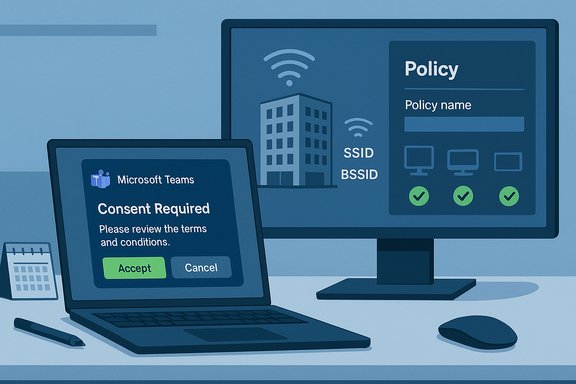
Microsoft has been iterating on Microsoft Places and Teams' desk‑booking and presence features for more than a year. Administrators have long been able to let people manually declare their office or to book desks through Places; the new capability automates that update based on two signals: Wi‑Fi network connection and peripheral plug‑ins (monitors, docks, and other desk hardware). The automated detection is governed by a Teams work‑location detection policy that administrators create and assign, and users are asked for consent inside the Teams desktop client before their location can be updated. Microsoft documents the workflow and the related PowerShell policy cmdlets as part of the Teams admin toolset. Microsoft rolled the functionality through internal message channels and the Microsoft 365 Roadmap under ID 488800, with multiple timeline revisions in 2025 as the company moved the rollout window from mid‑2025 targets toward late‑2025 and early‑2026 general availability. Different Microsoft notices and third‑party trackers show the schedule shifted several times; Microsoft’s Message Center posts emphasize that the feature is off by default and that admins must opt in and configure mapping for Wi‑Fi or peripherals to function. How the new Teams location detection works
Two detection signals: Wi‑Fi and peripherals
- Wi‑Fi mapping (SSID/BSSID): IT teams can upload an SSID list and — for greater precision — a BSSID list that maps individual access‑point MAC addresses to a building record in Microsoft Places. If only SSIDs are provided (a broader, less precise signal), Teams may simply mark a user as In the office rather than tie them to a specific building. If BSSIDs are mapped, Teams can assign a building name when the device associates to that access point.
- Peripheral mapping (monitors, docks, desk hardware): Organizations that use desk‑booking and assign peripherals to bookable desks can detect a user’s presence when a device plugs into a mapped peripheral. That signal is already supported today and can work together with Wi‑Fi mapping to increase accuracy.
Policies, consent, and configuration
- Admin control and policy: Admins create a Teams work‑location detection policy (for example via New‑CsTeamsWorkLocationDetectionPolicy) and assign it using Grant‑CsTeamsWorkLocationDetectionPolicy or similar cmdlets. The policy controls whether detection is enabled for targeted users or groups. It is off by default.
- User consent and OS settings: Even when an admin enables the policy, the per‑user opt‑in is required. Microsoft’s documentation stresses that administrators cannot consent on behalf of users; users must permit location sharing in their operating system and in Teams to complete the flow. The feature is available only on Teams desktop for Windows and macOS clients.
- Working hours and temporal limits: To reduce 24/7 surveillance risk, Microsoft made the feature sensitive to calendar/work hours: automatic updates do not occur if the connection happens outside configured working hours, and detected locations are cleared when working hours end. That constraint is an engineered privacy safeguard the company highlights in its rollout documentation.
Why IT teams might want this feature
There are several legitimate, operational benefits that make this capability attractive to organizations:- Better in‑office collaboration and last‑mile coordination. Knowing whether colleagues are physically present can make ad‑hoc meetings, desk sharing, and in‑person drop‑ins smoother and reduce wasted trips to an empty floor.
- Improved desk‑booking and space utilization. Automated detection tightens the feedback loop for space‑management systems, reducing ghost bookings and improving utilization metrics for facilities teams.
- Reduced dependence on manual status updates. Many users forget to change their work location or forget to book desks; automation reduces friction and improves the integrity of location data in enterprise systems.
- Integration with existing Microsoft Places and booking workflows. The feature plugs into Microsoft’s Places catalog, letting facilities map buildings and floors and reuse that inventory for desks, rooms, and usage reporting.
Why privacy advocates and employees should be concerned
Even with the safeguards Microsoft describes, the feature creates new privacy and supervision vectors that deserve scrutiny.Granularity and scope: from “In the office” to building‑level tracking
If administrators upload a BSSID‑level mapping, Teams can record which access point a device associates with and therefore map a user to a specific building — and possibly a floor or wing if your Wi‑Fi topology supports that granularity. That level of mapping is materially different from a coarse "In the office" flag and increases the ability for others to locate an employee within the workplace. Whether that data is exposed to every colleague or only a restricted set of users depends on tenant configuration and visibility controls — but the potential for misuse exists.Real‑time movement and “always know where someone is”
Coverage in the press and forums has used shorthand like “snitch on your location” to describe the feature, which captures the visceral reaction: automated updates tied to network association can reveal employee movement between Wi‑Fi cells over the course of a day. Microsoft’s documentation, however, describes updates tied to connections and working hours rather than constant streaming telemetry; it does not assert continuous 24/7 tracking capability. That nuance matters — the system can provide near‑real‑time updates when a device re‑associates, but it’s not the same as a continuous GPS trace. Readers should treat coarse summaries as interpretation rather than definitive technical behavior unless the organization’s configuration and logs are inspected. This distinction is important and not fully clear in all public reporting.Employer monitoring and policy risk
Once location is technically feasible, the temptation to use it for monitoring increases. Examples that worry labor advocates include:- Enforcement of return‑to‑office (RTO) quotas by automatically comparing presence data with policy;
- Logging arrival times to infer tardiness;
- Cross‑referencing location with productivity metrics to detect “remote work abuse”;
- Using location data in performance reviews or disciplinary actions.
Legal and regulatory exposure
Depending on jurisdiction, automated workplace location data can trigger legal requirements:- Data protection laws (for example, the EU’s GDPR) are sensitive to personal data that reveals location and movement. Employers may need to document lawful bases, perform Data Protection Impact Assessments (DPIAs), and ensure transparency with employees.
- Employee‑privacy statutes and sector‑specific rules (healthcare, finance) may impose further restrictions on real‑time monitoring.
- Labor and union agreements can also constrain surveillance and require consultation before deployment.
What Microsoft has put in place as mitigations
Microsoft has implemented specific design choices intended to limit abuse and preserve user control:- Off by default — Admins must enable the feature and assign policies for detection to work. This prevents accidental global activation.
- Per‑user consent — Users must explicitly opt in via the Teams desktop client and enable OS location sharing; admins cannot force consent on behalf of users. This preserves individual autonomy in most cases.
- Working‑hours enforcement — Updates occur only during the user’s scheduled working hours and are cleared at day’s end, reducing round‑the‑clock monitoring.
- Configurable granularity — Admins can choose to map only SSIDs (coarse) instead of BSSIDs (fine‑grained), allowing organizations to deliberately limit spatial precision.
Practical guidance: what IT and privacy teams should do before enabling this
Enabling automatic work‑location detection is a cross‑functional decision. The following checklist offers a pragmatic sequence IT leaders and privacy officers should follow.- Convene a working group that includes IT, HR, Legal/Compliance, Facilities, and employee representation (unions or staff councils where applicable).
- Perform a Data Protection Impact Assessment (DPIA) or equivalent privacy assessment that documents purpose, data flows, retention, access controls, and legal basis for processing location data.
- Decide the mapping granularity: default to SSID‑level “In the office” signals unless a clear operational need exists for building‑level or BSSID mapping.
- Define precise access controls: limit who can see location values, log who accesses location data, and set short retention windows for any audit or reports.
- Prepare employee notices and consent language that clearly explain what is collected, how it will be used, and how to opt out.
- Pilot the feature with a small, voluntary group before wider deployment; gather feedback on unintended consequences and false positives.
- Update internal policies (acceptable use, performance evaluation, privacy) to explicitly forbid punitive uses of location data unless previously negotiated.
- Train helpdesk and facilities staff on the new flows and on responding to employee questions about visibility and consent.
- Monitor post‑deployment metrics and legal developments; be prepared to roll back or adjust settings if misuse or complaints surface.
Technical hardening and configuration tips for admins
- Prefer SSID mapping for initial rollouts. SSID lookup marks users as In the office without revealing which building, and this strikes a safer privacy/performance balance.
- If you must use BSSID mapping, treat the BSSID list as sensitive infrastructure data. Restrict who can view or export the list and protect its storage/transport with encryption and role‑based access controls.
- Use PowerShell policy scoping. Create separate TeamsWorkLocationDetectionPolicy instances for pilots, voluntary cohorts, and production, and use Grant‑CsTeamsWorkLocationDetectionPolicy to target only the intended groups.
- Audit logs and alerts. Ensure that read access to location data is audited. If location values are surfaced through APIs or reports, log retrievals and review access patterns for misuse.
- Rate‑limit updates and avoid over‑notification. Excessive status changes can annoy users; configure the behavior so location updates are meaningful events rather than noisy telemetry.
- Coordinate with endpoint management. Make sure managed devices have OS location sharing policies clarified and that corporate device settings match your intended consent flows.
Employer use cases that are defensible — and ones that are not
Defensible uses:- Short‑term desk availability indicators for colleagues looking to meet in person.
- Facilities optimization and capacity planning using aggregated, anonymized data.
- Improving desk‑booking accuracy to reduce conflicts and ghost reservations.
- Using location records to enforce RTO quotas without prior consultation and documented policy.
- Automated disciplinary action based solely on presence signals (e.g., arrival time flags).
- Linking location data to productivity scoring systems or automated performance analytics.
How employees can protect themselves (and what they should expect)
Employees who are concerned should know the practical limits and options available:- Teams will ask you for permission. You can decline the opt‑in prompt; admins cannot force consent on your behalf. If you want to avoid any automatic work‑location updates, do not grant consent in Teams or disable OS location sharing for Teams.
- Check settings and calendar work hours. The feature respects configured working hours; reviewing and, if necessary, narrowing those hours reduces exposure.
- Ask your employer for documentation. Request written guidance on how location data will be used, who can access it, how long it will be stored, and the grievance process.
- Escalate through HR or works councils. If location data is used in a way that seems punitive or disproportionate, raise it formally. Collective bargaining agreements or workplace privacy laws may apply.
- Personal devices vs corporate devices. Note that the feature is built for desktop clients on provisioned devices; mobile and unmanaged devices may behave differently.
Bigger picture: product design vs organizational choice
Microsoft’s product design tries to thread a needle: add convenience for hybrid work while inserting controls and consent flows to limit misuse. That design reflects a broader industry pattern where collaboration platforms layer location and presence signals on top of productivity tooling.But the real decision point is organizational. Tech companies can ship features that enable new capabilities, but whether those capabilities are used for humane, pro‑collaborative purposes or for surveillance and micromanagement is a matter of corporate policy, legal compliance, and workplace culture.
For IT leaders and privacy officers, the Teams work‑location detection feature is less a technology problem than an organizational governance problem: it demands clear, transparent policies, stakeholder engagement, and defensible limits on what the data can be used for — plus technical controls that enforce those limits.
Conclusion
Automatic work‑location detection in Microsoft Teams is a practical extension of Places and desk‑booking capabilities that will help many organizations coordinate hybrid work and manage physical spaces more efficiently. It is, however, a capability that raises legitimate privacy and governance flags.Microsoft ships the feature with administrative controls, per‑user consent, and working‑hours constraints, which are necessary but not sufficient to prevent abuse. The most important safeguards will be policies and practices set by employers: scope of use, access limitations, retention, union and legal consultation, and transparent employee communication.
For IT teams considering enabling the feature, the best approach is a cautious, staged rollout: perform privacy and legal assessments, prefer coarse‑grained mapping initially, pilot with volunteers, and codify acceptable uses. For employees, the protections lie in consent mechanisms and workplace rules — and those are only effective when organizations treat location data as sensitive and governance as mandatory.
This feature will change how presence is represented in Teams. Whether it improves the hybrid‑work experience or becomes another instrument of workplace surveillance depends entirely on the choices organizations make now.
Source: PCWorld Microsoft Teams can soon snitch on your location using Wi-Fi connections
