

Microsoft began rolling out Efficiency Mode for Microsoft Teams in late May 2026, targeting Windows and Mac desktop users on hardware-constrained PCs by changing startup behavior and dynamically lowering meeting video demands when CPU and memory resources are tight. The feature is not a reinvention of Teams so much as a concession: collaboration software has become infrastructure, and infrastructure that stutters on ordinary machines becomes an organizational tax. Microsoft’s answer is to make Teams less eager, less visually ambitious, and more willing to trade fidelity for responsiveness. That is a small change with a large subtext.
The most interesting thing about Teams Efficiency Mode is not that it exists. It is that Microsoft is finally treating less as a feature.
For years, the company’s collaboration strategy has been built around adding surface area: meetings, chat, channels, Loop components, files, apps, webinars, telephony, AI summaries, Copilot hooks, and the rest of the Microsoft 365 sprawl. Teams became the front door to work, but it also became the application many users blamed when a low-end laptop sounded like a desk fan trying to lift off.
Efficiency Mode is a different sort of update. It does not promise a new meeting paradigm or another pane of productivity chrome. It promises that, on weaker devices, Teams will stop trying to do quite so much at once.
That matters because Teams is no longer optional software in many workplaces. It is the app that opens before email, runs during every meeting, hosts chat records, and sits in the background for the full workday. If it performs badly, the whole PC feels worse.
That may sound like UI trivia. In practice, it is a targeted cut at one of the most frustrating moments in enterprise software: the cold start, when the user is waiting for an app to become usable while the machine is already juggling sign-in, sync, notifications, browser tabs, endpoint security, cloud storage, and whatever else IT has installed.
A chat app does not merely open a window. It authenticates, syncs state, loads recent messages, renders media, prepares notifications, and often restores the last context whether the user wants it or not. On a fast machine, that is background noise. On a 4GB or 8GB business laptop with a modest processor, it is the difference between “Teams is open” and “I’ll click it again because nothing happened.”
Microsoft’s static placeholder is a bet that immediacy matters more than continuity. Rather than assuming the last chat deserves first-class treatment, Teams can show something cheap, wait for explicit intent, and avoid spending scarce resources on a conversation the user may not need.
That is good product discipline. It is also an admission that modern productivity apps have become too comfortable preloading their own priorities before the user has expressed one.
This is the right trade. In most business meetings, intelligible audio, timely screen sharing, and input responsiveness matter more than high-resolution participant thumbnails. A call where everyone looks slightly softer is still a call. A call where the laptop freezes while the user tries to unmute is a failure.
Video has always been the glamorous part of collaboration software, but it is also one of the most expensive. Decoding multiple streams, rendering a grid, processing camera output, handling effects, and keeping the rest of the app responsive is a real workload. On better hardware, those costs are masked. On aging fleet machines, they pile up exactly when the user is least able to tolerate them.
Microsoft is not saying Teams will become beautiful on weak PCs. It is saying Teams will become more willing to degrade gracefully. That is a more useful promise.
The risk, of course, is perception. Users do not always distinguish between intentional resource management and poor service quality. If video gets blurrier, some will blame the network, some will blame Teams, and some will blame the machine. Microsoft’s leaf icon in the title bar is meant to make the state visible, but visibility is not the same as understanding.
This is a familiar Microsoft pattern. Windows already uses leaf-style efficiency indicators in Task Manager to signal resource-saving behavior, and Edge has long carried its own efficiency features. The metaphor is clear enough: this app is being gentle. It is saving energy, cycles, or both.
But in Teams, the leaf carries a slightly different message. It is not just about battery life or background throttling. It is about preserving usability on hardware that cannot comfortably absorb the full Teams experience.
That makes the icon a kind of performance disclaimer. If the app looks less eager to load chat or less crisp in a meeting, Microsoft can point to the optimization state. The device is constrained; Teams is adapting.
For IT departments, that is useful. For end users, it may be confusing. A leaf icon does not explain why their video changed, why a chat did not preload, or why the app behaves differently from a colleague’s machine. Microsoft will need the setting and its effects to be plain enough that help desks do not inherit a new class of “why does my Teams look different?” tickets.
A setting that users must discover is a feature for enthusiasts. A setting enabled automatically is a policy choice. Microsoft is deciding that, for certain machines, the optimized experience should be the standard experience.
That is probably correct. The people who most need Teams to use fewer resources are often the least likely to go hunting through settings menus. They are students, frontline workers, call-center employees, contractors, workers on older corporate laptops, or anyone using the machine they were issued rather than the machine they would buy.
The opt-out path matters, too. Users who do not want the behavior can disable it manually in Teams settings under General by choosing the option to never use efficiency mode. That gives power users and administrators a way out, assuming the organization has not otherwise restricted settings.
Still, default-on behavior always raises the same enterprise question: who gets to decide what “eligible” means? Microsoft has not publicly provided a neat hardware threshold in the reporting around this rollout. Without that clarity, administrators may have to discover the boundary empirically across fleets with different processors, memory configurations, graphics hardware, and device ages.
That ambiguity is not fatal, but it is inconvenient. IT likes predictable states. A performance feature that appears automatically on some devices and not others can be helpful, but it can also complicate documentation, training, and troubleshooting.
That tension is important. Efficiency Mode is not evidence that the new Teams failed. It is evidence that the floor matters as much as the average.
Modern software performance is often measured on respectable hardware, with fast storage, enough RAM, and processors that can hide poor timing. Enterprise reality is messier. A school district may have mixed laptop generations. A small business may stretch devices well past their refresh cycle. A large company may keep thousands of “good enough” machines because budgets do not move just because software gets heavier.
Teams sits directly in that gap. Microsoft can make the client twice as efficient compared with an older version and still face complaints from users whose hardware barely clears the minimum line. The performance story is not a single benchmark. It is the daily lived experience of launching the app, joining the call, sharing the screen, and typing into chat while everything else is running.
Efficiency Mode is a pragmatic response to that reality. It does not claim that every PC can run the full collaboration stack equally well. It says the app should adapt when they cannot.
Low-end and aging PCs are everywhere. They sit in classrooms, clinics, warehouses, municipal offices, retail back rooms, nonprofit offices, and home workspaces. They survive because they still boot, because replacement cycles are expensive, and because many workflows do not justify premium hardware.
The problem is that collaboration software has become one of the heavier “basic” workloads. A user may only need email, browser access, documents, and meetings. That sounds light until the browser has a dozen tabs, OneDrive is syncing, endpoint protection is scanning, Outlook is indexing, Teams is rendering a video grid, and Windows is servicing background tasks.
In that environment, Teams does not need to be the only heavy application to become the most visible one. It is the app users are staring at when the machine struggles. It is the meeting that embarrasses them when audio drops or the mute button lags. It is the chat window they blame when the system catches up three seconds too late.
Efficiency Mode acknowledges that Microsoft cannot simply wait for every customer to buy newer hardware. The company is also under pressure to push Windows, Microsoft 365, Copilot, and cloud-connected workflows deeper into organizations. Those ambitions collide if the collaboration client itself becomes a reason users distrust the platform.
A default optimization for weak machines could reduce some common pain points: slow startup, overloaded meetings, and poor responsiveness during calls. It may also buy time for organizations that cannot accelerate hardware refreshes just because collaboration workloads have grown.
But admins will want answers that the initial public reporting does not fully provide. Which devices are eligible? Is the decision based on RAM, CPU class, telemetry, OS version, graphics capability, or some combination? Can the behavior be managed centrally? How will support teams identify whether a user’s experience is caused by Efficiency Mode, network conditions, Teams policy, or hardware failure?
Those details determine whether Efficiency Mode becomes an invisible improvement or another variable in the troubleshooting matrix.
There is also the training issue. If the app launches differently on some machines, support scripts need to reflect that. If video quality drops automatically, users need to know that lower fidelity may be intentional. If the title bar shows a leaf icon, help desks need a plain-language explanation ready before the first ticket arrives.
The best version of this feature is one nobody has to think about. The second-best version is one IT can explain in a sentence. Anything more complicated will blunt the benefit.
For much of the last decade, software makers have behaved as if the answer to complexity was more compute. If the app is heavier, buy a faster machine. If meetings use more video, upgrade the network. If the client uses more memory, install more RAM. That logic works for some organizations and fails for many others.
Efficiency features invert the assumption. They ask the application to notice scarcity and behave differently. That is not glamorous, but it is exactly where mature platform software should be heading.
There is a parallel here with browsers, operating systems, and mobile platforms. The best systems do not merely expose every capability at full blast; they schedule, suspend, defer, compress, and prioritize. They understand that user experience is not the same as maximum fidelity.
Teams is late to that philosophy, but not uniquely late. Collaboration apps grew rapidly during the pandemic-era shift to remote and hybrid work, and feature delivery often outran performance refinement. The result was a generation of apps that could do nearly everything but sometimes made basic machines feel worse at doing anything.
Efficiency Mode is Microsoft trimming at the right layer. It does not remove core functionality. It delays unnecessary loading and scales down expensive media. That is the kind of compromise users can accept if it makes the app feel less like a systemwide tax.
Together Mode was one of the pandemic era’s most recognizable meeting experiments: a way to place participants into a shared virtual scene and make remote calls feel less like a grid of boxes. It was clever, memorable, and in the right context, useful. It was also very much a feature from a period when video presence was being reinvented in public.
Efficiency Mode represents the opposite instinct. It is not about making meetings feel more immersive. It is about making sure the meeting works on a constrained device.
That shift feels emblematic. The collaboration market has moved from emergency invention to operational normalization. The question is no longer how to make remote work feel novel. It is how to make everyday hybrid work less annoying, less fragile, and less expensive to support.
Microsoft is pruning at both ends: removing or revising meeting experiences that no longer justify their weight, while adding mechanisms that make the core app survive better under pressure. That may disappoint users who liked the more playful features, but it is where enterprise software eventually goes. Reliability wins.
Teams is one of the applications that defines whether a Windows PC feels modern enough for work. A machine can meet the OS requirements and still feel inadequate if Teams struggles. Conversely, a modest machine that handles Teams smoothly can remain viable for another year or two in many roles.
That matters as organizations continue to navigate hardware refresh pressure, Windows lifecycle decisions, and the growing marketing push around AI-capable PCs. Microsoft wants customers excited about Copilot+ PCs and more capable endpoints. Many customers, meanwhile, are still trying to make ordinary collaboration workloads behave on existing devices.
Efficiency Mode sits in that tension. It does not remove the case for newer hardware, and Microsoft would surely prefer customers to buy faster PCs. But it also recognizes that a platform vendor cannot build trust by making current machines feel abandoned.
The strongest argument for Windows in business has always been breadth. It runs on premium workstations, cheap laptops, managed desktops, shared devices, and everything in between. If Microsoft’s own apps only feel good on the upper half of that range, the breadth argument weakens.
Teams becoming more adaptive helps preserve that middle and lower tier. It says Microsoft still understands that not every workplace endpoint is a flagship laptop with generous memory and a recent processor.
If it works, users on constrained devices will notice that Teams opens a little faster, meetings feel a little less punishing, and the machine remains a little more responsive. They may not know why. They may never click the setting or understand the leaf icon. That is fine.
If it fails, the complaints will be specific and familiar. Chats will seem odd at launch. Video will look worse. Users will wonder why colleagues have a different experience. Admins will ask why Microsoft did not document eligibility more clearly. The optimization will become one more thing to disable during troubleshooting.
The line between those outcomes is not the concept. The concept is sound. The line is execution: how aggressively Teams downshifts, how accurately it identifies constrained devices, how clearly it reports its state, and how well it avoids making the app feel inconsistent.
Microsoft has experience here, but also scars. Efficiency features can be controversial when users believe software is throttling them unnecessarily. The company needs Teams Efficiency Mode to feel like relief, not interference.
That is probably the future of mainstream productivity software. Not one monolithic experience, but a set of adaptive behaviors that preserve the essentials when resources are scarce. The challenge is making that adaptation transparent enough for IT and invisible enough for users.
Near-term, the practical implications are clear.
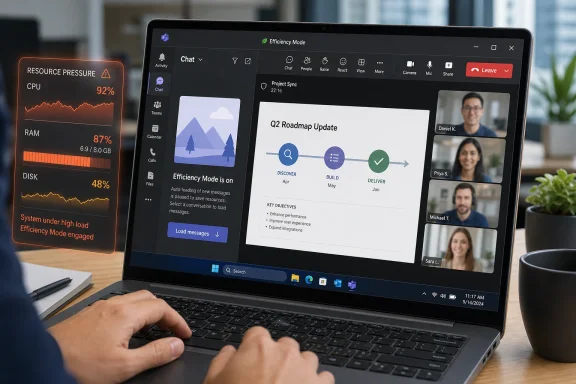 Microsoft Chooses Restraint Over Another Redesign
The most interesting thing about Teams Efficiency Mode is not that it exists. It is that Microsoft is finally treating less as a feature.For years, the company’s collaboration strategy has been built around adding surface area: meetings, chat, channels, Loop components, files, apps, webinars, telephony, AI summaries, Copilot hooks, and the rest of the Microsoft 365 sprawl. Teams became the front door to work, but it also became the application many users blamed when a low-end laptop sounded like a desk fan trying to lift off.
Efficiency Mode is a different sort of update. It does not promise a new meeting paradigm or another pane of productivity chrome. It promises that, on weaker devices, Teams will stop trying to do quite so much at once.
That matters because Teams is no longer optional software in many workplaces. It is the app that opens before email, runs during every meeting, hosts chat records, and sits in the background for the full workday. If it performs badly, the whole PC feels worse.
The Startup Change Is Small, but It Says Plenty
One of the headline changes is almost comically modest: when Teams launches under Efficiency Mode, it can show a static placeholder image in the messages pane instead of immediately loading a preselected chat conversation. The user then chooses which conversation to open.That may sound like UI trivia. In practice, it is a targeted cut at one of the most frustrating moments in enterprise software: the cold start, when the user is waiting for an app to become usable while the machine is already juggling sign-in, sync, notifications, browser tabs, endpoint security, cloud storage, and whatever else IT has installed.
A chat app does not merely open a window. It authenticates, syncs state, loads recent messages, renders media, prepares notifications, and often restores the last context whether the user wants it or not. On a fast machine, that is background noise. On a 4GB or 8GB business laptop with a modest processor, it is the difference between “Teams is open” and “I’ll click it again because nothing happened.”
Microsoft’s static placeholder is a bet that immediacy matters more than continuity. Rather than assuming the last chat deserves first-class treatment, Teams can show something cheap, wait for explicit intent, and avoid spending scarce resources on a conversation the user may not need.
That is good product discipline. It is also an admission that modern productivity apps have become too comfortable preloading their own priorities before the user has expressed one.
Video Quality Becomes the Sacrificial Layer
The other major change is in meetings. Efficiency Mode can adjust video quality based on the device’s available resources, reducing the quality of participant video when the system is under pressure.This is the right trade. In most business meetings, intelligible audio, timely screen sharing, and input responsiveness matter more than high-resolution participant thumbnails. A call where everyone looks slightly softer is still a call. A call where the laptop freezes while the user tries to unmute is a failure.
Video has always been the glamorous part of collaboration software, but it is also one of the most expensive. Decoding multiple streams, rendering a grid, processing camera output, handling effects, and keeping the rest of the app responsive is a real workload. On better hardware, those costs are masked. On aging fleet machines, they pile up exactly when the user is least able to tolerate them.
Microsoft is not saying Teams will become beautiful on weak PCs. It is saying Teams will become more willing to degrade gracefully. That is a more useful promise.
The risk, of course, is perception. Users do not always distinguish between intentional resource management and poor service quality. If video gets blurrier, some will blame the network, some will blame Teams, and some will blame the machine. Microsoft’s leaf icon in the title bar is meant to make the state visible, but visibility is not the same as understanding.
The Leaf Icon Is Microsoft’s New Performance Disclaimer
When Efficiency Mode is active, Teams displays a leaf icon in the title bar. That small visual cue does more than decorate the window. It tells the user that Teams is operating under a different set of rules.This is a familiar Microsoft pattern. Windows already uses leaf-style efficiency indicators in Task Manager to signal resource-saving behavior, and Edge has long carried its own efficiency features. The metaphor is clear enough: this app is being gentle. It is saving energy, cycles, or both.
But in Teams, the leaf carries a slightly different message. It is not just about battery life or background throttling. It is about preserving usability on hardware that cannot comfortably absorb the full Teams experience.
That makes the icon a kind of performance disclaimer. If the app looks less eager to load chat or less crisp in a meeting, Microsoft can point to the optimization state. The device is constrained; Teams is adapting.
For IT departments, that is useful. For end users, it may be confusing. A leaf icon does not explain why their video changed, why a chat did not preload, or why the app behaves differently from a colleague’s machine. Microsoft will need the setting and its effects to be plain enough that help desks do not inherit a new class of “why does my Teams look different?” tickets.
Default-On Is the Real Enterprise Decision
Microsoft says Efficiency Mode will be enabled by default on eligible devices. That is the most consequential part of the rollout.A setting that users must discover is a feature for enthusiasts. A setting enabled automatically is a policy choice. Microsoft is deciding that, for certain machines, the optimized experience should be the standard experience.
That is probably correct. The people who most need Teams to use fewer resources are often the least likely to go hunting through settings menus. They are students, frontline workers, call-center employees, contractors, workers on older corporate laptops, or anyone using the machine they were issued rather than the machine they would buy.
The opt-out path matters, too. Users who do not want the behavior can disable it manually in Teams settings under General by choosing the option to never use efficiency mode. That gives power users and administrators a way out, assuming the organization has not otherwise restricted settings.
Still, default-on behavior always raises the same enterprise question: who gets to decide what “eligible” means? Microsoft has not publicly provided a neat hardware threshold in the reporting around this rollout. Without that clarity, administrators may have to discover the boundary empirically across fleets with different processors, memory configurations, graphics hardware, and device ages.
That ambiguity is not fatal, but it is inconvenient. IT likes predictable states. A performance feature that appears automatically on some devices and not others can be helpful, but it can also complicate documentation, training, and troubleshooting.
Teams Is Still Paying Down Its Performance Reputation
Microsoft has spent years trying to convince customers that the new Teams client is faster and leaner than the old one. The company has promoted large gains over the previous Teams architecture, including faster performance and lower memory usage. For many users, the new Teams client did feel better. For others, Teams remained the application that made a marginal PC feel marginal.That tension is important. Efficiency Mode is not evidence that the new Teams failed. It is evidence that the floor matters as much as the average.
Modern software performance is often measured on respectable hardware, with fast storage, enough RAM, and processors that can hide poor timing. Enterprise reality is messier. A school district may have mixed laptop generations. A small business may stretch devices well past their refresh cycle. A large company may keep thousands of “good enough” machines because budgets do not move just because software gets heavier.
Teams sits directly in that gap. Microsoft can make the client twice as efficient compared with an older version and still face complaints from users whose hardware barely clears the minimum line. The performance story is not a single benchmark. It is the daily lived experience of launching the app, joining the call, sharing the screen, and typing into chat while everything else is running.
Efficiency Mode is a pragmatic response to that reality. It does not claim that every PC can run the full collaboration stack equally well. It says the app should adapt when they cannot.
Low-End PCs Are Not Edge Cases in the Real World
Tech companies often talk as if low-end hardware is a temporary embarrassment on the way to universal modernization. IT professionals know better.Low-end and aging PCs are everywhere. They sit in classrooms, clinics, warehouses, municipal offices, retail back rooms, nonprofit offices, and home workspaces. They survive because they still boot, because replacement cycles are expensive, and because many workflows do not justify premium hardware.
The problem is that collaboration software has become one of the heavier “basic” workloads. A user may only need email, browser access, documents, and meetings. That sounds light until the browser has a dozen tabs, OneDrive is syncing, endpoint protection is scanning, Outlook is indexing, Teams is rendering a video grid, and Windows is servicing background tasks.
In that environment, Teams does not need to be the only heavy application to become the most visible one. It is the app users are staring at when the machine struggles. It is the meeting that embarrasses them when audio drops or the mute button lags. It is the chat window they blame when the system catches up three seconds too late.
Efficiency Mode acknowledges that Microsoft cannot simply wait for every customer to buy newer hardware. The company is also under pressure to push Windows, Microsoft 365, Copilot, and cloud-connected workflows deeper into organizations. Those ambitions collide if the collaboration client itself becomes a reason users distrust the platform.
The Admin View Is Cautiously Positive, Not Celebratory
For administrators, this update is likely to be welcome in the same way a quieter HVAC system is welcome. Nobody wants to spend a day celebrating it, but everyone notices when it stops being a problem.A default optimization for weak machines could reduce some common pain points: slow startup, overloaded meetings, and poor responsiveness during calls. It may also buy time for organizations that cannot accelerate hardware refreshes just because collaboration workloads have grown.
But admins will want answers that the initial public reporting does not fully provide. Which devices are eligible? Is the decision based on RAM, CPU class, telemetry, OS version, graphics capability, or some combination? Can the behavior be managed centrally? How will support teams identify whether a user’s experience is caused by Efficiency Mode, network conditions, Teams policy, or hardware failure?
Those details determine whether Efficiency Mode becomes an invisible improvement or another variable in the troubleshooting matrix.
There is also the training issue. If the app launches differently on some machines, support scripts need to reflect that. If video quality drops automatically, users need to know that lower fidelity may be intentional. If the title bar shows a leaf icon, help desks need a plain-language explanation ready before the first ticket arrives.
The best version of this feature is one nobody has to think about. The second-best version is one IT can explain in a sentence. Anything more complicated will blunt the benefit.
Microsoft’s Productivity Stack Is Learning to Downshift
The broader significance of Teams Efficiency Mode is that Microsoft’s productivity stack is learning to downshift.For much of the last decade, software makers have behaved as if the answer to complexity was more compute. If the app is heavier, buy a faster machine. If meetings use more video, upgrade the network. If the client uses more memory, install more RAM. That logic works for some organizations and fails for many others.
Efficiency features invert the assumption. They ask the application to notice scarcity and behave differently. That is not glamorous, but it is exactly where mature platform software should be heading.
There is a parallel here with browsers, operating systems, and mobile platforms. The best systems do not merely expose every capability at full blast; they schedule, suspend, defer, compress, and prioritize. They understand that user experience is not the same as maximum fidelity.
Teams is late to that philosophy, but not uniquely late. Collaboration apps grew rapidly during the pandemic-era shift to remote and hybrid work, and feature delivery often outran performance refinement. The result was a generation of apps that could do nearly everything but sometimes made basic machines feel worse at doing anything.
Efficiency Mode is Microsoft trimming at the right layer. It does not remove core functionality. It delays unnecessary loading and scales down expensive media. That is the kind of compromise users can accept if it makes the app feel less like a systemwide tax.
The Together Mode Contrast Shows Microsoft Pruning the Meeting Room
The timing also lands amid broader changes to Teams meetings, including interface redesign work and the recent removal of Together Mode. That combination gives the update a sharper editorial edge.Together Mode was one of the pandemic era’s most recognizable meeting experiments: a way to place participants into a shared virtual scene and make remote calls feel less like a grid of boxes. It was clever, memorable, and in the right context, useful. It was also very much a feature from a period when video presence was being reinvented in public.
Efficiency Mode represents the opposite instinct. It is not about making meetings feel more immersive. It is about making sure the meeting works on a constrained device.
That shift feels emblematic. The collaboration market has moved from emergency invention to operational normalization. The question is no longer how to make remote work feel novel. It is how to make everyday hybrid work less annoying, less fragile, and less expensive to support.
Microsoft is pruning at both ends: removing or revising meeting experiences that no longer justify their weight, while adding mechanisms that make the core app survive better under pressure. That may disappoint users who liked the more playful features, but it is where enterprise software eventually goes. Reliability wins.
The Windows Angle Is Bigger Than Teams
For WindowsForum readers, the obvious temptation is to file this as a Teams story and move on. It is really a Windows fleet story.Teams is one of the applications that defines whether a Windows PC feels modern enough for work. A machine can meet the OS requirements and still feel inadequate if Teams struggles. Conversely, a modest machine that handles Teams smoothly can remain viable for another year or two in many roles.
That matters as organizations continue to navigate hardware refresh pressure, Windows lifecycle decisions, and the growing marketing push around AI-capable PCs. Microsoft wants customers excited about Copilot+ PCs and more capable endpoints. Many customers, meanwhile, are still trying to make ordinary collaboration workloads behave on existing devices.
Efficiency Mode sits in that tension. It does not remove the case for newer hardware, and Microsoft would surely prefer customers to buy faster PCs. But it also recognizes that a platform vendor cannot build trust by making current machines feel abandoned.
The strongest argument for Windows in business has always been breadth. It runs on premium workstations, cheap laptops, managed desktops, shared devices, and everything in between. If Microsoft’s own apps only feel good on the upper half of that range, the breadth argument weakens.
Teams becoming more adaptive helps preserve that middle and lower tier. It says Microsoft still understands that not every workplace endpoint is a flagship laptop with generous memory and a recent processor.
The Feature’s Success Will Be Measured in Silence
Efficiency Mode will not be judged by applause. It will be judged by the absence of complaints.If it works, users on constrained devices will notice that Teams opens a little faster, meetings feel a little less punishing, and the machine remains a little more responsive. They may not know why. They may never click the setting or understand the leaf icon. That is fine.
If it fails, the complaints will be specific and familiar. Chats will seem odd at launch. Video will look worse. Users will wonder why colleagues have a different experience. Admins will ask why Microsoft did not document eligibility more clearly. The optimization will become one more thing to disable during troubleshooting.
The line between those outcomes is not the concept. The concept is sound. The line is execution: how aggressively Teams downshifts, how accurately it identifies constrained devices, how clearly it reports its state, and how well it avoids making the app feel inconsistent.
Microsoft has experience here, but also scars. Efficiency features can be controversial when users believe software is throttling them unnecessarily. The company needs Teams Efficiency Mode to feel like relief, not interference.
The Leaf in Teams Tells Us Where Collaboration Software Is Headed
The concrete lesson is simple: Microsoft is making Teams more conditional. The app will not behave exactly the same everywhere, because the hardware underneath it is not the same everywhere.That is probably the future of mainstream productivity software. Not one monolithic experience, but a set of adaptive behaviors that preserve the essentials when resources are scarce. The challenge is making that adaptation transparent enough for IT and invisible enough for users.
Near-term, the practical implications are clear.
- Teams Efficiency Mode began rolling out in late May 2026 after Microsoft delayed its original early-May schedule.
- The feature targets hardware-constrained Windows and Mac desktop devices with limited CPU and memory resources.
- Teams can launch with a static placeholder in the messages pane instead of immediately loading a selected chat conversation.
- Meeting video quality can be adjusted automatically to reduce resource pressure when the device is struggling.
- The mode is enabled by default on eligible devices, with a leaf icon indicating when it is active.
- Users who prefer the standard behavior can opt out from Teams settings under the General section.
References
- Primary source: Windows Report
Published: 2026-06-01T05:42:07.621806
Loading…
windowsreport.com - Official source: learn.microsoft.com
Loading…
learn.microsoft.com - Related coverage: cultura-informatica.com
Loading…
cultura-informatica.com - Official source: support.microsoft.com
Loading…
support.microsoft.com - Related coverage: bleepingcomputer.com

Microsoft Teams to get efficiency mode on PCs with limited resources
Microsoft is preparing to roll out a new Efficiency Mode for Microsoft Teams for systems with limited CPU and memory resources to improve app responsiveness.www.bleepingcomputer.com - Related coverage: itdaily.com

Microsoft Teams introduces efficiency mode for devices with smaller processors - ITdaily
Microsoft Teams is introducing Efficiency Mode, a feature that will be activated by default starting May 2026 on hardware-limited Windows and Mac devices. itdaily.com
- Related coverage: erik365.blog
Loading…
erik365.blog - Related coverage: firsthackersnews.com
Loading…
firsthackersnews.com - Related coverage: windowslatest.com
Loading…
www.windowslatest.com - Official source: techcommunity.microsoft.com
Loading…
techcommunity.microsoft.com - Official source: adoption.microsoft.com
Loading…
adoption.microsoft.com - Related coverage: melcher.dev
Loading…
melcher.dev - Official source: cdn-dynmedia-1.microsoft.com
Loading…
cdn-dynmedia-1.microsoft.com - Related coverage: bbssupersite.com
Loading…
www.bbssupersite.com