

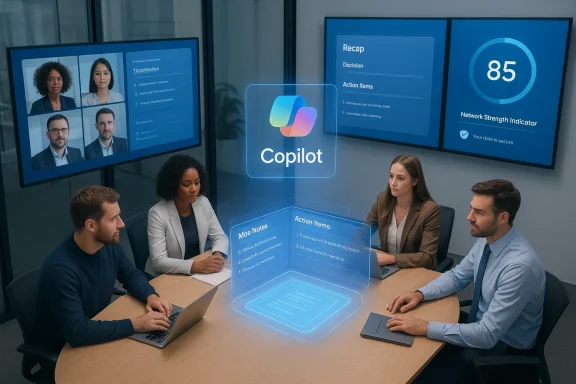
Microsoft’s February 2026 Teams update is the service’s most consequential monthly roll‑out in months: it stitches Copilot more tightly into meetings and chat, layers practical security protections into calling, refines core meeting UX with layout and recap controls, and quietly retires lesser-used design tooling in favor of a unified Copilot experience — all while shipping a clutch of small but useful productivity features that IT teams will need to plan for.
Background
Microsoft has been on a steady cadence of Teams releases since the product’s enterprise surge, shifting the product from a messaging-and-rooms app to a broader platform for AI‑assisted work. February 2026’s update continues that trajectory: the company focused on three concurrent narratives — unifying Copilot across Teams surfaces, hardening calling and meeting security, and improving meeting ergonomics and post‑meeting productivity. Microsoft’s official “What’s new in Microsoft Teams — February 2026” entry lists the major additions and frames the release as both functional polish and strategic consolidation around Copilot.Across independent coverage the same themes appear: industry outlets flagged Copilot’s expanded meeting role, the addition of brand‑impersonation call protections, and several UI/UX improvements that affect day‑to‑day meeting behavior. These weren’t isolated experiments — they reflect deliberate platform priorities.
What changed in February 2026 — at a glance
- Copilot in meetings and chats: Unified Copilot experience, meeting analysis, customizable recap templates, and expanded Copilot summarization capabilities.
- Meeting layout and controls: Resizable right & top galleries, resizable participant tiles, new Network Strength Indicator, and custom recording/transcription banners.
- Calling security: Brand Impersonation Protection — client warnings for suspicious external callers with accept/block/end options.
- Teams Phone improvements: Queues app shared history and extended historical reporting windows.
- Productivity helpers: Customizable meeting recap templates, ability to edit display names during an active call for preview users, snapshots and improved controls for sharing.
- Designer → Copilot consolidation: Retirement of the Designer bot/banner in Teams, migration of image and banner generation into Microsoft 365 Copilot.
Meetings: Copilot moves from helper to co‑pilot
A unified Copilot across chats, channels and meetings
February’s updates shift Copilot from a set of point‑features into a unified assistant across Teams’ primary surfaces. For licensed Microsoft 365 Copilot users, the assistant now consolidates meeting context, chat history, and calendar information to produce context‑aware summaries, action items, and suggested follow‑ups. That means Copilot can generate recaps that draw on not only the transcript but also recent chat messages and calendar details for richer, more usable outputs. Microsoft documents this as a generally available capability for meetings.Why this matters: Copilot’s broader context window reduces the manual work required to produce meeting minutes and follow‑ups. For knowledge workers who run frequent meetings, that translates into real time savings and fewer dropped action items — provided organizations manage privacy and retention settings carefully.
Customizable recap templates
Teams now supports custom recap templates for AI‑generated notes. Instead of a single fixed recap format, users (or teams) can define a template or even paste an existing structure as a prompt, and Copilot will produce notes that match the requested style. This is a pragmatic addition for teams that already standardize meeting notes or have compliance/format requirements.Practical admin consideration: Template usage can change downstream metadata (e.g., what Copilot surfaces as “action items”). Admins should update guidance and, where necessary, define retention and export rules for AI‑generated artifacts.
Resizable galleries and better layout control
New layout controls include resizable right & top galleries, giving participants more control over how video tiles and content are laid out when someone is sharing. These settings help prioritize either speaker video or shared content depending on meeting needs. Alongside this, Teams added a Network Strength Indicator that notifies users in self‑view when their connectivity could be compromising audio/video quality.User impact: These are low‑friction UX improvements that reduce friction in hybrid meetings — especially helpful when presenters need to balance screen real estate between shared content and participant video.
Calling and Phone: usable security, better queue visibility
Brand Impersonation Protection — built‑in call scanning
One of the most consequential additions in February is a client‑side Brand Impersonation Protection for Teams Calling. Desktop and Mac clients will warn recipients when a first‑time external inbound call appears to be impersonating a known brand, presenting accept/block/end choices before the call proceeds. This detects likely spoofing or social‑engineering attacks and surfaces an explicit decision point to the user. The capability began rolling mid‑February and represents Microsoft’s broader move to harden non‑email phishing vectors.Cross‑validation: Independent reporting mirrored Microsoft’s outline of the feature and timeframe, noting that the client‑side warning will be surfaced for suspicious inbound calls and giving users options to take defensive action.
Risk and caveat: Automated brand‑impostor detection inevitably generates some false positives. IT teams should expect initial support load from users who see warnings for legitimate external providers (e.g., partners whose caller ID formats differ). The mechanism requires robust telemetry and a quick support pathway for whitelisting or reporting misclassifications.
Queues app: shared history and longer retention for reporting
Teams Phone’s Queues app now offers a shared history of calls and voicemails and extends historical reporting in the Queues app to 45 days, up from 30. This helps supervisors analyze service trends and ensures shifts aren’t blind to calls that occurred outside an agent’s shift window. For frontline teams and contact centers that use Teams Phone, this is a practical operational improvement.Administration note: Supervisors and compliance officers should review access controls for shared history; broader access can improve team response but increases data visibility surface area.
Productivity & UI polish: small changes that compound
Edit display names during meetings (preview)
Microsoft introduced the ability for meeting participants to edit their display names during an active meeting for Teams Public Preview and Microsoft 365 Targeted Release channels. The edited name lasts only for the session, and permanent artifacts like attendance reports and transcripts continue to use the original corporate directory name. This is helpful when a participant needs to add context (e.g., role or org unit) or prefers a shorter name for privacy. The feature is admin‑controlled and off by default.Security/abuse consideration: Allowing ad‑hoc renaming introduces impersonation risk inside meetings; admins should balance convenience against identity integrity and enable the feature only in trusted scenarios.
Snapshots, easier sharing, and taskbar audio controls
Teams continues to chip away at meeting friction with practical features:- Snapshots inside calls let participants capture still images from a meeting (for important whiteboard content or a shared screen moment). This is a simple but useful feature for recording critical visual artifacts without saving a full recording.
- Quick share from taskbar improvements and instant mute/unmute via an active microphone icon on the taskbar simplify participant controls during a call — no need to return to the Teams window to mute. This echoes similar taskbar integrations Microsoft has been testing and shipping.
Design tooling consolidation: Designer retires, Copilot expands
Microsoft quietly retired the Teams Designer bot and Designer banner creation interface in February, folding those creative capabilities into Microsoft 365 Copilot. The Designer retirement was executed with a migration path: image generation and banner duties now live under Copilot’s larger, more widely available assistant umbrella. Reporters note this change finished on February 27, 2026, and presents a broad strategic consolidation of generative features into Copilot.Why Microsoft did it: Centralizing AI capabilities reduces surface area for maintenance and simplifies licensing, and it nudges users toward Copilot as the primary entrypoint for generative tasks across Microsoft 365.
What organizations should do: If teams relied on Designer for lightweight image/banner work inside Teams, update internal docs and training to show Copilot flows and any changes in prompt controls, content moderation, and licensing.
Governance, admin controls, and rollout implications
Policy parity and admin toggles
Several features in the February release require admin enablement or offer tenant‑level controls:- Edited display names: off by default; must be enabled in the Teams admin center or via Public Preview policies.
- Custom recording/transcription banners: configurable by meeting policy to request explicit consent or provide informational notices depending on tenant settings.
- Brand Impersonation Protection: administrators should check Caller ID and PSTN gateway configurations and review any blocking/whitelisting options available in Teams Calling policies.
- Review the Microsoft Teams “What’s New — February 2026” release notes and map feature impacts to tenant policy.
- For Copilot features, confirm licensing coverage and update user guidance on how Copilot accesses and uses chat/transcript data.
- Test Brand Impersonation Protection in a controlled pilot group and collect false‑positive examples for feed‑back to Microsoft support.
- Update internal communication templates and meeting hygiene guidance to reflect new recap templates and altered recording/transcription banners.
Data, compliance and retention considerations
Copilot’s deeper context use (chat history, transcripts, calendar) amplifies the need for explicit governance: specify retention periods, document who can access AI‑generated recaps, and verify whether recaps are stored as separate artifacts or tied to existing transcript retention. These are not theoretical concerns — organizations in regulated industries must be explicit about where AI outputs are stored and how they are governed.Security and privacy: real protections, real tradeoffs
February’s security additions demonstrate Microsoft’s layered approach: device/client protections for impersonation, administrative controls over recording and transcription banners, and feature‑level opt‑outs. But tradeoffs remain.- Positive: Brand Impersonation Protection adds an actionable stopgap against voice‑based social engineering. Client warnings and block options empower end users to reject suspicious inbound calls before engagement.
- Concerning: Copilot’s contextual reach means more artifacts are synthesized and potentially stored. If organizations don’t update retention and access controls, sensitive information could be surfaced or summarized in unexpected places. Microsoft provides admin controls, but their effective use requires proactive policy changes.
Strengths and notable gains
- Operational impact: The combination of Copilot recaps and Teams Phone improvements directly reduces administrative overhead for meeting owners and contact center supervisors.
- Security-first additions: Brand Impersonation Protection addresses a live, evolving attack vector (voice impersonation) that email‑centric defenses miss.
- Small wins add up: Taskbar mute/unmute, snapshots, and resizable galleries improve everyday meeting interactions and reduce friction that slow adoption.
Risks and adoption friction
- False positives and support load: Automated detection (caller warnings; network recommendations) will require triage processes to handle incorrect classifications and user confusion.
- Identity-hygiene issues: Allowing ad‑hoc display name edits in meetings increases the surface for impersonation unless tenants tightly control the feature.
- Copilot governance complexity: Richer Copilot outputs are powerful but expand the governance footprint. Organizations that have not yet addressed Copilot licensing, data flows, and retention should prioritize those conversations now.
Practical rollout recommendations (for IT leaders)
- Create a cross‑functional pilot: Include security, legal/compliance, a frontline team, and a small number of power users to test Copilot recaps, display name edits, and Brand Impersonation Protection. Collect examples of false positives/negatives.
- Update governance docs: Clarify how AI‑generated recaps are stored, who can access them, and how long they are retained. Map these items to existing retention policies.
- User education: Publish short how‑to notes explaining resizable galleries, the new network indicator, taskbar mute behavior, and the edit‑display‑name workflow. Reinforce meeting norms and the expectation that AI outputs need review.
- Monitor support channels: Expect increased helpdesk tickets around caller warnings and name edits; prepare templated responses and quick escalation steps for whitelist requests.
The bigger picture: Microsoft’s product strategy in a single update
February 2026’s Teams release is a microcosm of Microsoft’s product thinking: centralize AI experiences (Copilot), embed practical security at the endpoint, and continuously polish the user experience to keep Teams competitive with specialized apps. The Designer retirement is emblematic — rather than sustain multiple, overlapping AI features, Microsoft is consolidating under Copilot, simplifying the UX and the licensing model even if it means short‑term disruption for a few workflows.For organizations, the decision isn’t binary: Copilot’s promise is real, but extracting value requires active governance and thoughtful rollout. Teams is maturing into an orchestration layer for collaboration where AI is not a gimmick but a workflow accelerator — and February’s changes accelerate that shift.
Conclusion
February 2026’s Teams update brings a meaningful balance of tactical improvements and strategic moves. Copilot’s deeper meeting role and customizable recaps will save time if organizations manage permissions and retention thoughtfully. Brand Impersonation Protection adds an important defensive layer to calling, though it will require careful customer service and administrative handling to manage false positives. The retirement of Designer signals Microsoft’s intent to funnel generative experiences into a single, more powerful Copilot narrative — a sensible consolidation that nonetheless requires admins and users to adapt.For IT leaders: pilot broadly, govern carefully, and communicate clearly. The updates deliver real productivity upside, but realizing that upside depends on policy, training, and a short ramp to absorb the inevitable bumps that come with any platform‑scale shift.
Source: Neowin Here are all the new features Microsoft added to Teams in February 2026
