

Microsoft’s Teams mobile apps will start prompting users to pick a browser when they tap non‑Office or PDF links — and the prompt will explicitly promote Microsoft Edge, touting Single Sign‑On, Copilot integration and “enhanced security.” This change, announced to tenants via Microsoft 365 Message Center item MC1216263, begins rolling out in February 2026 and is enabled by default unless tenant admins opt out.
Microsoft has been steadily tightening the technical and user experience ties between Microsoft 365 apps and Microsoft Edge for several years. Edge’s ability to host IE mode, its integration with Microsoft identity and conditional access, and features that surface Microsoft 365 context in the browser are part of a long-running effort to make Edge the “go‑to” runtime for corporate scenarios. Tdging that comes with them — are described in Microsoft’s Edge/365 integration materials and in multiple product announcements.
At the same time, Teams has already offered granular preferences for how certain links and file types open (Teams itself, the browser, or the desktop app), and administrators have historically been able to steer link‑opening behavior with Group Policy, cloud policies, or app settings. Recent years have seen Teams and Outlook surface in‑app policies which direct links to Edge for a “side‑by‑side” experience with chats and mail. Those understanding the new mobile prompt: it’s an evolution, not a completely new tactic.
Those technical benefits are real in controlled environments: Edge can use the same Azure AD credentials and session tokens already used by other Microsoft 365 services, reducing additional sign‑ins and friction. Microsoft’s broader documentation and marketing for Edge makes this integration case repeatedly (Edge + Microsoft 365 = fewer sign‑ins and better contextual continuity).
From an enterprise perspective, the key question is whether the user‑experience and security benefits outweigh the reputational and support costs of nudging users toward Microsoft’s browser. It’s a balance many IT teams will need to assess on a tenant‑by‑tenant basis.
However, it’s also a move that sits squarely in the crosshairs of ongoing debates about platform leverage and choice. The UI emphasis on Edge, the install flow when Edge is absent, and the fact that the feature is enabled by default raise reasonable questions about user agency and the potential for perceived dark patterns. Competitors and privacy advocates are already attuned to these patterns, and Microsoft’s own history of prompts and nudges means this feature is likely to attract attention beyond the purely technical.
For IT teams the answer today is straightforward: the capability exists to opt out via policy; test it, document it, and choose the posture that aligns with your organization’s security requirements and user expectations. Monitor user experience closely during rollout, and be prepared to communicate clearly with end users to head off confusion.
This is another in a string of product choices where platform convenience intersects with user choice — and how your organization configures it will determine whether it feels like an upgrade to productivity or another example of product nudging.
In short: the prompt is real, it’s rolling out in February 2026, and the Message Center gives admins the keys to control it. If you run Teams in a managed environment, plan a quick validation cycle and an internal communication to avoid unnecessary help‑desk traffic — and if you prefer to avoid the prompt entirely, set
Source: Windows Report https://windowsreport.com/microsoft-teams-to-prompt-users-to-choose-edge-when-opening-links/
 Background
Microsoft has been steadily tightening the technical and user experience ties between Microsoft 365 apps and Microsoft Edge for several years. Edge’s ability to host IE mode, its integration with Microsoft identity and conditional access, and features that surface Microsoft 365 context in the browser are part of a long-running effort to make Edge the “go‑to” runtime for corporate scenarios. Tdging that comes with them — are described in Microsoft’s Edge/365 integration materials and in multiple product announcements.At the same time, Teams has already offered granular preferences for how certain links and file types open (Teams itself, the browser, or the desktop app), and administrators have historically been able to steer link‑opening behavior with Group Policy, cloud policies, or app settings. Recent years have seen Teams and Outlook surface in‑app policies which direct links to Edge for a “side‑by‑side” experience with chats and mail. Those understanding the new mobile prompt: it’s an evolution, not a completely new tactic.
What’s changing: the “Links in Teams” prompt (MC1216263)
The official message
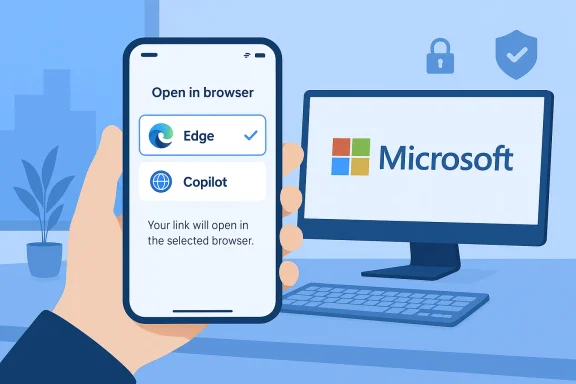
Microsoft’s Message Center entry MC1216263 explains the change succinctly: starting in February 2026 Teams Mobile on Android and iOS will show a bottom‑sheet prompt the first time a user taps a non‑Office or PDF link, asking which browser they want to use. The prompt will present Microsoft Edge as a highlighted option and will call out features such as SSO, Copilot, and “enhanced security.” If Edge is selected but not installed, Teams will guide the user to install it. Admins can manage the feature via the TeamsMobilityPolicyLinksInTeams attribute, with values such as OfferBrowserOptions (enable) and UseSystemDefaults (disable / respect OS defaults). The rollout was scheduled to begin in early February 2026 and to complete later that month.How Microsoft and media described it
Coverage across trade outlets and community roundups repeats the same core facts: a first‑tap prompt on mobile, Edge emphasized in the dialog, and an admin control that reverses the behavior back to system defaults if the tenant prefers. Independent trackers and IT blogs pulled the Message Center text and published practical summaries for admin audiences.How the experience will work for users (mobile)
- The first time a user taps a supported non‑Office or PDF link inside Teams on Android or iOS, Teams will display a bottom‑sheet dialog prompting them to choose a browser.
- The dialog will offer at least two choices: Microsoft Edge and the device’s current system default browser. The UI will explicitly call out Edge’s features (SSO, Copilot, security).
- If a user taps Edge but Edge is not installed, Teams will surface a follow‑up prompt directing them to the platform app store to install Edge.
- Once the user makes a selection, that choice is recorded and can later be changed in Teams’ new Links in Teams settings page inside the app.
- Tenants that do not want this behavior can disable the prompt via policy; otherwise it is enabled by default for all tenants.
Admin controls and policy management
Microsoft built admin controls into the rollout so organizations can choose whether the in‑app prompt appears or whether Teams should simply follow the OS default:- Policy object: TeamsMobilityPolicy
- Attribute: LinksInTeams
- Allowed values:
- OfferBrowserOptions — enable the Teams prompt (default behavior for tenants during the rollout)
- UseSystemDefaults — disable the prompt; Teams will respect the mobile OS default browser settings
LinksInTeams to UseSystemDefaults before the rollout hits their users. The Message Center guidance repeats that tenants will be monitored for user satisfaction and Edge installation/retention metrics during rollout.Why Microsoft is doing this — the product rationale
Microsoft’s stated goals for the change are pragmatic: to improve SSO continuity, enable Copilot‑driven workflows, and surface enhanced security protections for corporate web sessions. Edge supports tight identity integration with Azure AD and can provide a smoother authenticated browsing experience for Microsoft 365 links; Copilot features that analyze documents and open contextual tabs are also easier to implement when the browser and the productivity stack are aligned. The Message Center explicitly cites Single Sign‑On, Copilot andits to highlight in the prompt.Those technical benefits are real in controlled environments: Edge can use the same Azure AD credentials and session tokens already used by other Microsoft 365 services, reducing additional sign‑ins and friction. Microsoft’s broader documentation and marketing for Edge makes this integration case repeatedly (Edge + Microsoft 365 = fewer sign‑ins and better contextual continuity).
Cross‑reference and verification
I verified the Message Center announcement (MC1216263) against multiple independent trackers and IT carry‑forwards:- The canonical Message Center entry text is archived and summarized in IT‑focused message archives and trackers (MC1216263).
- Multiple independent IT blogs and observability sites reproduced and summarized the Message Center text, confirming rollout timing, the prompt behavior, and the admin policy names.
- Windows‑focused outlets picked up the same detail set and added practical reporting on how the choice prompt looks and how users can change preferences later inside Teams.
Enterprise implications — tangible pros
- Improved SSO continuity. For organizations using Azure AD SSO, routing Teams‑launched links into Edge can reduce login prompts and make SSO persistence more reliable acorkflows. That improves productivity for authenticated intranet apps and SharePoint/OneDrive scenarios. This is Microsoft’s explicit justification.
- Copilot and contextual features. Edge’s deeper Copilot integration enables scenarios where the browser can analyze Office documents or open context tabs for richer assistance. Teams pushing links to Edge helps unlock that integrated experience.
- Security features and conditional access. Edge supports integrations (SmartScreen, Application Guard, built‑in policy enforcement) that many enterprises consider valuable for protecting web sessions that start from Teams. Redirecting links into a controlled browser can centralize telemetry and policy enforcement.
Enterprise implications — tangible downsides and risks
- User friction and trust. Users who prefer other browsers (Chrome, Firefox, Brave, Vivaldi) may view the prompt as a nudge or dark pattern. Even if the dialog offers the device default, highlighting Edge and the extra install step could be perceived as pressure to switch. This kind of friction has already generated complaints and regulatory attention in the past when Microsoft surfaced similar prompts on desktop.
- Profile and multi‑account complications. Many users juggle multiple browser profiles (one per employer or tenant). Teams routing links to Edge — especially to a default Edge profile — can break workflows where the user expected a different profile to open, creating friction for people who collaborate across organizations. Community reports have flagged such profile issues with desktop Edge links previously.
- Platform fragmentation. Mobile OEMs and platform updates differ. The Message Center describes a bottom‑sheet prompt on Android and iOS but the actual UI details can vary by app version, device OS version, and OEM customization. Admins should not assume perfect uniform behavior across every user device.
- Regulatory and antitrust scrutiny. Browser choice and UI nudges have been the subject of regulatory scrutiny and complaints from rivals. Opera and others have publicly criticized Microsoft’s pattern of surfacing UI elements that favor Edge; such moves can attract antitrust complaints or public controversy. If the feature is perceived as coerced or non‑transparent, expect pushback from competitors and privacy advocates.
Practical recommendations for admins (step‑by‑step)
- Review MC1216263 in your tenant’s Message Center and note the planned rollout window. If you cannot access Message Center archives centrally, rely on your tenant admin alerts.
- Decide whether you want the in‑app browser choice prompt enabled or disabled for your users. If you prefer Teams to respect OS defaults and avoid in‑app prompts, plan to set
LinksInTeamstoUseSystemDefaultsin your tenant’s TeamsMobilityPolicy before the rollout completes. - Test the behavior on representative mobile devices (Android and iOS), including devices that:
- Have Edge preinstalled
- Do not have Edge installed
- Use different default browsers (Chrome, Safari)
- Use multiple profiles or different tenant sign‑ins
- Update internal documentation and helpdesk scripts to address likely support calls:
- How to change link preferences in Teams: Settings → Links in Teams (or Files and Links on desktop variations).
- How to install Edge from the app store if users choose Edge and don’t have it installed.
- How to revert to OS defaults via
TeamsMobilityPolicy. - Communicate proactively: a one‑page memo to end users explaining the change, why Microsoft is doing it (SSO/Copilot/security), and how to switch back to the preferred browser will reduce confusion and DSAT risks.
- Monitor telemetry: watch help desk volumes, DSAT, and any unexpected app‑install events. Microsoft said it will observe user satisfaction and Edge installation rates during rollout; you should track the same KPIs internally.
What users should know and how to respond
- You will see a one‑time prompt the first time you tap a non‑Office or PDF link in Teams mobile after the change reaches your device. The prompt is not a forced migration: you can choose the OS default if you prefer.
- If you pick Edge and don’t have it installed, Teams will prompt you to install Edge from the app store.
- To change your choice later, open Teams settings and look for the new Links in Teams setting to update your preference.
- If your organization’s admin disables the prompt through policy, Teams will simply open links using the OS default browser and you will not see these prompts.
Broader market context and competitive reaction
Microsoft’s push to surface Edge across the Microsoft 365 surface has precedent and has already provoked reactions from browser vendors and regulators. Opera and others have publicly complained about Microsoft tactics that nudge users toward Edge or that sidestep default‑browser settings in Windows or in Microsoft apps. Those complaints underscore a wider issue: when platform owners tightly couple apps to their own browser, other vendors and regulators take notice. Expect heightened scrutiny if competitors frame the Teams change as another example of “manipulative design.”From an enterprise perspective, the key question is whether the user‑experience and security benefits outweigh the reputational and support costs of nudging users toward Microsoft’s browser. It’s a balance many IT teams will need to assess on a tenant‑by‑tenant basis.
Unverified or caveated items
- The Message Center language is clear about rollout timing and the high‑level behavior, but it does not publish screenshots for every platform and OEM. The exact look and placement of the prompt may vary between Android and iOS builds and across OEM customizations; treat the Message Center’s UI description as authoritative for function but not pixel‑perfect for visual layout.
- Some news reports and community posts suggest similar link‑opening behaviors previously shipped on desktop and were later adjusted by policy or UI changes. Where community posts are used to illustrate user reactions (for example, multi‑profile frustrations), they represent anecdotal evidence and should not be treated as uniform or global behavior. Administrators should run tests in their environments to validate behavior for their user base.
Final analysis — balancing convenience, security and choice
Microsoft’s mobile Teams prompt is a pragmatic product play: it leverages the company’s control of its productivity stack to make authenticated, Copilot‑enabled browsing smoother. For many enterprises, that is a net positive — fewer sign‑ins, consistent policy enforcement, and a richer Copilot experience are legitimately valuable.However, it’s also a move that sits squarely in the crosshairs of ongoing debates about platform leverage and choice. The UI emphasis on Edge, the install flow when Edge is absent, and the fact that the feature is enabled by default raise reasonable questions about user agency and the potential for perceived dark patterns. Competitors and privacy advocates are already attuned to these patterns, and Microsoft’s own history of prompts and nudges means this feature is likely to attract attention beyond the purely technical.
For IT teams the answer today is straightforward: the capability exists to opt out via policy; test it, document it, and choose the posture that aligns with your organization’s security requirements and user expectations. Monitor user experience closely during rollout, and be prepared to communicate clearly with end users to head off confusion.
This is another in a string of product choices where platform convenience intersects with user choice — and how your organization configures it will determine whether it feels like an upgrade to productivity or another example of product nudging.
In short: the prompt is real, it’s rolling out in February 2026, and the Message Center gives admins the keys to control it. If you run Teams in a managed environment, plan a quick validation cycle and an internal communication to avoid unnecessary help‑desk traffic — and if you prefer to avoid the prompt entirely, set
LinksInTeams to UseSystemDefaults in your TeamsMobilityPolicy before the rollout completes.Source: Windows Report https://windowsreport.com/microsoft-teams-to-prompt-users-to-choose-edge-when-opening-links/
