

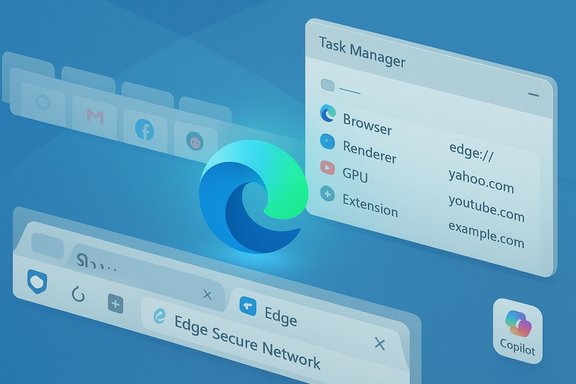
Microsoft Edge has quietly morphed from a Windows default many users avoided into a genuinely competitive browser for Windows 11 — and not simply because it ships with the OS. Over the past several years Microsoft rebuilt Edge atop the Chromium engine, then layered deep Windows integration, resource-saving controls, and a suite of built-in privacy and anti-scam tools that together make Edge one of the most practical browser choices for many Windows 11 users. Those benefits come with trade-offs — telemetry defaults, baked-in AI features, and limitations to the browser-only VPN — and understanding the balance of performance, privacy, and convenience is now essential when choosing a primary browser on Windows 11.
Background
Microsoft’s decision to move Edge to the Chromium engine was the inflection point: compatibility with web standards and extensions improved overnight, and engineering focus shifted to Windows integration, performance, and additional first-party features. Since then Microsoft has emphasized features designed specifically to work well on Windows 11 — from Task Manager visibility of browser internals to power-saving modes and even a built‑in, limited VPN. That move turned Edge from “the preinstalled browser” into a contender for users who want a browser that cooperates closely with the OS.Deep Windows 11 integration: Task Manager and process visibility
Why it matters
One of the most immediately useful integrations for Windows users is how Edge processes appear in the Windows Task Manager. Instead of a cryptic list of generic "Microsoft Edge" processes, modern Windows 11 Task Manager can show each Edge renderer, extension, GPU or utility process with site names, favicons, and descriptive labels. That visibility makes troubleshooting resource spikes simple: you can identify a single tab, extension, or worker that’s consuming memory or CPU, then terminate that specific process without killing the entire browser.How it works in practice
- The Task Manager lists the browser process types (Browser, GPU Process, Crashpad) and names for utility or extension processes.
- Renderer rows show “tab” plus the site name and icon — InPrivate tabs are masked for privacy.
- Ending a single process in Task Manager behaves differently depending on its type (ending an extension vs. a tab vs. GPU process has different outcomes).
Built‑in VPN: Edge Secure Network (what it is and what it isn't)
The basics
Edge now ships with a built‑in network privacy feature called Edge Secure Network, which routes browser traffic through Cloudflare’s network and encrypts the connection while it’s active. The feature is integrated into Edge settings and provides a useful privacy layer on unsecured Wi‑Fi or when you want to mask your IP from websites you visit. Microsoft gives signed‑in users a monthly free allowance (currently 5 GB) for browser VPN traffic.Strengths
- Easy to enable from Edge → Settings → Privacy & Services (or the browser essentials / VPN entry point).
- Uses Cloudflare’s edge network to reduce latency and improve reliability for proxied requests.
- Encrypts browser traffic and masks IP address within Edge, protecting shopping/checkouts and form entry on public networks.
- No additional app installation required; minimal performance overhead in normal use.
Important limitations and practical advice
- Edge Secure Network only protects traffic routed through the Edge browser; other apps on the PC remain unprotected. For whole‑device VPN needs (torrenting, native apps, streaming), use a traditional VPN client.
- The free tier is limited (5 GB/month for signed‑in consumers at the time of writing), so it’s best used selectively (public Wi‑Fi, occasional privacy bursts), not as a permanent full‑time VPN.
- It is not designed for bypassing geo‑restrictions for streaming services; media playback may be routed outside the VPN to preserve streaming compatibility.
- Microsoft requires a personal Microsoft account sign‑in to track monthly usage — an important note for privacy‑sensitive users who prefer anonymous VPNs.
Resource management: Sleeping Tabs, Efficiency Mode and Resource Controls
Sleeping Tabs — practical memory savings
Edge’s Sleeping tabs automatically suspend inactive tabs to free memory and CPU. When a tab sleeps it appears faded in the tab strip and consumes little to no resources until you return to it. This behaviour helps users who habitually keep dozens of tabs open — a frequent cause of system pressure on 8 GB RAM machines and lower. Microsoft documents that sleeping tabs are configurable and that the inactivity timeout is adjustable in System & Performance settings. However, published Microsoft pages have presented slightly different default time values (some pages list one hour, others two hours), so users should check their own Edge installation and settings to confirm the default on their build. This discrepancy is worth noting for precision-minded readers.- Default inactivity thresholds have been reported at 1 hour on feature pages and 2 hours on support documentation — confirm in edge://settings/system (Optimize Performance) for your version.
Efficiency Mode and battery life
Efficiency mode further shortens the sleeping interval and applies other throttles to extend battery life and save CPU while idle. When Efficiency Mode is active, sleeping tabs may be put to sleep after as little as five minutes depending on settings, which helps laptop users squeeze additional battery life during light browsing sessions.Resource Controls and capping memory usage
Beyond tab suspension, Edge offers Resource controls — settings and enterprise policies that let administrators and advanced users influence how much memory the browser is allowed to consume. For organizations and power users, Microsoft exposes the TotalMemoryLimitMb policy to cap the maximum RAM Edge will use before it begins discarding background tabs to stay under the limit. This policy operates at the browser instance level and can be enforced centrally in managed environments. For single‑user PCs, Edge’s Resource controls in settings provide user‑facing options to balance speed vs. headroom for other processes. Practical takeaway: If you run Windows 11 on a machine with 8 GB or less, enabling sleeping tabs and configuring Resource controls can reduce OS swapping and keep everyday tasks responsive.Security and privacy controls: built‑in protections
Edge now bundles a broad set of defensive features that aim to reduce phishing, malware, and fraud risks without adding extensions.- Tracking Prevention: configurable levels (Basic, Balanced, Strict) that block known tracking categories by default and allow per‑site exceptions. This builds on Chromium’s capabilities with Microsoft’s own tracker lists.
- Scareware Blocker: detects and blocks full‑screen scareware pages that attempt to coerce users into calling fake support numbers or downloading malicious tools. When such a page is detected Edge exits full screen, pauses aggressive audio, and prompts the user with options to close the site. This runs in tandem with Microsoft Defender SmartScreen.
- Website Typo Protection (Typosquatting checker): warns users when it detects likely typosquatting (lookalike) domains and complements SmartScreen to reduce accidental visits to fraudulent sites. Administrators can also control this via policies.
- Download protections and SmartScreen: Edge screens downloads and signals warnings for known unsafe software; SmartScreen also defends against malicious sites.
What Edge does well: strengths summarized
- Tight Windows integration that helps troubleshooting (Task Manager visibility), power management (Efficiency Mode), and enterprise policy enforcement (TotalMemoryLimitMb).
- Built‑in convenience features such as Secure Network for ad‑hoc browser VPN protection, Sleeping Tabs for memory conservation, and the Typosquatting checker for anti‑phishing protection.
- Enterprise management-friendly controls: IT admins can use Group Policy and MDM to enforce sleeping tab policies, resource limits, and privacy settings; for organizations that rely on Microsoft 365, this central control simplifies deployment.
- Performance-first defaults for many users: Edge’s default behavior aims for responsive browsing and efficient resource use on Windows 11 hardware.
The privacy and UX trade‑offs: where Edge still raises concerns
Telemetry and default settings
Microsoft documents its diagnostic and privacy behavior; Edge shares telemetry and diagnostic signals that Microsoft uses to improve services. For privacy‑sensitive users, the key points are:- Signing in with a Microsoft account enables additional features and sync, but it also ties browsing metadata to an account for things like the Secure Network quota and synchronized settings.
- Some diagnostic or usage telemetry is collected to improve products and can be tied to device or session identifiers based on configuration; Microsoft provides controls but some signals are reported unless explicitly disabled at the system or account level. If you want to minimize data sharing, review Edge’s privacy settings and the Microsoft privacy dashboard.
Built‑in “bloat” and AI integrations
Edge bundles an expanding list of first‑party integrations — Copilot (Edge’s built‑in AI assistant), shopping tools, price comparison, and shopping coupons. While many features are optional or can be hidden, the presence of persistent UI elements and service prompts means users may see promoted or pinned features they don’t want. Some of these elements can be turned off or hidden through settings, but their pervasiveness across Windows and Edge sometimes creates the impression of baked‑in bloat.- Copilot appears across Windows and in Edge; Edge allows hiding the Copilot button and disabling Copilot Mode, but the feature is integrated into many OS surfaces and may reappear after updates unless managed by policy.
- Shopping and commerce features are deeply integrated in the Edge user experience; they can be useful for bargain hunters but represent surface area for data signals and UI clutter.
Uninstall and system integration caveats
Edge components (including WebView2) are widely used by Windows apps and third‑party software; removing the browser or associated runtime components can cause incompatibilities. While it’s technically possible in many cases to remove Edge’s app package or hide features, doing so may be nontrivial and can be reverted by system updates. For enterprise administrators and cautious power users, Group Policy and MDM provide supported ways to control feature exposure and defaults. For typical consumers the pragmatic approach is to set a preferred browser and adjust Edge’s settings rather than attempt a full removal.Critical analysis: who benefits, who should be cautious
Ideal users for Microsoft Edge on Windows 11
- People deeply embedded in the Microsoft ecosystem (Microsoft 365, Windows 11) who value seamless sync, single‑sign‑on convenience, and OS‑level integrations.
- Users on mid‑range or older hardware who want practical memory and battery optimizations without installing third‑party extensions or tools.
- Organizations that want a browser they can centrally manage with detailed policies, including resource limits and anti‑phishing protections.
Users who should treat Edge with caution
- Privacy purists who want an adversarial, minimised‑data browsing posture — they may prefer browsers architected for maximal privacy by default (for example, browsers with aggressive default tracker blocking and no requirement to sign in).
- Users who require a full device VPN for streaming, geo‑bypass, or system‑wide privacy protection — Edge Secure Network is browser‑only and limited by monthly quotas.
- People who object to persistent AI features or promotional UI placements; while many items can be disabled, the cross‑app integration means they may need occasional re‑checking after feature updates.
Practical setup: recommended settings to get the best of Edge on Windows 11
- Sign in with a personal Microsoft account only if you want sync and Secure Network quota; otherwise stay signed out for reduced account‑tied signals.
- Enable Sleeping Tabs and set a conservative inactivity interval (or use Efficiency Mode when on battery). Check Settings → System and performance → Optimize Performance.
- Turn on Tracking Prevention (Balanced or Strict) and ensure Microsoft Defender SmartScreen is enabled for download and site protections. Visit Settings → Privacy, search, and services.
- Try Edge Secure Network when on public Wi‑Fi, and monitor your monthly quota under Edge’s VPN control. Don’t rely on it for full device protection.
- If you dislike Copilot or shopping features, remove or hide the toolbar buttons in Appearance and use the AI/Copilot settings to disable Copilot Mode. For enterprise control, apply relevant Group Policies.
- For power users or admins: if you need to limit Edge’s memory footprint, consider the TotalMemoryLimitMb policy or the browser Resource controls to define how aggressively Edge discards background pages.
Risks and unknowns — what to watch
- Documentation and UI can vary between Edge releases: defaults (like sleeping tab timeout) and feature scopes sometimes differ between support pages and marketing pages; always verify in your version of Edge. Microsoft’s documentation has occasionally presented slightly different default values for the same features. That inconsistency is a reminder to verify the settings that matter to your device.
- Relying on built‑in privacy tools may create a false sense of total protection; Edge’s Secure Network is a convenient browser VPN but not a replacement for a full‑device or paid VPN where that is required.
- Telemetry and data flows: Microsoft documents data collection and retains that data for product improvement; for users with strict privacy requirements, a combination of in‑browser setting changes and account choices are necessary to minimize disclosure. For organizational deployments, use policy controls to lock down unwanted behaviors.
Verdict: when Edge is the right choice — and when it isn’t
Microsoft Edge is no longer merely “the default.” For Windows 11 users who want a browser that is efficient with system resources, gives transparent process-level visibility, and includes practical built‑in protections like SmartScreen, the Secure Network (for occasional browser VPN needs), sleeping tabs, and typosquatting defenses — Edge is a compelling primary browser. Its enterprise controls make it especially suitable for managed Windows environments.However, privacy purists and users who need whole‑device VPNs or who want an experience with minimal first‑party integrations may prefer alternatives. Edge’s telemetry, account‑linked services, and growing AI integrations mean it does not match the privacy posture of niche privacy‑first browsers out of the box.
For most Windows 11 users the pragmatic approach is to treat Edge as a well‑integrated, performant browser option: tune privacy settings, enable the performance helpers (sleeping tabs, efficiency mode), use Secure Network judiciously, and apply policies or settings to hide any unwanted UI elements like Copilot or shopping shortcuts. That way you get the advantages of Microsoft’s Windows‑specific refinements while keeping the aspects you don’t want under control.
Microsoft’s long game with Edge has been clear: build a browser that is fast, sensible with system resources, and tightly managed in the Windows ecosystem. The result is a browser that — when configured thoughtfully — is an excellent, practical choice for many Windows 11 users. The strongest recommendation for anyone deciding whether to adopt Edge as their daily driver is simple: review the privacy and performance toggles, try the Secure Network on public Wi‑Fi, and use the Task Manager visibility to see whether Edge’s process model actually makes life easier on your hardware — you’ll likely find it does.
Source: Qoo10.co.id 7 Reasons Microsoft Edge Stands Out as the Top Browser on Windows 11
