
Microsoft Teams is rolling out a desktop pre-join audio test in June 2026 that lets users check their selected microphone and speakers before entering a meeting, with worldwide availability expected by late June and government cloud completion following in July. The feature is small, almost embarrassingly obvious, and precisely the kind of friction-removal that modern collaboration software too often treats as an afterthought. Microsoft is not reinventing meetings here; it is admitting that the most important part of a meeting app is still whether people can hear one another. For Windows users and IT admins, that makes this less a novelty than a long-overdue correction.
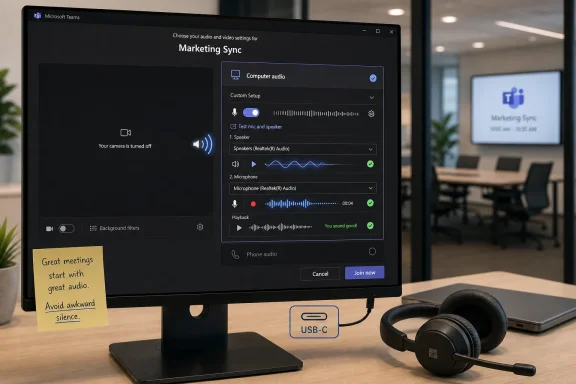
The new Teams control appears on the pre-join screen, under the Computer audio section, before a user commits to entering the meeting. Select the test option, and Teams walks through a speaker check and a microphone check: it plays a tone through the selected output device, records a short voice sample, then plays that sample back so the user can hear what everyone else is about to hear.
That placement matters more than the feature itself. Teams has long allowed users to choose devices, fiddle with settings, and inspect their audio configuration, but device selection is not the same thing as confidence. A dropdown that says “Headset Microphone” does not prove that Windows, the headset firmware, Teams, and the user’s actual mouth are all aligned.
By putting the check on the pre-join page, Microsoft is moving the verification step into the last practical moment before the call begins. That is where the damage is usually done. The awkward silence, the frantic wave, the chat message saying “we can’t hear you,” and the ritualistic unplugging and replugging of USB-C accessories all happen because the user discovers the failure only after becoming part of the meeting.
Microsoft’s rollout notes say the feature is enabled by default and requires no administrative action. That is the right call. If this had been buried behind a policy toggle, most organizations would never have noticed it until the first executive town hall went sideways.
The result is a meeting stack that can look correct while still being wrong. Windows may route sound to a monitor with its volume muted. Teams may hold onto a headset that was disconnected and reconnected under a slightly different device name. A Bluetooth headset may expose separate profiles for calls and media, with noticeably different quality. A dock may steal the output path after a reboot. The user sees a device name and assumes the machine is ready.
A pre-join test cannot fix all of that, but it exposes the failure before it becomes social. That is the key distinction. This is not a diagnostic suite for audio drivers; it is a confidence check for humans who are about to perform in front of colleagues, clients, students, or interviewers.
The microphone playback is particularly important because input meters only tell part of the truth. A bouncing level meter proves that the system is receiving something. It does not prove the user is understandable, that the wrong mic is not picking up room echo, or that the laptop is not listening from three feet away while the user wears a headset that is only handling playback.
The help desk usually does not get a ticket that says “Teams briefly made me look unprepared in front of a client.” It gets the aftermath: users who distrust Teams, executives who blame the conferencing platform, support teams asked to validate headsets, and admins trying to determine whether the root cause is Teams, Windows, Bluetooth, drivers, firmware, group policy, or human impatience.
That is why this feature’s default-on status is notable. Microsoft is not asking administrators to design a rollout plan, update policy baselines, or teach users a new workflow. It is simply placing a self-service check in the path users already take. In enterprise software, that is often the difference between a feature that changes behavior and a feature that merely appears in release notes.
There is also a training benefit. Every time a user runs the test, Teams reinforces the idea that audio devices are selectable and verifiable. That sounds basic, but many meeting failures come from users not understanding that “the computer” is not a single audio device. The test turns an abstract setting into an immediate cause-and-effect experience.
Microsoft built Teams into a sprawling collaboration hub: chat, channels, meetings, webinars, telephony, files, apps, Copilot, compliance, and Teams Rooms. The product became central to Microsoft 365’s enterprise strategy. Yet the everyday meeting experience still contained these oddly primitive moments where users had to hope the correct microphone was live.
That mismatch is part of Teams’ broader identity problem. It is simultaneously a serious enterprise platform and a consumer-like communication tool that must work instantly for people who do not want to understand it. The more Microsoft layers intelligence, automation, and AI-generated meeting artifacts onto Teams, the more glaring it becomes when basic sensory plumbing fails.
The new audio test is therefore a symbolic fix as much as a practical one. Microsoft is acknowledging that reliability is not just uptime. Reliability is also whether the app helps users avoid embarrassment at the point of use.
It also fits the user population most likely to care. The office worker joining from a managed laptop before a client presentation has more to lose from a bad mic selection than someone tapping into a casual mobile call. Desktop Teams is the place where meetings are most formal, hardware is most varied, and IT support expectations are highest.
Still, “desktop only for now” means the feature is not yet universal. Web users, mobile users, and some specialized meeting flows may not see the same experience at launch. That matters because Teams usage is increasingly mixed. A single organization may have full desktop clients, browser-only contractors, mobile-first frontline workers, conference room systems, and shared devices all joining the same meetings.
Microsoft’s challenge is to avoid letting this become another feature that exists in one Teams surface but not another. Teams has been criticized for inconsistent experiences across desktop, web, mobile, classic clients, new clients, and room hardware. If the pre-join audio test is as useful as it appears, users will quickly expect it everywhere.
A meeting that starts with audio trouble loses more than time. It loses authority. The presenter begins on the back foot, the audience starts multitasking, and the meeting host burns attention on logistics instead of substance. In high-stakes settings, that opening stumble can color the entire interaction.
The pre-join audio test reduces what might be called meeting startup latency. It does not make the network faster or the app lighter, but it cuts the human delay between “I joined” and “I am actually ready.” That is the kind of improvement users notice even if they never praise it.
The feature also nudges Teams toward a more honest pre-join model. A pre-join screen should not merely be a waiting room with a camera preview. It should be a readiness checkpoint. Camera, microphone, speaker, background, identity, and meeting context all belong there because they determine whether the user enters the meeting prepared or disruptive.
Admins do not need a campaign with posters and training decks. They do need a short note in the right channels: before client calls, interviews, webinars, hearings, classes, or executive meetings, use the pre-join audio test. That is enough to turn the feature from a hidden button into a habit.
Support teams should also update basic troubleshooting guidance. The first question for audio complaints can become: did the Teams pre-join test play through the expected speaker, and did the mic playback sound correct? That gives help desk staff a cleaner starting point than asking users to describe device settings they may not understand.
For managed environments, the feature may also expose bad hardware patterns. If a particular headset model regularly fails the pre-join test, or if docked laptops repeatedly choose the wrong output, admins can move from anecdote to pattern recognition. The test is not a telemetry dashboard, but it will generate better user reports because the failure becomes easier to observe.
Microsoft has already invested heavily in noise suppression, voice isolation, intelligent speakers, transcription, and speaker identification. Those are ambitious features, but they live higher up the stack. The next frontier is making the lower layers more explainable. Users do not need a full audio engineering panel; they need plain language that says, “Your headset is selected for sound, but your laptop microphone is selected for voice.”
There is also room for better continuity across devices. If a user always chooses a particular headset for Teams calls, Teams should be excellent at remembering that preference and recovering gracefully when the device disappears and returns. Windows itself has improved audio handling over the years, but the meeting app is where mistakes become public.
The test also does nothing for camera readiness, lighting, framing, or network stability. Those are separate problems, but they belong to the same pre-join philosophy. Before a user enters a meeting, the app should help them discover obvious failures privately.
This is why the mic-and-speaker test lands well. It is not glamorous, and it will not headline a keynote. But it addresses a universal pain point without demanding a new license, a new habit loop, or a reorganization of work around AI.
There is a broader lesson here for Microsoft’s product culture. Enterprise users do not only want powerful tools; they want tools that protect them from small failures at high-visibility moments. The best productivity software is not always the software with the most capability. Often, it is the software that quietly removes the most avoidable embarrassment.
That is especially true for Teams because meetings are social software wearing enterprise clothing. A bug in a spreadsheet may be annoying, but a microphone failure happens in front of people. The emotional cost is disproportionate to the technical size of the problem.
 Microsoft Finally Moves the Audio Test to Where the Panic Happens
The new Teams control appears on the pre-join screen, under the Computer audio section, before a user commits to entering the meeting. Select the test option, and Teams walks through a speaker check and a microphone check: it plays a tone through the selected output device, records a short voice sample, then plays that sample back so the user can hear what everyone else is about to hear.That placement matters more than the feature itself. Teams has long allowed users to choose devices, fiddle with settings, and inspect their audio configuration, but device selection is not the same thing as confidence. A dropdown that says “Headset Microphone” does not prove that Windows, the headset firmware, Teams, and the user’s actual mouth are all aligned.
By putting the check on the pre-join page, Microsoft is moving the verification step into the last practical moment before the call begins. That is where the damage is usually done. The awkward silence, the frantic wave, the chat message saying “we can’t hear you,” and the ritualistic unplugging and replugging of USB-C accessories all happen because the user discovers the failure only after becoming part of the meeting.
Microsoft’s rollout notes say the feature is enabled by default and requires no administrative action. That is the right call. If this had been buried behind a policy toggle, most organizations would never have noticed it until the first executive town hall went sideways.
The Problem Was Never Just the Microphone
The familiar “can you hear me?” moment is often treated as user error, but the real issue is the fragility of the modern endpoint. A Windows laptop may have internal speakers, a dock, a monitor with speakers, a Bluetooth headset, a USB conferencing bar, and a software audio driver all competing for default status. Teams then has its own device preferences layered on top of Windows’ system-level choices.The result is a meeting stack that can look correct while still being wrong. Windows may route sound to a monitor with its volume muted. Teams may hold onto a headset that was disconnected and reconnected under a slightly different device name. A Bluetooth headset may expose separate profiles for calls and media, with noticeably different quality. A dock may steal the output path after a reboot. The user sees a device name and assumes the machine is ready.
A pre-join test cannot fix all of that, but it exposes the failure before it becomes social. That is the key distinction. This is not a diagnostic suite for audio drivers; it is a confidence check for humans who are about to perform in front of colleagues, clients, students, or interviewers.
The microphone playback is particularly important because input meters only tell part of the truth. A bouncing level meter proves that the system is receiving something. It does not prove the user is understandable, that the wrong mic is not picking up room echo, or that the laptop is not listening from three feet away while the user wears a headset that is only handling playback.
A Tiny Feature With Enterprise Weight
For home users, the change will feel like a convenience. For IT departments, it is a small reduction in a surprisingly expensive category of support pain. Audio failures are rarely severe in the way that authentication outages or network failures are severe, but they are frequent, visible, and morale-sapping.The help desk usually does not get a ticket that says “Teams briefly made me look unprepared in front of a client.” It gets the aftermath: users who distrust Teams, executives who blame the conferencing platform, support teams asked to validate headsets, and admins trying to determine whether the root cause is Teams, Windows, Bluetooth, drivers, firmware, group policy, or human impatience.
That is why this feature’s default-on status is notable. Microsoft is not asking administrators to design a rollout plan, update policy baselines, or teach users a new workflow. It is simply placing a self-service check in the path users already take. In enterprise software, that is often the difference between a feature that changes behavior and a feature that merely appears in release notes.
There is also a training benefit. Every time a user runs the test, Teams reinforces the idea that audio devices are selectable and verifiable. That sounds basic, but many meeting failures come from users not understanding that “the computer” is not a single audio device. The test turns an abstract setting into an immediate cause-and-effect experience.
Teams Is Still Paying Down Its Pandemic Debt
The awkwardness of this update is that Teams arguably should have had this workflow years ago. Video conferencing platforms became workplace infrastructure during the pandemic, and Teams was pushed into homes, classrooms, hospitals, courtrooms, and boardrooms at a speed no product team could gracefully absorb. In that context, the absence of an obvious pre-join microphone playback feature was not catastrophic, but it was revealing.Microsoft built Teams into a sprawling collaboration hub: chat, channels, meetings, webinars, telephony, files, apps, Copilot, compliance, and Teams Rooms. The product became central to Microsoft 365’s enterprise strategy. Yet the everyday meeting experience still contained these oddly primitive moments where users had to hope the correct microphone was live.
That mismatch is part of Teams’ broader identity problem. It is simultaneously a serious enterprise platform and a consumer-like communication tool that must work instantly for people who do not want to understand it. The more Microsoft layers intelligence, automation, and AI-generated meeting artifacts onto Teams, the more glaring it becomes when basic sensory plumbing fails.
The new audio test is therefore a symbolic fix as much as a practical one. Microsoft is acknowledging that reliability is not just uptime. Reliability is also whether the app helps users avoid embarrassment at the point of use.
Desktop First Is Practical, but It Leaves a Gap
The rollout is starting with desktop versions of Teams, with additional platform support planned later. That sequencing makes sense. Desktop is where the nastiest audio-device complexity lives, especially on Windows PCs connected to docks, headsets, room systems, monitors, and third-party peripherals.It also fits the user population most likely to care. The office worker joining from a managed laptop before a client presentation has more to lose from a bad mic selection than someone tapping into a casual mobile call. Desktop Teams is the place where meetings are most formal, hardware is most varied, and IT support expectations are highest.
Still, “desktop only for now” means the feature is not yet universal. Web users, mobile users, and some specialized meeting flows may not see the same experience at launch. That matters because Teams usage is increasingly mixed. A single organization may have full desktop clients, browser-only contractors, mobile-first frontline workers, conference room systems, and shared devices all joining the same meetings.
Microsoft’s challenge is to avoid letting this become another feature that exists in one Teams surface but not another. Teams has been criticized for inconsistent experiences across desktop, web, mobile, classic clients, new clients, and room hardware. If the pre-join audio test is as useful as it appears, users will quickly expect it everywhere.
The Real Win Is Reducing Meeting Latency Before the Meeting Starts
Most discussion of collaboration software focuses on features inside the meeting: transcription, background effects, screen sharing, reactions, recap, noise suppression, AI notes. But the first minute before a meeting is often the most consequential. That is when participants decide whether the technology is going to cooperate.A meeting that starts with audio trouble loses more than time. It loses authority. The presenter begins on the back foot, the audience starts multitasking, and the meeting host burns attention on logistics instead of substance. In high-stakes settings, that opening stumble can color the entire interaction.
The pre-join audio test reduces what might be called meeting startup latency. It does not make the network faster or the app lighter, but it cuts the human delay between “I joined” and “I am actually ready.” That is the kind of improvement users notice even if they never praise it.
The feature also nudges Teams toward a more honest pre-join model. A pre-join screen should not merely be a waiting room with a camera preview. It should be a readiness checkpoint. Camera, microphone, speaker, background, identity, and meeting context all belong there because they determine whether the user enters the meeting prepared or disruptive.
IT Admins Should Treat This as a Behavior Change, Not a Checkbox
Because the rollout requires no admin action, it would be easy for IT teams to ignore it. That would be a mistake. The feature’s value depends on users knowing it exists and understanding when to use it.Admins do not need a campaign with posters and training decks. They do need a short note in the right channels: before client calls, interviews, webinars, hearings, classes, or executive meetings, use the pre-join audio test. That is enough to turn the feature from a hidden button into a habit.
Support teams should also update basic troubleshooting guidance. The first question for audio complaints can become: did the Teams pre-join test play through the expected speaker, and did the mic playback sound correct? That gives help desk staff a cleaner starting point than asking users to describe device settings they may not understand.
For managed environments, the feature may also expose bad hardware patterns. If a particular headset model regularly fails the pre-join test, or if docked laptops repeatedly choose the wrong output, admins can move from anecdote to pattern recognition. The test is not a telemetry dashboard, but it will generate better user reports because the failure becomes easier to observe.
The Feature Also Highlights What Teams Still Needs
A pre-join audio test is welcome, but it is not the end state. The ideal Teams experience would be more proactive and less dependent on users remembering to click a button. If Teams can see that the selected microphone is receiving no meaningful signal while the user speaks, it should warn them before they join. If the selected speaker is a disconnected or muted device, it should say so plainly.Microsoft has already invested heavily in noise suppression, voice isolation, intelligent speakers, transcription, and speaker identification. Those are ambitious features, but they live higher up the stack. The next frontier is making the lower layers more explainable. Users do not need a full audio engineering panel; they need plain language that says, “Your headset is selected for sound, but your laptop microphone is selected for voice.”
There is also room for better continuity across devices. If a user always chooses a particular headset for Teams calls, Teams should be excellent at remembering that preference and recovering gracefully when the device disappears and returns. Windows itself has improved audio handling over the years, but the meeting app is where mistakes become public.
The test also does nothing for camera readiness, lighting, framing, or network stability. Those are separate problems, but they belong to the same pre-join philosophy. Before a user enters a meeting, the app should help them discover obvious failures privately.
A Small Button Says Plenty About Microsoft’s Priorities
Microsoft has spent the last few years positioning Teams as an intelligent work platform rather than merely a meeting app. Copilot integration, meeting recaps, transcript intelligence, and workflow automation all point toward a future in which Teams becomes an interface for organizational memory. That strategy may be commercially sound, but it risks sounding absurd when users are still struggling with basic audio.This is why the mic-and-speaker test lands well. It is not glamorous, and it will not headline a keynote. But it addresses a universal pain point without demanding a new license, a new habit loop, or a reorganization of work around AI.
There is a broader lesson here for Microsoft’s product culture. Enterprise users do not only want powerful tools; they want tools that protect them from small failures at high-visibility moments. The best productivity software is not always the software with the most capability. Often, it is the software that quietly removes the most avoidable embarrassment.
That is especially true for Teams because meetings are social software wearing enterprise clothing. A bug in a spreadsheet may be annoying, but a microphone failure happens in front of people. The emotional cost is disproportionate to the technical size of the problem.
The New Pre-Join Ritual Windows Users Should Actually Adopt
The practical message for WindowsForum readers is simple: this feature is worth using, especially before meetings where the first impression matters. It will not solve every Teams audio issue, but it gives users and support teams a shared, repeatable check before the room is watching.- Teams desktop users should look for the new Test mic and speaker option on the meeting pre-join screen under Computer audio.
- The speaker check confirms that the selected output device is actually producing sound before the meeting starts.
- The microphone check records a short sample and plays it back, which is more useful than relying on an input meter alone.
- The rollout is enabled by default, so most organizations should not need an admin policy change to make it appear.
- Desktop clients are first in line, while broader platform support is planned for a later release.
- IT teams should mention the feature in user guidance because its value depends on people making it part of their pre-meeting routine.
References
- Primary source: Windows Report
Published: 2026-06-25T11:42:08.760117
Loading…
windowsreport.com - Related coverage: kbworks.eu
Teams Test Audio: The Smart New Way to Join Calls Better
Teams test audio is finally on the pre-join screen. Learn how to check your mic and speaker before a meeting, who needs a license, and Paul's take.kbworks.eu - Related coverage: digitaltrends.com
Loading…
www.digitaltrends.com - Official source: support.microsoft.com
Loading…
support.microsoft.com - Related coverage: websites.uta.edu
Loading…
websites.uta.edu - Related coverage: m365admin.handsontek.net
Loading…
m365admin.handsontek.net
- Related coverage: uctoday.com
Microsoft Teams Microphone Test: A Long-Awaited Fix
Microsoft is finally adding a Microsoft Teams microphone test to the pre-join screen. Discover the rollout timeline.www.uctoday.com - Related coverage: datagrom.com
Teams Finally Fixes Embarrassing Meeting Audio Problems — Datagrom AI News
Microsoft is rolling out two notable Teams updates. A pre-join mic and speaker test, arriving on desktop and Mac in May 2026, lets users record and play back awww.datagrom.com - Related coverage: windowscentral.com
Here are the 6 biggest features and improvements coming to Windows 11 in the June 2026 update on Tuesday | Windows Central
Microsoft's June 2026 Windows 11 update boosts responsiveness, adds Shared Audio, expands NPU metrics, and improves OOBE.www.windowscentral.com - Related coverage: teams.handsontek.net
Loading…
teams.handsontek.net