

The last twelve months have turned the smartphone into a practical, portable AI workbench: major assistants now offer voice conversation, live camera context, image and short‑video generation, and personalized morning briefs — and a clear roundup of those options recently ran in Fast Company, republishing a Wonder Tools newsletter primer on the most useful mobile AI apps for everyday work and creativity.
Mobile AI stopped being a novelty in 2024 and became mainstream in 2025. The most important platform shifts that matter to readers are threefold:
Notable strengths:
Source: fastcompany.co.za The most useful mobile AI apps you should try
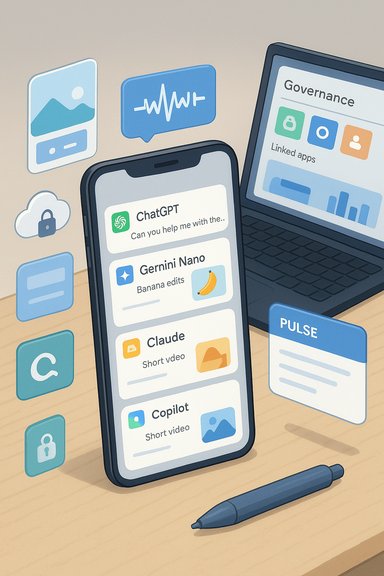 Background / Overview
Mobile AI stopped being a novelty in 2024 and became mainstream in 2025. The most important platform shifts that matter to readers are threefold:- Multimodality — text, voice, camera, and short‑video inputs are now core workflow inputs on phones rather than desktop-only experiments.
- Ecosystem integration — assistants that hook into Gmail, Drive, OneDrive, Microsoft 365 or Creative Cloud move work from phone to desktop with minimal friction.
- On‑device vs cloud tradeoffs — privacy and latency decisions now shape which assistant is appropriate: choose a cloud‑first model for heavy multimodal work, or an on‑device model for sensitive data.
ChatGPT: your conversationalist on the phone
ChatGPT’s mobile app is positioned as the generalist assistant: drafting, ideation, code help, image generation, file analysis, and voice conversations. The Fast Company overview highlights two mobile features as standouts: Advanced Voice Mode (better intonation and roleplay-style exercises) and Pulse (daily personalized note synthesis).What’s actually available and what’s verified
- OpenAI’s release notes confirm ongoing improvements to ChatGPT’s voice modes and list Advanced Voice Mode, expanded availability, and iterative audio quality upgrades as formal product updates. The company also documents an early preview/rollout of Pulse (personalized daily briefings that synthesize memory, chat history and connected data) for paid tiers.
Why it matters on mobile
- Voice mode turns the phone into a hands‑free drafting and rehearsal environment (practice interviews, objection‑handling drills, or impromptu roleplay). Advanced voice improves naturalness, reduces interruptions, and supports translation in live dialog — useful when traveling or training.
Strengths and practical tips
- Strengths: Seamless cross‑device sync, extensive plugin/connectors ecosystem, and strong multimodal file handling (images, PDFs).
- Tips: Turn on or off memory and Pulse carefully; treat Pulse outputs as curated drafts rather than definitive news. For sensitive corporate prompts, prefer enterprise non‑training contracts or an on‑device option.
Caveats and risks
- Advanced features and most recent models are gated behind paid tiers; voice and camera features typically process data in the cloud unless the vendor explicitly documents on‑device processing. OpenAI’s release notes also flag known limitations in voice quality and rare hallucinations — real tradeoffs to keep in mind.
Gemini (Google): the creative, multimodal partner
Google’s Gemini app has rapidly become the go‑to phone companion for image edits and short videos. Fast Company highlights five Gemini strengths: Nano Banana image generation/editing, Deep Research, Veo (video), Canvas (simple interactive artifacts), and Guided Learning.What the vendor documentation and reporting show
- Google’s official posts and developer docs confirm the rollout of Gemini 2.5 Flash Image / “Nano Banana” as a major image‑editing model that preserves likeness across edits and supports blending and multi‑turn edits. Google also documents Veo 3 / Veo 3.1 as its short‑video family (now supporting richer audio, transitions and image‑to‑video flows) and notes integration into the Gemini app and developer APIs.
Real mobile use cases
- On the phone, Gemini excels at:
- Photo edits that keep a consistent subject identity (change outfits, place the subject in new scenes).
- Quick poster, album‑cover, and social graphics generation using Nano Banana’s multi‑image blending.
- Short background video generation and animated slide backdrops using Veo models (paid preview features exist for higher fidelity).
Strengths and tradeoffs
- Strengths: Industry‑leading image editing fidelity, tight Google Workspace hooks, and a growing short‑video toolset for mobile producers.
- Tradeoffs: Advanced video features (Veo 3.1) are paid preview or API features for now; cloud processing remains the norm for the highest‑quality outputs. Verify watermarking and SynthID usage when publishing (Google places visible/invisible watermarks on generated content).
Claude (Anthropic): the mobile studio for structured work
Claude is presented in the Fast Company roundup as a mobile studio — excellent at organizing projects, building interactive artifacts, and offering a voice mode that handles pauses better during spoken exchanges. The article points out Projects, Artifacts, and Claude Code on mobile.Vendor confirmation
- Anthropic’s product posts confirm Artifacts are generally available and explicitly call out mobile support; Projects and document organization are core product features for team workflows. Anthropic has also invested in mobile voice modes and developer‑focused Claude Code tooling.
When to pick Claude on phone
- Use Claude when you want: organized, project‑scoped conversations (store docs and notes per project), accessible Artifacts (iterative, shareable micro‑apps), and a mobile voice mode that minimizes cutoffs when you pause to think. The app is especially useful for SEO text, alt‑text generation, structured briefings, and project planning where context matters across sessions.
Caveats
- Claude’s strengths are organizational and reasoning‑oriented rather than being the absolute best for image/video generation; for heavy multimedia work many users pair Claude with Gemini or ChatGPT. Also, community reports show variable performance at times — operational reliability can fluctuate in high‑load periods. Flag vendor status pages and release notes if you depend on continuous availability.
Microsoft Copilot: a flexible assistant near the OS
Fast Company describes Microsoft’s Copilot app as a free, flexible assistant that borrows OpenAI models and adds a distinct “real talk” conversation style that will sometimes challenge you. The piece also notes Copilot’s ability to create podcasts, generate images, run deep research reports, and analyze camera input.Official confirmation and rollout details
- Microsoft’s Copilot Fall Release confirms the arrival of a human‑centered update that includes Real Talk (a selectable conversation style designed to push back constructively), the optional Mico avatar for voice interactions, Groups (shared Copilot sessions), Learn Live, Memory & Connectors, and expanded Vision support on mobile. Microsoft’s product pages and blog post describe these features as part of an October fall release and note regional and device rollouts.
Why Copilot matters for Windows users
- Copilot is designed to be deeply integrated with Windows, Microsoft 365, and the Graph — making it an especially strong choice where enterprise governance, tenant grounding, and compliance matter. Real Talk addresses the “yes‑man” problem by surfacing counterpoints and reasoning that can reduce reflexive agreement and encourage critical review.
Practical strengths and warnings
- Strengths: Native Windows integration (taskbar, Edge, and file/context awareness), enterprise controls (Purview, connectors), and features that let Copilot act across apps (Actions, Pages, deep research).
- Warnings: Many of the enterprise and health‑grounding capabilities are region‑gated or require higher subscription tiers; connectors reflect power with responsibility — treat connectors and memory features as sensitive integrations that need admin oversight.
Perplexity: the quick, citation‑first researcher
Perplexity is singled out as the mobile app best for rapid, sourced answers and a voice mode that delivers concise, cited answers rather than a list of links. Fast Company praises Perplexity’s quick synthesis, search‑filters (finance/academic/Reddit), and the ability to search connected email and calendars.Cross‑checks and support
- Reporting from mainstream outlets confirms Perplexity’s mobile voice assistant and Labs/Deep Research features; Perplexity positions itself intentionally as a citation‑forward answer engine and has expanded Pro features for deeper, report‑style outputs. Developers and reviewers note Perplexity’s strengths for quick research and citation transparency.
Best use cases on phone
- Perplexity is the practical first stop for: quick factfinds with visible sources, assembling initial research briefs on the go, and getting a succinct, citation‑backed briefing to paste into longer documents on a Windows machine.
Privacy note
- Perplexity supports an incognito mode in app settings (useful for sensitive queries) and offers Pro tiers for expanded research. As with other apps, avoid pasting regulated data into consumer tiers without contractual safeguards.
On‑device and private alternatives: Locally AI, PocketPal, PocketPal AI and friends
Not every scenario should send data to the cloud. Fast Company and other roundup sources list several on‑device or privacy‑focused apps — Locally AI, PocketPal AI, and similar options that let you run smaller models locally and keep data on the device. These apps are valuable for converting handwritten notes to text, private OCR, or private troubleshooting without leaving the phone.What to expect from local models
- Expect slower start‑up (initial model downloads can take minutes), much smaller model capability than cloud giants, and limited multimodal accuracy for deep image analysis. But you gain full local privacy: prompts, messages and files need not leave your handset. Vendor pages and independent roundups confirm the tradeoffs: local models (Qwen, Llama, Gemma variants) are practical for private Q&A and short creative tasks but don’t match cloud models for long‑context reasoning or high‑fidelity image analysis.
PocketPal AI and Locally AI — practical notes
- PocketPal AI and similar apps let users download models from Hugging Face and run them on newer phones; they’re well‑suited for privacy‑first note conversion and standalone chat. Independent reviews show decent ratings for privacy, but mixed UX polish and model selection guidance can frustrate novices. If you prioritize confidentiality, these local apps are compelling — but expect a learning curve in model selection and patience on downloads.
Cross‑cutting strengths, risks, and a Windows‑centric decision matrix
Strengths that make mobile AI useful today
- Convenience: quick drafting, instant visuals, and step‑by‑step camera guidance reduce context switching.
- Multimodality: voice + camera inputs solve real problems (troubleshooting a gadget, translating signage, turning a whiteboard into a checklist).
- Ecosystem continuity: tools that sync to Google Workspace, Microsoft 365, or Creative Cloud make mobile ideation production‑ready on Windows desktops.
Key risks and mandatory mitigations
- Hallucination — Always treat generative outputs as drafts; require human verification for legal, medical, or financial advice.
- Data exposure and model training — Unless you have a contract guaranteeing non‑training, assume prompts may improve vendor models. Use enterprise non‑training contracts or on‑device options for regulated data.
- Permission surface — Camera, microphone and full‑access keyboard permissions increase attack surface; audit app permissions and use MDM to enforce least privilege.
A short decision matrix for Windows readers
- If privacy and on‑device control matter: choose local/offline apps (PocketPal, Locally AI) or Apple/OS-level on‑device model hooks.
- If creative multimodal outputs (image edits, short videos) are the priority: use Google Gemini (Nano Banana and Veo).
- If enterprise governance and tenant grounding are non‑negotiable: pick Microsoft Copilot (Purview, Graph grounding, connectors).
- If you want rapid, citation‑forward research: use Perplexity.
- If you need a flexible generalist that integrates many third‑party tools: ChatGPT remains the most flexible cross‑platform choice.
Verified technical points and where to be skeptical
- Verified: ChatGPT’s Advanced Voice Mode and Pulse previews are official product updates in OpenAI’s release notes. Expect Pulse availability to be tiered and region/plan dependent.
- Verified: Google’s Nano Banana (Gemini 2.5 Flash Image) and Veo 3.x video models are Google DeepMind/Google AI releases and are already integrated into Gemini and developer APIs, with watermarks and SynthID applied to generated images.
- Verified: Anthropic’s Artifacts and Project features are available and mobile‑enabled; Claude remains strong for project‑scoped, document‑centered workflows.
- Verified: Microsoft’s Copilot Fall Release (Real Talk, Mico avatar, Groups, Learn Live, Vision expansion) is an official Microsoft announcement and is live in phased regions. Copilot’s strength is its integration and enterprise controls.
- Vendor marketing about specific parameter counts for third‑party or new entrant models (claims like “600B parameters”) are marketing claims unless independently benchmarked. Treat such numbers as marketing unless corroborated by third‑party benchmarks or vendor whitepapers.
- Performance anecdotes (for example, that a specific app “never cuts off” or that a model is “objectively better” for coding) are user impressions; verify against controlled model benchmarks or vendor performance reports before treating as fact.
Practical rollout checklist for IT teams and advanced users
- Identify top mobile use cases (field support, social creative, meeting notes) and pilot two assistants for 2–4 weeks.
- Audit app permissions: camera, mic, storage, and keyboard access. Enforce least privilege via MDM.
- Require non‑training clauses or on‑device modes for regulated data. Ask vendors for written guarantees and security whitepapers.
- Export and archive AI outputs into controlled Windows folders for auditability; keep a human‑in‑the‑loop for high‑stakes outputs.
- Track spend and quotas across departments — metered API/image/video calls add up quickly.
Final analysis — strengths, blind spots, and responsible adoption
The current crop of mobile AI apps delivers real, measurable productivity and creative power: you can rehearse a difficult conversation on the bus with ChatGPT’s Advanced Voice, edit photos for a social post with Gemini’s Nano Banana, organize project research in Claude Projects, or run a compliance‑friendly, tenant‑grounded search with Copilot on a Windows laptop later. Each app solves a distinct problem, and the best practice is to match tool to job rather than adopt a single “one‑size‑fits‑all” assistant.Notable strengths:
- True multimodality and cross‑device continuity, which change how work gets done on phones.
- Hallucination persists; never treat generative outputs as authoritative without human review.
- Data usage policies and training assumptions vary; when sensitive data is at stake, demand contractual non‑training guarantees or choose local/offline models.
Source: fastcompany.co.za The most useful mobile AI apps you should try
