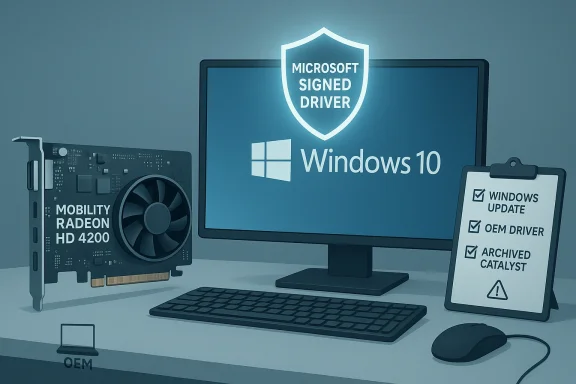
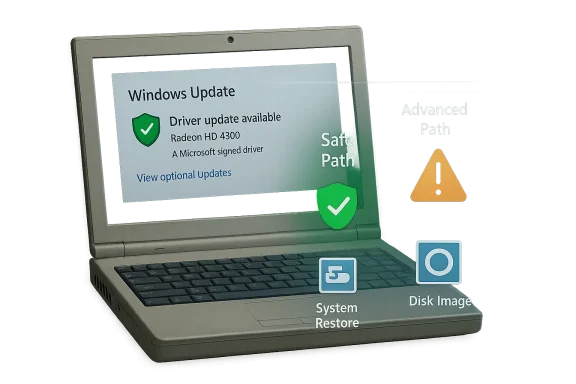
If you’re trying to get an ATI/AMD Mobility Radeon HD 4200 to behave on Windows 7 or Windows 10, the practical reality is simple: use the final legacy Catalyst packages for Windows 7, and for Windows 10 rely on Microsoft’s Windows Update or a vendor-supplied OEM package — only attempt manual legacy driver installs as a clearly controlled, advanced procedure.
The Mobility Radeon HD 4200 belongs to AMD’s HD 4000 family — an integrated/mobile GPU series designed around DirectX 10-era hardware and originally released in the Windows 7 timeframe. AMD moved the HD 4000 line to legacy status years ago, and no new driver feature releases have been produced for it since the early 2010s. That means modern Windows releases are supported only through archived legacy drivers and Microsoft-supplied fallback binaries, not by ongoing AMD development.
Why does that matter? When a GPU is “legacy,” vendor driver updates stop, installer packaging ceases to be tested on later OS builds, and the only guaranteed, signed driver you’ll see on modern Windows editions is the Microsoft-provided WDDM driver delivered through Windows Update. For most users that’s the safest, most stable outcome. For power users who need Catalyst Control Center features or specific acceleration bits, archived Catalyst installers are the only route — and they bring risk and manual work.
If you want a tailored checklist for a specific laptop or desktop model (exact make/model and Windows build), I can produce a compact, step‑by‑step driver plan for your system that lists the exact archived package names and INF files to inspect — but only after you confirm the system details so the recommendation matches your vendor and hardware ID.
Source: Born2Invest https://born2invest.com/?b=style-231704012/
 Background / Overview
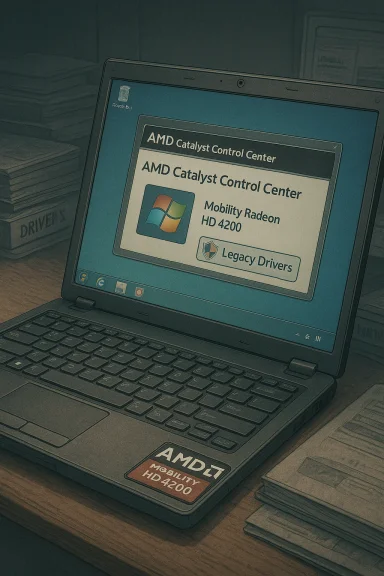
The Mobility Radeon HD 4200 belongs to AMD’s HD 4000 family — an integrated/mobile GPU series designed around DirectX 10-era hardware and originally released in the Windows 7 timeframe. AMD moved the HD 4000 line to legacy status years ago, and no new driver feature releases have been produced for it since the early 2010s. That means modern Windows releases are supported only through archived legacy drivers and Microsoft-supplied fallback binaries, not by ongoing AMD development.Why does that matter? When a GPU is “legacy,” vendor driver updates stop, installer packaging ceases to be tested on later OS builds, and the only guaranteed, signed driver you’ll see on modern Windows editions is the Microsoft-provided WDDM driver delivered through Windows Update. For most users that’s the safest, most stable outcome. For power users who need Catalyst Control Center features or specific acceleration bits, archived Catalyst installers are the only route — and they bring risk and manual work.
What “best driver” actually means for ATI Radeon HD 4200
When people ask “what’s the best driver,” they’re usually after one or more of these outcomes:- Correct native resolution and multi-monitor support
- Hardware-accelerated video playback and OpenGL/Direct3D functionality (within the GPU’s era-limits)
- Stability with minimal risk of system lockups or black screens
- Access to control-panel features like Catalyst Control Center
- Windows Update / Microsoft-signed legacy driver — Safest, recommended first. Restores basic acceleration and correct display without installer conflicts.
- OEM (laptop vendor) driver for your exact model — Preferred for notebooks, because OEM packages often include power-management and switchable-graphics support.
- Archived AMD Catalyst legacy package (manual / advanced) — Only for experienced users who need extra features. This recovers Catalyst Control Center and additional legacy binaries but requires careful INF verification and possible driver cleanup.
Windows 7: Best practical driver choice
Recommended driver for Windows 7 (desktop / notebook)
- Primary recommendation: AMD Catalyst 15.7.1 (Display Driver 15.20.1062) — the last widely distributed unified Catalyst package that explicitly covered Windows 7 and supported many HD-era devices. This package restores Catalyst Control Center and the vendor’s last WHQL-signed display binaries useful on Windows 7 systems.
Why 15.7.1?
- It’s the final unified AMD package with Windows 7 support in mind, which makes it the go-to for older desktops that need the vendor’s driver stack and CCC.
- Community archivists and driver indexes preserve it as the standard fallback for legacy Radeon cards on Windows 7.
Caveats for Windows 7 installs
- For laptops, the OEM driver distributed by the laptop manufacturer may be preferable because it can include firmware-integrated support for hotkeys, power profiles, and switchable graphics; the generic AMD installer sometimes fails on vendor-locked systems. Always check OEM first.
- These legacy packages won’t receive security updates. If the machine is internet-exposed or used in high-risk environments, consider the security implications of running an out-of-support display stack.
Windows 10: Practical realities and the safest path
Microsoft’s fallback and AMD’s guidance
AMD’s official guidance and community notices for the HD 4000 series are straightforward: Windows 10 support is provided by the Microsoft-supplied legacy driver available through Windows Update; AMD ceased driver releases for this family and points Windows users toward Windows Update for a supported experience. The Windows Update build families commonly seen for HD 4000-era devices are in the 8.970.x series (for example, 8.970.100.9001).What to expect from the Microsoft driver
- Proper desktop resolution and basic acceleration for video playback.
- No Catalyst Control Center or advanced AMD-only features.
- A signed, vetted driver that is less likely to cause kernel crashes than manually installed legacy packages not re-signed for newer Windows builds.
When you might avoid Windows Update
- You need the Catalyst control panel or other legacy functionality on a machine that will not be exposed to security risks and where you can accept the recovery/rollback plan.
- You have an OEM driver for your laptop model that explicitly supports Windows 10 and includes vendor-specific modules. In practice, OEM driver packages are often the best option for notebooks with hybrid/switchable graphics.
Step-by-step: Safe installation workflow (recommended for most users)
Follow this exact sequence to minimize risk. It’s a conservative, community-validated approach and is the one most forum experts endorse.- Back up everything first
- Create a System Restore point and, if possible, a full disk image. Driver changes to the display stack can render a system unbootable; a disk image is your insurance.
- Try Windows Update (Windows 10) or AMD/OEM official driver (Windows 7 first)
- Windows 10: Settings → Update & Security → Windows Update → Check for updates → View optional updates and accept the display adapter driver offered. This gets you the Microsoft-signed legacy driver.
- Windows 7: If you prefer Catalyst features, download AMD Catalyst 15.7.1 (or your OEM-supplied driver). Use reputable archives or OEM support pages to get installers.
- Verify Device Manager
- After install, confirm Device Manager shows the proper driver name (not “Microsoft Basic Display Adapter”) and test desktop resolution, video playback, and any hybrid-switch features.
- If you must use an archived Catalyst package, prepare for advanced steps
- Only proceed if Windows Update/OEM drivers fail to provide needed capabilities. Create a full disk image, download Display Driver Uninstaller (DDU), and prepare to use DDU in Safe Mode to clean the display stack before manual installs.
Advanced: Manual INF (Have Disk) install — what to know and how to proceed
This flow is for advanced users only. It recovers vendor display binaries from archived Catalyst packages (8.970.x or Catalyst 13.x/15.x era) and performs a manual “Have Disk” install after verifying the INF contains your exact hardware ID.Why manual INF?
- Installers may refuse to run on vendor-locked or older notebooks.
- A manual INF allows you to install the display binary only, limiting installer-side changes.
- It may restore Catalyst Control Center features otherwise absent.
Step-by-step advanced procedure
- Inventory and copy your hardware ID:
- Device Manager → Display adapters → right-click device → Properties → Details → Hardware Ids; copy the PCI\VEN_1002&DEV_xxxx string.
- Extract the archived Catalyst package:
- Use extraction tools to unpack the driver package. Locate the Display.Driver folder containing *.inf files and .sys/.dll binaries. Verify file checksums where possible.
- Confirm the INF lists your hardware ID:
- Open the Display.Driver.inf and search for your PCI VEN/DEV string. If it’s present, the INF supports your hardware directly — proceed. If not present, do not* edit the INF unless you understand driver signing and re-signing; editing is a security and stability risk.
- Clean old drivers with DDU:
- Boot to Safe Mode, run Display Driver Uninstaller (DDU) to remove residual AMD/Intel driver traces, then reboot to normal mode. This reduces the chance of partial installs and conflicts.
- Manual “Have Disk” install:
- Device Manager → Update driver → Browse my computer for drivers → Let me pick from a list → Have Disk → point to the extracted *.inf. Install only the display driver portion; avoid running the legacy installer components that modify the system further. Reboot after install.
- Pause Windows Update temporarily if it reverts driver:
- Windows Update can automatically replace your manual install with Microsoft’s signed driver. Temporarily pause updates while testing. Re-enable them afterward for security.
Common failure modes (and fixes)
- “This device is not supported”: INF doesn’t list your device VID/PID. Fix: use OEM driver or Windows Update. Don’t edit the INF unless you can sign drivers.
- Catalyst Control Center appears but Device Manager still shows Microsoft Basic Display Adapter: leftover files from previous installs. Fix: run DDU and repeat the manual INF install.
- Windows Update keeps replacing driver: temporarily hide the update while you validate the manual driver; don’t leave update protection disabled indefinitely.
OEM and switchable-graphics considerations
Notebooks with switchable graphics (Intel + AMD hybrid setups) are the trickiest. Many laptop manufacturers shipped customized mobility drivers that coordinate Intel and AMD components and register BIOS-level switch hooks. Using a generic AMD archive on such machines can break switching, cause black screens, or remove vendor-specific power profiles.- Always check the laptop maker’s support page first. If the OEM publishes a Windows 10 driver for your model, use that over generic packages.
- If your laptop uses a vendor-specific switch chain, follow the OEM’s recommended installation order (Intel first, then AMD/vender package). Community threads repeatedly advise this sequence.
Security and provenance: crucial warnings
- Avoid one‑click driver updaters or repackaged drivers from untrusted sites. These are common vectors for adware, PUPs, or altered binaries. Prefer Microsoft Update, OEM support pages, or well-known archive sites with checksums.
- If a driver installer is unsigned or lacks a published checksum, treat it as risky. Do not use unsigned packages on production or internet-connected systems unless you can isolate the machine.
- Legacy drivers are not being patched. If your machine’s security posture matters, plan to replace aging hardware rather than rely on hacks to make deprecated drivers work long-term. Communities commonly recommend a modest hardware refresh to regain security and modern codec support.
When a hardware refresh is the right call
There comes a practical point where the time and risk spent coaxing an old integrated GPU into modern Windows outweigh the benefit. If you need:- reliable modern codec support for 4K/HEVC/AV1,
- up-to-date graphics APIs (DirectX 12 / recent OpenGL/Vulkan),
- ongoing signed driver updates and security fixes,
Quick checklist you can copy/paste before you start
- Record your GPU hardware ID in Device Manager (PCI\VEN_1002&DEV_xxxx).
- Create a System Restore point and a full disk image.
- Try Windows Update first (Windows 10) or your OEM driver (Windows 7).
- If you must use archived Catalyst files: DDU in Safe Mode → verify INF lists your VID/PID → manual Have Disk install → pause Windows Update while testing.
- Avoid third-party repackagers and unsigned installers. Verify checksums and provenance.
Quick answers to common questions
- “Can I run the latest Adrenalin drivers on HD 4200?” No — the HD 4000 family is legacy and not supported by Adrenalin-era drivers. Use archived Catalyst packages for Windows 7, or Windows Update for Windows 10.
- “Where is the official Windows 10 driver?” The supported Windows 10 driver for HD 4000 is supplied through Microsoft Windows Update (commonly the 8.970.x family). AMD’s public position is to direct users to Windows Update for these legacy products.
- “I found a ‘cheap’ driver download — should I use it?” No. Marketplace reuploads and repackagers carry provenance and security risks. Prefer Microsoft, OEM, or reputable archive sites and verify checksums.
Final assessment — strength, risk, and a recommendation
Strengths:- The Microsoft-supplied legacy driver gives most users the safest path to a working desktop on Windows 10 without risky hacks.
- Catalyst 15.7.1 gives Windows 7 users the last full-featured vendor stack where Catalyst features matter.
- Archived vendor drivers aren’t updated and carry potential long-term security exposures.
- Manual INF edits, unsigned packages, and third-party repackagers introduce real stability and security risks.
- For Windows 10, accept the Microsoft-supplied legacy driver from Windows Update or use your laptop maker’s driver; for Windows 7, use the archived Catalyst package (Catalyst 15.7.1) only if you need vendor features and are prepared to manage the recovery plan — otherwise prefer OEM or Microsoft drivers.
A last note about the link you provided
I attempted to access the Born2Invest URL you included but it was not available (page returned not found / inaccessible), so I could not verify any unique claims from that specific article. The guidance and recommendations in this piece are drawn from AMD’s legacy support messaging, Microsoft’s Windows Update behavior for HD 4000 devices, and multiple long-running community threads documenting safe installation workflows. If you can provide an alternate working link or the article text, I’ll fold its specifics into an updated verification.If you want a tailored checklist for a specific laptop or desktop model (exact make/model and Windows build), I can produce a compact, step‑by‑step driver plan for your system that lists the exact archived package names and INF files to inspect — but only after you confirm the system details so the recommendation matches your vendor and hardware ID.
Source: Born2Invest https://born2invest.com/?b=style-231704012/