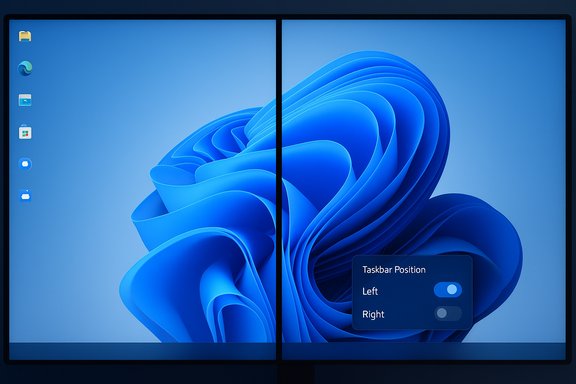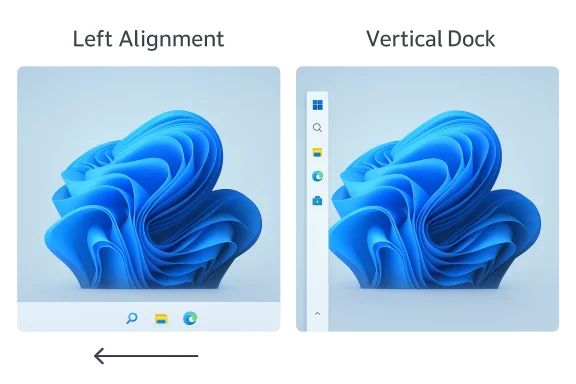
Windows 11 includes a one-click, officially supported way to restore the classic left-aligned taskbar icons — but that simple fix is not the same as moving the entire taskbar to the left edge of the screen, and the difference matters for safety, stability, and what Microsoft actually supports.
Background / Overview
Windows 11 shipped with a visually centered taskbar as its default, a change that broke a long-standing Windows convention of the Start button and pinned apps living in the bottom-left corner. Microsoft responded by adding a supported Taskbar alignment option to Settings that lets you put the icons back to the left — a change that is instantaneous, reversible, and preserved through normal updates. What Microsoft does not provide is native support to move the entire taskbar vertically to the left, right, or top of the screen. That behavior was available in older Windows (7/8/10) but was removed in Windows 11’s redesigned shell. Users who demand a vertical taskbar must choose between unsupported registry workarounds, which are brittle and risky, or third‑party utilities that reimplement the taskbar behavior. Community guides and recent coverage make this distinction explicit and show the relative safety and longevity of each approach.Why the distinction matters (icons vs. whole taskbar)
- Alignment (official, supported): Moves the Start button and app icons from center to left while keeping the taskbar physically anchored to the bottom of the screen. It’s a UI preference only — no registry hacks, no reboot, no unsupported code. This is what nearly all non‑technical users mean when they say “move the taskbar to the left.”
- Vertical taskbar (unsupported natively): Repositions the taskbar along the edge of the display (left, right, or top). Windows 11’s Settings app has no native option for this. Achieving a true vertical taskbar requires either:
- Registry edits such as editing the StuckRects3 key (unsupported, fragile), or
- Installing shell‑modifying third‑party tools (ExplorerPatcher, Start11, StartAllBack, etc., which reintroduce the feature but carry their own compatibility and support tradeoffs.
Quick official method: Move Windows 11 taskbar icons to the left (15 seconds)
This is the safe, Microsoft‑supported method that applies to the vast majority of users.- Right‑click an empty area of the taskbar and choose Taskbar settings.
- In Settings, expand Taskbar behaviors.
- Locate Taskbar alignment and change it from Center to Left.
Why most users should stop here
- The left alignment restores classic muscle memory and uses no unsupported hacks.
- It survives regular system updates and is officially supported by Microsoft.
- For most workflows — single monitor, multitasking, daily use — this is functionally equivalent to the “old” look users wanted.
What the official change does — and does not
- Does: Re‑align icons (Start button, pinned apps, open windows) to the bottom-left of the screen. Immediate and safe.
- Does not: Move the taskbar as a panel to the left/right/top edge, change the taskbar orientation, or produce a vertical dock. That capability is not present in stock Windows 11.
Advanced: The registry hack (StuckRects3) — how it works, and why it’s risky
Several community guides document a binary edit in the registry key HKEY_CURRENT_USER\Software\Microsoft\Windows\CurrentVersion\Explorer\StuckRects3 that can change the taskbar’s position. In practice the sequence is:- Open Regedit and navigate to:
HKEY_CURRENT_USER\Software\Microsoft\Windows\CurrentVersion\Explorer\StuckRects3 - Double‑click the Settings binary value.
- In the binary editor, change the byte responsible for orientation (commonly the fifth byte in the second row depending on the representation). Typical values used in community guides:
- 00 = Left
- 01 = Top
- 02 = Right
- 03 = Bottom (default)
- Restart Explorer.exe (via Task Manager) to apply the changes.
Why you should treat this as an emergency-only option
- Registry binary edits are version‑sensitive: the bytes and offsets can vary between Windows builds. A change that worked on one build may be ignored or cause corruption on another.
- Windows updates frequently alter shell internals; a registry hack may be reset or cause explorer crashes after an update.
- Mistakes editing binary values can break taskbar behavior, cause Explorer to crash repeatedly, or in the worst case require recovery from a System Restore or reinstall.
A safer, practical alternative: third‑party taskbar tools
Third‑party utilities reimplement or wrap the taskbar behavior to offer a vertical dock without directly editing binary registry values. The two most widely referenced options are:- Start11 (Stardock) — commercial, actively maintained, and now provides vertical taskbar support (v2.5 and later). Start11 reimplements the Start menu and can position the taskbar vertically on left or right, with multi‑monitor support and a polished UI. Because it’s a supported product, updates and vendor support are available; however, it remains a third‑party modification to Windows’ shell.
- ExplorerPatcher — open‑source, community‑driven, restores many Windows 10/earlier behaviors (including moving the taskbar to sides) and is frequently updated to track Windows builds. It’s effective and free, but it modifies Explorer internals and can be fragile after major Windows updates; it’s also less “supported” than a paid vendor product.
Start11: what to expect
- Vendor announcement and changelog confirm vertical taskbar support in Start11 v2.5 and later. The feature supports independent taskbar positions per monitor and parity with many classic Windows features. As a commercial product, Start11 offers a trial and official support channel, making it a safer route for users who prefer a maintained solution over DIY registry edits.
- Install Start11 and open its configuration panel.
- Go to the Taskbar settings.
- Choose Taskbar position and select Left or Right (or Top/Bottom if offered).
- Apply and restart if prompted.
ExplorerPatcher: what to expect
- ExplorerPatcher is free, popular in power‑user communities, and exposes a “Taskbar style” that can restore Windows 10 behavior including vertical docking. The project’s GitHub releases and README list supported builds and include compatibility notes. Because EP hooks Explorer’s internals, major Windows feature updates can temporarily break functionality until a new EP release appears.
- Download ExplorerPatcher from the official GitHub releases page.
- Run the installer (admin privileges required).
- Right‑click the taskbar and open Properties (ExplorerPatcher).
- In the Taskbar tab, set Position on screen to Left/Right/Top as desired, then restart File Explorer from EP’s UI.
- If you later remove EP, the system returns to native Windows behavior after a reboot or uninstall.
Comparing Start11 vs ExplorerPatcher (summary)
- Start11: paid, polished, vendor‑supported, easier for mainstream users.
- ExplorerPatcher: free, community project, powerful and granular, but update‑sensitive and requires caution.
Practical step‑by‑step recommendations
- For most users: use the supported alignment setting (Settings → Personalization → Taskbar → Taskbar behaviors → Taskbar alignment → Left). It fixes the common complaint with zero risk.
- For power users who want a vertical taskbar but must avoid risky registry edits:
- Prefer Start11 if you want a vendor‑backed experience and are willing to pay for reliability and support.
- Use ExplorerPatcher if you prefer a free, community tool and are comfortable monitoring compatibility after major Windows updates. Always download EP from its official GitHub releases page.
- For experimental tinkerers who understand the risks and have full backups:
- The StuckRects3 registry edit will sometimes work but is version‑sensitive. If you choose this route, export the full StuckRects3 key, create a System Restore point, and be prepared to recover if Explorer misbehaves. Microsoft’s Q&A and multiple community guides document the technique — but Microsoft explicitly states moving the taskbar to the screen edge is not supported.
Troubleshooting and safety checklist (before any unsupported change)
- Create a System Restore point or full system image.
- Export the StuckRects3 registry key (if attempting registry edits).
- Note your current Windows build (Settings → System → About). Compatibility for ExplorerPatcher or Start11 may depend on the build.
- Use official download pages (Stardock for Start11, GitHub for ExplorerPatcher). Avoid third‑party mirrors.
- On managed (work) devices, check with IT — many organizations forbid shell‑level modifications. Third‑party tools may violate policy or break support contracts.
Common FAQs (clear answers)
- Can I move the taskbar to the left in Windows 11?
- If you mean “move the icons to the left,” yes — use Settings > Personalization > Taskbar > Taskbar behaviors and choose Left. This is supported and safe.
- Can I place the entire taskbar vertically on the left edge natively?
- No. Windows 11’s native Settings do not provide a left/right/top taskbar position. Microsoft’s support documentation and responses confirm the stock shell is anchored to the bottom.
- Do registry hacks still work after Windows updates?
- They may, sometimes. They are unreliable and often break after feature updates or cumulative patches. Expect to reapply or troubleshoot if you rely on registry tricks.
- Is ExplorerPatcher or Start11 safe to use?
- “Safe” depends on your tolerance for third‑party shell modifications. Start11 is commercial and maintained; ExplorerPatcher is a respected community project that’s free but can be fragile after major Microsoft updates. Both can provide a vertical taskbar reliably for many users, but both introduce a support tradeoff compared with the official left alignment.
Critical analysis — strengths, tradeoffs and long‑term risks
- Strengths of the official left‑alignment setting:
- Immediate, safe, supported by Microsoft.
- Works across updates and in managed environments.
- Restores classic muscle memory for most users.
- Weaknesses in the stock experience:
- Microsoft removed vertical docking — a legitimate loss for ultrawide monitors and workflows that benefit from vertical real estate.
- Some users find a centered taskbar inefficient; the left alignment option softens the issue but doesn’t satisfy vertical‑taskbar enthusiasts.
- Tradeoffs for registry or third‑party approaches:
- Registry edits are lightweight but brittle and unsupported. They may break the UI or be reset by updates. Use only with backups and technical comfort.
- Third‑party tools (Start11, ExplorerPatcher) are practical and generally stable solutions with differing risk profiles: commercial vs community maintenance, but both carry the reality that they sit outside Microsoft support channels and can be affected by OS changes.
- Long‑term risk: Microsoft may someday restore vertical taskbars natively or further lock the shell. If Microsoft’s priorities change, third‑party fixes may become unnecessary — or third‑party tools may be blocked by more aggressive system protections. Relying on third‑party shell modifications for enterprise fleets is especially risky.
Final recommendation
- For 95% of users who say “I want the taskbar on the left,” use the official alignment setting in Settings — it’s safe, fast, and supported. This restores the classic look without any risk.
- If you need a vertical taskbar for ultrawide productivity or accessibility reasons, choose a maintained third‑party tool rather than raw registry hacks:
- Use Start11 if you want a vendor‑supported, polished solution with easier upkeep.
- Use ExplorerPatcher if you want a free community tool and are comfortable monitoring compatibility after major updates.
- Avoid StuckRects3 registry edits on production machines and never apply them without a restore point and a registry export. These edits are a technical stopgap rather than a reliable long‑term approach.
Windows 11 gives you a quick, official way to get the familiar left‑aligned icons back; beyond that, restorations of old behaviors require careful choices. The safe path is often the best path: use the supported alignment setting for day‑to‑day work, and reserve registry or third‑party interventions for cases where vertical docking is an actual productivity requirement — and then proceed with full backups, vendor or community trust, and realistic expectations about future Windows updates.
Source: How2shout How to Move the Windows 11 Taskbar to the Left (Quick Official Method)