

Windows 11 can be forced to boot with less usable RAM through the legacy System Configuration utility, as Windows Central’s Mauro Huculak demonstrated in a July 2026 how-to using the Boot tab’s “Maximum memory” option. The trick works, but the more interesting story is not that Microsoft hid a useful switch in an old dialog box. It is that Windows still carries a layer of diagnostic machinery powerful enough to reshape the machine beneath the user interface. For enthusiasts and administrators, that makes msconfig both a useful scalpel and a very bad performance tweak.
The modern Windows 11 Settings app is where Microsoft wants ordinary users to live. It has the rounded corners, the search box, the account nudges, the update controls, and the increasingly careful language of a consumer operating system trying not to scare anyone. But Windows has never been only that surface. Beneath it sits a long tail of consoles, snap-ins, boot flags, compatibility shims, and utilities built for the people who have to make broken machines explain themselves.
System Configuration, better known by the command that launches it, msconfig, belongs to that older layer. Microsoft’s own support material describes it as a troubleshooting utility for changing startup behavior, services, boot options, and other diagnostic settings. It is not a memory optimizer, not a gaming booster, and not a secret “unlock” menu for making Windows faster.
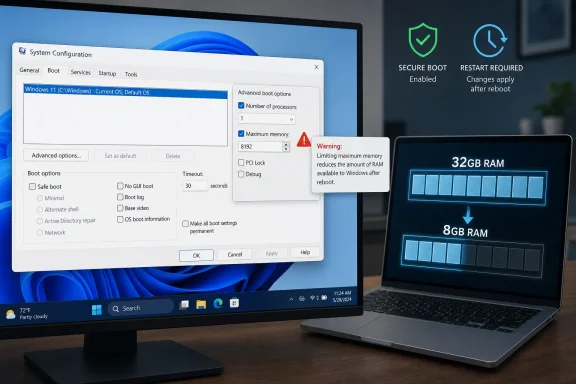
That distinction matters because the Windows Central piece lands in a familiar part of the Windows ecosystem: a real feature, surfaced through a consumer-friendly how-to, that can easily be misread as a tweak. The “Maximum memory” checkbox does exactly what its label suggests, but it does not make Windows use memory more intelligently. It simply reduces the amount of physical memory the operating system is allowed to use after boot.
That is why the feature is compelling. It is one of the rare switches that visibly changes the computer’s operating conditions without requiring hardware changes, a virtual machine, or specialized developer tooling. It lets a 32GB laptop pretend to be an 8GB machine. It also lets an incautious user kneecap a perfectly healthy system and then wonder why Task Manager looks wrong.
That means every process, driver, service, desktop app, browser tab, game launcher, background updater, and security tool now shares the smaller pool. If the installed machine has 32GB but Windows is told to use 8GB, the other 24GB has not been made available for some clever alternate purpose. It is effectively being ignored by the booted OS.
Windows Central also notes a small but important wrinkle from testing: setting the limit to 4GB may not leave exactly 4GB visible in Task Manager. Some of the physical address space is reserved for devices and platform needs, so the reported usable amount can be lower. Huculak observed roughly 3GB when setting 4GB and suggested adding headroom if the goal is to test the experience of a specific amount visible inside Windows.
That detail is what separates a useful lab trick from a simplistic checkbox tutorial. Memory in a PC is not a neat bucket poured straight into user-mode applications. Firmware, devices, graphics hardware, memory-mapped I/O, kernel reservations, and Windows itself all affect what the operating system reports as available. A “4GB machine” as experienced by software is not always the same thing as typing 4096 into a boot option.
That heritage explains why the setting requires a restart. Windows cannot simply forget half the physical RAM while the system is running and pretend nothing happened. The memory map has to be established early, before the kernel and drivers settle into the system they think they inhabit.
It also explains why the option is not presented in Settings under System > Memory with a friendly slider. A consumer-facing slider would imply a supported everyday scenario: “drag here to save RAM.” That would be misleading. Microsoft has spent years teaching Windows to cache aggressively, compress memory, suspend background activity, and use idle RAM as a performance asset rather than a trophy to be kept empty.
The old Windows myth that “free RAM is good RAM” refuses to die because Task Manager makes memory feel like fuel. Users see a high number and assume waste. But modern operating systems are designed to put memory to work. A machine that has 32GB and is using 18GB may be healthier than one artificially starved down to 8GB and paging furiously to storage.
That last use case is increasingly relevant. Windows 11 has spent the last several years carrying heavier expectations: persistent security features, richer search and indexing, more cloud integration, more background services, more ambitious inbox apps, and, on some systems, AI-adjacent components layered into the experience. The practical difference between 8GB and 16GB is no longer academic for many users.
A boot-level memory cap gives testers a way to create repeatable conditions. If a system is physically stable with 32GB installed, lowering the usable pool through msconfig can help isolate whether a workload is truly memory-sensitive. It is faster than rebuilding a test bench, and for many workflows it is simpler than provisioning a VM that may not reproduce the same GPU, driver, firmware, or peripheral environment.
But “useful for testing” is not the same as “safe as a lifestyle.” The more the host system is tied to real daily work, the less attractive this trick becomes. A developer’s lab machine can be abused in the name of data. A family laptop with BitLocker, Secure Boot, vendor firmware oddities, and a pile of startup apps is a worse place to experiment casually.
Secure Boot exists to help protect the boot chain from unauthorized code before Windows loads. Disabling it, even briefly, changes the trust posture of the machine. On some systems it may also interact with device encryption, enterprise policy, anti-cheat systems, or compliance baselines in ways that are irritating at best and disruptive at worst.
This is where the consumer how-to format strains against the reality of Windows administration. The steps may be technically correct, but the surrounding environment matters. A domain-joined laptop is not the same as a home-built desktop. A BitLocker-protected work machine is not the same as a spare test rig. A device under endpoint management may have firmware and boot requirements that exist for reasons the local user does not control.
The right interpretation is not “disable Secure Boot whenever msconfig gets in your way.” It is “if the boot environment resists this experiment, maybe the experiment belongs on different hardware.” For administrators, that is often the saner answer.
And sometimes someone checked “Maximum memory” years ago after following a bad performance guide.
That is why msconfig remains part of the troubleshooting checklist. If Windows reports an unexpectedly low amount of usable memory, the Boot tab’s Advanced options are worth inspecting. The correct normal state for most users is not “set maximum memory to the largest number in the box.” It is to leave the option unchecked entirely.
This is the same trap that surrounds the neighboring “Number of processors” option. For years, dubious optimization guides have told users to check it and select the highest value, as if Windows otherwise forgets to use CPU cores. In reality, these controls are diagnostic constraints. Checking them can limit the system; leaving them unchecked lets Windows use the hardware normally.
The fact that these myths persist says something about Windows’ cultural baggage. The operating system exposes just enough low-level machinery to make users feel empowered, but not always enough context to prevent superstition. A checkbox beside a disabled value looks like an opportunity. In msconfig, it is often a limiter.
There is some truth under the complaint. Windows 11 does run on top of a more complex baseline than Windows 7 did. Security mitigations, telemetry, compatibility layers, modern app frameworks, browser-based components, cloud sync clients, and richer drivers all have costs. OEM images often add more background software before the user installs anything.
But RAM usage by itself is not a verdict. Memory that stores cached files can speed up launches. Memory compression can delay paging. Standby memory can be reclaimed. Browser processes may be heavy because modern websites are applications in disguise. The meaningful question is not “how low can I make the number?” It is whether the system remains responsive under the workloads the user actually runs.
Artificially limiting total system RAM makes that question worse for everyday use. It does not discipline greedy apps. It does not tell Windows to trim only the waste. It creates global scarcity, and scarcity produces paging, stutter, longer app launches, failed allocations, and background contention.
If the goal is to improve a real machine, the better answers are familiar because they work: remove unnecessary startup apps, uninstall vendor cruft, reduce browser tab sprawl, investigate runaway processes, update bad drivers, scan for malware, and add memory when the workload justifies it. Those actions target causes. The msconfig cap manufactures a bottleneck.
System Configuration sits in that awkward middle ground. It is old enough to feel like a fossil and current enough to affect Windows 11. The UI does not invite casual exploration, yet it is one Start-menu search away from any user. It embodies the unresolved nature of Windows itself: a consumer platform, an enterprise platform, a developer platform, and a compatibility museum all sharing the same executable heritage.
That is not necessarily a flaw. One reason Windows remains valuable is that it exposes operational levers macOS and ChromeOS often hide. Administrators can still coerce boot behavior, isolate services, inspect event logs, manipulate drivers, script deployments, and recover systems in ways that reward institutional knowledge.
The cost is that powerful tools do not always announce their danger in consumer language. The “Maximum memory” checkbox is not maliciously hidden. It is buried because it belongs to a diagnostic world. When it escapes that world as a viral trick, the burden shifts to writers, admins, and forum regulars to explain what it actually does.
But VMs do not always answer the same questions. They abstract hardware. They may use virtual display adapters, virtual storage controllers, synthetic network devices, and different timing behavior. If the point is to test how a specific physical machine behaves when starved of RAM, msconfig has an advantage.
That is where the Windows Central trick earns its keep. It does not require a second installation. It does not require opening the chassis. It does not require buying lower-capacity RAM sticks or hoping a laptop’s memory is socketed at all. It lets the same physical Windows installation boot under a different memory ceiling.
The tradeoff is blast radius. A VM isolates the experiment. Msconfig makes the experiment the operating system’s reality. If the cap is too aggressive, the main installation can become sluggish, unstable, or harder to recover. That does not make the tool bad; it makes it a tool for people who understand how to back out.
Admins testing low-memory behavior should document the original state, confirm BitLocker recovery readiness where relevant, avoid changing Secure Boot casually, and schedule the work on hardware that can tolerate downtime. They should also prefer a separate boot entry or lab image when repeatability matters. The cleaner the test boundary, the less likely the diagnostic work becomes tomorrow’s outage.
For developers, the discipline is similar. If the point is to learn how software behaves with less RAM, collect observations before and after the cap. Watch commit charge, paging, app launch times, crash behavior, and memory allocation failures. Do not merely set 4096, marvel at Task Manager, and call it a benchmark.
For enthusiasts, the recommendation is simpler: use this only if you have a reason you can state clearly. Curiosity is a valid reason on a spare machine. “I saw a trick that saves RAM” is not.
That distinction should shape how people discuss it. Windows can be wasteful in specific configurations, and modern apps can be shockingly indifferent to memory footprint. But solving those problems requires identifying what is consuming memory and why, not pretending installed hardware does not exist.
The feature also highlights a recurring divide between Windows enthusiasts and ordinary users. Enthusiasts like hidden switches because hidden switches feel like agency. Ordinary users need systems that remain hard to misconfigure. Microsoft tries to satisfy both audiences and often ends up with powerful settings living behind unloved interfaces that are neither fully documented for consumers nor fully hidden from them.
In this case, the safest cultural response is not to bury the trick again. It is to describe it accurately. A diagnostic memory ceiling is useful precisely because it is blunt. Its bluntness is also why it should not be sold as optimization.
 The Old Utility Still Has Teeth
The modern Windows 11 Settings app is where Microsoft wants ordinary users to live. It has the rounded corners, the search box, the account nudges, the update controls, and the increasingly careful language of a consumer operating system trying not to scare anyone. But Windows has never been only that surface. Beneath it sits a long tail of consoles, snap-ins, boot flags, compatibility shims, and utilities built for the people who have to make broken machines explain themselves.System Configuration, better known by the command that launches it, msconfig, belongs to that older layer. Microsoft’s own support material describes it as a troubleshooting utility for changing startup behavior, services, boot options, and other diagnostic settings. It is not a memory optimizer, not a gaming booster, and not a secret “unlock” menu for making Windows faster.
That distinction matters because the Windows Central piece lands in a familiar part of the Windows ecosystem: a real feature, surfaced through a consumer-friendly how-to, that can easily be misread as a tweak. The “Maximum memory” checkbox does exactly what its label suggests, but it does not make Windows use memory more intelligently. It simply reduces the amount of physical memory the operating system is allowed to use after boot.
That is why the feature is compelling. It is one of the rare switches that visibly changes the computer’s operating conditions without requiring hardware changes, a virtual machine, or specialized developer tooling. It lets a 32GB laptop pretend to be an 8GB machine. It also lets an incautious user kneecap a perfectly healthy system and then wonder why Task Manager looks wrong.
Windows Central Found a Testing Tool, Not a Tuning Tip
Huculak’s walkthrough is straightforward: open Start, search for System Configuration or msconfig, go to the Boot tab, choose Advanced options, check “Maximum memory,” enter a value in megabytes, apply the change, and restart. To reverse it, go back to the same dialog and clear the checkbox. The article’s practical warning is the part readers should keep in their peripheral vision the entire time: this limits memory for the whole operating system.That means every process, driver, service, desktop app, browser tab, game launcher, background updater, and security tool now shares the smaller pool. If the installed machine has 32GB but Windows is told to use 8GB, the other 24GB has not been made available for some clever alternate purpose. It is effectively being ignored by the booted OS.
Windows Central also notes a small but important wrinkle from testing: setting the limit to 4GB may not leave exactly 4GB visible in Task Manager. Some of the physical address space is reserved for devices and platform needs, so the reported usable amount can be lower. Huculak observed roughly 3GB when setting 4GB and suggested adding headroom if the goal is to test the experience of a specific amount visible inside Windows.
That detail is what separates a useful lab trick from a simplistic checkbox tutorial. Memory in a PC is not a neat bucket poured straight into user-mode applications. Firmware, devices, graphics hardware, memory-mapped I/O, kernel reservations, and Windows itself all affect what the operating system reports as available. A “4GB machine” as experienced by software is not always the same thing as typing 4096 into a boot option.
The Switch Is a Window Into Boot Configuration
The “Maximum memory” option looks like an msconfig feature, but conceptually it belongs to the boot configuration world. Microsoft documents boot parameters that manipulate memory for driver testing and system analysis, including options that remove memory from Windows or truncate memory above a defined address. BCDEdit exposes related controls more directly, while msconfig gives administrators a friendlier path into some startup settings.That heritage explains why the setting requires a restart. Windows cannot simply forget half the physical RAM while the system is running and pretend nothing happened. The memory map has to be established early, before the kernel and drivers settle into the system they think they inhabit.
It also explains why the option is not presented in Settings under System > Memory with a friendly slider. A consumer-facing slider would imply a supported everyday scenario: “drag here to save RAM.” That would be misleading. Microsoft has spent years teaching Windows to cache aggressively, compress memory, suspend background activity, and use idle RAM as a performance asset rather than a trophy to be kept empty.
The old Windows myth that “free RAM is good RAM” refuses to die because Task Manager makes memory feel like fuel. Users see a high number and assume waste. But modern operating systems are designed to put memory to work. A machine that has 32GB and is using 18GB may be healthier than one artificially starved down to 8GB and paging furiously to storage.
The Practical Value Is Real in Labs and Writing Desks
There are legitimate reasons to do this. Developers testing how an application behaves on low-end hardware need to know whether their app fails gracefully, slows predictably, or collapses into timeouts and allocation failures. IT administrators validating line-of-business software may need to reproduce a user’s constraints without finding an older PC in a storage closet. Reviewers and technical writers may want to compare Windows 11 behavior across memory tiers without physically swapping DIMMs.That last use case is increasingly relevant. Windows 11 has spent the last several years carrying heavier expectations: persistent security features, richer search and indexing, more cloud integration, more background services, more ambitious inbox apps, and, on some systems, AI-adjacent components layered into the experience. The practical difference between 8GB and 16GB is no longer academic for many users.
A boot-level memory cap gives testers a way to create repeatable conditions. If a system is physically stable with 32GB installed, lowering the usable pool through msconfig can help isolate whether a workload is truly memory-sensitive. It is faster than rebuilding a test bench, and for many workflows it is simpler than provisioning a VM that may not reproduce the same GPU, driver, firmware, or peripheral environment.
But “useful for testing” is not the same as “safe as a lifestyle.” The more the host system is tied to real daily work, the less attractive this trick becomes. A developer’s lab machine can be abused in the name of data. A family laptop with BitLocker, Secure Boot, vendor firmware oddities, and a pile of startup apps is a worse place to experiment casually.
The Secure Boot Caveat Shows Where the Edges Are
Windows Central’s guide includes a caveat that some modern PCs, particularly systems using UEFI firmware with Secure Boot enabled, may leave the setting unavailable or ignore it. The suggested workaround is to temporarily disable Secure Boot, apply the memory limit, and then re-enable Secure Boot after restoring the normal memory configuration. That is the kind of instruction that deserves more than a yellow warning box.Secure Boot exists to help protect the boot chain from unauthorized code before Windows loads. Disabling it, even briefly, changes the trust posture of the machine. On some systems it may also interact with device encryption, enterprise policy, anti-cheat systems, or compliance baselines in ways that are irritating at best and disruptive at worst.
This is where the consumer how-to format strains against the reality of Windows administration. The steps may be technically correct, but the surrounding environment matters. A domain-joined laptop is not the same as a home-built desktop. A BitLocker-protected work machine is not the same as a spare test rig. A device under endpoint management may have firmware and boot requirements that exist for reasons the local user does not control.
The right interpretation is not “disable Secure Boot whenever msconfig gets in your way.” It is “if the boot environment resists this experiment, maybe the experiment belongs on different hardware.” For administrators, that is often the saner answer.
The Setting Can Also Explain Some “Missing RAM” Mysteries
There is a second, less glamorous use for knowing about this switch: diagnosis. Across Windows support forums, one recurring pattern is the user who discovers that only part of installed RAM is usable. Sometimes the cause is hardware. Sometimes it is firmware. Sometimes integrated graphics reserves memory. Sometimes a DIMM is badly seated, a motherboard slot is faulty, or a platform has architectural limits.And sometimes someone checked “Maximum memory” years ago after following a bad performance guide.
That is why msconfig remains part of the troubleshooting checklist. If Windows reports an unexpectedly low amount of usable memory, the Boot tab’s Advanced options are worth inspecting. The correct normal state for most users is not “set maximum memory to the largest number in the box.” It is to leave the option unchecked entirely.
This is the same trap that surrounds the neighboring “Number of processors” option. For years, dubious optimization guides have told users to check it and select the highest value, as if Windows otherwise forgets to use CPU cores. In reality, these controls are diagnostic constraints. Checking them can limit the system; leaving them unchecked lets Windows use the hardware normally.
The fact that these myths persist says something about Windows’ cultural baggage. The operating system exposes just enough low-level machinery to make users feel empowered, but not always enough context to prevent superstition. A checkbox beside a disabled value looks like an opportunity. In msconfig, it is often a limiter.
Memory Pressure Is a Symptom, Not a Moral Failure
The appeal of a “limit RAM” trick also reflects a broader anxiety around Windows 11 performance. Many users look at Task Manager after a fresh boot and see several gigabytes already consumed. They compare that with older memories of leaner Windows installations and conclude that the OS has become bloated beyond reason.There is some truth under the complaint. Windows 11 does run on top of a more complex baseline than Windows 7 did. Security mitigations, telemetry, compatibility layers, modern app frameworks, browser-based components, cloud sync clients, and richer drivers all have costs. OEM images often add more background software before the user installs anything.
But RAM usage by itself is not a verdict. Memory that stores cached files can speed up launches. Memory compression can delay paging. Standby memory can be reclaimed. Browser processes may be heavy because modern websites are applications in disguise. The meaningful question is not “how low can I make the number?” It is whether the system remains responsive under the workloads the user actually runs.
Artificially limiting total system RAM makes that question worse for everyday use. It does not discipline greedy apps. It does not tell Windows to trim only the waste. It creates global scarcity, and scarcity produces paging, stutter, longer app launches, failed allocations, and background contention.
If the goal is to improve a real machine, the better answers are familiar because they work: remove unnecessary startup apps, uninstall vendor cruft, reduce browser tab sprawl, investigate runaway processes, update bad drivers, scan for malware, and add memory when the workload justifies it. Those actions target causes. The msconfig cap manufactures a bottleneck.
The Legacy Control Panel Era Never Really Ended
Microsoft has spent years moving Windows administration into Settings, but the migration has always been uneven. Some surfaces move. Some are duplicated. Some old dialogs remain because they work, because enterprise documentation depends on them, or because replacing them would require rethinking decades of edge cases.System Configuration sits in that awkward middle ground. It is old enough to feel like a fossil and current enough to affect Windows 11. The UI does not invite casual exploration, yet it is one Start-menu search away from any user. It embodies the unresolved nature of Windows itself: a consumer platform, an enterprise platform, a developer platform, and a compatibility museum all sharing the same executable heritage.
That is not necessarily a flaw. One reason Windows remains valuable is that it exposes operational levers macOS and ChromeOS often hide. Administrators can still coerce boot behavior, isolate services, inspect event logs, manipulate drivers, script deployments, and recover systems in ways that reward institutional knowledge.
The cost is that powerful tools do not always announce their danger in consumer language. The “Maximum memory” checkbox is not maliciously hidden. It is buried because it belongs to a diagnostic world. When it escapes that world as a viral trick, the burden shifts to writers, admins, and forum regulars to explain what it actually does.
The Better Comparison Is a Virtual Machine, Not a RAM Cleaner
For many test scenarios, the obvious alternative is a virtual machine. Hyper-V, VMware Workstation, VirtualBox, and cloud-hosted Windows instances all let testers assign memory in a controlled way. A VM can be snapshotted, cloned, broken, restored, and isolated from the host’s daily environment.But VMs do not always answer the same questions. They abstract hardware. They may use virtual display adapters, virtual storage controllers, synthetic network devices, and different timing behavior. If the point is to test how a specific physical machine behaves when starved of RAM, msconfig has an advantage.
That is where the Windows Central trick earns its keep. It does not require a second installation. It does not require opening the chassis. It does not require buying lower-capacity RAM sticks or hoping a laptop’s memory is socketed at all. It lets the same physical Windows installation boot under a different memory ceiling.
The tradeoff is blast radius. A VM isolates the experiment. Msconfig makes the experiment the operating system’s reality. If the cap is too aggressive, the main installation can become sluggish, unstable, or harder to recover. That does not make the tool bad; it makes it a tool for people who understand how to back out.
Administrators Should Treat It Like a Change Window
In enterprise or managed environments, this setting should be treated as a controlled change, not a casual tweak. That sounds heavy-handed until one remembers that the change can affect boot, security posture, performance, monitoring, and user productivity. A help desk ticket that begins with “only 4GB is usable” can burn hours if no one knows a boot option was changed.Admins testing low-memory behavior should document the original state, confirm BitLocker recovery readiness where relevant, avoid changing Secure Boot casually, and schedule the work on hardware that can tolerate downtime. They should also prefer a separate boot entry or lab image when repeatability matters. The cleaner the test boundary, the less likely the diagnostic work becomes tomorrow’s outage.
For developers, the discipline is similar. If the point is to learn how software behaves with less RAM, collect observations before and after the cap. Watch commit charge, paging, app launch times, crash behavior, and memory allocation failures. Do not merely set 4096, marvel at Task Manager, and call it a benchmark.
For enthusiasts, the recommendation is simpler: use this only if you have a reason you can state clearly. Curiosity is a valid reason on a spare machine. “I saw a trick that saves RAM” is not.
The Hidden Checkbox Is Really a Windows Literacy Test
The msconfig memory cap is the sort of feature that rewards precise language. It does not “free RAM.” It does not “reserve RAM for gaming.” It does not “reduce app memory usage.” It restricts the maximum amount of physical memory Windows can use at boot.That distinction should shape how people discuss it. Windows can be wasteful in specific configurations, and modern apps can be shockingly indifferent to memory footprint. But solving those problems requires identifying what is consuming memory and why, not pretending installed hardware does not exist.
The feature also highlights a recurring divide between Windows enthusiasts and ordinary users. Enthusiasts like hidden switches because hidden switches feel like agency. Ordinary users need systems that remain hard to misconfigure. Microsoft tries to satisfy both audiences and often ends up with powerful settings living behind unloved interfaces that are neither fully documented for consumers nor fully hidden from them.
In this case, the safest cultural response is not to bury the trick again. It is to describe it accurately. A diagnostic memory ceiling is useful precisely because it is blunt. Its bluntness is also why it should not be sold as optimization.
A Few Rules for a Checkbox That Can Shrink the Machine
The practical lesson from Windows Central’s discovery is not complicated, but it is easy to lose in the novelty of making a 32GB PC behave like a budget laptop. If you remember nothing else, remember that this is a boot-time constraint on Windows itself, not an app-level governor.- The msconfig “Maximum memory” option is best used for testing, troubleshooting, development, and controlled reproduction of low-memory conditions.
- The normal configuration for everyday Windows 11 use is to leave “Maximum memory” unchecked so the operating system can use installed RAM as designed.
- Entered values are in megabytes, and the amount shown inside Windows may be lower than the number typed because of reserved address space and platform overhead.
- Disabling Secure Boot to make the setting work should be treated as a temporary lab maneuver, not a casual step on a production or managed PC.
- If Windows reports unexpectedly low usable RAM, checking msconfig and related boot configuration values is a sensible diagnostic step before assuming the hardware has failed.
- Users trying to improve performance should remove startup clutter, identify memory-heavy processes, update drivers, or upgrade RAM rather than artificially starving the OS.
References
- Primary source: Windows Central
Published: Sat, 04 Jul 2026 13:25:10 GMT
I found a hidden way to limit RAM on Windows 11, and the results were way more surprising than I expected | Windows Central
Need to simulate a low-memory PC? Here's how to make Windows 11 use less RAM without removing memory modules.www.windowscentral.com - Official source: learn.microsoft.com
Boot Parameters to Manipulate Memory - Windows drivers | Microsoft Learn
Boot Parameters to Manipulate Memorylearn.microsoft.com - Official source: support.microsoft.com
System configuration tools in Windows | Microsoft Support
Learn about the different system tools to configure Windows.support.microsoft.com - Official source: techcommunity.microsoft.com
- Related coverage: geoffchappell.com
- Related coverage: thewindowsclub.com
Boot Advanced Options in MSCONFIG in Windows 11/10 explained
This post explains what Boot Advanced Options like, Number of Processors, PCI Lock, Debug, etc., in MSCONFIG in Windows 11/10 are. These are not consumer options - they are debugging tools.www.thewindowsclub.com
